
How do you secure your company network when your employees work remotely and the rest of your team is transitioning to remote work? The days of cramped desks across a crowded office building are over for many businesses.Read more
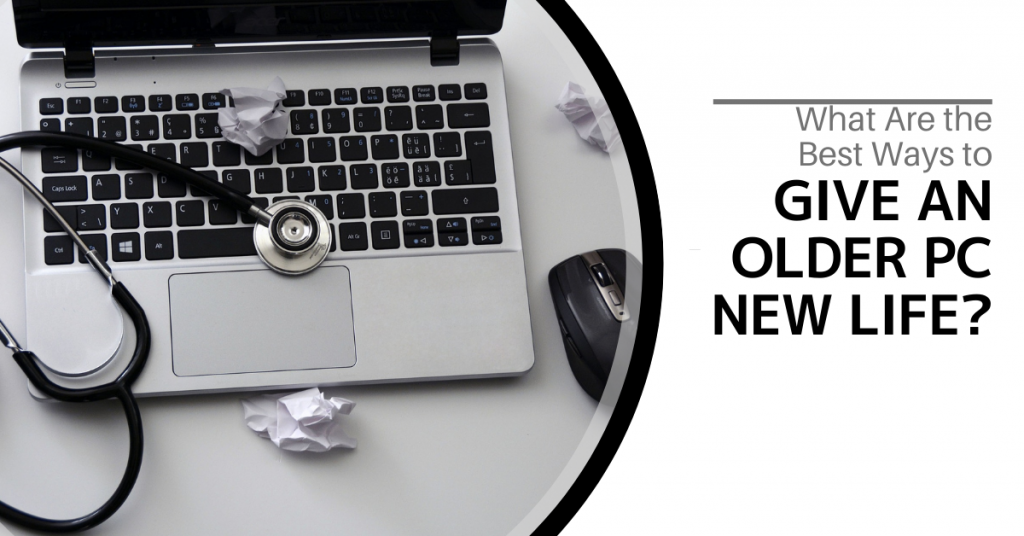
Purchasing a new computer is a big investment. Many small businesses and home PC owners end up struggling with older systems because they want to get as many years out of them as possible.
Have you found yourself banging on your keyboard in frustration? Have you tried every tip and trick you found online only to still struggle with a slow PC?
There are some promising upgrades that you can do that will cost much less than the price of a new computer and they will make your PC feel like new again.
Here are some of the options that you can try to improve the performance of an older computer.
UPGRADE TO A SOLID-STATE DRIVE (SSD)
Prices for solid-state drives have come down quite a bit in the past few years which make them an affordable upgrade that can breathe life back into an older PC that might be slowing down.
Unlike hard disk drives (HDDs), SSDs do not have any moving parts and use a flash memory that allows for a quicker response time. You can improve your time to boot and your experience when searching files, opening applications and other activities.
Some of the advantages of upgrading your computer’s hard drive to SSD include:
- SSD read/write speeds up to 2500 MB/second compared to HDD at up to 200 MB/second
- SSD access time of 0.1ms as compared to HDD at 5.5-8.0ms
- SSDs use between 2-5 watts of energy compared to HDD at 6-15 watts
INCREASE THE RAM (MEMORY)
One upgrade that is very low-cost and can mean a significant increase in performance is a memory upgrade. If your PC was one of the cheaper ones that only had 4GB of RAM when you bought it, you likely have trouble opening too many tabs in your browser or using any graphics-heavy program.
Upgrading your RAM (if your PC has available memory slots) to 8GB or 12GB can make it seem like you have an entirely new computer due to the big increase in speed.
UPGRADE THE GRAPHICS CARD
If you play computer games or work in any type of video, imaging or 3D software, an outdated graphics card can ruin your experience.
Instead of replacing your entire computer, upgrade the graphics card to a more robust model and it can improve your PC’s performance and give you several more useful years from it.
REPLACE YOUR PC COOLING SYSTEM
Heat is an enemy of your computer’s internal parts. If your cooling system is getting worn out and not working the way it should be, excess heat can be building up inside your device.
When this happens, strange things like programs crashing or your system rebooting on its own can occur.
If you suspect excess heat may be an issue, have your computer’s fan and cooling system checked out to see if it needs replacing.
CONNECT AN EXTERNAL MONITOR TO A LAPTOP
If you’re working on a laptop and having a hard time multi-tasking due to limited screen real estate, consider getting an external monitor rather than replacing your entire PC.
Monitors are just a fraction of the cost of computers. Having a screen twice the size of the one on your laptop can make all the difference in the world and improve productivity due to the additional screen space.
REPLACE YOUR KEYBOARD
Older keywords can stick, lose keys and have the writing rubbed off the keys. This makes it more difficult to tell a “prt screen” from a “delete” button. If the performance of your PC is hampered by a frustrating keyboard, an upgrade can be a very inexpensive way to improve your equipment.
GET AN EXTERNAL HARD DRIVE
Computers can slow down and be more difficult to use when the hard drive fills up with data. Over the years, files build up and many users never take the time to go through and delete those that are unnecessary.
Buying an external hard drive can allow you to offload files that may be slowing you down while still keeping them easily accessible.
Another benefit of an external hard drive is that it is portable and can easily be carried between home and work and used in both places.
GET A PROFESSIONAL COMPUTER TUNE-UP
Those free PC cleaner tools you find online aren’t going to give you the type of tune-up that a professional IT provider can give. We will go through things like the Windows Registry, duplicate system files, internal errors and more to clean up your system and remove all the “junk” that has built up over the years.
We can also do a maintenance check for things like failing parts and provide expert guidance on your most impactful upgrade options.
GET HELP IMPROVING YOUR COMPUTER’S PERFORMANCE TODAY!
Don’t struggle with an older PC! We can help you with cost-effective upgrade options that will fit your system and budget perfectly. Reach out to us at (860) 577-8060 or email us at info@soundcomputers.net.
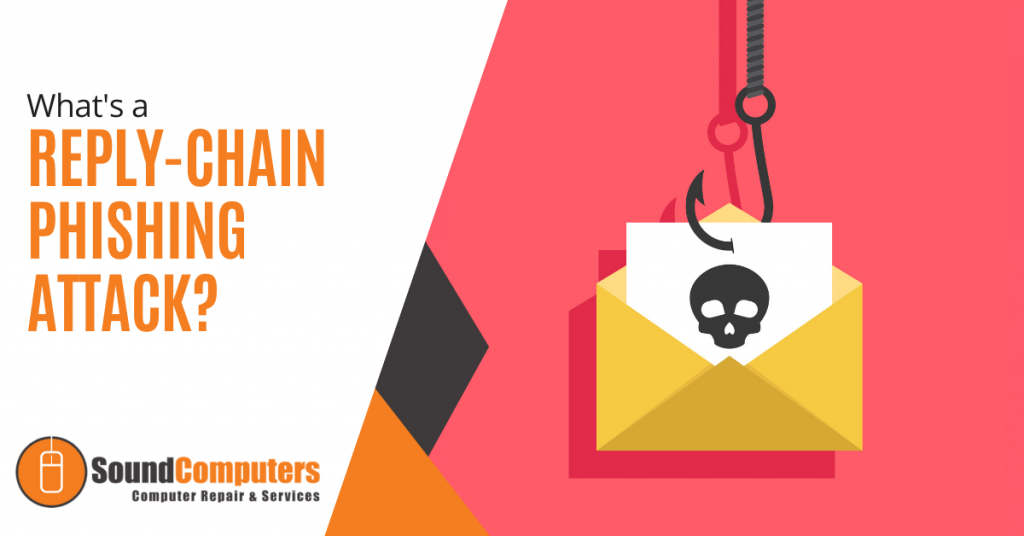
Companies had to deal with more than just COVID complications last year as they faced brutal cyber-attacks. In fact, a new type of phishing attack was discovered after the furniture giant IKEA noticed several malicious reply-chain emails making rounds in the company. While IKEA was able to protect itself against the attack, many companies are still unaware of the lurking danger.
What Is Reply-Chain Phishing?
Reply-chain phishing is a method hackers use to put themselves into legitimate conversations by taking advantage of compromised accounts.
Unlike spear-phishing where they use fake emails similar to authentic ones, reply-chain phishing involves gaining control of a legitimate email account and using that to carry out their nefarious attack.
They obtain these legitimate emails through different methods. Once they have control of an employee’s email account, they scan through email threads looking for those with the highest chance of landing a victim. After identifying an email thread, they send an email with a malicious link attached as a reply to the thread.
Once a recipient clicks on the URL, they will unintentionally download malware that will spread through the network. Another tactic is to insert malicious links in out-of-office replies. Both tactics are a way to spread malware.
The actual owner of the email account doesn't see the reply in the email chain which means that a reply-chain attack can go unnoticed for some time.
Reply-chain phishing attacks are hard for employees to notice and react/report. This is because the emails look like they’re from a colleague when it is in fact from a colleague's account.
How Do Reply-Chain Attacks Work?
It starts with hackers taking over an email account through techniques like password-spraying, credentials stuffing or credentials dumping. They may even be using an already compromised account. After gaining access to one or more accounts, they monitor email threads for a chance to send malware or compromised links to participants in the email chain.
Reply-chain phishing is very effective since the email parties already trust each other. The hackers do not insert themselves as new participants in the ongoing conversation and they are not trying to spoof another employee's email account. Instead, they operate from behind a genuine account.
Since the attacker has access to the full thread, they can customize their nefarious message to fit the topic of an ongoing conversation. This, on top of the fact that the recipient likely trusts the sender, massively increases the chance of the victim opening the malicious attachment or clicking a dangerous link.
To simplify it all, let's say "Taylor's" account was compromised and the attacker sees that Taylor and Bethanie (and a few other team members) have been discussing a new project campaign. The attacker can take advantage of this conversation to send Bethanie a malicious link to a document/article that appears related to the conversation.
How To Protect Your Business Against Reply-Chain Hacking
There are a couple of ways to protect your company against email chain attacks. They include:
- Make sure that all employees follow best security practices with their email accounts. This includes using multi-factor authentication and setting a secure password.
- Inspect inbox and email settings regularly. Check for rules meant to filter replies to a different inbox and particularly those that weren't set by the user. If you notice any, immediately contact your IT team.
- If possible, disable all Microsoft Office Macros. Microsoft Office Macros allow users to personalize manual and automatic email replies. Unfortunately, they are a common vehicle for email attacks.
- Schedule comprehensive training sessions to increase employee awareness and knowledge about cybercrime as well as their responsibility to protect the company.
If an employee notices a reply-chain attack in progress, they should take the following steps:
- Immediately delete the email from every folder (including inbox, spam and trash).
- Reach out to other members of the email chain through a new email thread or another communication means to inform them of the attack and ask them to delete the thread from their email.
- Don't open any other message from the compromised account until the attack has been dealt with.
- Inform your security or managed IT team so they can investigate and make sure the hackers didn't compromise your systems and data.
Conclusion
With a month and a half left in Q2 2022, it's important to start beefing up your cybersecurity. This includes informing your employees about the latest methods of attack, carrying out cybersecurity awareness training, arming your IT team and creating an effective strategy to protect your data from such attacks. If it could work on a large corporation like IKEA, imagine how effective it will be on a small-scale business.
If you need additional support, Sound Computers has your business covered. Reach us on our contact form or call us at (860) 577-8060.
Phishing is the number one method of attack delivery for everything from ransomware to credential theft. We are very aware of it coming by email. However, social phishing has been growing rapidly.
In recent years, phishing over social media has skyrocketed by 500%. There has also been a 100% increase in fraudulent social media accounts.
Phishing over social media often tricks the victims because people tend to let their guard down when on social platforms like Facebook, Instagram, Twitter and LinkedIn. They are socializing and not looking for phishing scams.
However, phishing scammers are out there looking for you and will reach out via friend requests and direct messages. Learn several ways you can secure your social media use to avoid these types of covert attacks.
MAKE YOUR PROFILE PRIVATE ON SOCIAL PLATFORMS
Phishing scammers love public profiles on social media because they can gather intel on you to strike up a conversation and they can also clone your profile to put up a fake page for phishing your connections.
Criminals do this in order to try to connect with those on your friends or connections list to send social phishing links that those targets will be more likely to click because they believe it is from someone they know.
You can limit your risk by going into your profile and making it private to your connections only. This means that only someone that you have connected with can see your posts and images. The general public cannot see your posts.
For sites like LinkedIn where many people network for business, you might still want to keep your profile public. However, you can follow the other tips below to reduce your risk.
HIDE YOUR CONTACTS/FRIENDS LIST
You can keep social phishing scammers from trying to use your social media profile to get to your connections by hiding your friends or connections list. Platforms like LinkedIn and Facebook both give you this privacy option.
Just be aware that this does not keep scammers from seeing you as a friend or connection on someone else’s profile unless they too have hidden their friends list.
BE WARY OF LINKS SENT VIA DIRECT MESSAGE & IN POSTS
Links are the preferred way to deliver phishing attacks (especially over social media). Links in social posts are often shortened which makes it difficult for someone to know where they are being directed until they get there. This makes it even more dangerous to click links you see on a social media platform.
A scammer might chat you up on LinkedIn to inquire about your business offerings and give you a link that they say is to their website. Unless you know the source to be legitimate, do not click links sent via direct message or in social media posts. They could be leading to a phishing site that does a drive-by download of malware onto your device.
Even if one of your connections shares a link, be sure to research where it is coming from. People often share posts in their own feeds because they like a meme or picture on the post. They usually don't take the time to check whether the source can be trusted.
DON’T PARTICIPATE IN SOCIAL MEDIA SURVEYS OR QUIZZES
While it may be fun to know what Marvel superhero or Disney princess you are, stay away from quizzes on social media. They’re often designed as a ploy to gather data on you. This data can then be used for targeted phishing attacks or identity theft.
The Cambridge Analytica scandal that impacted the personal data of millions of Facebook users did not happen all that long ago. It was found that the company was using surveys and quizzes to collect information on users without their consent.
While this case was high-profile, they’re by no means the only ones that play loose and fast with user data and take advantage of social media to gather as much as they can.
It’s best to avoid any types of surveys or quizzes on any social media platform because once your personal data is out there, there is no getting it back.
AVOID PURCHASING DIRECTLY FROM ADS ON FACEBOOK OR INSTAGRAM
Many companies advertise on social media legitimately. However, many scammers use the platforms as well for credit card fraud and identity theft.
If you see something that catches your eye in a Facebook or Instagram ad, go to the advertiser’s website directly to check it out. Do not click through the social ad.
RESEARCH BEFORE YOU ACCEPT A FRIEND REQUEST
It can be exciting to get a connection request on a social media platform. It could mean a new business connection or connecting with someone from your Alma mater. This is another way that phishing scammers will look to take advantage of you. They will try to connect to you as a first step before reaching out direct via DM.
Do not connect with friend requests without first checking out the person on the site and online using a search engine. If you see that their timeline only has pictures of themself and no posts, that is a big red flag that you should decline the request.
CAN YOUR DEVICES HANDLE A PHISHING LINK OR FILE?
It’s important to safeguard your devices with things like DNS filtering, managed antivirus, email filtering and more. This will help protect you if you happen to click on a phishing link.
Sound Computers can help you navigate the process of securing your devices. Contact us at info@soundcomputers.net or give us a call at (860) 577-8060.
Laptops are more efficient and more powerful than ever before. However, they still need to be charged regularly. Although battery life is a regular cause of concern for laptop owners, there are a few tweaks and tricks that will give you more from your battery.
Take a look at these helpful tips:
1. Turn Off Wi-Fi
Wireless networking features incorporated into most laptops are one of the largest battery drainers. Wi-Fi continuously searches for a network when not connected which constantly drains the power.
If you're using your laptop off-grid, chances are you're away from wireless networks too. You can turn your Wi-Fi off. Most laptops come with a function button that lets you manually turn off the wireless adaptor to avoid wasting battery life. If you're using an older laptop model, it may not have this.
If you have an older laptop, click on the speech bubble icon in the taskbar to open up your notification center. Then click on Wi-Fi to toggle it off and on.
2. Turn Off Bluetooth
If your laptop has Bluetooth, turn it off when you aren't using it because it will drain your battery.
Press the Windows symbol in the bottom left-hand corner of a Windows 10 laptop. Then select the Settings icon. Toggle the Bluetooth icon to switch it off and on.
Using Windows 7 instead of 10? Then follow these steps. Select the Control Panel by pressing the Windows key once more. After that, press Network and Internet followed by Network and Sharing Center. From the left-hand side of the window, choose Change Adapter Settings.
On a Mac, simply choose the Bluetooth symbol in the top-right status bar and toggle the Bluetooth Off.
3. Invest In Battery Hardware
While good habits will help you stretch your battery life, you will need some assistance if you want to use your laptop for the whole day.
Although most laptops start with a six-cell battery, several manufacturers offer market upgrades to eight or even 12-cell batteries (which can quadruple your battery life).
If you can't get a higher capacity battery because it's too expensive, you can get a portable charger for your laptop battery. It will give you the much-needed extra hours for your laptop. These are usually small battery packs with adapters for most computers and smartphones. They are small enough to fit in a bag and have enough capacity to quadruple your charge time.
4. Keep It Cool
This tweak is one that most people overlook.
Excessive heat is bad for your processor. It's bad for your battery too. It is also bad if you place your laptop on your thighs. A hot battery goes bad faster than a cool one. It is important to stay away from the heat when using your laptop and when storing it.
According to Battery University, your batteries should always be stored at room temperature. A laptop battery loses only 4% of its overall charge after three months when stored in temperatures between 32-55 degrees Fahrenheit. But when you store it in hotter areas in the range of 80-100 degrees Fahrenheit, it will lose 20% to 30% percent of its overall charge in three months.
5. Turn Down the Brightness
Your screen brightness can quickly drain your battery life. If you're not using the laptop, try to keep the brightness low.
If you're using Windows 10, here is how to reduce the brightness. Select the Windows icon and then Settings. Select Display and slide the Brightness slider until you reach your desired brightness level. For Windows 7, click on the Windows icon. Select Control Panel and then Hardware and Sound. Now select Power Options and adjust the screen brightness using the slider.
Mac users can click on the Apple icon and then system preferences. Then select Display and drag the slider up or down until you are happy with your results.
If you're using a Chromebook, lower the brightness using the smaller sun icon and increase the brightness by pressing the large sun icon.
Conclusion
Next time you're having problems with your battery life, here are a few extra tweaks you can try out to get more laptop battery life:
- Turn on battery saver mode.
- Make sure there is enough RAM space.
- Unplug any device, such as a webcam or hard drive, that you aren't using to conserve battery power.
Looking for more battery tweaks? Perhaps you need a maintenance check? Get all of that and more from Sound Computers. Call us at (860) 577-8060 or schedule a consultation with our Contact Form now.

Cyber security training is growing in importance. Imagine if your company was compromised and every employee's financial and personal data was leaked. Can you imagine the consequences? Will your clients or stakeholders still have confidence in your business if that happens?Read more
According to Accenture's Cost of Cybercrime Study, 43% of cyber attacks are aimed at small businesses but only 14% are prepared to defend themselves. Read more
Last year, the REvil cybercrime gang ruined the Independence Day Holiday for hundreds of American businesses after successfully launching a ransomware attack. The attack forced hundreds of companies to close temporarily. REvil demanded a ransom of $70 million to unlock their files. Read more
Social engineering refers to a broad spectrum of cyber attacks in which a malicious actor uses psychological manipulation to trick people into sharing sensitive details or clicking on a malicious link. Read more
We all know that digital transformation is crucial for business competitiveness. However, from a sustainability perspective, technology can be detrimental to our planet. Forrester states that IT equipment is responsible for about 1.4% of total global carbon emissions and data centers currently consume close to 1% of electricity in the world.Read more