
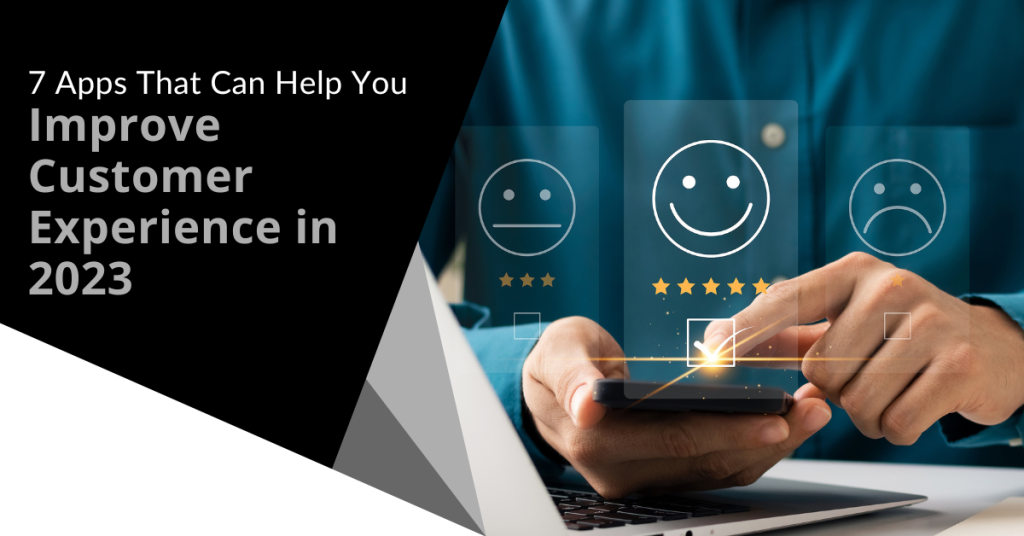
Paying attention to your customer experience directly impacts your bottom line. Companies that are “customer-centric” are 60% more profitable than those that are not. In this digital age, customers also expect more from those that they do business with.
In today’s world, people can order something on their phones and see it on their doorstep by the next day. Keeping up with expectations means leveraging the right technology.
2023 is on the horizon and it is the perfect time to improve your customer experience. Cloud technology allows you to do it without needing to spend a fortune. Just put in place some of the applications below. These apps focus on making leads and customers happy.
1. Online Survey Application
Doing an annual customer satisfaction survey is a great way to check in with customers. Successful businesses take the feedback that they get and use it to make their company better.
But doing these surveys through a Word document attached to an email is so last decade! Use an online survey application to make the process seamless for you and your customers.
Many online survey tools are available online. If you have Microsoft 365, you will find one included. These allow people to fill out surveys on any device and not worry about sending them back in an attachment.
On the receiving end, there is no long process of collating data. Just open your form survey tool and see the results instantly.
2. Smart Chat Bot
Most businesses have a limit on how many hours per day that they can pay staff to answer questions. Customer service hours are typically the same as business hours and staff can get busy. This means that answers may take longer to send back to an inquiry.
Putting a smart chatbot on your business website can improve customer satisfaction. It allows people to get an answer right away. They can also get that answer any time of day or night.
68% of consumers like chatbots because they give them fast answers to questions. While they can’t answer every single question, they can handle quite a few. For example, in healthcare and banking, chatbots can take 75-90% of questions.
3. Business Mobile App
People tend to live on their mobile phones these days. They carry them with them everywhere. Mobile apps are often the preferred method of connecting with data and businesses. More Google searches are now done via mobile devices than by desktops.
Think about creating a business mobile app. You want one that allows customers to connect with you to order products and services. You can use it for customer support, initiating virtual calls, etc.
4. Facebook Messenger Support
Facebook Messenger is the 2nd most popular iOS app of all time. This Facebook-connected application makes it easy to communicate with friends, family and companies.
Many businesses now use Messenger to connect with leads and provide customer support. When you use an app that is so popular in this way, you make it easier for customers to reach you. The ability to get a quick answer through Messenger can boost a customer’s opinion of your company.
5. VoIP Phone System with Good Mobile App
When customers must juggle different numbers for your staff, it gets confusing. Should they call your sales rep at their desk line or mobile number? Using a VoIP phone system simplifies the entire process.
Employees can have a single number that they use when at their desks, at their home office or anywhere else. Make sure the VoIP service has a good mobile app. You want one that is easy for employees to use. This ensures that they can easily handle customer calls using their smartphone. It also keeps them from reverting to using their number.
6. Text Notification Apps
SMS is becoming the new email for many companies. Retailers like Shoe Carnival and World Market have customers opt-in to text messaging. Customers like this for shipping notifications and to get sale and coupon alerts.
There are several services online that you can use for this purpose. Offering text updates can significantly improve your customers’ experience. Use them for appointment reminders, sale notices or shipping alerts.
7. All-in-One CRM & Sales Platform
One thing that frustrates customers is a disconnect between sales and support. They may have had a conversation with a salesperson to customize an order only to find out that customer service knows nothing about it.
To streamline the information flow, look for an all-in-one CRM/Sales platform. These are cloud services that offer a CRM module and a sales module and both connect. There is a single customer record so that all notes from the sales and customer support side are in the same place. Both teams can view all customer interactions.
This improves the customer experience and results in fewer dropped balls. Efficiency and productivity improve as well because everyone is on the same page.
Get Help with Customer-Facing Technology Support
It is easy to get lost in a sea of different cloud applications. Let us help you navigate to a better customer experience. Contact us today for a free consultation.

Aging servers are a huge risk to company profitability and productivity. If you don’t proactively upgrade your servers regularly, you may find that you face unplanned downtime because your server breaks down out of the blue. It costs you time and money to fix a broken server and that downtime eats away at your profit margin. In fact, it can cost about $5,600 per minute according to estimates! Read more

VoIP was still considered a “different” type of business phone system five or six years ago. It wasn’t the norm. However, the pandemic changed that way of thinking. Now internet-based phone systems aren’t simply the norm. They are mandatory for business continuity.
During the pandemic, VoIP and video conferencing skyrocketed by over 210%. This is largely due to the move to remote work and hybrid offices. Sixty-seven percent of surveyed companies say switching to VoIP helps improve call handling.
No longer is the business phone system tied to a physical location. This enables fluid management of a business with staff spread out over many locations.
Additionally, VoIP significantly reduces costs for businesses. The technology is much cheaper to use than a traditional landline-based system. Calling plans are also often less expensive and a company can add new numbers for very little cost.
VoIP has several helpful features for small businesses. However, owners are busy and may not have time to have all of them enabled.
What are the best features to drive efficiency, productivity and positive caller experience?
Here are some of the best features of cloud-based business phone systems to leverage.
Automated Attendant
In many small companies, the person answering the phone also has a lot of other duties. You can free up that person’s time and give the caller a better experience with an automated attendant.
An auto-attendant acts as a company directory. It will forward calls to the correct department or staff member for you. Record a pleasant greeting and ask the caller a few things like “Press or say 1 for sales, 2 for technical support,” etc.
The caller gets the person they need without needing to explain why they are calling twice (once to the person that answers the phone and once to the person that they are transferred to).
Find Me/Follow Me
What is the most popular user feature for VoIP? According to 77% of surveyed employees, it is the Find Me/Follow Me feature. This includes the ability to use a virtual phone number that is accessible from all devices. Staff can also transfer calls from one device to another with ease.
Whether you are on a PC, in a conference room or on your smartphone, you can get your calls. This feature reduces friction and allows people to give out a single phone number. Callers can then use that number to reach the person via mobile, home office or onsite office.
Hold Music
Playing pleasant music while your callers are on hold might seem like a small thing. However, it can have a big impact on customer satisfaction and lead generation activities.
We found some eye-opening statistics from a study on hold music versus silence. In the study, researchers kept people on hold for 1 minute. Results showed:
- On hold in silence: Over 50% of the callers hung up.
- On hold with music: Only 13% of the callers hung up.
Additionally, the 45% of the silent group that did not hang up thought that they were on hold for 3-5 minutes. They were on hold for just one minute. On the other hand, 56% of people listening to music thought they were on hold for less than one minute.
You can see the power of activating that one simple feature of your VoIP system. You may notice happier customers and fewer leads hanging up before they reach anyone.
Voicemail Transcription to Email
When you’re coming out of a meeting, going through a string of voicemails can be frustrating. You need to listen to each one to figure out the people to call back first.
Voicemail to email in VoIP services provides recorded voicemails emailed to you. This also comes with a transcription of the message. You can quickly glance through the emails and scan the text to rank callbacks. There is no need to listen to every message first.
Ring Groups
Ring groups are an especially helpful feature if you have a small team. It allows a group of numbers to ring simultaneously until one person in the group picks up.
This means that another staff member may be able to assist a caller rather than them needing to leave a message. Ring groups are great to set up for sales teams, accounting teams and customer support teams.
Call Reporting
Another bonus of VoIP phone systems over analog is that you get real-time call reporting. What are your busiest times when you need more staff? Do you have a problem with calls not getting answered fast enough?
Your call reporting can give you insight into those things and more. Make sure you check out these reports and then automate the ones you like so you will see them regularly.
Local Support
This is not a system feature but it is important to have. If you sign up for VoIP from a company halfway around the world, you don’t have any local support when you need it.
Having someone that can come to your office is important. They can set up VoIP desk phones and help you optimize ring groups, mobile apps and more. Your business phone system is one of the most important pieces of technology that you have. Make sure you have the local support you need to keep it operating reliably.
Looking for Local Solutions?
Get expert VoIP services and local support. We will integrate your cloud-based phone system with your entire technology environment. Contact us today for a free consultation.
Did you know that 65% of employees say they have experienced their video calls cut out, freeze or drop completely because of a weak internet connection? At the end of the day, time is money. Poor network performance can really hinder your business’ output and negatively impact the bottom line due to the loss in employee productivity.Read more
Endpoints make up much of a company’s network and IT infrastructure. This is a collection of computers, mobile devices, servers and smart gadgets as well as other IoT devices that all connect to the company network.
The number of endpoints that a company has will vary by business size. Companies with less than 50 employees have about 22 endpoints. Small businesses with 50-100 employees have roughly 114. Enterprise organizations with 1,000+ employees average 1,920 endpoints.
Each of those devices is a chance for a hacker to penetrate a company’s defenses. They could plant malware or gain access to sensitive company data. An endpoint security strategy addresses endpoint risk and puts focused tactics in place.
64% of organizations have experienced one or more compromising endpoint attacks.
In this guide, we will provide you with straightforward solutions that are focused on protection of endpoint devices.
Address Password Vulnerabilities
Passwords are one of the biggest vulnerabilities when it comes to endpoints. The news reports large data breaches all the time related to leaked passwords. For example, there is the RockYou2021 breach. It exposed the largest number of passwords ever – 3.2 billion!
Poor password security and breaches make credential theft one of the biggest dangers to cybersecurity.
Address password vulnerabilities in your endpoints by:
- Training employees on proper password creation and handling
- Look for passwordless solutions (like biometrics)
- Install multi-factor authentication (MFA) on all accounts
Stop Malware Infection Before OS Boot
USB drives (also known as flash drives) are a popular giveaway item at trade shows. However, an innocent-looking USB can actually cause a breach. One trick that hackers use to gain access to a computer is to boot it from a USB device containing malicious code.
There are certain precautions that you can take to prevent this from happening. One of these is ensuring that you are using firmware protection that covers two areas. These include Trusted Platform Module (TPM) and Unified Extensible Firmware Interface (UEFI) Security.
TPM is resistant to physical tampering and tampering via malware. It looks at whether the boot process is occurring properly. It also monitors for the presence of anomalous behavior. Additionally, seek devices and security solutions that allow you to disable USB boots.
Update All Endpoint Security Solutions
You should regularly update your endpoint security solutions. It is best to automate software updates if possible so they are not left to chance.
Firmware updates are often forgotten about. One reason is that they don’t usually pop up with the same types of warnings as software updates. However, they are just as important for ensuring that your devices remain secure and protected.
It is best to have an IT professional managing all your endpoint updates. They will make sure updates happen in a timely fashion. They will also ensure that devices and software update smoothly.
Use Modern Device & User Authentication
How are you authenticating users to access your network, business apps and data? If you are using only a username and password, your company is at high risk of a breach.
Use two modern methods for authentication:
- Contextual authentication
- Zero Trust approach
Contextual authentication takes MFA a step further. It looks at context-based cues for authentication and security policies. These include several things like what time of day someone is logging in, their geographic location and the device they are using.
Zero Trust is an approach that continuously monitors your network. It ensures that every entity in a network belongs there. Safelisting of devices is an example of this approach. You approve all devices for access to your network and block all others by default.
Apply Security Policies Throughout the Device Lifecycle
From the time a device is first purchased to the time it retires, you need to have security protocols in place. Tools like Microsoft AutoPilot and SEMM allow companies to automate. They deploy healthy security practices across each lifecycle phase. This ensures that a company doesn't miss any critical steps.
Examples of device lifecycle security include when a device is first issued to a user. This is when you should remove unnecessary privileges. When a device moves from one user to another, it needs to be properly cleaned of old data and reconfigured for the new user. When you retire a device, it should be properly scrubbed. This means deleting all information and disconnecting it from any accounts.
Prepare for Device Loss or Theft
Unfortunately, mobile devices and laptops get lost or stolen. When that happens, you should have a sequence of events that can take place immediately. This prevents company risk of data and exposed business accounts.
Prepare in advance for potential device loss through backup solutions. Also, you should use endpoint security that allows remote lock and wipe for devices.
Reduce Your Endpoint Risk Today!
We can help you put robust endpoint security in place. Contact us today for a free consultation.
Passwords are an essential and foundational aspect of business cybersecurity. These hashed phrases of letters and numbers are vital to securing company data. If they fall into the wrong hands, they can put your business at risk of data protection and compliance failures. This is why a password manager is a good idea.Read more
One of the most difficult types of attacks to detect are insider threats. An “insider” would be anyone that has legitimate access to your company network and data. This would be via a login or other authorized connection.
Because insiders have authorized system access, they bypass certain security defenses such as those designed to keep intruders out. Since a logged-in user isn’t seen as an intruder, those security protections are not triggered.
There are three troubling statistics from a recent report by Ponemon Institute. They illustrate the importance of addressing this threat. Insider attacks are getting worse, taking longer to detect and becoming more extensive.
The report found that over the last two years:
- Insider attacks have increased by 44%.
- It takes organizations 85 days to contain an insider threat compared to 77 days in 2020.
- The average cost of addressing insider threats has risen by 34%.
It is important for companies to understand what makes up an insider threat. That is the first step toward mitigation.
4 Types of Insider Threats
One reason that insider threats can be hard to detect is that there is not just one kind. Employees, vendors and hackers can all perpetrate insider security breaches. To further complicate detection, some may be malicious and others are accidental.
Here are the four main types of insider threats faced by company networks.
Malicious/Disgruntled Employee
A sales employee that is leaving the company may decide to take all of their contacts with them. This is a malicious theft of company data.
Another example of this type of insider attack is a disgruntled employee. They may be upset with their manager who just fired them and decide to do the business harm. They could plant ransomware or make a deal with a hacker to give over their login credentials for cash.
Careless/Negligent Employee
Some insider threats are due to lazy or untrained employees. They don’t mean to cause a data breach but may accidentally share classified data on a non-secure platform. They may use a friend’s computer to access their business apps while being completely unaware of the security consequences.
3rd Party with Access to Your Systems
Outsiders with access to your network are also a very real concern. Contractors, freelancers and vendors can all constitute an insider breach risk.
You need to ensure that these third parties are fully reviewed. Do this before you give them system access. You should also allow your IT partner to review them for any data security concerns.
Hacker That Compromises a Password
Compromised login credentials are one of the most dangerous types of insider threats. This has now become the #1 driver of data breaches around the world.
When a cybercriminal can access an employee’s login, that criminal becomes an “insider.” Your computer system reads them as the legitimate user.
Ways to Mitigate Insider Threats
Insider threats can be difficult to detect after the fact. However, if you put mitigation measures in place, you can stop them in their tracks. Being proactive keeps you from suffering a costly incident (one that you may not know about for months).
Here are some of the best tactics for reducing insider threat risk.
Thorough Background Checks
When hiring new employees, make sure you do a thorough background check. Malicious insiders will typically have red flags in their work history. You want to do the same with any vendors or contractors that will have access to your systems.
Endpoint Device Solutions
Mobile devices now make up about 60% of the endpoints in a company. However, many businesses are not using a solution to manage device access to resources.
Put an endpoint management solution in place to monitor device access. You can also use this to safelist devices and block unauthorized devices by default.
Multi-Factor Authentication & Password Security
One of the best ways to fight credential theft is through multi-factor authentication. Hackers have a hard time getting past the 2nd factor. They rarely have access to a person’s mobile device or FIDO security key.
Couple this with password security. This includes things like:
- Requiring strong passwords in your cloud apps
- Using a business password manager
- Requiring unique passwords for all logins
Employee Data Security Training
Training can help you mitigate the risk of a breach through carelessness. Train employees on proper data handling and security policies governing sensitive information.
Network Monitoring
Once someone has user access to your system, how can you catch them doing something wrong? You do this through intelligent network monitoring.
Use AI-enabled threat monitoring. This allows you to detect strange behaviors as soon as they happen. For example, someone may download a large number of files or someone may log in from outside the country.
Need Help Putting a Stop to Insider Attacks?
A layered security solution can help you mitigate all four types of insider threats. We can help you with a robust (yet affordable) solution. Contact us today for a free consultation.
The previous years have seen an increase in cyberattacks that is projected to continue over time. Is your mobile phone adequately secured or is it at risk for a mobile malware attack? Users may be more vulnerable to cybercrime attacks and data breaches if they only use their mobile devices for browsing and other daily activities.Read more
Digital footprints cover today's modern workplace. Employees begin making these from the moment that they are hired. They get a company email address and application logins. They may even update their LinkedIn page to connect to your company. The problems don't occur until the offboarding process happens.
When an employee leaves a company, there is a process that needs to happen. This is the process of “decoupling” the employee from the company’s technology assets. This digital offboarding is vital to cybersecurity.
You don’t want a former employee to maliciously email all of your customers from their work email. Sensitive files left on a former staffer’s computer could leak months later.
20% of surveyed businesses have experienced a data breach connected to a former employee.
Digital offboarding entails revoking privileges to company data and much more. This is a critical process to go through for each former staff member to reduce risk.
We have provided a handy checklist below to help you cover all of your bases.
Your Digital Offboarding Checklist
Knowledge Transfer
Vast corporate knowledge can disappear when a person leaves an organization. It is important to capture this during a digital offboarding process.
This could be something as simple as what social media app someone used for company posts or it may be productivity leveraging (like the best way to enter the sales data into the CRM).
Make sure to do a knowledge download with an employee during the exit interview or have all staff regularly document procedures and workflows. This makes the knowledge available if the employee is ever not there to perform those tasks.
Address Social Media Connections to the Company
Address any social media connections to the former employee. Is their personal Facebook user account an admin for your company's Facebook page? Do they post on your corporate LinkedIn page?
Identify All Apps & Logins That the Person Has Been Using for Work
Your HR or IT department should have a list of all of the apps and website logins that an employee has. However, you can’t assume this. Employees often use unauthorized cloud apps to do their work. This is usually done without realizing the security consequences.
Make sure that you know of any apps that the employee may have used for business activities. You will need to address these. Change the login if you plan to continue using them or close them altogether after exporting company data.
Change Email Password
Changing the employee’s email password should be one of the first things that you do. This keeps a former employee from getting company information. It also keeps them from emailing as a representative of the company.
Accounts are typically not closed immediately because emails need to be stored but you should change the password to ensure the employee no longer has access.
Change Employee Passwords for Cloud Business Apps
Change all other app passwords. Remember that people often access business apps on personal devices. Even though they can’t access their work computer any longer, it doesn’t mean that they can’t access their old accounts.
Changing the passwords locks them out no matter what device they are using. You can simplify the process with a single sign-on solution.
Recover Any Company Devices
Make sure to recover any company-owned devices from the employee’s home. Remote employees are often issued equipment to use.
You should do this as soon as possible to avoid loss of the equipment. Once people no longer work for a company, they may sell, give away or trash devices.
Recover Data on Employee Personal Devices
Many companies use a bring your own device (BYOD) policy. It saves them money but it can also make offboarding more difficult.
You need to ensure that you have captured all company data on those devices. If you don’t already have a backup policy in place for this, now is a good time to create one.
Transfer Data Ownership & Close Employee Accounts
Don’t keep old employee cloud accounts open indefinitely. Choose a user account to transfer their data to and then close the account. Leaving unused employee accounts open is an invitation to a hacker. No one is monitoring the account so breaches can happen. A criminal could gain access and steal data for months unnoticed.
Revoke Access by an Employee’s Devices to Your Apps and Network
Using an endpoint device management system, you can easily revoke device access. Remove the former employee’s device from any approved device list in your system.
Change Any Building Digital Passcodes
Don’t forget about physical access to your building. If you have any digital gate or door passcodes, be sure to change these so that the person can no longer gain access.
Need Help Reducing Offboarding Security Risk?
When you proactively address digital offboarding, the process is easier and less risky. Contact us today for a free consultation to enhance your cybersecurity.
Modern video surveillance systems contain a number of critical components including IP (Internet Protocol) cameras. IP surveillance cameras (that transmit and receive information through a computing network and via the internet) offer organizations a range of advantages over analog closed-circuit cameras. They can watch and manage their video security system remotely and store video footage in the cloud to allow for significant cost savings.Read more