

Article Summary: Your IT budget should include the technology you already use, the support required to maintain it and the upgrades you expect to make during the year. It should also cover cybersecurity, backups, employee changes, planned projects and a reserve for urgent repairs or replacements.
If your IT budget only covers computers, Microsoft 365 and the occasional repair, it is probably missing several costs.
Your business may also be paying for software subscriptions, cloud storage, backups, security tools, internet services, phone systems, websites, network equipment, staff training and outside IT support.
Some of those costs appear every month. Others arrive once a year or only when equipment needs to be replaced. Without a complete budget, an annual renewal or failed computer can become an expense the business did not prepare for.
A detailed IT budget shows what you are paying for now, what will need to be replace, and which improvements are planned for the year.
There Is No Standard IT Budget for Every Small Business
Online benchmarks often suggest spending a certain percentage of revenue on technology. That percentage may have little connection to what your business needs.
A ten-person law firm, a retailer and a manufacturing business can have similar revenue but completely different systems. The number of employees, business locations, devices, cloud services, security requirements and customer obligations all affect the budget.
Consider how much the business depends on each system. If losing internet access would stop customer payments, the internet connection needs more attention than it would in a business that can continue working offline. If employees work with sensitive financial or health information, security and compliance costs may be higher.
Calculate the cost of the systems your business needs first. Revenue-based benchmarks can then provide context but they should not determine the budget.
Start With a Complete Technology Inventory
You cannot budget properly if you do not know what the business owns and pays for.
Create an inventory of computers, phones, tablets, printers, servers, network equipment, software, cloud services, websites, domains, backup systems and phone services.
Record who uses each item, what it costs, when it renews, who manages it and how important it is to the business. Include the supplier, contract term, billing frequency and account owner.
The NIST Cybersecurity Framework 2.0 Small Business Quick Start Guide recommends maintaining an inventory of hardware, software, systems and services. It also recommends recording the effect on the business if an important asset becomes unavailable.
Check invoices, company credit cards, bank statements, app stores and department expenses. Software purchased directly by an employee may not appear in the main IT records.
The inventory may reveal duplicate services, licenses assigned to former employees, equipment that no longer receives updates or subscriptions that no one uses.
Budget for Computers and Other Equipment
Include every physical device the business expects to purchase or replace during the year.
The cost of a new computer may also include monitors, docking stations, keyboards, headsets, webcams, carrying cases, warranty coverage and delivery.
The device will need to be prepared before an employee can use it. Setup may include installing software, applying security settings, creating user accounts, transferring data, connecting printers and testing access to business systems.
Other equipment may include mobile phones, tablets, printers, scanners, payment terminals, security cameras, wireless access points, network switches, firewalls and battery backup units.
Keep a record of each device’s purchase date, warranty status, operating system and expected replacement date. Replacing a planned number of computers each year is easier to budget for than waiting until several become unreliable at the same time.
Remember to include spare equipment. A prepared spare laptop can reduce downtime when a device is damaged or fails.
Old equipment also creates costs. Business data must be securely removed before a computer, phone or storage device is sold, recycled, returned or discarded.
Include Software and Cloud Subscriptions
List every subscription used by the business.
These may include email and productivity software, accounting systems, customer management platforms, industry-specific applications, electronic signature services, password managers, security software, backup services, cloud storage, device management, website hosting and domain registrations.
Check whether each service is billed monthly or annually. Several annual renewals arriving in the same month can affect cash flow even when the monthly equivalent appears affordable.
Record the renewal date and current number of licenses. Remove licenses assigned to former employees, unused accounts and duplicate services. Confirm whether the provider requires a minimum number of users or an annual commitment.
Allow for hiring during the year. A new employee may need more than an email license. They could also require security software, cloud backup, a business phone number, device management and access to specialist applications.
Storage and usage charges also need attention. Some cloud services charge more when the business stores additional data, sends more messages, adds locations or uses advanced features.
Review what is included in each subscription. Support, backup, security, data retention and reporting may require a more expensive plan or a separate service.
Account for Employee Onboarding and Offboarding
A new employee may need a computer, accessories, software licenses, security tools, user accounts, phone services and setup work. If the role is new, the business may also need additional storage, internet capacity or specialist software.
When someone leaves, their access must be removed, company information transferred, equipment collected and software licenses canceled or reassigned. The business may need to preserve email or files for operational, legal or compliance reasons.
Contractors and temporary staff also create costs. Even when they use their own equipment, they may still need accounts, secure access, software and support.
Estimate the expected number of new starters and departures during the budget period. Include both the technology and the work required to manage those changes.
Decide How You Will Pay for IT Support
Your business may use a managed IT provider, employ internal IT staff, pay for support when needed or combine these approaches.
For managed IT services, confirm exactly what the monthly agreement covers. It may include help desk support, monitoring, software updates, device management, user administration, security tools, vendor support and routine maintenance.
Ask which services are billed separately. Projects, after-hours work, office moves, major upgrades, equipment installation and support for specialist applications may sit outside the regular agreement.
If you pay for support as needed, review the previous two or three years of invoices. Include emergency work instead of just routine maintenance. Check how much was spent after equipment failures, account problems, internet outages and security incidents.
Internal IT costs may include salaries, benefits, recruitment, training, certifications and cover during holidays or illness. A single internal employee may still need outside help for specialist projects or serious incidents.
Set Aside Money for Cybersecurity
Cybersecurity spending should be clearly identified in the budget even when some services are included in your software licenses or IT support agreement.
Your cybersecurity budget may include endpoint protection, email filtering, multifactor authentication, password management, device management, security monitoring, software updates, vulnerability checks, staff training and incident-response planning.
The correct controls depend on the systems you use, the information you hold and the damage a security incident could cause.
A business that stores customer payment details or confidential client records may need more protection than one that holds little sensitive data. Regulations, customer contracts and cyber insurance requirements may also affect what must be implemented.
The NIST Cybersecurity Framework 2.0 covers six areas: governing cybersecurity risk, identifying important systems, protecting them, detecting incidents, responding and recovering. Use those areas to check whether the budget covers more than preventive security software.
Not every small business needs every security product. Ask your IT provider to explain which controls are recommended, which risks they address and whether they are already included in another service.
Include Backup and Recovery Costs
Budget for the entire backup and recovery process instead of only the storage used to hold backup copies.
Costs may include backup software, cloud storage, isolated copies, monitoring, restore testing and professional help during recovery.
Confirm what is being backed up. Important information may be stored on employee computers, servers, cloud platforms, accounting systems, websites, mobile devices and specialist applications.
Do not assume every cloud service retains deleted or damaged information for as long as your business requires. Review the provider’s retention periods and recovery features. If those options do not meet your needs, include a separate backup service in the budget.
Backups also need to be tested. A successful backup notification shows that a task ran. A restore test confirms that the data can be recovered and used.
The UK National Cyber Security Centre recommends regularly backing up essential information and testing that it can be restored.
Allow for storage growth. If your business creates more files, emails, recordings, images or customer records each year, backup costs may increase as well.
Budget for Internet and Network Equipment
Include your internet service, routers, firewalls, switches, wireless access points, cabling and any support or security subscriptions attached to that equipment.
If losing internet access would stop the business from working, consider the cost of a backup connection. Compare that cost with the revenue, wages and customer service time that could be lost during an outage.
Ask whether the backup connection uses a different type of service or supplier. Two connections may still depend on the same local infrastructure which means one fault could affect both.
Review whether your current connection can support expected hiring, cloud applications, video calls, backups and customer Wi-Fi. A service that works for ten employees may not be suitable after the business grows.
Network equipment requires software updates and eventual replacement. Record the support status of routers, firewalls, switches and wireless access points. Equipment that no longer receives security updates should be scheduled for replacement.
Include installation and configuration costs. New equipment must be secured, connected to existing systems, documented and tested before it is ready to use.
Include Phones and Communication Services
Phone and communication costs may be billed separately from other IT services but they still belong in the technology budget.
Include business phone systems, mobile plans, phone numbers, call recording, voicemail, video conferencing, messaging and contact-center services.
Check whether the service charges per user, phone number, call, recording or storage amount. International calling, premium support and additional features may create separate charges.
Include phones and headsets for new employees. If the business records calls, budget for the required storage, access controls and retention settings.
Check when contracts end and whether equipment must be returned. Changing phone providers may also involve setup, number transfers, staff training and temporary overlap between the old and new services.
Include Website, Domain and Online Service Costs
These can include domain registration, website hosting, security certificates, website maintenance, software updates, plugins, backups, online forms, analytics and email delivery services.
Confirm who owns the domain and website accounts. They should be registered to the business rather than an employee, contractor or web developer.
Record domain renewal dates and enable appropriate renewal notifications. Losing control of a business domain can interrupt the website, email and other services connected to it.
If the website accepts payments, bookings or customer information, include the cost of maintaining its security and testing that it works.
Budget for Staff Training
Employees need training on the systems they use and the security risks they may encounter.
The budget may include cybersecurity awareness training, phishing simulations, training for new software and instructions for employees who handle sensitive information or approve payments.
Training should also cover what employees must do when they receive a suspicious request, lose a device, send information to the wrong person or notice unusual activity.
The Australian Cyber Security Centre’s Small Business Cyber Security Guide includes employee training and awareness as part of protecting a business from email attacks.
Include the time employees need to complete training. Even when the training platform is inexpensive, staff still need time during the working day to use it.
New systems may require additional training. Include that cost in the project budget instead of assuming employees will learn the software without support.
Allow for Compliance, Contracts and Cyber Insurance
Your industry, location, customer contracts or insurance policy may require specific technology and security controls.
Costs may include security assessments, audits, policy reviews, vulnerability testing, data-retention changes, access reviews, incident-response exercises or independent certifications.
A customer may ask your business to complete a security questionnaire before signing or renewing a contract. Answering it may reveal controls that need to be introduced.
Cyber insurance applications may also ask about multifactor authentication, backups, endpoint protection, email security, employee training and incident-response planning.
Review upcoming renewals and audits before approving the budget. This gives the business time to obtain quotes and complete required work.
Legal and compliance requirements differ between countries and industries. Confirm your obligations with the appropriate legal, compliance, insurance and IT advisers.
Plan for Technology Projects
Keep planned projects separate from normal operating costs.
Projects may include moving offices, opening another location, replacing a server, changing phone systems, improving Wi-Fi, moving data to a new cloud service or introducing a new business application.
Estimate the complete project cost. Include planning, licenses, equipment, implementation, data transfer, testing, training, temporary services and support after launch.
Some projects require two systems to run at the same time while information is moved and employees are trained. Include that overlap in the budget.
Ask department managers what changes they expect during the year. A new service introduced by one department may require additional security, storage, integration, backup and support work.
Business.gov.au recommends including both upfront and ongoing costs when preparing a digital budget. Check what the project will cost after the initial work is complete.
Review Supplier Contracts and Renewal Dates
Record the contract owner, renewal date, notice period, billing method and cancellation process for each major supplier.
Some services renew automatically. Others require advance notice if you want to reduce licenses or cancel the agreement.
Check whether prices can change during the contract and whether the agreement includes minimum quantities. If the business expects to reduce staff or stop using a system, make sure the contract allows the licenses to be reduced.
Confirm how data can be exported and what happens when the service ends. A cheaper replacement may still involve migration, setup, training and temporary overlap costs.
Do not leave important technology accounts tied to one employee’s personal email address or payment card. The business should retain access if that person leaves.
Keep a Reserve for Unplanned Costs
A laptop may be damaged, a firewall may fail, an employee may need urgent replacement equipment or a technical problem may require work outside the support agreement.
There is no reserve percentage that suits every business. Base the amount on realistic costs such as replacing an essential computer, obtaining emergency support or restoring an important service.
Review unplanned IT spending from previous years. Use those figures when deciding how much to set aside.
The reserve should be separate from planned replacements. A computer already scheduled for replacement is not an unexpected cost.
Separate Recurring Costs from One-Time Costs
Recurring costs include software subscriptions, support agreements, internet services, phone systems, backup services, security tools and equipment leases.
One-time costs include new equipment, migrations, office moves, installation work and major upgrades.
Record annual subscriptions separately from monthly ones so that the business knows when larger payments are due.
You may also need to separate operating expenses from capital purchases for accounting and tax purposes. The rules vary by location so confirm the correct treatment with your accountant.
How to Build Your Small Business IT Budget
- Create an inventory of your hardware, software, services, suppliers and contracts.
- Record current monthly and annual costs, renewal dates and notice periods.
- Identify equipment that needs to be replaced during the budget period.
- Estimate hiring, departures, new locations and other business changes.
- Add support, cybersecurity, backup, training, compliance and recovery costs.
- Create separate budgets for planned technology projects.
- Add a reserve based on realistic emergency support and replacement costs.
- Review the completed budget with your IT provider and accountant.
Record who approved each item and who is responsible for managing it. Review actual spending during the year instead of waiting until the next annual budget.
Review the Budget During the Year
Check the budget at least every quarter.
Compare actual invoices with the amounts expected. Look for new subscriptions, unused licenses, supplier price changes, additional storage charges and projects that cost more or less than planned.
Update the forecast when the business hires employees, changes locations, introduces new services or signs a contract with new security requirements.
A quarterly review also gives you time to plan for upcoming annual renewals. It is easier to compare providers or change services when the renewal deadline is still several months away.
Frequently Asked Questions
How much should a small business spend on IT?
There is no reliable percentage for every small business. Calculate the cost of the equipment, services, security, support and projects your business needs. Industry benchmarks can provide context but they should not replace a budget based on your operations and risks.
Should cybersecurity have a separate budget?
Cybersecurity costs should be clearly identified even when some are included in software licenses or an IT support agreement. This makes it easier to see which protections are funded and which improvements still require approval.
How often should the IT budget be reviewed?
Review it at least annually when preparing the budget and quarterly during the year. Update it after significant hiring, office moves, new systems, supplier changes or new compliance requirements.
Should equipment purchases and monthly services be combined?
Include both in the overall IT budget but record them separately. This makes recurring operating costs easier to distinguish from one-time purchases and projects.
What costs are commonly left out of an IT budget?
Setup work, employee onboarding and offboarding, backup testing, staff training, security reviews, equipment disposal, project work, subscription increases and urgent replacements are commonly overlooked.
Who should prepare the IT budget?
The business owner or finance team should work with the person responsible for IT. Department managers should also provide information about hiring, new software, planned projects and changes to business operations.
Sources and Further Reading
- NIST Cybersecurity Framework 2.0 for Small Business
- NIST Cybersecurity Framework 2.0 Small Business Quick Start Guide
- Small Organisations Guide to Cyber Security: UK National Cyber Security Centre
- Small Business Response and Recovery Guide: UK National Cyber Security Centre
- Small Business Cyber Security Guide: Australian Cyber Security Centre
- Develop Your Digital Strategy: Business.gov.au
Article Summary: The tools that run your business like Microsoft 365, your accounting app or your booking system are reliable most of the time but they do go down. When one does, work can stop for hours and you often can't do anything but wait for the provider to fix it. A simple plan keeps your team working and your customers informed while you wait.
Most of your business probably runs in the cloud now. Email, files, accounting, bookings and payments are all online. Then one day a service goes down and nobody can send an email, open a file or take a payment.
It doesn't take a hacker for this to happen. In July 2024, a faulty software update from the security company CrowdStrike crashed millions of Windows computers around the world in a few hours. Microsoft estimated it hit 8.5 million devices which grounded flights and stopped work at banks and hospitals.
Outages Happen Even to the Big Names
Microsoft 365 itself has had days where email or Teams stopped working for hours. Internet providers have bad days too and when yours does, everything online goes with it. Any tool you depend on can go down.
So much of a small business runs on a handful of online services now and if one goes down, the work that depends on it stops until it is back. Being with a big well-known provider doesn't protect you from this.
What an Outage Does to a Small Business
When a key service goes down, your team can't get to email or files so work stops. If your payment or booking system is offline, you can't take money or appointments. Customers try to reach you and can't and you can't reach them either. Staff end up sitting around waiting.
You usually can't fix it yourself. When a big provider has an outage, all you can do is wait for them to sort it out. The goal of a plan is to keep working and keep customers informed until they do.
What a Simple Plan Covers
A good plan answers these questions:
- Which tools are critical? List the handful of services that would stop the business if they are down like email, your payment system or your booking tool. Ignore the ones you could live without for a day and focus on the few that would halt the work.
- How will people keep in touch? Have a backup way to reach staff and customers that doesn't depend on the tool that is down. That might be phone numbers, a group chat on a different app or text messages.
- What do you need reachable offline? Keep a copy of the essentials like your customer contact list, key phone numbers and important documents somewhere you can open if the main system is down. A printout or a copy on a phone is enough.
- Who is in charge? Decide who makes the decisions during an outage and who keeps customers updated. When it is clear in advance, people act instead of waiting to be told.
- Where do you check and who do you call? Know where to see whether it is a wider outage (which is usually the provider's status page) and who to call for help (which is usually your IT provider).
What to Do the Moment an Outage Hits
- Check whether it is just you. Look at the provider's status page or ask whether anyone else is having the same problem. If it is a wider outage, there is nothing to fix on your end so stop trying.
- Tell your team. Let people know what is down and what to use instead so nobody wastes an hour rebooting a laptop that was never the problem.
- Switch to your backup way to communicate. Move to the phone, text or another app so the team can still coordinate.
- Tell customers if it affects them. If you can't take bookings or payments, say so and tell them when to try again.
- Note when it started and what is affected. A couple of lines is enough. It helps you follow up afterward and spot anything that needs fixing once things are back.
A Few Things That Make Outages Hurt Less
- Keep key files available offline. With OneDrive or SharePoint, recent files can sync to the device so you can still open them when the service is down. Ask your IT provider to make sure this is set up.
- Have a backup way to get online. A mobile hotspot from a phone can get a few key people working again if your main internet drops.
- Know your status pages. Bookmark the status page for Microsoft 365 and your other main tools. It is the fastest way to tell whether the problem is them or you.
- Keep contacts off the cloud. Have your important phone numbers and contacts somewhere that doesn't need the internet like a printout or your phone's own contact list.
- Ask your IT provider about alerts. Many can set up a warning that tells you about an outage before your customers do.
Keep Your Plan on One Page
Keep this to a single page somewhere you can reach without your main systems whether that is printed or in a separate app. Write down your critical tools, your backup way to communicate, where the essentials live, who is in charge and who to call. Review it once or twice a year so the names and numbers stay current.
Frequently Asked Questions
Isn't the cloud always available?
No. Cloud services are reliable but they still have outages and even the biggest providers go down sometimes. The CrowdStrike outage in 2024 took millions of computers offline in a few hours. It is safer to assume an outage will happen eventually and have a plan for it.
What should a continuity plan include?
It should include the basics such as which tools are critical, a backup way to reach staff and customers, where to find essential information if the main system is down, who is in charge during an outage and who to call for help. One page is enough for most small businesses.
What if the internet itself goes down instead of just one app?
Plan for that too. A mobile hotspot from a phone can get key people back online and a phone call still works when your systems don't. Keep important numbers and contacts somewhere that doesn't need the internet.
How can my team keep working if Microsoft 365 is down?
It depends on the work but options include using files already saved on a synced device, switching to phone or text to stay in touch and handling anything urgent on paper until service returns.
How long do outages usually last?
There is no set answer. Some are fixed in minutes and others take most of a day. That is the reason to plan around them since you can't count on a quick fix and you can't speed it up from your end.
Whose job is this?
Yours with help from your IT provider. They can tell you which of your tools are most at risk, set up things like synced files and a status-page alert and help you write a simple plan.

Article Summary: Scammers now use AI to write their phishing emails so the spelling and grammar mistakes that used to give them away are gone. The UK's National Cyber Security Centre and the FBI both warn that AI makes these messages cleaner, more personal and harder to spot. The way to catch them now is to look at what an email is asking you to do because the writing no longer gives anything away.
For years, the advice for spotting a scam email was simple: look for bad spelling and clumsy grammar. A real bank or supplier writes properly so a message full of mistakes was probably fake. This made sense in the past. It was easy to teach and for a long time it worked.
It doesn't anymore. Scammers now use AI to write their emails and AI writes cleanly. The typos and awkward phrasing that gave phishing away are gone and the messages landing in your team's inbox read as well as anything from a real company. They can be written to sound like they came from someone you already know.
Why the Old Advice Stopped Working
The spelling-and-grammar tell worked because a lot of scammers were writing in a language that wasn't their own and the mistakes showed. AI took that away.
The UK's National Cyber Security Centre says generative AI can now create convincing phishing lures "without the translation, spelling and grammatical mistakes that often reveal phishing." The FBI says the same: criminals use AI to limit the grammar and spelling errors that used to mark a message as fake so it reads as believable. That means the one thing most people were trained to look for no longer tells you much.
Why These Emails are so Convincing Now
- The writing is clean. A scam email reads like a normal business email because a machine wrote it in seconds in whatever tone the attacker asked for.
- It is personal. Attackers can feed public details about your company into an AI tool pulled from your website, your team's LinkedIn profiles or a press release and get a message tailored to you: the right names, the right job titles and a believable reason to be in touch.
- There is more of it. AI makes each message faster to produce so attackers send far more. The FBI's Internet Crime Complaint Center added a section on AI to its annual report for the first time tied to more than 22,000 complaints and nearly $893 million in reported losses.
These days the scam email isn't the obvious one anymore. Instead of "Dear customer, your account is suspended," someone in your finance team gets a message that looks like it is from a supplier they really deal with, mentions a real project and asks to update the bank details for the next invoice. It reads exactly like a real supplier email. The only thing wrong is that the supplier never sent it.
Your Spam Filter Won't Catch Them All
It is tempting to assume your email security will handle this. It catches a lot and you should keep it switched on. However, a well-written and personalized email that asks a normal-sounding question doesn't always look dangerous to a filter when it carries no obvious bad link or attachment. Both the NCSC and the FBI expect AI to push more of these messages through which is why the last line of defense is a person who knows what to check.
It is Not Just Email Anymore
AI has done the same thing to phone calls and texts. The FBI warns that criminals can clone a voice from a short audio clip enough to leave a voicemail that sounds like your boss or a family member asking for an urgent payment. The same thing that makes AI emails so convincing makes AI phone scams convincing too. The defense is the same. If a call or voicemail asks for money or logins, hang up and call the person back on a number you already have.
Here Are the Signs You Should Still Pay Attention To
If you can't trust how an email is written, look at what it is asking you to do. That is where the real warning signs are and AI hasn't changed them:
- It asks for money, gift cards or a payment to a new account.
- It asks for a login, a verification code or personal details.
- It creates pressure: a deadline, a threat or a "do this now."
- It asks you to change the bank details for an invoice or a supplier.
- It comes with a link or attachment you weren't expecting.
- The display name looks right but the actual email address doesn't match it.
Every one of these is about what the email is asking for. So the rule to teach your team is simple: when a message is about money, logins or how you pay someone, slow down before you act.
How to Protect Your Team
- Check money and login requests another way. If an email asks you to pay a new account or change a supplier's bank details, call the person on a number you already have. Don't reply to the email or use a number it gives you.
- Stop telling staff to watch for bad spelling. Tell them to look at what the email is asking for and to slow down when it is about money or logins.
- Make one rule for payment changes: Confirm every change to bank details by phone even when it is urgent.
- Turn on phishing-resistant MFA or passkeys so a stolen password is harder to use even if someone gets tricked.
- Make it easy to report a suspicious email and make sure nobody feels silly for checking.
- Remind the team now and then that scam emails look perfect these days. A quick five-minute chat beats a poster nobody reads
Frequently Asked Questions
Can you still spot a phishing email by bad spelling and grammar?
Not reliably. Attackers use AI to write clean and correct emails now so a message with perfect spelling can still be a scam. Judge it by what it asks you to do.
What are the warning signs that still work?
The request itself: paying money, changing bank details, sharing a login or code or being pushed to act urgently. Those signs don't depend on how the email reads.
Is AI-generated phishing really more effective?
Yes. The NCSC and the FBI have both warned that AI makes phishing more convincing and more personal and the FBI has tied AI to tens of thousands of fraud complaints and hundreds of millions in losses. Cleaner and tailored messages get opened and clicked more often.
Will my spam filter stop AI phishing?
It will catch a lot and you should keep it on. However, a well-written and personalized email with no obvious bad link can still look legitimate to a filter so don't rely on it alone. A trained person is the backstop.
What should staff do if they aren't sure about a message?
Slow down and check through a channel they trust like calling a known number or asking the person directly. Report it even if it turns out to be genuine.
Article Summary: Email spoofing is when a scammer sends a message that appears to come from your domain to trick your clients or staff into paying a fake invoice or changing banking details. Three DNS records (SPF, DKIM and DMARC) prove that a message really came from you and tell receiving mail servers to reject the ones that didn't. The catch is that DMARC only protects you once it is set to "quarantine" or "reject" and a lot of businesses leave it on "none" which monitors but does not block.
Right now (with no special tools) someone could send an email that looks like it came from your company.
The From line would show your domain, your logo could be pasted into the message and it could ask one of your clients to pay an invoice or update banking details. This is called email spoofing and it is one of the most common ways fraud against your clients and suppliers begins.
There are three settings you can add to your domain that make this much harder to pull off.
They are called SPF, DKIM and DMARC.
Most businesses have one or two of them set up and the third missing.
That is usually all it takes to let a spoofed email through. This post explains what each one does, the setting most businesses get wrong and how to check your own domain.
Why Scammers Can Send Email in Your Company's Name
Email was built in a more trusting time.
The system that delivers mail does not check that the sender is who they claim to be. The From address on an email is about as trustworthy as the return address handwritten on an envelope. Anyone can write anything there and the mail still gets delivered.
Spoofing takes advantage of that.
A scammer puts your domain in the From field, sends the message and (unless your domain is set up to prevent it) the receiving mail server has no reason to question it. The message lands in your client's inbox looking like it came from you. The UK's National Cyber Security Centre publishes anti-spoofing guidance for exactly this reason.
The Three Records That Stop Email Spoofing
Three DNS records work together to prove an email really came from your domain. You add them once at your domain registrar or DNS host and receiving mail servers check them on every message you send.
SPF (Sender Policy Framework)
SPF is a list of the mail servers allowed to send email for your domain published as a DNS record. When a receiving server gets a message claiming to be from you, it checks whether the sending server is on that list. If a server that isn't on the list tries to send as your domain, SPF flags it.
DKIM (DomainKeys Identified Mail)
DKIM adds a tamper-proof signature to every message you send. Your mail server signs outgoing email with a private key and the matching public key sits in your DNS. The receiving server checks the signature to confirm two things: the message really came from your domain and nobody altered it along the way.
DMARC (Domain-based Message Authentication, Reporting and Conformance)
DMARC ties the other two together and tells receiving servers what to do when a message fails the check. It also confirms that the domain in the visible From address matches the domain SPF and DKIM verified which is the part that stops someone forging your exact address.
It also sends you reports showing who is sending email using your domain including the senders who shouldn't be.
The DMARC Setting Most Businesses Get Wrong
DMARC has three policy settings and choosing the wrong one is a common mistake.
- p=none tells receiving servers to do nothing when a message fails. It only monitors and sends you reports. Your domain can still be spoofed.
- p=quarantine tells them to send failing messages to the junk folder.
- p=reject tells them to block failing messages before they ever arrive.
A lot of businesses set up DMARC at p=none, watch the reports come in and never move past it. At p=none, you get reports but your domain still isn't protected.
Real protection only starts at quarantine or reject.
Microsoft's own guidance is to work toward p=reject once you have confirmed your legitimate mail passes.
What SPF, DKIM and DMARC Don't Stop
These records stop someone from forging your exact domain.
There are two things they don't catch and both are worth knowing about.
- Lookalike domains. A scammer can register a domain that resembles yours (like yourcompany-invoices.com) or yourcompany.co instead of .com and send from that. Your records protect your real domain but not a different one the attacker owns.
- Display-name spoofing. The name shown in the From line can read "Your Company Accounts" while the real address behind it is a random Gmail account. DMARC checks the domain but not the display name.
For those, you still need the habits that catch any phishing attempt: check the full email address rather than just the display name and verify any request to change payment details by calling a known number rather than one from the email.
Why This Matters Even if You Don't Send Bulk Email
The first reason is protection.
These records stop scammers from impersonating your domain to your clients, your suppliers and your own staff.
The second is deliverability.
The major mailbox providers now require these records from anyone sending in volume.
Since February 2024, Google and Yahoo have required bulk senders (which means those sending more than 5,000 messages a day) to use SPF, DKIM and DMARC.
Microsoft began applying similar requirements to Outlook.com and Hotmail in 2025 and routing non-compliant high-volume mail to junk and then rejecting it.
Even below those thresholds, a domain with proper authentication is more likely to reach the inbox than the spam folder.
How to Check and Fix Your Domain
You can get a rough sense of where you stand without any technical work.
Several free DMARC and SPF checkers let you type in your domain and see which records exist. That tells you whether the records are present but not whether they are configured correctly.
Fixing them properly is a job for whoever manages your IT or your domain.
The records live in your DNS and a mistake can send your own legitimate email to spam so the rollout is done in stages:
- Publish SPF and DKIM so all of your real mail sources are covered.
- Add DMARC at p=none and read the reports to confirm your legitimate mail passes.
- Move DMARC to p=quarantine and then to p=reject once the reports look clean.
Microsoft recommends this same gradual path starting at none and working toward reject so you protect the domain without blocking your own mail on the way.
Frequently Asked Questions
What is email spoofing?
Email spoofing is when someone sends a message with your domain in the From address to make it look like it came from your company. It is used to trick your clients, suppliers or staff into paying fake invoices, changing banking details or handing over information.
What are SPF, DKIM and DMARC in simple terms?
SPF is a list of servers allowed to send email for your domain. DKIM is a signature that proves a message came from you and was not altered. DMARC ties the two together, tells receiving servers to reject messages that fail and reports who is sending email as your domain.
Does DMARC stop all email impersonation?
No. DMARC stops someone forging your exact domain. It does not stop lookalike domains (like yourcompany-invoices.com) or display-name spoofing where the sender's name says your company but the address behind it is different. Those still need staff awareness and payment-verification habits.
Will setting up DMARC block my own emails?
Not if you roll it out gradually. Starting at p=none lets you watch the reports and confirm your legitimate mail passes before you move to quarantine and then reject. Skipping straight to reject without checking first is what causes problems.
Do I need these records if I don't send many emails?
Yes. They protect your domain from being spoofed regardless of how much email you send and they help your messages reach the inbox. Google, Yahoo and Microsoft now expect proper authentication and mail without it is more likely to be filtered.
Article Summary: If your business is hit by a cyberattack, the first hour matters. Disconnect the affected devices from the network instead of powering them off, call your IT provider by phone and leave the evidence in place. If money was wired to a scammer, call your bank right away. This post is the step-by-step plan plus where to report an attack in the US, UK and Australia.
If a cyberattack hits your business, what you do in the first hour really matters.
It is also the easiest time to make a costly mistake like turning off the wrong machine, deleting evidence or replying from an email account the attacker is already reading.
The steps below tell you what to do and the order to do them in so you are not guessing in the moment.
Doing these steps doesn’t require technical knowledge.
Before Anything Else, Don't Make it Worse
Before you touch anything, avoid these:
- Don't turn the affected computer off if you can avoid it. Disconnecting it from the network is better because powering it down can wipe evidence that helps work out what happened.
- Don't delete anything. Leave the ransom note, the suspicious email and any alerts exactly where they are. They are what your IT team and investigators will need.
- Don't pay a ransom on the spot.
- Don't use the hacked email or accounts to talk about the attack. If an attacker is in your inbox, they can read those messages. Switch to phone calls or a different account.
The Step by Step
Work through these in order starting from the moment you notice something is wrong.
- Disconnect the affected devices from the network. Unplug the network cable and turn off Wi-Fi on anything that looks affected. This stops the problem spreading to other computers and to your backups. CISA's guidance is to isolate devices rather than power them off where you ca, and to shut a device down only if you can't get it off the network any other way.
- Call your IT provider straight away by phone. Don't email in case the attacker is watching your inbox. If you have cyber insurance, call them next because many policies require you to involve their incident team early.
- Leave the evidence alone. Don't wipe, reinstall or tidy up the affected machines yet. Screenshots of the ransom note or suspicious emails are useful but keep the originals too.
- If money was sent, call your bank immediately. Ask them to recall the transfer and freeze it if they can. With wire and bank fraud, acting in the first few hours makes the biggest difference.
- Reset passwords from a clean device and turn on multi-factor authentication. Start with email and any admin accounts and use a device you know isn't affected.
- Report it. That can help you recover and it is sometimes legally required. Where to report depends on your country.
Where to Report It
Where you report depends on where you are:
- United States: file with the FBI's Internet Crime Complaint Center (IC3) and report to CISA.
- United Kingdom: report through the NCSC and to Action Fraud.
- Australia: report through ReportCyber or call the 24/7 hotline on 1300 CYBER1.
If money was wired to a scammer, report it fast.
The FBI says reporting wire fraud to IC3 within 72 hours gives its Recovery Asset Team the best chance of clawing it back and that team recovers funds in about 70% of the cases reported in time.
If personal data about your customers or staff was exposed, you may be legally required to notify a regulator and the people affected (sometimes within 72 hours).
The rules depend on where you operate like GDPR in the UK and Europe, state breach-notification laws in the US and the Notifiable Data Breaches scheme in Australia.
Ask your lawyer or IT provider early so you don't miss a deadline.
Should You Pay the Ransom?
If it is ransomware, the big question is whether to pay.
The FBI does not recommend it. Paying doesn't guarantee you get your files back. It marks you as a business that pays and the money funds more attacks.
It is ultimately your decision but it is one to make with law enforcement, your IT or incident-response team and your insurer rather than alone in the first panicked hour.
Sometimes a free decryption tool already exists for the exact ransomware that hit you which is one more reason to get the experts involved before you pay anyone.
The Best Time to Prepare is Before it Happens
All of this is far easier if you have decided some of it in advance. You don't need a thick binder. You just need a simple plan that covers:
- Who to call first (your IT provider and your insurer) and their numbers kept somewhere you can reach without your main systems.
- Where your backups are and proof they have been tested by restoring from them.
- Which accounts and devices matter most so you know what to protect first.
A single page covering those is enough for most small businesses and it will save you a lot of scrambling if the day ever comes.
Frequently Asked Questions
What is the first thing to do in a cyberattack?
Disconnect the affected devices from the network by unplugging the network cable and turning off Wi-Fi and then call your IT provider by phone. Getting the device off the network stops the problem spreading while you get help.
Should I turn off the computer if I get ransomware?
If you can, disconnect it from the network instead of powering it off. Shutting it down can wipe evidence stored in memory that helps work out what happened. Only power a device off if you can't get it off the network any other way.
Should I pay the ransom?
The FBI does not recommend it. Paying doesn't guarantee you get your data back and it funds more attacks. Make that decision with law enforcement, your IT or incident-response team and your insurer and check whether a free decryption tool already exists first.
We wired money to a scammer. What do we do?
Call your bank immediately and ask them to recall the transfer. If you are in the US, report it to the FBI's IC3 within 72 hours because reported quickly means their Recovery Asset Team recovers the money in about 70% of cases. In other countries, contact your bank and your national reporting service straight away.
Who do I report a cyberattack to?
In the US, the FBI's IC3 and CISA. In the UK, the NCSC and Action Fraud. In Australia, ReportCyber. Also tell your cyber insurer and check whether you have a legal duty to notify a regulator if personal data was exposed.
Article Summary: A QR code scam (sometimes called quishing) hides a malicious web link inside a QR code. Since the link is buried in an image instead of written as text, it slips past the email filters that normally catch bad links and scanning the code usually moves the victim onto a personal phone that sits outside the company's security. Microsoft reported a 146% rise in QR code phishing during the first quarter of 2026.
QR codes are part of normal business now.
You scan them to see a menu, pay for parking, connect to Wi-Fi or open a shared document.
Attackers know that and they have started hiding malicious links inside QR codes to get past the security tools that would normally catch a bad link in an email.
The technique is called quishing and it works because a QR code is just an image.
Your email filter reads text so a link encoded into a QR code can pass straight through. When you scan it, you usually do so on your phone which sits outside most of the protection your work computer has.
This post covers what a QR code scam is, why it gets past your security, what the common ones look like and the habits that protect your business.
What is a QR code scam?
A QR code scam is a phishing attack that uses a QR code in place of a written link.
Instead of a clickable URL your email security can inspect, the attacker encodes the web address into a square image.
You scan it with your phone camera, your phone opens the link and you land on a page built to steal your login or your payment details.
The page on the other end is the same kind of fake you would see in any phishing attack which is a login screen made to look like Microsoft 365 or a payment form that copies your bank. The QR code is only the delivery method that gets you there.
Why QR Code Scams Get Past Your Security
Two things make these scams effective.
The malicious link is hidden inside an image.
Most email security tools scan the text of a message for known bad links. A QR code is a picture so the link inside it is not text the filter can read.
The UK's National Cyber Security Centre points out that not all phishing-detection tools scan images which is the reason criminals started using QR codes to disguise their links in the first place.
Scanning a code moves you onto your phone.
Your work computer probably has web filtering, endpoint protection and DNS controls that block known bad sites.
Your personal phone usually has none of that. So the moment you scan, you step outside the protection your business pays for and often without realizing it happened.
How common are QR code scams?
The volume is climbing fast. In its report on email threats for the first quarter of 2026, Microsoft said it detected around 8.3 billion email-based phishing threats in those three months.
QR code phishing rose 146% across the quarter from 7.6 million attacks in January to 18.7 million in March.
By the end of the quarter it had reached its highest monthly volume in at least a year.
Microsoft also found that most of these attacks arrived as PDF attachments and grew from 65% of QR code attacks in January to 70% in March.
The QR code sits inside a PDF, the PDF is attached to an email and the whole thing looks like an ordinary document until someone scans it.
What QR Code Scams Look Like
These are the QR code scams that come up most often.
- A "security" email. You get a message that looks like it is from Microsoft or your IT team telling you to scan a code to re-enroll your multi-factor authentication or keep your account active. The code leads to a fake login page.
- A shared document. An email says a colleague or client has shared a file and you need to scan the code to view it. The page asks you to sign in first.
- A fake invoice. A PDF invoice includes a QR code "to pay faster." The code routes your payment to the attacker.
- A delivery notice. A text or email about a missed package asks you to scan a code to reschedule. The US Federal Trade Commission has warned about this exact scam.
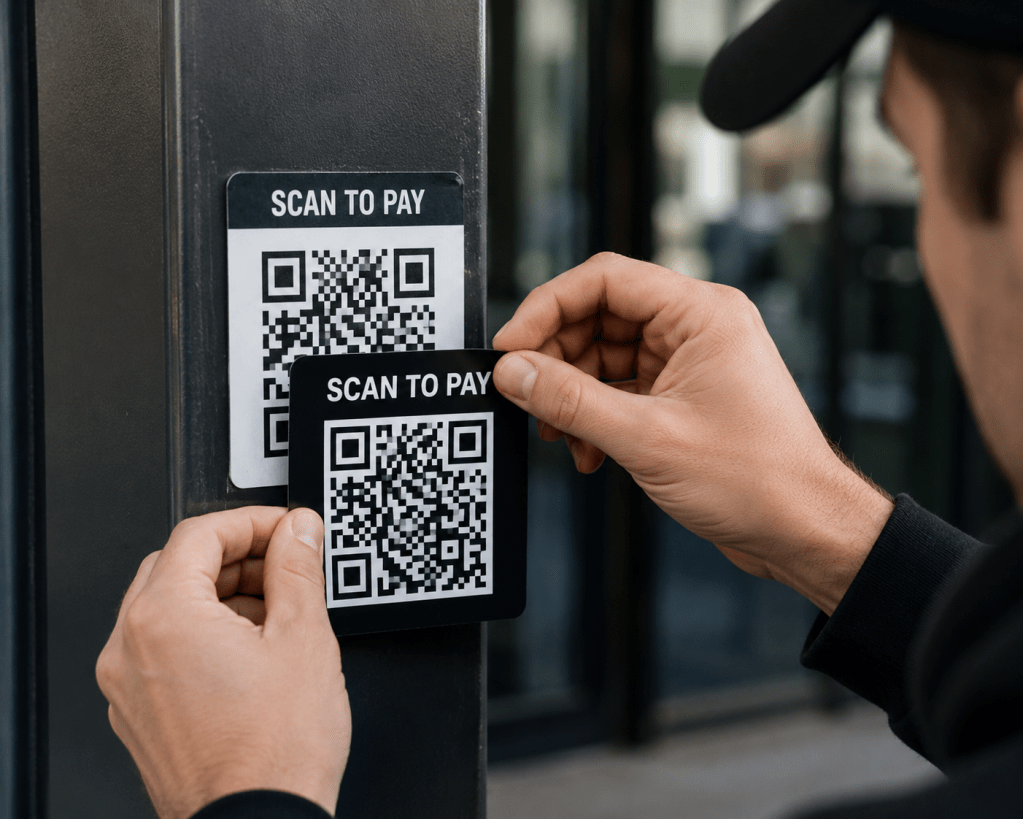
- A sticker in the real world. Attackers print QR code stickers and place them over legitimate ones on parking meters, posters and payment terminals. You think you are paying for parking and instead you are handing your card details to a stranger.
How to Protect Your Business from QR Code Scams
Protecting yourself against Quishing comes down to a few habits:
- Be suspicious of QR codes in emails. A code that arrives by email that asks you to log in or pay deserves the same caution as a strange link. The NCSC's advice is to be wary of scanning QR codes inside emails even though codes in places like restaurants are usually fine.
- Check the web address before you act. When you scan a code, your phone shows the link before it opens. Read it. If the address is not the official site you expected, close it.
- Go direct instead of scanning. If an email says your Microsoft account needs attention, open your browser and type the address yourself or use a bookmark. Don't rely on the code to take you to the right place.
- Watch for urgency. Messages that threaten account closure or a fine "within 24 hours" are trying to rush you past your own judgment. That pressure is a warning sign.
- Use phishing-resistant MFA. If a scam does capture a password, phishing-resistant multi-factor authentication (a passkey, a hardware key or number-matching in an authenticator app) makes that password much harder to use.
- Check physical codes for tampering. Before scanning a code on a parking meter or payment terminal, look for a sticker placed over the original.
- Tell your team. Most people have never been warned about QR code scams. Send your staff a short message with a real example so they know what to watch for.
What to Do if Someone Already Scanned One
If you or someone on your team scanned a QR code and entered details on the page that opened:
- Change the password for that account right away along with any other account that used the same password.
- Confirm multi-factor authentication is turned on for the account.
- Tell whoever manages your IT so they can check for unusual sign-ins.
- If card or banking details were entered, call the bank and watch the account closely.
Acting quickly limits what an attacker can do with the details they captured.
Frequently Asked Questions
Are QR codes safe to use?
Most QR codes are safe. A code on a restaurant table or an official payment terminal is usually fine. The risk comes from codes sent in unexpected emails or texts and from stickers placed over real codes in public. Treat those with caution.
What is quishing?
Quishing is phishing that uses a QR code instead of a written link. The word combines "QR" and "phishing". The goal is the same as any phishing attack: to get you onto a fake page that captures your login or payment information.
Can antivirus or email filters stop QR code scams?
Not always. Many email security tools scan the text of a message for bad links and a QR code hides its link inside an image so it can slip through. Some products now scan images for codes but you should not assume the scam will be caught before it reaches you.
Why is a QR code in an email more dangerous than a normal link?
A written link can be inspected by your email security and opened on a managed work computer. A QR code hides the link from those tools and pushes you to scan with your phone which usually has far less protection than your work device.
What should I do if I scanned a scam QR code but didn't enter anything?
If you closed the page without typing anything, the risk is low. Close it, don't go back and let your IT contact know so they can keep an eye out. If you did enter a password or payment details, follow the recovery steps above.

Article Summary: Cyber insurance applications have grown longer because of specific claim trends from 2023 and 2024 including the MOVEit supply-chain breach, the Change Healthcare ransomware incident and the Arup deepfake wire fraud. Each new section asks about specific security controls including immutable backups, layered MFA, callback verification on wires, EDR or MDR coverage, vendor risk and tested incident response. Answers that overstate your security posture can trigger rescission after a claim which means the policy is treated as if it never existed.
If you have a cyber insurance renewal coming up, the application is probably longer than the one you filled in last time. It is also more specific. Each new question maps to a control that (if missing) allowed a major 2023 or 2024 claim to escalate. The wording reflects how carriers responded to losses they paid in 2023 and 2024 and how you answer the form matters more than it used to.
This post covers why the application got longer, what each new section is asking, how to answer honestly without overstating your controls and what to fix in the 30 days before submission. The expensive mistake on a cyber insurance application is rescission where a future claim is denied because the carrier finds that the controls you declared were not in place at the time.
Why the Renewal Application Got Longer
The current generation of cyber insurance applications was shaped by three specific claim events from 2023 and 2024.
The MOVEit supply-chain breach surfaced on May 28, 2023 when Progress Software received the first reports of unusual activity from customers. The Cl0p ransomware group had been exploiting a previously unknown vulnerability in Progress Software's MOVEit Transfer file-sharing tool with activity detected by some researchers as early as February of that year. By late 2023, more than 2,650 organizations and over 66 million individuals had been affected with totals rising further into 2024. Carriers paid claims across that footprint and the experience reshaped how underwriters ask about third-party software risk.
Then the Change Healthcare ransomware incident in February 2024 froze US healthcare claims processing for weeks. The attacker gained network access on February 12, 2024 and deployed ransomware on February 21 with downstream impact on pharmacies, providers and patients across the country. HIPAA Journal's coverage noted that the absence of multifactor authentication on a key entry point made the initial intrusion possible. Industry analysts have estimated the cyber insurance loss from this single event at over $250 million and the response was tighter questions about backup immutability and incident response readiness.
The Arup deepfake wire fraud (also from early 2024) reframed how underwriters approach social engineering. A finance employee at the engineering firm's Hong Kong office transferred $25.6 million across 15 wires after a video call with what appeared to be the company's CFO and other executives (all of whom were AI-generated deepfakes). The fraud went undiscovered for about a week until the employee contacted Arup headquarters about a “secret transaction.” Out-of-band callback verification for wire transfers is now on every underwriter's checklist.
If you run an e-commerce store handling cardholder data, a healthcare practice with PHI, an accounting firm or law firm moving client funds or a real estate brokerage handling escrow, your application is the longest of all. You sit in the loss categories carriers got burned on.
The Backup Question Changed
The backup question on cyber insurance applications has tightened materially since 2023. What used to be a single yes/no question now asks whether those backups are immutable or air-gapped, when they were last tested and whether they can be deleted by your domain administrator credentials.
Expect wording on your form like: “Are backups stored in an immutable or air-gapped state, tested for restoration within the past 12 months and inaccessible to domain administrator credentials?”.
An immutable backup is one that nobody can delete or alter during a fixed retention window including someone using stolen administrator credentials. Air-gapped means the backup copy sits on infrastructure that cannot be reached from your production network. CISA's Stop Ransomware Guide lists immutable and tested backups as a baseline control which is the same standard most cyber insurance carriers now apply.
“Microsoft 365 backup” is no longer a passing answer on its own. Native Microsoft 365 retention isn't a backup in the sense the carrier means. Third-party backups that share the same identity perimeter as your production tenant can be wiped by a compromised global admin.
For the immutable backup question, the strongest answer references a backup platform with object lock or write-once-read-many storage enabled, an immutability window of at least 14 days (with 30 days now preferred), credentials separated from your production admin accounts and a recent successful restore test. Weaker answers describe daily backups to a NAS on the same network with no recent restore test which typically triggers follow-up underwriting and sometimes a premium adjustment. Answers that leave the immutability question unclear are the ones most likely to push a renewal toward sub-limits or non-renewal.
MFA Questions Go Deeper Than One Checkbox
MFA was once captured as a single yes/no question on most applications. The current generation asks whether MFA is enforced on email, VPN, remote desktop (RDP), all administrator accounts and privileged service accounts. The answer needs to be yes on all five for a clean pass.
SMS-based MFA is now treated as a weaker control. SIM-swap attacks and SS7 vulnerabilities have made text codes the weakest authentication factor available. Several carriers ask specifically whether your MFA uses an authenticator app, hardware token or push with number matching rather than SMS. If you are still on SMS for admin accounts, expect a follow-up question or a premium adjustment.
The privileged access management (PAM) question is the one most owners haven't seen before. PAM is a category of tool that keeps administrator credentials out of regular password managers. A PAM platform vaults privileged credentials, rotates them on use and logs every session which means a stolen admin password can't be used unnoticed for weeks before someone catches it.
A strong PAM answer describes a vaulting tool with credentials rotated on use and session logging enabled. Weaker answers like admin passwords stored in a shared password manager with annual rotation will usually trigger follow-up underwriting. Shared admin accounts that never rotate and produce no audit log of who used them are the configuration most likely to result in sub-limits or non-renewal.
Will cyber insurance be denied if you don't have MFA everywhere? Not always denied outright. Expect significant premium increases, sub-limits on ransomware coverage or exclusions for any incident that traces back to the unprotected entry point.
The Wire Transfer and Deepfake Verification Questions
After the Arup case and a string of business email compromise losses, carriers added callback verification questions to their applications. Callback verification means that before sending any wire above a defined threshold (commonly $10,000 or $25,000), the person authorizing the transfer calls the recipient at a phone number previously verified and stored rather than the number on the request email.
Expect wording like: “Does your organization require out-of-band verification using a previously known phone number for all funds transfer requests above [threshold] including requests appearing to come from executives?”.
Several current applications now ask separately whether staff have been trained on AI voice cloning and deepfake video risks. The Arup case made that question relevant for every carrier writing in professional services.
Accounting firms, law firms with escrow or trust accounts and real estate brokers will see this section scrutinized most carefully. Anyone moving other people's money is a soft target and an expensive claim when wire fraud lands.
A strong answer references a written wire transfer policy requiring callback verification to a verified number for transfers above a stated threshold, dual approval and annual social engineering training that includes deepfake awareness. Informal verification practice without a written policy will usually be flagged for follow-up. Wire transfers authorized by email approval alone are the configuration carriers are now declining to cover at all.
EDR, MDR and the End of the “We Have Antivirus” Answer
Traditional antivirus scans files against a list of known threats. Endpoint Detection and Response (EDR) watches behavior on each device and flags suspicious activity such as a process trying to encrypt files or escalate privileges. Managed Detection and Response (MDR) is EDR plus a 24/7 team watching the alerts and responding when something fires at 2am on a Sunday.
Current applications ask whether you have EDR deployed, whether it covers 100% of endpoints including servers and whether a 24/7 security operations center (SOC) monitors and responds to alerts. The MDR question is increasingly yes or no and the no answer has pricing consequences.
If you don't have MDR yet but plan to add it, say so plainly with a timeline. Underwriters can work with “MDR deployment scheduled for Q2 with vendor selected”. They cannot work with vague answers about future plans.
The Vendor Risk Questions
Supply chain questions used to be a single yes/no item. After MOVEit and Change Healthcare, carriers now want a full section on the software vendors holding your data.
Expect questions like: “List your top five software vendors with access to sensitive data and confirm whether each provides a SOC 2 Type II report or equivalent.” If you have never asked your practice management software vendor for a SOC 2 report, that conversation is overdue.
You are not expected to audit every vendor's security program in detail. The carrier wants to see that you know who your top vendors are, what data they hold and that you have asked the basic questions like SOC 2 attestation. An honest “we have identified our top five vendors and requested SOC 2 reports from three with two outstanding” reads better than a confident answer that falls apart in discovery.
The Mistake to Avoid: Misrepresentation and Rescission
The most expensive answer on a cyber insurance application is the one that overstates the security controls you have in place. Cyber insurance applications are warranty documents. If a forensic investigation after a claim finds your environment didn't match what you declared, the carrier can rescind the policy.
Rescission means the policy is treated as if it never existed, your claim is denied and any prior payouts under the same policy term can be clawed back. Some courts have found that the carrier doesn't need to prove a direct link between the misrepresentation and the loss. The misrepresentation itself is enough.
The cleanup approach is direct. If a question asks about MFA on all admin accounts and you have a gap, declare the gap and include a remediation date. Carriers reward honest gaps with a plan more than they reward polished answers that don't survive forensic review.
Checking “no” or “in progress” on the form may raise your premium or tighten your coverage terms. That cost is predictable. Misrepresentation discovered after a claim can void the policy entirely and the timing means you absorb the full incident cost yourself.
The 30-day Pre-Renewal Checklist
Work through this in order. Most items are achievable in a month if you start now.
Week 1. Confirm MFA on email, VPN, remote desktop, all administrator accounts and any service accounts that support it. Move admin MFA off SMS to an authenticator app or hardware token.
Weeks 1 to 2. Verify your backups are immutable or air-gapped. Run a test restore and document the result with date and screenshots.
Week 2. Write a one-page wire transfer policy requiring callback verification to a previously verified phone number for any transfer over your chosen threshold. Get it signed by anyone who can authorize payments.
Weeks 2 to 3. Confirm EDR is deployed on every endpoint and server. If you only have traditional antivirus, get quotes for EDR or MDR now so you can answer with a deployment timeline.
Week 3. Identify your top five software vendors and request SOC 2 reports or equivalent attestations. Note who responded.
Weeks 3 to 4. Document or update your incident response plan and then run a 60-minute tabletop exercise with your leadership team. Keep the notes. That is your “tested in the past 12 months” evidence.
Week 4. Sit down with the application and answer honestly. Flag anything you couldn't fix with a specific remediation date.
Article FAQs
What does rescission mean on a cyber insurance policy?
Rescission means the carrier voids the policy from inception after discovering material misrepresentation on the application. The policy is treated as if it never existed, the current claim is denied and any prior payouts under the same policy term can be clawed back.
Will my cyber insurance be denied if I don't have MFA on everything?
You are not always denied outright. Expect a significant premium increase, sub-limits on ransomware coverage or exclusions for incidents that trace back to the unprotected entry point. The most common gap is MFA on privileged or service accounts.
What is the difference between EDR and MDR on an insurance application?
EDR (Endpoint Detection and Response) is the technology that watches device behavior and flags suspicious activity. MDR (Managed Detection and Response) is the same technology plus a 24/7 team watching the alerts and responding. Carriers increasingly want both and the application often asks about each separately.
Why are cyber insurance renewal applications longer than they used to be?
Carriers added detailed sections in response to specific 2023 and 2024 losses including the MOVEit supply-chain breach, the Change Healthcare ransomware incident and the Arup deepfake wire fraud. Each event drove changes to backup, MFA, vendor risk or wire transfer questions on subsequent applications.
Can my cyber insurance claim be denied if I answered the application incorrectly?
Yes. Material misrepresentation on a cyber insurance application can trigger rescission which voids coverage retroactively. Many courts have found that the carrier does not need to prove a causal link between the misrepresentation and the specific loss.
What does immutable backup mean on a cyber insurance application?
A backup that cannot be modified or deleted for a defined retention period even by someone using stolen administrator credentials. Cloud object lock and write-once-read-many storage are common implementations. Most carriers want a window of at least 14 days with 30 days now preferred.
Article Summary: AI-enhanced fraud is changing how criminals target finance teams (especially Accounts Payable). Attackers can use AI to produce convincing emails, realistic invoices and even cloned voices that bypass the red flags teams once relied on. The most effective defense combines stronger verification steps, tighter payment processes and a culture where pausing to confirm details is always supported.
It is a statistic that sends a shiver down the backs of SME owners, managers and employees.
According to the FBI's 2025 Internet Crime Report, business email compromise (BEC) cost US businesses more than $3 billion last year.
This makes it one of the most financially damaging cybercrimes on record.
AI has made these attacks harder to detect. The question for AP teams is no longer whether they can identify suspicious requests. It is whether the processes around payments make fraud difficult regardless of how convincing it looks.
Why AP Teams Are in the Crosshairs
Accounts payable sits at the intersection of trust and timing. AP teams process invoices, manage supplier details and execute payments often under pressure to keep operations running smoothly.
For attackers, that combination is ideal.
Most successful fraud does not involve breaking into systems.
The FBI's Internet Crime Complaint Center (IC3) has consistently found that BEC attacks rely on impersonation. This involves posing as a trusted executive, supplier or internal colleague to redirect payments or update bank details before anyone notices.
AI has made that impersonation dramatically more scalable.
Where it once required skill and time to craft a convincing request, tools are now widely available that automate the research, writing and contextual tailoring that make fraud blend into normal AP workflows.
By mid-2024, an estimated 40% of BEC phishing emails were already AI-generated with that share expected to grow significantly.
What AI-Enhanced Fraud Looks Like in Practice
Emails That Blend into Normal Workflow
Traditional phishing relied on volume and imperfection. AI has changed that.
Modern BEC emails are grammatically correct and written in the specific tone of the executive or supplier being impersonated. They reference active projects, current invoice numbers and upcoming payment runs.
For AP teams processing high volumes of routine communications, that level of familiarity is exactly what lowers the guard.
Invoice and Payment Redirection
One of the most common AP fraud patterns involves payment redirection.
Attackers may intercept a legitimate invoice exchange and quietly alter the destination account. They then send a short message claiming a supplier has updated its banking details or re-issue a real invoice with minor modifications.
The surrounding content looks entirely legitimate because it is drawn from real correspondence.
Voice Cloning and Executive Impersonation
Email isn’t the only channel being exploited.
AI voice-cloning tools can replicate a person’s voice from a short audio sample. That makes it possible to leave convincing voicemails or place calls that sound like a known executive.
For AP teams accustomed to verbal approvals on high-value or urgent payments, this removes one of the few remaining verification methods that email security alone cannot address.
Why Traditional Checks No Longer Work
Security awareness training still matters and investing in it remains worthwhile. However, AI has changed what AP teams are up against.
Attacks no longer contain the signals that training programs once focused on like awkward phrasing, mismatched logos, odd sender addresses or generic greetings.
Modern fraud emails can reference the recipient's organization, active suppliers and current invoice values drawn from publicly available or previously intercepted sources.
When a fraudulent request is indistinguishable from a legitimate one, placing the burden of detection on the AP team puts it in the wrong place.
The organizations that reduce risk are not asking staff to be more suspicious. They are building verification processes that work independent of how a message looks.
Building Process Around the Risk
The most effective defense is not sharper instincts. It is removing ambiguity from high-risk actions.
Out-of-band Verification as Standard
Any request to change supplier bank details or approve an urgent payment outside the normal cycle should require secondary confirmation through a known independent channel (not a reply to the same email thread). Calling a supplier on a number already on file or confirming with a colleague directly breaks the impersonation chain regardless of how convincing the original request appeared. This step does not require technology. It requires a written procedure and the team's habit of following it.
Layered Access and Authentication Controls
Restricting access to financial systems and enforcing multi-factor authentication limits the damage a compromised account can cause. If an attacker gains access to a vendor's email, MFA requirements on the receiving end create friction that can slow or stop a fraudulent change before any money moves.
A Culture that Supports Slowing Down
Fraud prevention improves when staff feel safe questioning requests (including from senior leadership).
A team member who pauses a payment to verify it is not being obstructive. They are doing exactly what good process requires.
Building that culture starts with leadership modeling the behavior and making clear that slowing down on high-risk actions is always the right call.
The FBI's 2025 Internet Crime Report included a dedicated AI section for the first time and logged more than $893 million in AI-enabled scam losses across more than 22,000 complaints.
When verification is standard and questioning is encouraged, AI-enhanced fraud loses much of its advantage.
The technology attackers use is advancing quickly but the process controls that contain the damage do not need to be complicated. They need to be consistent.
Shift the Burden from People to Process
Concerned about AI-enhanced fraud targeting your finance teams or clients?
Contact us or schedule a consultation to review your current controls and identify where the most important gaps are.
Article FAQs
Why are Accounts Payable teams targeted so often?
AP teams manage payments and supplier details which makes them a direct path for attackers to move money without breaching technical systems.
Can awareness training alone stop AI-driven fraud?
No. Awareness helps but AI scams often look legitimate. Strong verification processes are essential.
Is voice-based fraud really a risk?
Yes. AI voice cloning allows attackers to impersonate executives convincingly which makes phone-based approvals vulnerable.

The most dangerous thing in a server room is often the phrase, “Don’t touch that.”
It is usually said with a half-joke and a grimace. It refers to the old box that “still works”, runs something important and has survived so many fixes and workarounds that nobody feels confident changing it anymore.
That is legacy debt.
Not just “old tech”. Old tech that has become a dependency. It is the kind that quietly accumulates risk until it turns into downtime, security exposure or an emergency upgrade at the worst possible time.
A legacy debt audit is the fast way to bring that risk back into the light.
What Legacy Debt Really Looks Like
Legacy debt isn’t “old gear”. It is old gear that has become normal.
It is the server that runs a critical app, the edge device nobody remembers buying or the workaround that turned into a dependency. Over time, that debt stacks up quietly.
Infinite Lambda describes legacy debt as something that “happens even to the best systems,” “silently accruing costs and constraints,” and it can “accumulate basically unnoticed until it is too costly to ignore.”
That is why a legacy debt audit isn’t a theoretical exercise. It is a visibility exercise to bring the oldest and highest-leverage risks back onto the list of things you actively manage.
The security problem shows up when “old” becomes “unpatchable”.
The UK’s NCSC guidance on obsolete products says, “Ideally, once out of date, technology should not be used,” and “the only fully effective way to mitigate this risk is to stop using the obsolete product.”
If something can’t be updated, weaknesses don’t age out. They sit there waiting for the wrong day.
Legacy debt also looks like basic server hygiene slipping.
NIST SP 800-123 frames secure server operations as an ongoing process: “Maintaining the secure configuration through application of appropriate patches and upgrades, security testing, monitoring of logs and backups…”
It also calls out foundational hardening steps like “Patch and upgrade the operating system” and “Remove or disable unnecessary services, applications and network protocols.”
When those basics become inconsistent, legacy debt turns into a reliability and incident-response problem instead of just a security one.
Legacy debt often hides at the edge. If you have end-of-support internet-facing devices, you have high-leverage risk in the most exposed place.
The 3 Oldest Risks to Find First
These three categories are where “old” most often turns into outsized risk because they combine age with leverage. They either sit at the front door, can’t be fixed anymore or have quietly drifted out of a safe baseline.
Risk #1: End-of-support edge devices
If you are looking for high-leverage legacy debt, start at the edge. Firewalls, VPN gateways, routers and other internet-facing devices are the front door to your environment.
When they reach end-of-support (EOS), they don’t just become outdated. They become harder to defend because security fixes stop arriving.
What to check in your audit
- List every edge device (firewall, VPN, router) and the support status for each one.
- Confirm which ones are internet-facing and which services are exposed.
- Identify devices that can’t run the current firmware or no longer receive updates.
Risk #2: Obsolete products that can’t be fixed anymore
Obsolete products are the purest form of legacy debt. They include things that are still operating but no longer receive security updates. That means every new vulnerability becomes permanent.
In other words, there is no clever workaround that makes an unsupported system “safe”. There are only risk reductions until you can replace it.
What to check in your audit:
- Identify anything past support: server OS versions, appliances, old hypervisors and line-of-business apps.
- Flag systems that require exceptions like the ones with old protocols, weak auth and special firewall rules.
- Find the “business-critical but unsupported” systems.
Risk #3: “It still works” servers with neglected basics
This is the sneakiest risk because it looks normal.
The server is supported. The hardware runs. Nobody is complaining. However, the basics have drifted. Patching is inconsistent, unnecessary services are still running and backups have not been proven under pressure.
SP 800-123 Guide to General Server Security frames secure server operations as an ongoing discipline including “patches and upgrades”, “monitoring of logs” and “backups.”
It also calls out core hardening steps like “Patch and upgrade the operating system” and “Remove or disable unnecessary services, applications and network protocols.”
Those are the unglamorous fundamentals that stop small problems from turning into long outages.
What to check in your audit:
- Patch reality: What is the current patch level and how often do updates slip?
- Service sprawl: What is running that doesn’t need to be running?
- Admin and service accounts: Where are the broad permissions and shared credentials?
- Backup confidence: When was the last restore test and did it succeed?
- Change control: Who can make changes and how are they tracked?
Stop Carrying Silent Risk
Legacy debt doesn’t announce itself. It sits quietly in the background until the day it becomes downtime, exposure or an emergency upgrade you didn’t plan for.
A legacy debt audit gives you control back by turning “we should deal with that someday” into a shortlist you can act on. Start with the highest-leverage risks like end-of-support edge devices, obsolete products that can’t be patched and servers where the basics have drifted. Then assign owners, set dates and move one item at a time from “too scary to touch” to “handled”.
Contact us for help running your next legacy debt audit.

Article summary: Browser extensions feel small but they operate inside your browser with access to passwords, session tokens, browsing activity and the content of every page your team visits. A quarterly audit process, a clear approval path and permission-based review close most of these gaps without disrupting how your team works.Read more