
“Hybrid office” is the new buzzword you will hear in business discussions. It’s the mix of having employees both working at the office and working from home. This has become more than a buzzword and is now the reality for many companies.
There was a survey of employees with remote-capable jobs. The survey found that as of February of 2022, 42% of them were working a hybrid schedule and 39% were working from home full time.
The global pandemic brought on this hybrid office transition. It forced companies to operate with teams that could no longer safely come to the office. During this time, employers and employees experienced the benefits of hybrid work firsthand.
These benefits of remote teams included cost savings for both workers and employers. It also allowed the company to operate with more flexibility. Improving worker morale was another advantage.
Many employers feared that remote work would tank productivity. It actually increased in many circumstances.
63% of high-growth companies use a “productivity anywhere” hybrid work approach.
In order for hybrid teams to be productive, they need to stay connected. No matter where they work, the right technology tools should enable them.
One of the leaders in this space has been Microsoft. The company plans to add several exciting updates this year. These updates will provide more tools for companies to enable their hybrid teams.
Here are some of the ways that you can use Microsoft 365 to optimize a productive hybrid office. Please note that some of these features are already out and others should release later this year.
1. Microsoft Teams & Expanded Features
Microsoft Teams is much more than a team messaging app. The application combines the best features of virtual video meetings and messaging channels. It brings them together into a platform designed to be a secure online work hub.
MS Teams has come a long way in the last five years and the company continues to add more features to enable hybrid offices. Some of the recent feature updates include:
- The ability to do webinar registration
- Presenter modes that provide a more professional virtual presence
- Increased security through features like smart links and smart attachments
- A full business VoIP phone system add-on
- The addition of a “metaverse” component called Mesh for Teams

New Meeting Options for RSVP in Outlook
One of the challenges when everyone isn’t working in the same place is how to know when to “clock in” and “clock out.” You may also wonder how to let colleagues know whether you are working at home next week or in the office.
To help hybrid teams better coordinate, Outlook is getting an update. It will allow users to RSVP to meetings. This can let team members know whether they are attending virtually or in person.
Better Framing for More Engaging Meetings
One thing that can distract from the purpose of a meeting is someone’s background at home. Positioning of the camera can also be problematic. One person might have their face taking up 80% of the video screen. Another may only take up 20% because they’re sitting farther away from their PC’s camera.
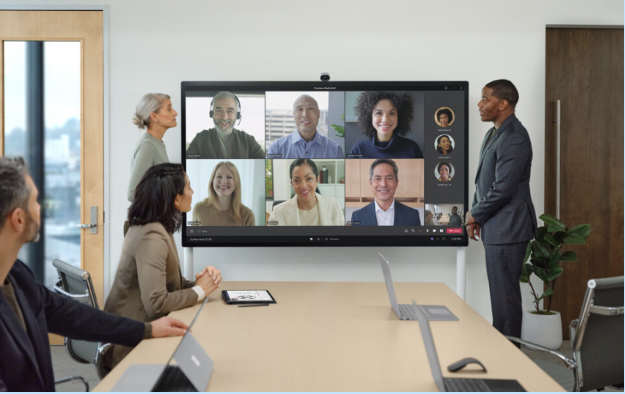
A new Surface Hub 2S Smart Camera will allow for better face framing. This will affect when people are meeting virtually in Microsoft Teams. Features include adjusting the room view so people’s faces will be clearer as well as having more consistent sizing.
The video display will also automatically adjust as people join or leave a physical room.
Get Better Control of Your Video Using PowerPoint to Present
People often share a screen in a video call and present a PowerPoint presentation. It can be difficult to keep everyone as engaged as when you’re presenting in person.
For example, in person you can maintain eye contact. People can clearly see your facial expressions as you emphasize various things. That is not always the case when presenting virtually. The app may push your video feed into a tiny box.
There is a new upcoming feature for Teams called Cameo. It will allow you to seamlessly integrate PowerPoint with MS teams. You can decide exactly how you want your video feed to appear in relation to your presentation.
Another addition is Recording Studio. This new feature for PowerPoint allows you to record professional-looking on-demand videos. You can do it right inside the app.
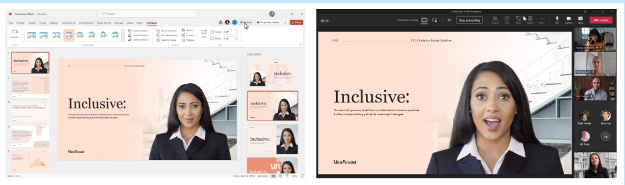
Cameo in PowerPoint & MS Teams
Get Help With Your Presentation Skills
Microsoft has poured a lot of AI capabilities into Microsoft 365 over the last several years. One that will soon help you deliver better virtual presentations is Speaker Coach.
This is a private and personalized coach. It can help you hone your presentation skills. This improves your switch to the differences between presenting online versus in person.
Some of the feedback it can provide include:
- Use of repetitive language
- Use of filler words (Ummm)
- Speaking pace
- Pausing for input
- Intonation
- Speaker overlaps
- And more
Ask Us About Improving Your Hybrid Office Capabilities with Microsoft 365
Microsoft 365 has a ton of helpful features. However, it does help to have an expert guide to help you navigate these capabilities. Contact us at (860) 577-8060 or via our convenient contact form today to set up a chat about how Microsoft 365 can help your business grow.
Credential theft is now at an all-time high and is responsible for more data breaches than any other type of attack.
With data and business processes now largely cloud-based, a user’s password is the quickest and easiest way to conduct many different types of dangerous activities.
Being logged in as a user (especially if they have admin privileges) can allow a criminal to send out phishing emails from your company account to your staff and customers. The hacker can also infect your cloud data with ransomware and demand thousands of dollars to give it back.
How do you protect your online accounts, data and business operations? One of the best ways is with multi-factor authentication (MFA).
It provides a significant barrier to cybercriminals even if they have a legitimate user credential to log in. This is because they most likely will not have access to the device that receives the MFA code required to complete the authentication process.
WHAT ARE THE THREE MAIN METHODS OF MFA?
When you implement multi-factor authentication at your business, it’s important to compare the three main methods of MFA and not just assume all methods are the same. There are key differences that make some more secure than others and some more convenient.
Let’s take a look at what these three methods are:
SMS-BASED
The form of MFA that people are most familiar with is SMS-based. This one uses text messaging to authenticate the user.
The user will typically enter their mobile number when setting up MFA. Whenever they log into their account, they will receive a text message with a time-sensitive code that must be entered.
ON-DEVICE PROMPT IN AN APP
Another type of multi-factor authentication will use a special app to push through the code. The user still generates the MFA code at login. Rather than receiving the code via SMS, it’s received through the app.
This is usually done via a push notification and it can be used with a mobile app or desktop app in many cases.
SECURITY KEY
The third key method of MFA involves using a separate security key that you can insert into a PC or mobile device to authenticate the login. The key itself is purchased at the time the MFA solution is set up and will be the thing that receives the authentication code and implements it automatically.
The MFA security key is typically smaller than a traditional thumb drive and must be carried by the user to authenticate when they log into a system.
Now, let’s look at the differences between these three methods.
MOST CONVENIENT FORM OF MFA?
Users can often feel that MFA is slowing them down. This can be worse if they need to learn a new app or try to remember a tiny security key. What if they lose that key?
This user inconvenience can cause companies to leave their cloud accounts less protected by not using multi-factor authentication.
If you face user pushback and are looking for the most convenient form of MFA, it would be the SMS-based MFA.
Most people are already used to getting text messages on their phones so there is no new interface to learn and no app to install.
MOST SECURE FORM OF MFA?
If your company handles sensitive data in a cloud platform, such as your online accounting solution, then it may be in your best interest to go for security.
The most secure form of MFA is the security key.
The security key, being a separate device altogether, won’t leave your accounts unprotected in the event of a mobile phone being lost or stolen. Both the SMS-based and app-based versions would leave your accounts at risk in this scenario.
The SMS-based is actually the least secure because there is malware out there now that can clone a SIM card which would allow a hacker to get those MFA text messages.
A Google study looked at the effectiveness of these three methods of MFA at blocking three different types of attacks. The security key was the most secure overall.
Percentage of attacks blocked:
- SMS-based: between 76 - 100%
- On-device app prompt: between 90 - 100%
- Security key: 100% for all three attack types
WHAT IS IN BETWEEN?
So, where does the app with an on-device prompt fit in? Right in between the other two MFA methods.
Using an MFA application that delivers the code via push notification is more secure than the SMS-based MFA. It’s also more convenient than needing to carry around a separate security key that could quickly become lost or misplaced.
LOOKING FOR HELP SETTING UP MFA AT YOUR COMPANY?
Multi-factor authentication is a “must-have” solution in today’s threat climate. We would be happy to discuss your barrier points and come up with a solution together to keep your cloud environment better secured.
You can reach us at (860) 577-8060 or via our contact form.
Approximately 34% of businesses take a week or longer to regain access to their data and systems once hit with a malware attack.
Malware is an umbrella term that encompasses many different types of malicious code. It can include:
- Viruses
- Ransomware
- Spyware
- Trojans
- Adware
- Key loggers
The longer that malware sits on your system unchecked means more damage that it can do. Most forms of malware have a directive built in to spread to as many systems as possible. So, if not caught and removed right away, one computer could end up infecting 10 more on the same network in no time.
Early detection is key so you can disconnect an infected device from your network and have it properly cleaned by a professional.
Keep an eye out for these key warning signs of malware infection so you can jump into action and reduce your risk.
STRANGE POPUPS ON YOUR DESKTOP
Some forms of malware can take on the disguise of being an antivirus app or warranty notice that pops up on your screen. Hackers try to mimic things that users may have seen from a legitimate program so that they will be more likely to click without thinking.
If you begin to see a strange “renew your antivirus” subscription alert or a warranty renewal that doesn’t quite make sense, these could be signs that your PC has been infected with adware or another type of malware.
NEW SLUGGISH BEHAVIOR
Computers can become sluggish for a number of reasons that include having too many browser tabs open at once or running a memory-intensive program. You typically know your computer and the types of things that slow it down.
If you notice new sluggish behavior that is out of the ordinary, this could be an infection. One example would be if you don’t have any programs open except notepad or another simple app but you are experience freezing.
When malware is running in the background, it can often eat up system resources and cause your system to get sluggish.
APPLICATIONS START CRASHING
Applications should not just crash out of the blue. There is always a reason. Either the software is faulty, there has been an issue with an update or something else is messing with that application’s files.
If you suddenly experience apps crashing and it requires you to restart the app or reboot your system, this is another telltale sign that a virus, trojan or other malicious code has been introduced.
YOUR BROWSER HOME PAGE IS REDIRECTED
If you open your browser and land on a homepage that is not the one that you normally see, have your PC scanned for malware right away. Redirecting a home page is a common ploy of certain types of malware.
The malware will infect your system and change the system setting for your default browser home page. This may lead you to a site filled with popup ads or to another type of phishing site.
Just trying to change your homepage back in your settings won’t fix the situation. It’s important to have the malware removed.
SUDDEN REBOOTS
Another annoying trait of certain types of malicious code is to make your system reboot without warning.
This can cause you to lose the work that you have just done and can make it difficult to get anything done. This may happen when malware is changing core system files behind the scenes. Your system becomes unstable and can often reboot unexpectedly when files are corrupted.
YOU ARE MISSING HARD DRIVE SPACE
If you find that a good deal of your hard drive space that was previously open is now gone, it could be a malware infection taking up your space. Some types of malware may make copies of files or introduce new files into your system.
They will cleverly hide. Don’t expect to see the word “malware” on a file search. Instead, the dangerous activities will usually be masked by a generic-sounding name that you mistake for a normal system file.
YOU RUN ACROSS CORRUPTED FILES
If you open a file and find it corrupted, this could be a red flag that ransomware or another form of malware has infected your system.
While files can occasionally become corrupt for other reasons, this is a serious issue that deserves a thorough malware scan if you see it.
PC “PROCESSING SOUNDS”
Most of us are familiar with those “thinking sounds” when our computer is processing something memory intensive. You will usually hear a type of whirring that will go away once you finish that activity.
If you begin hearing this processing sound when you’re not doing anything particularly intense on your computer, this could be a sign that malware is running in the background and it should be checked out.
GET EXPERT MALWARE SCANNING & REMOVAL
Free online malware and virus scans aren’t very reliable. It is better to come to a professional that can ensure your entire system is cleaned properly.
Sound Computers is always happy to help. Reach out to us at (860) 577-8060 or use our convenient contact form.
Purchasing a new computer is a big investment. Many small businesses and home PC owners end up struggling with older systems because they want to get as many years out of them as possible.
Have you found yourself banging on your keyboard in frustration? Have you tried every tip and trick you found online only to still struggle with a slow PC?
There are some promising upgrades that you can do that will cost much less than the price of a new computer and they will make your PC feel like new again.
Here are some of the options that you can try to improve the performance of an older computer.
UPGRADE TO A SOLID-STATE DRIVE (SSD)
Prices for solid-state drives have come down quite a bit in the past few years which make them an affordable upgrade that can breathe life back into an older PC that might be slowing down.
Unlike hard disk drives (HDDs), SSDs do not have any moving parts and use a flash memory that allows for a quicker response time. You can improve your time to boot and your experience when searching files, opening applications and other activities.
Some of the advantages of upgrading your computer’s hard drive to SSD include:
- SSD read/write speeds up to 2500 MB/second compared to HDD at up to 200 MB/second
- SSD access time of 0.1ms as compared to HDD at 5.5-8.0ms
- SSDs use between 2-5 watts of energy compared to HDD at 6-15 watts
INCREASE THE RAM (MEMORY)
One upgrade that is very low-cost and can mean a significant increase in performance is a memory upgrade. If your PC was one of the cheaper ones that only had 4GB of RAM when you bought it, you likely have trouble opening too many tabs in your browser or using any graphics-heavy program.
Upgrading your RAM (if your PC has available memory slots) to 8GB or 12GB can make it seem like you have an entirely new computer due to the big increase in speed.
UPGRADE THE GRAPHICS CARD
If you play computer games or work in any type of video, imaging or 3D software, an outdated graphics card can ruin your experience.
Instead of replacing your entire computer, upgrade the graphics card to a more robust model and it can improve your PC’s performance and give you several more useful years from it.
REPLACE YOUR PC COOLING SYSTEM
Heat is an enemy of your computer’s internal parts. If your cooling system is getting worn out and not working the way it should be, excess heat can be building up inside your device.
When this happens, strange things like programs crashing or your system rebooting on its own can occur.
If you suspect excess heat may be an issue, have your computer’s fan and cooling system checked out to see if it needs replacing.
CONNECT AN EXTERNAL MONITOR TO A LAPTOP
If you’re working on a laptop and having a hard time multi-tasking due to limited screen real estate, consider getting an external monitor rather than replacing your entire PC.
Monitors are just a fraction of the cost of computers. Having a screen twice the size of the one on your laptop can make all the difference in the world and improve productivity due to the additional screen space.
REPLACE YOUR KEYBOARD
Older keywords can stick, lose keys and have the writing rubbed off the keys. This makes it more difficult to tell a “prt screen” from a “delete” button. If the performance of your PC is hampered by a frustrating keyboard, an upgrade can be a very inexpensive way to improve your equipment.
GET AN EXTERNAL HARD DRIVE
Computers can slow down and be more difficult to use when the hard drive fills up with data. Over the years, files build up and many users never take the time to go through and delete those that are unnecessary.
Buying an external hard drive can allow you to offload files that may be slowing you down while still keeping them easily accessible.
Another benefit of an external hard drive is that it is portable and can easily be carried between home and work and used in both places.
GET A PROFESSIONAL COMPUTER TUNE-UP
Those free PC cleaner tools you find online aren’t going to give you the type of tune-up that a professional IT provider can give. We will go through things like the Windows Registry, duplicate system files, internal errors and more to clean up your system and remove all the “junk” that has built up over the years.
We can also do a maintenance check for things like failing parts and provide expert guidance on your most impactful upgrade options.
GET HELP IMPROVING YOUR COMPUTER’S PERFORMANCE TODAY!
Don’t struggle with an older PC! We can help you with cost-effective upgrade options that will fit your system and budget perfectly. Reach out to us at (860) 577-8060 or email us at info@soundcomputers.net.
Laptops are more efficient and more powerful than ever before. However, they still need to be charged regularly. Although battery life is a regular cause of concern for laptop owners, there are a few tweaks and tricks that will give you more from your battery.
Take a look at these helpful tips:
1. Turn Off Wi-Fi
Wireless networking features incorporated into most laptops are one of the largest battery drainers. Wi-Fi continuously searches for a network when not connected which constantly drains the power.
If you're using your laptop off-grid, chances are you're away from wireless networks too. You can turn your Wi-Fi off. Most laptops come with a function button that lets you manually turn off the wireless adaptor to avoid wasting battery life. If you're using an older laptop model, it may not have this.
If you have an older laptop, click on the speech bubble icon in the taskbar to open up your notification center. Then click on Wi-Fi to toggle it off and on.
2. Turn Off Bluetooth
If your laptop has Bluetooth, turn it off when you aren't using it because it will drain your battery.
Press the Windows symbol in the bottom left-hand corner of a Windows 10 laptop. Then select the Settings icon. Toggle the Bluetooth icon to switch it off and on.
Using Windows 7 instead of 10? Then follow these steps. Select the Control Panel by pressing the Windows key once more. After that, press Network and Internet followed by Network and Sharing Center. From the left-hand side of the window, choose Change Adapter Settings.
On a Mac, simply choose the Bluetooth symbol in the top-right status bar and toggle the Bluetooth Off.
3. Invest In Battery Hardware
While good habits will help you stretch your battery life, you will need some assistance if you want to use your laptop for the whole day.
Although most laptops start with a six-cell battery, several manufacturers offer market upgrades to eight or even 12-cell batteries (which can quadruple your battery life).
If you can't get a higher capacity battery because it's too expensive, you can get a portable charger for your laptop battery. It will give you the much-needed extra hours for your laptop. These are usually small battery packs with adapters for most computers and smartphones. They are small enough to fit in a bag and have enough capacity to quadruple your charge time.
4. Keep It Cool
This tweak is one that most people overlook.
Excessive heat is bad for your processor. It's bad for your battery too. It is also bad if you place your laptop on your thighs. A hot battery goes bad faster than a cool one. It is important to stay away from the heat when using your laptop and when storing it.
According to Battery University, your batteries should always be stored at room temperature. A laptop battery loses only 4% of its overall charge after three months when stored in temperatures between 32-55 degrees Fahrenheit. But when you store it in hotter areas in the range of 80-100 degrees Fahrenheit, it will lose 20% to 30% percent of its overall charge in three months.
5. Turn Down the Brightness
Your screen brightness can quickly drain your battery life. If you're not using the laptop, try to keep the brightness low.
If you're using Windows 10, here is how to reduce the brightness. Select the Windows icon and then Settings. Select Display and slide the Brightness slider until you reach your desired brightness level. For Windows 7, click on the Windows icon. Select Control Panel and then Hardware and Sound. Now select Power Options and adjust the screen brightness using the slider.
Mac users can click on the Apple icon and then system preferences. Then select Display and drag the slider up or down until you are happy with your results.
If you're using a Chromebook, lower the brightness using the smaller sun icon and increase the brightness by pressing the large sun icon.
Conclusion
Next time you're having problems with your battery life, here are a few extra tweaks you can try out to get more laptop battery life:
- Turn on battery saver mode.
- Make sure there is enough RAM space.
- Unplug any device, such as a webcam or hard drive, that you aren't using to conserve battery power.
Looking for more battery tweaks? Perhaps you need a maintenance check? Get all of that and more from Sound Computers. Call us at (860) 577-8060 or schedule a consultation with our Contact Form now.

How much does your business rely on technology to keep your organization running forward? As business technology becomes more complex, it’s becoming increasingly popular for organizations to have their own internal IT departments to manage and maintain it. Yet, small businesses don’t often have the necessary funds for such a feat. How can your company afford quality IT service? You can start by pursuing managed IT solutions from a managed service provider.
Read more