

Nothing disrupts your workday quite like unreliable Wi-Fi. Everything is running smoothly until video calls freeze, files won’t upload and the team struggles to meet deadlines because everything has slowed down. Being stuck in this situation is exhausting. It kills productivity and impacts the entire business.
When slowdowns start happening regularly, frustration quickly builds. Here is the good news. Most businesses don’t need to overhaul their entire system. Usually, just a few smart tweaks to your network can bring your connection back to life.
You don’t need a big IT team to make a real difference. By working with the right IT partners, you can pinpoint what is slowing down your network, make smart upgrades and turn your slow Wi-Fi into a fast and reliable system that your team can count on every day.
Why Stable Connection Is Essential for Your Business
Today everything we do at work depends on the internet including:
- Video meetings
- Cloud-based apps
- Real-time messaging
- Smart devices like printers or coffee machines
Slow connections are not just an inconvenience. They slow down your entire workflow. A reliable and fast network is no longer a luxury. It is the foundation of a productive workplace.
Check These 6 Signs to Know If Your Network Needs Help
Curious about how your network is really performing? These six factors will give you a clear picture:
- Speed: Can your team upload, download and stream without delays?
- Lag: Notice a delay between clicking and things happening? That is a lag.
- Dropouts: If your Wi-Fi signal keeps cutting out, that is a problem.
- Jitter: On calls, if voices sound garbled or video stutters, jitter is likely to blame.
- Coverage: Dead zones around the office? You may need more access points.
- Security: Unknown devices connecting? That is a red flag for performance and safety.
8 Smart Tips to Boost Your Network’s Performance
If your connection keeps freezing during important client meetings or it takes too long to download apps, it can seriously hurt your business’ revenue and reputation if it goes on.
Here are eight ways to optimize your network performance:
1. Upgrade Your Hardware
If your router or firewall is several years old, it might be time for an upgrade. Outdated equipment can slow down even the fastest internet plans.
Invest in equipment that can handle today’s demands and grow with you down the line.
2. Give Priority to What Matters Most
Ever notice how streaming Netflix can disrupt your Zoom call? That is where Quality of Service (QoS) comes in. It prioritizes important traffic like video and phone calls and ensures they get the bandwidth they need first.
3. Divide Your Networks
Think of it like creating separate lanes to avoid traffic jams. By dividing your network into smaller segments, you reduce congestion and boost security. If one segment goes down, the others keep running so you can maintain operations. It also helps different departments work efficiently without interfering with each other.
4. Balance Server Load
By balancing server load, you share workload across servers so nothing gets overloaded. It keeps systems running smoothly during busy times and helps your team stay productive without delays.
5. Adjust Your Setup for Efficiency
Sometimes slow internet is simply a matter of settings. Make sure to regularly check your router, switch and firewall. Using network monitoring tools can help you quickly identify and fix any problems.
6. Watch for Threats Before They Slow You Down
An Intrusion Detection System (IDS) keeps an eye out for unusual activity that might be slowing down your network. If someone tries to sneak in or overload your system, you will catch it early before it turns into a bigger problem. It quietly works behind the scenes to protect your system and keep your connection steady.
7. Build in a Backup Plan
Having a backup internet connection or extra equipment means your team can keep working even if something goes down. There is no need to sit around waiting for the internet to come back. It is a simple and budget-friendly solution that small businesses can put in place easily to keep you prepared for slowdowns or unexpected issues.
8. Tune Up Your Protocols
Not all businesses use the same kind of internet traffic. If your network protocols are outdated or poorly configured, they can slow everything down. Updating them to better manage data flow can make a significant difference for businesses that rely on real-time data like customer service, trading or e-commerce.
Ready for a Real Fix? Call in the Pros
You have more important things to do than deal with dropped signals or choppy calls and that is where we can help.
We will make sure your network runs smoothly and stays free from interruptions. Whether you are managing complex operations or leading a large team, we will help you build a Wi-Fi network that is fast, secure and reliable.
Here is what we have to offer:
- Clean and modern hardware setups
- Smarter configurations tailored to your needs
- Proactive security and support
- Solutions that scale as you grow
We don’t make quick fixes. We do it right. Let us take the pressure off. Contact us today and we will help turn your slow and unreliable network into one your team can count on so you can stay focused, work faster and keep things moving forward.

Technology can be both a business’ greatest asset and its most expensive habit. Worldwide IT spending has already hit $5.43 trillion in 2025 according to Gartner. Although that is a massive investment, organizations still have trouble connecting their tech spend budget to actual measurable results.Read more

The cloud can be your greatest asset or your biggest financial headache. One minute you are deploying apps and scaling infrastructure and the next you are hit with a cloud bill that strains your budget.
Sound familiar? It is a common business problem. A study by Nextwork also shows that cloud spending is expected to increase by 21.5% in 2025 compared to 2024 globally.
Cloud-based services provide small and mid-sized businesses (SMBs) with enterprise-grade tools along with flexibility and scalability. However, without proper management, you risk overspending, underused resources and surprise costs. Efficient small business IT solutions are extremely useful to avoid situations like these. Whether it is through expert cost tracking, automated scaling or optimized architecture, the right IT partner can help you succeed in the cloud and turn every dollar into real value.
Let's find out how to make cloud spending smart and not risky.
Cloud Cost Optimization - Save More and Scale Better
Cloud cost optimization is the process of cutting down on some expenses while trying to extract maximum value from the resources spent. However, this is not just about budget cuts. It is about realigning the purpose of your cloud utilization towards achieving intent, results and targets.
That means:
- Identifying and cutting out unused or underutilized resources.
- Reserving capacity where needed for better discounts.
- Adjusting resource sizes to fit real workloads.
- Making smarter architecture decisions that support your long-term growth.
Cloud cost optimization is more than just management. It is strategic. Cloud cost management tracks and reports your usage but optimization takes action. It turns insights into savings and helps you focus your budget on what drives business growth.
Why Controlling Cloud Costs is So Hard
Before getting into the best practices, it helps to examine why cloud bills tend to spiral out of control:
- Lack of Visibility: If you do not have any idea of how you are spending your money, that is something to worry about. Cloud spending needs to be transparent and easy to trace across services and teams.
- Poor Budgeting: Cloud costs fluctuate constantly. Without regular updates and forecasting based on usage trends, budgets go off the rails.
- Multiple Cloud Services: Juggling services with different pricing models and billing formats makes it hard to get a unified view of your expenses.
- Wasted Resources: Unused VMs, forgotten test environments and idle storage buckets quietly rack up costs in the background.
- Dynamic Workloads: Traffic spikes or seasonal changes can instantly increase your resource usage and your bill.
- Complex Pricing: Ever tried deciphering a cloud bill? Between storage, egress, API calls and licensing fees, it is no easy task.
- Lack of Governance: Without clearly defined rules for resource provisioning and usage, teams can unintentionally spin up costly environments.
- Insufficient Training: Cloud inefficiency results from poor or insufficient training related to cloud pricing models.
Cloud Cost Optimization Strategies That Work
What can small and medium sized businesses do to take control of their cloud spending and avoid billing nightmares? Here are proven strategies to help optimize your costs:
1. Right-Size Your Resources
Don’t pay for horsepower you don’t need. Analyze usage patterns and scale resources (like CPU and memory) to match actual workload demands. Start small and grow only as needed.
2.Turn Off Idle Resources
Do a regular audit. Shut down development environments outside working hours. Kill unused instances. Set alerts for long-running resources that shouldn't be active.
3. Leverage Reserved and Spot Instances
If your workloads are predictable, reserved instances offer deep discounts. If they are flexible, spot instances can be a cost-effective alternative. Use both smartly to strike a balance between reliability and savings.
4. Automate Where Possible
Use automation tools to handle resource scaling, environment shutdowns and cost alerts. That way you will never forget to turn something off or accidentally leave a test environment running all weekend.
5. Optimize Your Storage
Use the right storage tier for your needs. Move infrequently accessed data to lower-cost storage. Implement lifecycle policies to manage data efficiently over time.
6. Monitor and Adjust Regularly
Cloud environments are not static. What worked last quarter might be inefficient today. Stay on top of usage trends and adjust resources, configurations and policies accordingly.
7. Create a Culture of Cost Awareness
Make cloud spending a shared responsibility. When engineers and teams understand how their choices impact the bill, they are more likely to make smarter and more cost-conscious decisions.
8. Use Tagging for Visibility
Tag all resources by team, environment, project or customer. This makes it easier to track who is spending what and why.
9. Build Governance Policies
Set rules for who can deploy what. Enforce limits, approval processes and naming conventions to reduce sprawl and boost accountability.
10. Align Spending with Business Value
Not all high costs are bad. If a feature drives significant revenue or user growth, it may be worth the expense. Use cost intelligence to make strategic investment decisions.
11. Train Your Team
Everyone from developers to finance should have a basic understanding of cloud cost implications. This empowers smarter decisions across the board.
12. Don’t Forget About Data Transfer
Data egress fees can sneak up on you. Be mindful of how and where you are moving data. Plan your architecture to minimize these costs.
Why Cloud Cost Optimization Pays Off
When you put effort into cloud cost optimization, it doesn’t just cut costs. It transforms your business operations in many ways:
- Improved Margins: Lowering cloud costs improves your bottom line and gives you room to invest in other areas.
- Higher Productivity: With better visibility, your team spends less time chasing invoices and more time building valuable features.
- Smarter Budgeting: Predictable costs = fewer surprises. You can plan ahead with confidence.
- Greater Agility: By freeing up resources, you can move faster, experiment, launch and scale without fear of overspending.
- New Revenue Opportunities: Identifying which features or products are driving cloud costs can also reveal what is driving customer engagement and growth.
- Better Investor Appeal: For tech-focused SMBs (especially in SaaS) strong margins and lean operations make your business more attractive to investors and partners.
Take Control of Your Cloud Spend
Cloud bills should not be a mystery and they definitely should not be a shock. With a clear strategy and the right tools, optimizing your cloud spend becomes more than just a cost-saving exercise. It is a smart business move.
Instead of waiting for your next invoice to cause concern, take proactive steps now. Evaluate your current infrastructure, eliminate inefficiencies and align your cloud usage with your business goals.
When you manage the cloud effectively, you unlock real opportunities for sustainable growth.
Need help streamlining your cloud strategy? Contact us to learn how we can support your business with tailored IT solutions.

What would happen if your business lost all of its data tomorrow? Would you be able to recover or would it grind your operations to a halt? Every small business runs on data which includes customer information, financial records, communications, product files and more. However, data security often falls to the bottom of the to-do list.
According to the Federal Emergency Management Agency (FEMA), 40% of small businesses never reopen after a disaster and another 25% shut down within one year. That is a staggering 65% failure rate due to a lack of preparation. Here is the good news. Protecting your data from disaster doesn't require a dedicated IT team or an enterprise budget. With the right strategy, tools and a little foresight, you can implement a backup and recovery plan that minimizes downtime and gives you peace of mind.
In this blog post, we will discuss practical and easy-to-follow advice to help you protect your data (your most valuable business asset).
How Important Are Regular Backups?
If you don't have regular backups, your business is one unexpected event away from potential collapse. Whether the threat is a hard drive failure, an employee mistake or a flood that wipes out your office, losing data can derail your business overnight.
It is not just about catastrophic events. Everyday occurrences (like someone accidentally deleting a file or clicking on a malicious link) can result in data loss. According to TechNewsWorld, cyberattacks targeting small businesses have risen steadily in the past decade. Industries governed by regulatory compliance (like healthcare, finance or legal services) face stiff penalties if they can't produce secure and reliable backups when audited.
Simple Backup and Recovery Plans
Not sure where to start with protecting your business data? Here are some simple and effective backup and recovery plans that every small business can use.
Know Your Storage Limits
It is easy to assume your backups are working until you get that dreaded alert: "Backup Failed - Storage Full." Small businesses often outgrow their storage capacity without realizing it.
To avoid data disruptions:
- Audit your storage monthly to track how quickly you are using space.
- Enable alerts so you are notified before hitting limits.
- Clean up old, duplicate or unused files regularly.
Pro tip:
Always leave 20-30% of your backup storage free. This buffer ensures there is room for emergency backups or unexpected file growth.
Use a Cloud Service
Cloud storage has revolutionized small business data protection. These services offer affordable, flexible and secure off-site storage that keeps your data safe even if your physical office is compromised.
Look for cloud services that offer:
- Automatic and scheduled backups
- End-to-end encryption
- Access across all devices
- Version history and recovery tools
Popular options include Microsoft OneDrive, Google Workspace, Dropbox Business and more robust solutions such as Acronis, Backblaze or Carbonite.
Cloud backups are your first line of defense against local disasters and cyber threats.
Automate Your Backup Schedule
Manual backups are unreliable. People forget. They get busy. They make mistakes. That is why automation is key.
Set your systems to back up:
- Daily for mission-critical data
- Weekly for large system files and applications
- Monthly for archives
Bonus tip:
Run backups after business hours to avoid interfering with employee productivity. Tools like Acronis, Veeam and Windows Backup can automate schedules seamlessly.
Test Your Recovery Plan
A backup plan is only as good as its recovery. Many businesses don't test their backups until they are in crisis and then discover their files are incomplete or corrupted.
Run quarterly disaster recovery drills. These help you:
- Measure how fast files can be restored
- Identify gaps in your backup process
- Ensure key team members know their roles
Recovery time objectives (RTO) and recovery point objectives (RPO) are critical metrics. Your RTO is how long it takes to resume operations while your RPO is how much data loss you can tolerate. Define and measure both during your test runs.
Keep a Local Backup for Fast Access
Cloud storage is powerful but local storage is your speed advantage. Downloading massive files from the cloud during an outage can take time. That is where external hard drives, USBs or NAS systems come in.
Benefits of local backups include:
- Rapid recovery times
- Secondary layer of security
- Control over physical access
Secure your drives with encryption, store them in a locked cabinet or fireproof safe and rotate them regularly to prevent failure.
Educate Your Team
Your employees can either be your biggest risk or your strongest defense. Most data breaches happen due to human error. That is why training is crucial.
Every employee should know:
- Where and how to save data
- How to recognize phishing and malware attempts
- Who to contact during a data emergency
Hold short monthly or quarterly training sessions. Use mock phishing emails to test awareness. Keep a simple emergency checklist posted in shared areas.
Remember that empowered employees make smarter decisions and make data safer.
Keep Multiple Backup Versions
One backup is good. Multiple versions? Even better. Version control protects you from overwrites, corruption and malicious attacks.
Here are the best practices for version control:
- Retain at least three previous versions of each file.
- Use cloud services with built-in versioning (like Dropbox or OneDrive).
- Keep snapshots of your system before major updates or changes.
This allows you to restore data to a known good state in case of malware, accidental changes or corrupted files.
Monitor and Maintain Your Backups
Backup systems aren't "set it and forget it". Like any other technology, they need care and maintenance.
Establish a maintenance routine:
- Review backup logs weekly
- Check for failed or missed backups
- Update your backup software
- Replace aging hardware on schedule
Designate a "data guardian" who will be responsible for oversight and reporting. Regular maintenance avoids nasty surprises when you need your backups most.
Consider a Hybrid Backup Strategy
Many small businesses find success using a hybrid backup strategy that combines both local and cloud backups. This approach provides flexibility, redundancy and optimized performance.
Benefits of a hybrid backup strategy:
- Fast recovery from local sources
- Off-site protection for major disasters
- Load balancing between backup sources
For instance, you could automate daily backups to the cloud while also running weekly backups to an encrypted external drive. That way you are covered from every angle.
What to Do When Disaster Strikes
Even with the best backup plans, disasters can still happen. Whether it is a ransomware attack, an office fire or someone accidentally deleting an entire folder of client files, the real test comes after the crisis hits. Here is how to keep a cool head and take control when your data is on the line:
Assess the Damage
Take a step back and figure out what was affected. Was it just one system? A whole server? It is crucial to quickly evaluate what data and systems have been compromised. Understanding the scope of the damage will help you prioritize your recovery efforts and focus on the most critical systems first to prevent further damage or loss.
Activate Your Recovery Plan
This is where your preparedness pays off. Use your documented recovery steps to restore your data. If you have cloud-based backups or automated systems, begin the restoration process immediately. Always start with the most crucial data and systems to minimize downtime. Your recovery plan should be detailed and guide you through the process with minimal confusion.
Loop in Your Team
Clear communication is essential during a disaster. Notify your team about the situation (especially key departments like customer service, IT and operations). Assign tasks to staff members so everyone knows what needs to be done. Regular updates and transparency reduce anxiety, keep morale up and help ensure that recovery proceeds smoothly without added stress.
Document What Happened
Once the dust settles, take time to document everything that occurred. What was the root cause? How long did the recovery take? Were there any hiccups? This post-mortem analysis is key to improving your disaster recovery strategy. By learning from the event, you can refine your processes and prevent similar issues in the future to strengthen your system's resilience.
Test the Recovery Process
It is not enough to have a recovery plan on paper. You need to verify that it works in practice. After an incident, test your recovery steps regularly to ensure that backups are functional and can be restored quickly. Simulated drills or periodic tests can help identify weak spots in your plan before a real disaster strikes and allow you to address any issues in advance.
Disaster-proofing your data is a smart investment as the cost of lost data (measured in lost revenue, damaged reputation and potential regulatory fines) far outweighs the effort to prepare. To ensure your business is protected, set up both cloud and local backups, automate and test your recovery processes, educate your staff, monitor storage and rotate hardware. With a solid backup and recovery plan in place, your business will be ready to weather any storm from natural disasters to cyberattacks or even the occasional spilled coffee. Don't wait for a crisis to act.
Data disasters strike without warning. Is your business protected? Get custom backup solutions that ensure zero downtime, automatic security and instant recovery. When disaster hits, the best backup isn't an option. It is a necessity.
Contact us today to get started!

For small businesses navigating an increasingly digital world, cyber threats are not just an abstract worry. They are a daily reality. Whether it is phishing scams, ransomware attacks or accidental data leaks, the financial and reputational damage can be severe. That is why more companies are turning to cyber insurance to mitigate the risks.
Not all cyber insurance policies are created equal. Many business owners believe they are covered only to find out (too late) that their policy has major gaps. In this blog post, we will break down exactly what is usually covered, what is not and how to choose the right cyber insurance policy for your business.
Why Is Cyber Insurance More Crucial Than Ever?
You don't need to be a large corporation to become a target for hackers. In fact, small businesses are increasingly vulnerable. According to the 2023 IBM Cost of a Data Breach Report, 43% of all cyberattacks now target small to mid-sized businesses. The financial fallout from a breach can be staggering with the average cost for smaller businesses reaching $2.98 million. That can be a substantial blow for any growing company.
Today's customers expect businesses to protect their personal data while regulators are cracking down on data privacy violations. A good cyber insurance policy helps cover the cost of a breach and also ensures compliance with regulations like GDPR, CCPA or HIPAA which makes it a critical safety net.
What Cyber Insurance Typically Covers
A comprehensive cyber insurance policy is crucial in protecting your business from the financial fallout of a cyber incident. It offers two main types of coverage: first-party coverage and third-party liability coverage. Both provide different forms of protection based on your business' unique needs and the type of incident you are facing. We will break down each type and the specific coverages they typically include.
First-Party Coverage
First-party coverage is designed to protect your business directly when you experience a cyberattack or breach. This type of coverage helps your business recover financially from the immediate costs associated with the attack.
Breach Response Costs
One of the first areas that first-party coverage addresses is the cost of managing a breach. After a cyberattack, you will likely need to:
- Investigate how the breach happened and what was affected
- Get legal advice to stay compliant with laws and reporting rules
- Inform any customers whose data was exposed
- Offer credit monitoring if personal details were stolen
Business Interruption
Cyberattacks that cause network downtime or disrupt business operations can result in significant revenue loss. Business interruption coverage helps mitigate the financial impact by compensating for lost income during downtime. It allows you to focus on recovery without worrying about day-to-day cash flow.
Cyber Extortion and Ransomware
Ransomware attacks are on the rise and they can paralyze your business by locking up essential data. Cyber extortion coverage is designed to help businesses navigate these situations by covering:
- The cost of paying a ransom to cyber attackers.
- Hiring of professionals to negotiate with hackers to lower the ransom and recover data.
- The costs to restore access to files that were encrypted in the attack.
Data Restoration
A major cyber incident can result in the loss or damage of critical business data. Data restoration coverage ensures that your business can recover data either through backup systems or through a data recovery service. This helps minimize disruption and keeps your business running smoothly.
Reputation Management
In the aftermath of a cyberattack, it is crucial to rebuild the trust of customers, partners and investors. Many policies now include reputation management as part of their coverage. This often includes:
- Hiring Public Relations (PR firms) to manage crisis communication, create statements and mitigate any potential damage to your business' reputation.
- Guidance on how to communicate with affected customers and stakeholders to maintain transparency.
Third-Party Liability Coverage
Third-party liability coverage helps protect your business from claims made by external parties (such as customers, vendors or partners) who are affected by your cyber incident. When a breach or attack impacts those outside your company, this coverage steps in to defend you financially and legally.
Privacy Liability
This coverage protects your business if sensitive customer data is lost, stolen or exposed in a breach. It typically includes:
- Coverage for legal costs if you are sued for mishandling personal data.
- It may also cover costs if a third party suffers losses due to your data breach.
Regulatory Defense
Cyber incidents often come under the scrutiny of regulatory bodies such as the Federal Trade Commission (FTC) or other industry-specific regulators. If your business is investigated or fined for violating data protection laws, regulatory defense coverage can help with:
- Coverage may help pay for fines or penalties imposed by a regulator for non-compliance.
- Mitigating the costs of defending your business against regulatory actions (which can be considerable).
Media Liability
If your business is involved in a cyberattack that results in online defamation, copyright infringement or the exposure of sensitive content (such as trade secrets), media liability coverage helps protect you. It covers:
- Defamation Claims - If a data breach leads to defamatory statements or online reputational damage, this policy helps cover the legal costs of defending the claims.
- Infringement Cases - If a cyberattack leads to intellectual property violations, media liability coverage provides the financial resources to address infringement claims.
Defense and Settlement Costs
If your company is sued following a data breach or cyberattack, third-party liability coverage can help cover legal defense costs. This can include:
- Paying for attorney fees in a data breach lawsuit.
- Covering settlement or judgment costs if your company is found liable.
Optional Riders and Custom Coverage
Cyber insurance policies often allow businesses to add extra coverage based on their specific needs or threats. These optional riders can offer more tailored protection for unique risks your business might face.
Social Engineering Fraud
One of the most common types of cyber fraud today is social engineering fraud which involves phishing attacks or other deceptive tactics designed to trick employees into revealing sensitive information, transferring funds or giving access to internal systems. Social engineering fraud coverage helps protect against:
- Financial losses if an employee is tricked by a phishing scam.
- Financial losses through fraudulent transfers by attackers.
Hardware "Bricking"
Some cyberattacks cause physical damage to business devices which render them useless (known as "bricking"). This rider covers the costs associated with replacing or repairing devices that have been permanently damaged by a cyberattack.
Technology Errors and Omissions (E&O)
This type of coverage is especially important for technology service providers such as IT firms or software developers. Technology E&O protects businesses against claims resulting from errors or failures in the technology they provide.
What Cyber Insurance Often Doesn't Cover
Understanding what is excluded from a cyber insurance policy is just as important as knowing what is included. Here are common gaps that small business owners often miss that leave them exposed to certain risks.
Negligence and Poor Cyber Hygiene
Many insurance policies have strict clauses regarding the state of your business' cybersecurity. If your company fails to implement basic cybersecurity practices such as using firewalls, Multi-Factor Authentication (MFA) or keeping software up-to-date, your claim could be denied.
Pro Tip: Insurers increasingly require proof of good cyber hygiene before issuing a policy. Be prepared to show that you have conducted employee training, vulnerability testing and other proactive security measures.
Known or Ongoing Incidents
Cyber insurance doesn't cover cyber incidents that were already in progress before your policy was activated. For example, if a data breach or attack began before your coverage started, the insurer won't pay for damages related to those events. Likewise, if you knew about a vulnerability but failed to fix it, your insurer could deny the claim.
Pro Tip: Always ensure your systems are secure before purchasing insurance and immediately address any known vulnerabilities.
Acts of War or State-Sponsored Attacks
In the wake of high-profile cyberattacks like the NotPetya ransomware incident, many insurers now include a "war exclusion" clause. This means that if a cyberattack is attributed to a nation-state or government-backed actor, your policy might not cover the damage. Such attacks are often considered acts of war which are outside the scope of commercial cyber insurance.
Pro Tip: Stay informed about such clauses and be sure to check your policy's terms.
Insider Threats
Cyber insurance typically doesn't cover malicious actions taken by your own employees or contractors unless your policy specifically includes "insider threat" protection. This can be a significant blind spot because internal actors often cause severe damage.
Pro Tip: If you are concerned about potential insider threats, discuss specific coverage options with your broker to ensure your policy includes protections against intentional damage from insiders.
Reputational Harm or Future Lost Business
While many cyber insurance policies may offer PR crisis management services, they usually don't cover the long-term reputational damage or future business losses that can result from a cyberattack. The fallout from a breach (such as lost customers or declining sales due to trust issues) often falls outside the realm of coverage.
Pro Tip: If your business is especially concerned about brand reputation, consider investing in additional coverage or crisis management services. Reputational harm can have far-reaching consequences that extend well beyond the immediate financial losses of an attack.
How to Choose the Right Cyber Insurance Policy
Assess Your Business Risk
Start by evaluating your exposure:
- What types of data do you store? Customer, financial and health data all require different levels of protection.
- How reliant are you on digital tools or cloud platforms? If your business is heavily dependent on technology, you may need more extensive coverage for system failures or data breaches.
- Do third-party vendors have access to your systems? Vendors can be a potential weak point. Ensure they are covered under your policy as well.
Reputational Harm or Future Lost Business
Ask the Right Questions
Before signing a policy, ask the following questions:
- Does this cover ransomware and social engineering fraud? These are growing threats that many businesses face so it is crucial to have specific coverage for these attacks.
- Are legal fees and regulatory penalties included? If your business faces a legal battle or must pay fines for a breach, you will want coverage for these costly expenses.
- What is excluded and when? Understand the fine print to avoid surprises if you file a claim.
Get a Second Opinion
Don't go it alone. Work with a cybersecurity expert or broker who understands both the technical and legal aspects of cyber risk. They will help you navigate the complexities of the policy language and identify any gaps in coverage. Having a pro on your side can ensure you are adequately protected and help you make the best decision for your business.
Consider the Coverage Limits and Deductibles
Cyber insurance policies come with specific coverage limits and deductibles. Ensure that the coverage limit aligns with your business' potential risks. For example, if a data breach could cost your business millions, make sure your policy limit reflects that. Similarly, check the deductible amounts. These are the costs you will pay out of pocket before insurance kicks in. Choose a deductible that your business can afford in case of an incident.
Review Policy Renewal Terms and Adjustments
Cyber risk is constantly evolving. A policy that covers you today may not cover emerging threats tomorrow. Check the terms for policy renewal and adjustments. Does your insurer offer periodic reviews to ensure your coverage stays relevant? Ensure you can adjust your coverage limits and terms as your business grows and as cyber threats evolve. It is important that your policy evolves with your business needs.
Cyber insurance is a smart move for any small business but only if you understand what you are buying. Knowing the difference between what is covered and what is not could mean the difference between a smooth recovery and a total shutdown.
Take the time to assess your risks, read the fine print and ask the right questions. Combine insurance coverage with strong cybersecurity practices and you will be well-equipped to handle whatever the digital world throws your way.
Do you want help decoding your policy or implementing best practices like MFA and risk assessments? Get in touch with us today and take the first step toward a more secure future.

The digital age has made our lives easier than ever but it has also made it easier for hackers to take advantage of our online weaknesses. Hackers are getting smarter and using more creative ways to get into personal and business accounts. It is easy to think of weak passwords and phishing emails as the biggest threats but hackers also use a lot of other less well-known methods to access accounts. This post will talk about seven surprising ways hackers can access your accounts and how you can keep yourself safe.
What Are the Most Common Hacking Techniques?
Hacking methods have changed a lot over the years to take advantage of advances in technology and tricks people are good at. Hackers still use brute force attacks and other old-fashioned methods to get around security measures but they are becoming more sophisticated.
One very common way is social engineering where hackers trick people into giving up private information. Another type is credential stuffing where you use stolen login information from past data breaches to get into multiple accounts. There are also attacks that are powered by AI which lets hackers make convincing fake campaigns or even change security systems.
It is very important to understand these hacking techniques because they are the building blocks of more complex and surprising hacking techniques. We will talk more about these less common methods and how they can affect your digital safety in the parts that follow.
How Do Hackers Exploit Lesser-Known Vulnerabilities?
Hackers don’t always rely on obvious weaknesses. They often exploit overlooked aspects of digital security. Below are some of the unexpected ways hackers can access your accounts:
Cookie Hijacking
Cookies are small files stored on your device that save login sessions for websites. While convenient for users, they can be a goldmine for hackers. By intercepting or stealing cookies through malicious links or unsecured networks, hackers can impersonate you and gain access to your accounts without needing your password.
Sim Swapping
Your mobile phone number is often used as a second layer of authentication for online accounts. Hackers can perform a SIM swap by convincing your mobile provider to transfer your number to a new SIM card they control. Once they have access to your phone number, they can intercept two-factor authentication (2FA) codes and reset account passwords.
Deepfake Technology
Deepfake technology has advanced rapidly which allows hackers to create realistic audio or video impersonations. This method is increasingly used in social engineering attacks where a hacker might pose as a trusted colleague or family member to gain access to sensitive information.
Exploiting Third-Party Apps
Many people link their accounts with third-party applications for convenience. However, these apps often have weaker security protocols. Hackers can exploit vulnerabilities in third-party apps to gain access to linked accounts.
Port-Out Fraud
Similar to SIM swapping, port-out fraud involves transferring your phone number to another provider without your consent. With access to your number, hackers can intercept calls and messages meant for you (including sensitive account recovery codes).
Keylogging Malware
Keyloggers are malicious programs that record every keystroke you make. Once installed on your device, they can capture login credentials and other sensitive information without your knowledge.
AI-Powered Phishing
Traditional phishing emails are easy to spot due to poor grammar or suspicious links. However, AI-powered phishing campaigns use machine learning to craft highly convincing emails tailored specifically for their targets. These emails mimic legitimate communications so well that even tech-savvy individuals can fall victim.
In the following section, we will discuss how you can protect yourself against these unexpected threats.
How Can You Protect Yourself from These Threats?
Now that we have explored some of the unexpected ways hackers can access your accounts, it is time to focus on prevention strategies. Below are practical steps you can take:
Strengthen Your Authentication Methods
Using strong passwords and enabling multi-factor authentication (MFA) are essential first steps. However, consider going beyond SMS-based MFA by using app-based authenticators or hardware security keys for added protection.
Monitor Your Accounts Regularly
Keep an eye on account activity for any unauthorized logins or changes. Many platforms offer notifications for suspicious activity. Make sure these are enabled.
Avoid Public Wi-Fi Networks
Public Wi-Fi networks are breeding grounds for cyberattacks like cookie hijacking. Use a virtual private network (VPN) when accessing sensitive accounts on public networks.
Be Cautious With Third-Party Apps
Before linking any third-party app to your main accounts, verify its credibility and review its permissions. Revoke access from apps you no longer use.
Educate Yourself About Phishing
Learn how to identify phishing attempts by scrutinizing email addresses and avoiding clicking on unfamiliar links. When in doubt, contact the sender through a verified channel before responding.
In the next section, we will discuss additional cybersecurity measures that everyone should implement in today’s digital landscape.
What Additional Cybersecurity Measures Should You Take?
Beyond protecting against specific hacking techniques, adopting a proactive cybersecurity mindset is essential in today’s threat landscape. Here are some broader measures you should consider:
Regular Software Updates
Hackers often exploit outdated software with known vulnerabilities. Ensure all devices and applications are updated regularly with the latest security patches.
Data Backups
Regularly back up important data using the 3-2-1 rule: Keep three copies of your data on two different storage media with one copy stored offsite. This ensures you can recover quickly in case of ransomware attacks or data loss.
Use Encrypted Communication Tools
For sensitive communications, use encrypted messaging platforms that protect data from interception by unauthorized parties.
Invest in Cybersecurity Training
Whether for personal use or within an organization, ongoing education about emerging threats is invaluable. Understanding how hackers operate helps you identify potential risks before they escalate.
By implementing these measures alongside specific protections against unexpected hacking methods, you will significantly reduce your vulnerability to cyberattacks. In the next section, we will wrap up with actionable steps you can take today.
Secure Your Digital Life Today
Cybersecurity is no longer optional. It is a necessity in our interconnected world. As hackers continue to innovate new ways of accessing accounts, staying informed and proactive is crucial.
Here at Sound Computers, we specialize in helping individuals and businesses safeguard their digital assets against evolving threats. Contact us today for expert guidance on securing your online presence and protecting what matters most.

One data breach can turn a thriving small business into a cautionary tale. In today’s world, IT touches every part of your daily operations from managing emails to handling financial records. Just like you lock your office at night, you need digital protection too. According to the IBM Cost of a Data Breach 2024 research, the average global breach cost is 4.88 million dollars.Read more

Password spraying is a complex type of cyberattack that uses weak passwords to get into multiple user accounts without permission. Using the same password or a list of passwords that are often used on multiple accounts is what this method is all about. The goal is to get around common security measures like account lockouts.
Attacks that use a lot of passwords are very successful because they target the weakest link in cybersecurity which is people and how they manage their passwords. This piece will explain how password spraying works, talk about how it is different from other brute-force attacks and look at ways to find and stop it. We will also look at cases from real life and talk about how businesses can protect themselves from these threats.
What Is Password Spraying and How Does It Work?
A brute-force attack called "password spraying" tries to get into multiple accounts with the same password. Attackers can avoid account shutdown policies with this method. These policies are usually put in place to stop brute-force attacks that try to access a single account with multiple passwords. For password spraying to work, a lot of people need to use weak passwords that are easy to figure out.
Attackers often get lists of usernames from public directories or data leaks that have already happened. They then use the same passwords to try to log in to all of these accounts. Usually the process is automated so that it can quickly try all possible pairs of usernames and passwords.
The attackers' plan is to pick a small group of common passwords that at least some people in the target company are likely to use. These passwords are usually taken from lists of common passwords that are available to the public or they are based on information about the group (like the name or location of the company). Attackers lower their chances of being locked out while increasing their chances of successfully logging in by using the same set of passwords for multiple accounts.
A lot of people don't notice password spraying attacks because they don't cause as much suspicious behavior as other types of brute-force attacks. The attack looks less dangerous because only one password is used at a time and it might not set off any instant alarms. However, if these attempts are made on multiple accounts, they can have a terrible effect if they are not properly tracked and dealt with.
Password spraying has become popular among hackers (even those working for the government) in recent years. Because it is so easy to do and works so well to get around security measures, it is a major threat to both personal and business data security. As cybersecurity improves, it will become more important to understand and stop password spraying threats.
In the next section, we will discuss how password spraying differs from other types of cyberattacks and explore strategies for its detection.
How Does Password Spraying Differ from Other Cyberattacks?
Password spraying is distinct from other brute-force attacks in its approach and execution. While traditional brute-force attacks focus on trying multiple passwords against a single account, password spraying uses a single password across multiple accounts. This difference allows attackers to avoid triggering account lockout policies which are designed to protect against excessive login attempts on a single account.
Understanding Brute-Force Attacks
Brute-force attacks involve systematically trying all possible combinations of passwords to gain access to an account. These attacks are often resource-intensive and can be easily detected due to the high volume of login attempts on a single account.
Compare Credential Stuffing
Credential stuffing is another type of brute-force attack that involves using lists of stolen username and password combinations to attempt logins. Unlike password spraying, credential stuffing relies on previously compromised credentials rather than guessing common passwords.
The Stealthy Nature of Password Spraying
Password spraying attacks are stealthier than traditional brute-force attacks because they distribute attempts across many accounts which make them harder to detect. This is a key factor in their effectiveness because they can often go unnoticed until significant damage has been done.
In the next section, we will explore how organizations can detect and prevent these attacks.
5. Rootkit Malware
Rootkit malware is a program or collection of malicious software tools that give attackers remote access to and control over a computer or other system. Although rootkits have some legitimate uses, most are used to open a backdoor on victims’ systems to introduce malicious software or use the system for further network attacks.
Rootkits often attempt to prevent detection by deactivating endpoint antimalware and antivirus software. They can be installed during phishing attacks or through social engineering tactics which give remote cybercriminals administrator access to the system. Once installed, a rootkit can install viruses, ransomware, keyloggers or other types of malware and even change system configurations to maintain stealth.
How Can Organizations Detect and Prevent Password Spraying Attacks?
Detecting password spraying attacks requires a proactive approach to monitoring and analysis. Organizations must implement robust security measures to identify suspicious activities early on. This includes monitoring for unusual login attempts, establishing baseline thresholds for failed logins and using advanced security tools to detect patterns indicative of password spraying.
Implementing Strong Password Policies
Enforcing strong and unique passwords for all users is crucial in preventing password spraying attacks. Organizations should adopt guidelines that ensure passwords are complex, lengthy and regularly updated. Tools like password managers can help users generate and securely store strong passwords.
Deploying Multi-Factor Authentication
Multi-factor authentication (MFA) significantly reduces the risk of unauthorized access by requiring additional verification steps beyond just a password. Implementing MFA across all user accounts (especially those accessing sensitive information) is essential for protecting against password spraying.
Conducting Regular Security Audits
Regular audits of authentication logs and security posture assessments can help identify vulnerabilities that could facilitate password spraying attacks. These audits should focus on detecting trends that automated tools might miss and ensuring that all security measures are up-to-date and effective.
In the next section, we will discuss additional strategies for protecting against these threats.
What Additional Measures Can Be Taken to Enhance Security?
Beyond the core strategies of strong passwords and MFA, organizations can take several additional steps to enhance their security posture against password spraying attacks. This includes configuring security settings to detect and respond to suspicious login attempts, educating users about password security and implementing incident response plans.
Enhancing Login Detection
Organizations should set up detection systems for login attempts to multiple accounts from a single host over a short period. This can be a clear indicator of a password spraying attempt. Implementing stronger lockout policies that balance security with usability is also crucial.
Educating Users
User education plays a vital role in preventing password spraying attacks. Users should be informed about the risks of weak passwords and the importance of MFA. Regular training sessions can help reinforce best practices in password management and security awareness.
Incident Response Planning
Having a comprehensive incident response plan in place is essential for quickly responding to and mitigating the effects of a password spraying attack. This plan should include procedures for alerting users, changing passwords and conducting thorough security audits.
Taking Action Against Password Spraying
Password spraying is a significant threat to cybersecurity that exploits weak passwords to gain unauthorized access to multiple accounts. Organizations must prioritize strong password policies, multi-factor authentication and proactive monitoring to protect against these attacks. By understanding how password spraying works and implementing robust security measures, businesses can safeguard their data and systems from these sophisticated cyber threats.
To enhance your organization's cybersecurity and protect against password spraying attacks, consider reaching out to us. We specialize in providing expert guidance and solutions to help you strengthen your security posture and ensure the integrity of your digital assets. Contact us today to learn more about how we can assist you in securing your systems against evolving cyber threats.
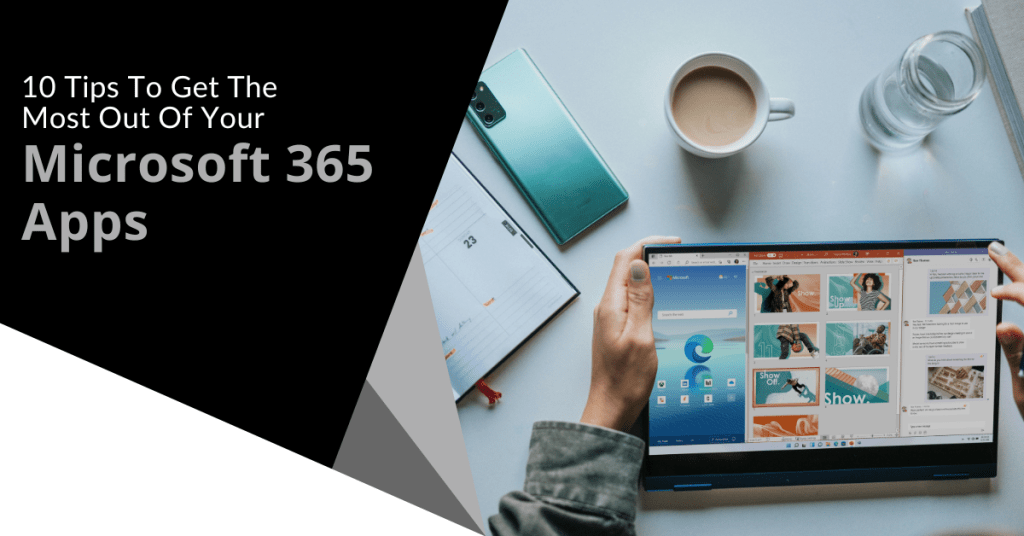
Microsoft 365 is a strong set of tools created to make working together and staying safe easier on many devices and systems. It has well-known programs like Word, Excel, PowerPoint and Outlook as well as new ones like Teams and OneDrive. With its powerful features and cloud-based services, Microsoft 365 gives businesses a complete way to organize their operations and boost communication. This post will talk about ten important tips that will help you get the most out of your Microsoft 365 apps.
What Are The Key Features Of Microsoft 365?
Microsoft 365 isn't just a bunch of office programs. It is a whole ecosystem that helps people work together, control their data and stay safe. Some of the most popular tools and features include:
- Teams
- OneDrive
- Excel
- Word
- Power Apps
- Planner
- Forms
Microsoft Teams is a central hub for communication and teamwork that lets users share files, hold meetings and easily connect to other Microsoft apps. OneDrive also offers safe cloud storage so users can get to their files and share them from anywhere. To keep private data safe, Microsoft 365 also has advanced security features like multi-factor login and data encryption.
One great thing about Microsoft 365 is that it lets people work together in real time. Multiple people can work on papers at the same time with tools like Excel and Word. This makes them more productive and reduces the need for version control. Also, Microsoft 365 works with other useful programs (such as Power Apps and Power Automate) which let users create their own apps and make work more efficient.
Microsoft Planner is a visual tool for keeping track of projects and tasks that works with Microsoft 365. It gives teams a central place to make plans, give tasks and keep track of work. This tool is great for keeping track of complicated projects and making sure everyone on the team is on the same page.
Along with these tools, Microsoft 365 comes with Microsoft Forms which makes it easy to make polls, quizzes and questionnaires. This tool helps with getting feedback, giving tests and making the process of collecting data easier. Now we will go into more detail on how you can optimize your Microsoft 365 experience.
How Can You Optimize Your Microsoft 365 Experience?
To truly benefit from Microsoft 365, it is essential to understand how to optimize its features for your organization’s needs. Here are some key strategies:
Embracing Collaboration Tools
Microsoft Teams is a cornerstone of collaboration in Microsoft 365. By setting up channels for different projects or departments, teams can communicate effectively and share relevant documents. Additionally, integrating SharePoint allows for centralized document management to make it easier for teams to access and collaborate on files.
Customizing Your Environment
Customizing your Microsoft 365 environment can significantly enhance user adoption. By tailoring SharePoint sites and Teams channels to reflect your organization’s branding and workflow, you can create a more intuitive and personalized experience for employees. This customization helps ensure that users can easily find and utilize the tools they need.
Using Automation
The Power Platform (which includes Power Apps, Power Automate and Power BI) offers powerful tools for automating tasks and gaining insights from data. By leveraging these tools, businesses can streamline processes, reduce manual labor and make data-driven decisions more effectively.
Ensuring Data Security
Data security is paramount in today’s digital landscape. Microsoft 365 provides robust security features like Azure Information Protection and Advanced Threat Protection to safeguard sensitive information. Implementing these features and ensuring compliance with regulatory standards can protect businesses from data breaches and legal issues.
Staying Up-to-Date with Training
Microsoft regularly updates its products with new features and enhancements. Staying informed through Microsoft Learn and other training resources can help your organization remain competitive and ensure that employees are using the latest tools effectively.
Partnering with Experts
Working with experienced consultants or Microsoft Certified Professionals can provide valuable insights and guidance on how to best utilize Microsoft 365 for your specific business needs. These experts can help overcome challenges, optimize your environment and unlock the full potential of Microsoft 365.
Managing Email and Time Effectively
Utilizing features like Focused Inbox and Quick Steps in Outlook can significantly streamline email management. Additionally, leveraging shared calendars and task management tools can enhance productivity and collaboration across teams.
Utilizing Microsoft 365 Across Devices
Microsoft 365 apps are available across multiple devices including PCs, Macs, tablets and mobile phones. Ensuring that employees can access these tools from anywhere can improve flexibility and responsiveness to business needs. In conclusion, maximizing your investment in Microsoft 365 requires a strategic approach that encompasses collaboration, customization, automation, security and ongoing learning.
Take the Next Step with Microsoft 365
If you are looking to enhance your organization’s productivity and collaboration, consider reaching out to us for expert guidance on implementing Microsoft 365 effectively. Our team can help you tailor Microsoft 365 to meet your unique business needs and ensure you get the most out of this powerful suite of tools.

You can make your computer experience more unique by changing the style of your desktop. It lets you organize your area well which makes it easier to get to files and programs you use often. There are many ways to change things whether you are using Windows, macOS or Linux.
This can make a big difference in how your desktop looks and how it works which can help you get more done and make your computer feel more like your own. We will look at ten ways to change the layout of your screen.
10 Ways to Customize Your Desktop
Customizing your desktop can be both fun and rewarding. It offers a wide range of possibilities from changing backgrounds and themes to organizing icons and widgets. Here are ten tips to help you get started:
1. Change Your Desktop Background
One of the easiest and most effective ways to make your computer your own is to change the background of your screen. A lot of different pictures are available such as family photos, artwork and backgrounds that change throughout the day.
This can help make your workspace feel more like home. For instance, if you are working on a creative project, a bright and colorful background might help you think of new ideas. If you need to concentrate, a more muted image might be better.
Most of the time, you need to go to your operating system's settings to change your screen background. Right-click on the screen in Windows and choose "Personalize." Then you can pick a background from your files or one of the ones that come with Windows. Mac users can choose or share a new background picture by going to System Preferences > Desktops & Screensaver.
2. Use Custom Themes
Using custom themes can completely overhaul the look of your desktop including colors, fonts and even the design of windows and menus. Themes are available for most operating systems and can be easily installed from the internet or created using third-party software. Custom themes allow you to match your desktop to your personal style or work environment and makes your computer feel more personalized.
For Windows users, themes can be downloaded from the Microsoft Store or from third-party websites. macOS users can also find themes online even though they might require additional software to install. Linux users often have the most flexibility because they can customize almost every aspect of their desktop using open-source tools.
3. Organize Icons and Folders
Organizing icons and folders is essential for keeping your desktop clutter-free and accessible. By categorizing files and applications into logical groups, you can quickly find what you need without having to search through a messy desktop. This organization can significantly reduce stress and improve productivity.
To organize your icons and folders, you can create folders for different types of files or projects and place them in a logical order on your desktop. You can also use labels or colors to differentiate between different types of files. Additionally, consider using the “Dock” on macOS or the “Taskbar” on Windows to pin frequently used applications for easy access.
4. Add Widgets and Gadgets
Adding widgets and gadgets can provide quick access to information like weather forecasts, news updates or system performance metrics. These small applications can be placed anywhere on the desktop and make them a convenient way to stay informed without cluttering your workspace. Widgets can be particularly useful for monitoring system resources or staying up-to-date with current events.
On Windows, you can use tools like Rainmeter to create custom widgets. On macOS, GeekTool is a popular choice for adding custom widgets to your desktop. Linux users can use tools like Conky to display system information in a customizable format.
5. Create Custom Icons
Creating custom icons is another way to personalize your desktop. By designing or downloading custom icons, you can replace the default icons for folders, files and applications to give your desktop a consistent look that reflects your style. Custom icons can make your desktop feel more cohesive and visually appealing.
To create custom icons, you can use graphic design software like Adobe Photoshop or free alternatives like GIMP. Once you have designed your icons, you can replace the default icons by right-clicking on the file or folder and selecting “Properties” (on Windows) or “Get Info” (on macOS) and then dragging your custom icon into the icon preview area.
6. Set Up Multiple Desktops
Setting up multiple desktops or workspaces is a powerful feature available on many operating systems. This allows users to separate different tasks or projects into distinct environments and reduces clutter and improves focus. Multiple desktops can help you stay organized and avoid distractions.
On Windows, you can use the Task View feature to create multiple desktops. On macOS, you can use Spaces to set up different workspaces. Linux users often use tools like GNOME or KDE to manage multiple desktops.
7. Use Keyboard Shortcuts
Using keyboard shortcuts is a simple yet effective way to streamline your workflow. By assigning custom shortcuts to frequently used applications or actions, you can save time and improve productivity. Custom shortcuts can help you work more efficiently by reducing the need to navigate menus or click through multiple windows.
To create custom shortcuts, you typically need to access your operating system’s keyboard settings. On Windows, you can go to Settings > Ease of Access > Keyboard to set up custom shortcuts. On macOS, you can use the Keyboard preferences in System Preferences to create custom shortcuts.
8. Automate Tasks
Automating tasks is another powerful customization strategy. Tools like AutoHotkey for Windows or Automator for macOS enable users to create scripts that automate repetitive tasks to free up time for more important activities. Automation can significantly reduce the time spent on routine tasks to allow you to focus on more creative or strategic work.
To automate tasks, you can start by identifying repetitive actions you perform regularly such as renaming files or sending emails. Then use automation software to create scripts that perform these tasks automatically. This can range from simple actions to complex workflows that involve multiple applications.
9. Customize the Taskbar or Dock
To get the most out of your desktop setup, you can change the taskbar or dock. You can make your desktop easier to use and understand by moving icons around, adding custom tools or changing how these things look. A dock or desktop that is well-organized can help you get to your most-used programs quickly.
When you right-click on the taskbar in Windows, you can change how it looks and add new icons. You can pin apps to the dock on macOS so they are easy to get to. You can also change the dock's size and location to fit your needs.
10. Use Third-Party Software
Using third-party software can enhance your desktop customization experience. Programs like Rainmeter for Windows or GeekTool for macOS allow users to create custom widgets and skins that can display a wide range of information from system stats to inspirational quotes. Third-party software provides a high degree of flexibility to enable users to design their desktops with unique and functional elements.
To get started with third-party software, you can explore online communities or forums where users share their customizations and provide tutorials on how to implement them. This can be a great way to find inspiration and learn new techniques for customizing your desktop.
Try Customizing Your Desktop
It is fun and satisfying to change the layout of your desktop and it can make your computer experience much better. There are many ways to make your computer feel more like your own whether you want to be more productive, show off your talent or just make it feel more like you. You can make a workspace that fits your wants and style perfectly by exploring the different customization options. If you want to know more about designing your desktop or need help putting these ideas into action, please don't hesitate to get in touch with us.