
There are a lot of things that have changed since the invention of the internet. One of these is online banking and how we access our accounts. You previously had to go into a local bank branch to make deposits and withdrawals. Today you can take a picture of a check and deposit it from your phone.
Approximately 73% of people around the world use some form of online banking at least once a month. People have never had such convenient account access. However, that convenience can come at a cost.
In 2021, account takeover fraud increased by 90%. New account fraud jumped a whopping 109%. As the ease of online banking has increased, so has banking-related cybercrime.
If someone breaches your Facebook account, it can be a real pain. If a hacker breaches your bank account, it can be devastating. It can mean significant losses. These are losses that you may not be able to recoup from your financial institution.
In this article, we will take a look at the mistakes people make that leave their accounts at risk. Then we will go over some important tips on how to keep your bank account better protected.
Mistakes That Allow Criminals to Access Your Account
Not Enabling Two-factor Authentication
Two-factor authentication (2FA) is a simple process that packs a big punch. When you enable this setting in an online account, it requires an extra step to gain access. That step usually consists of receiving a one-time passcode (OTP) by SMS and entering that at login.
Many people make the mistake of leaving this disabled. They either don’t know it is there or they think it is too inconvenient. Leaving this setting off makes it much easier for a bad actor to breach your account.
Falling for a Phishing Scam
There are several types of phishing scams that target online banking. Cyber criminals send emails that look like they come from your bank. They will even promise incredibly low rates on credit cards.
Other scams can involve warning you of unauthorized account activity. When you click the link to log in, you are actually on a fake page. It is one that is designed to look just like your normal bank website.
These are just a few ways that scammers can get your online banking login details. Once they have them, they will act immediately to get whatever they can.
Using Easy-to-Guess Passwords
If your account password is easy to remember, it is also often easy to guess. Using weak passwords is a common mistake that enables many cyber criminals.
Some best practices for passwords include:
- Make them at least 10 characters long
- Include at least one number
- Include at least one symbol
- Include at least one upper-case letter
- Don’t make them personal (e.g. don’t use your birthdate, etc)
Downloading Unsafe Mobile Apps
Banking trojans are often hidden in malicious mobile apps. These apps can look like something as innocent as a task manager. Banking trojans seek out any details they can find once they are installed. They are looking for banking and wallet apps.
Logging Into Online Banking While on Public Wi-Fi
One surefire way to give away your online banking password is to log in while on public Wi-Fi. Hackers hang out on public hot spots and spy on the activity of others. You should never type in a password or other sensitive details when connected to public Wi-Fi.
Tips for Improving Online Banking Security
Turn On Two-Factor Authentication
Enable two-factor authentication in your online banking account. This is also known as multi-factor authentication or two-step verification. According to Microsoft, it can block 99.9% of fraudulent account login attempts.
Set Up Banking Alerts
Time is of the essence when an intruder breaches your account. The faster you can notify your bank of the breach, the better. You could reduce the impact on you by having your account locked down immediately.
Set up banking alerts through your online banking. These can include things like low-balance alerts and login alerts.
Install an Antivirus & DNS Filtering On Your PC & Mobile Device
It is important to have reliable antivirus software on your PC and mobile device. Many people don’t think about protecting their phones in this way. They shop online and bank via mobile devices.
It is also good to use a DNS filter. This is a filter that protects you from going to dangerous phishing sites by blocking them.
Take Phishing Training Classes
Do you know how to identify phishing? Are you up on all the newest scams? You can make yourself less vulnerable by taking some phishing awareness classes. There are many of these for free online. You can also contact us for more personalized training options.
Knowing how to spot phishing via text, email and phone can help you avoid becoming a scam victim.
Get Help Protecting Your Family from Scams
There are some key digital solutions that we can put in place to keep your family safer from online threats. Give us a call today to schedule a chat about online security.
Cybersecurity has become a critical concern for individuals and businesses alike. With the rise of cyberattacks and data breaches, it is essential to have a robust security strategy in place. One security approach that has gained popularity in recent years is hybrid cybersecurity. In this article, we will explore what hybrid cybersecurity is and whether you should consider it for your security needs.
What Is Hybrid Cybersecurity?
Hybrid cybersecurity is a security approach that combines the best of both worlds – on-premises security and cloud security. This approach is designed to provide businesses with a flexible, scalable, and highly secure security infrastructure that can adapt to the ever-evolving threat landscape.
On-premises security involves installing and managing security solutions locally within the organization's infrastructure. This approach has been used for many years and provides a high level of control over the security of the organization's data. However, on-premises security can be expensive, time-consuming and requires a significant amount of expertise to implement and manage.
Cloud security has emerged most recently to address these pain points. It involves using cloud-based security solutions that are managed by third-party providers. This approach is highly scalable, cost-effective and easy to manage which makes it an attractive option for many businesses. However, cloud security has its own set of challenges like data sovereignty, compliance and dependency on a third-party provider.
Hybrid cybersecurity combines on-premises security and cloud security to provide a highly secure and flexible security infrastructure. This approach is the best of both worlds which enables businesses to use a combination of on-premises security solutions and cloud-based security solutions depending on their specific security needs.
Instead of dealing with the potential drawbacks of one method, businesses can experience the benefits of both solutions. Implementing hybrid cybersecurity is a straightforward path to building a bulletproof data security infrastructure.
Should You Consider Hybrid Cybersecurity?
Hybrid cybersecurity can be an excellent option for businesses of all sizes for many reasons. Here are a few of the benefits you can experience when you make the switch to hybrid cybersecurity:
Scalability
Hybrid cybersecurity provides businesses with a highly scalable security infrastructure. The most common approach is using on-premises security solutions for critical data and cloud-based security solutions for less sensitive data.
Affordability
Hybrid cybersecurity can also be cost-effective for businesses. Using on-premises and cloud-based security solutions for different data types can help businesses reduce the cost of their security infrastructure overall.
Flexibility
Hybrid cybersecurity provides businesses with the flexibility to use both on-premises and cloud-based security solutions which allows them to adapt their security infrastructure to their specific security needs.
Increased Security
Increased security is another benefit of hybrid cybersecurity. When on-premises and cloud-based security solutions are used in tandem, businesses can ensure that their data is highly secure.
Compliance
Hybrid cybersecurity allows businesses to meet their compliance requirements. By using on-premises security solutions for critical data and cloud-based security solutions for less sensitive data, businesses can ensure that their security infrastructure meets the regulations that apply to them.
Redundancy
Data redundancy is the practice of keeping data backed up in two or more places. Using a combination of on-premises and cloud-based security solutions confirms that important data is highly available and can withstand a disaster.
Ready to Make the Switch?
Hybrid cybersecurity is a security approach that combines on-premises security and cloud security to provide businesses with a highly secure and flexible security infrastructure. This approach enables businesses to use both on-premises security solutions and cloud-based security solutions depending on their specific security needs.
Hybrid cybersecurity can be an excellent option for businesses of all sizes because it provides scalability, cost-effectiveness, flexibility, increased security, compliance and redundancy.
When considering hybrid cybersecurity, it is essential to choose the right security solutions for your specific security needs. It is also important to work with a trusted security provider who can help you implement and manage your security infrastructure. By taking the time to understand your security needs and working with a trusted security provider, you can rest assured your most sensitive company data is protected while you focus on growing your business.
Cybersecurity is a constantly evolving field. New threats and vulnerabilities are emerging every day and it is essential to keep up-to-date with the latest security best practices. That is why Sound Computers offers comprehensive IT security services, from network security to access control. We will work with you to identify your specific security needs and come up with customized solutions for your organization.
By staying informed about the latest security trends and taking steps to protect yourself, you can reduce the risk of a security breach and keep your data safe. Give us a call today at (860) 577-8060 to speak with our team and start making the switch to a more robust cybersecurity infrastructure.
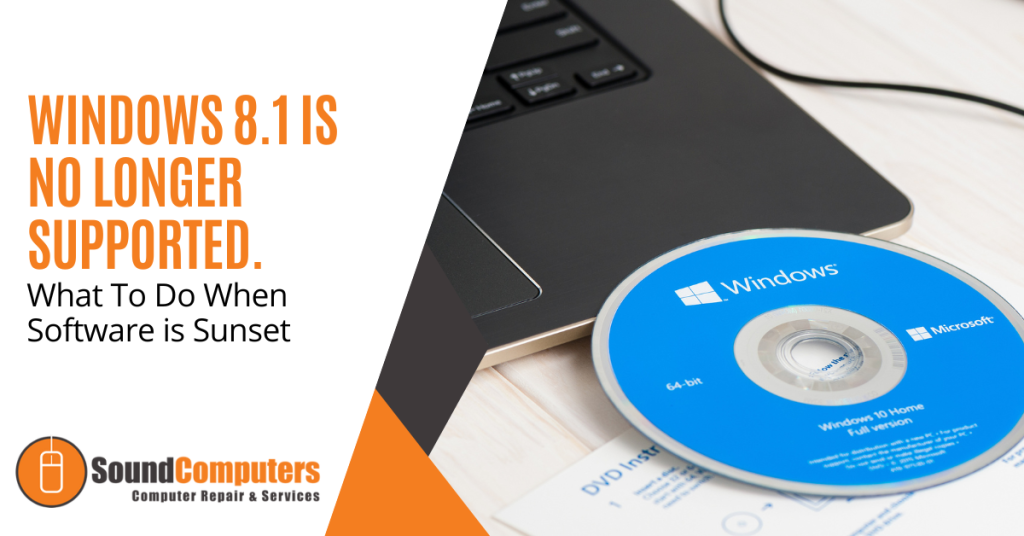
If you are still using Windows 8.1, it is time to start thinking about upgrading. Microsoft ended support for Windows 8.1 on January 10, 2023, which means they will no longer be providing security updates, bug fixes or technical support.
While it may be tempting to continue using Windows 8.1, doing so can leave your computer vulnerable to security risks and software incompatibility issues. In this article, we will explore what to do when software is sunset and how to upgrade to a newer operating system.
What Is Software Sunset?
Software sunset (also known as end-of-life) is the point at which software developers stop supporting a particular version of their product. This can happen for several reasons including the release of a new version of the software or a shift in the developer's business focus.
When software is sunset, it means that the developer will no longer be providing updates or technical support for that version. This can leave the software vulnerable to security risks, compatibility issues with new hardware or software and other problems.
What Happens When Windows 8.1 is No Longer Supported
When Microsoft ended support for Windows 8.1, it meant that they would no longer be providing support for the operating system. This can leave your computer open to security risks including:
- Viruses
- Malware
- Ransomware
- Security breaches
As new hardware and software is released, they may not be compatible with Windows 8.1. This can make it difficult to use new software or hardware on your computer which limits your productivity and potentially leaves you at a disadvantage in your personal or professional life.
What Are The Upgrade Options For Windows 8.1?
If you are currently using Windows 8.1, it is important to start thinking about upgrading to a newer operating system. Here are a few options to consider:
Upgrade to Windows 11
Windows 11 is the latest version of the Windows operating system and it is widely considered to be an improvement over Windows 8.1. Upgrading to Windows 11 will ensure that you continue to receive security updates and bug fixes as well as support for new hardware and software.
Switch to a Different Operating System
While Windows is one of the most popular operating systems, it is not the only option available. There are many other operating systems to choose from with some of the top choices being:
- MacOS
- Linux
- Chrome OS
Each has its advantages and disadvantages. It is important to research your options and choose the one that is right for you.
Upgrade Your Hardware
If your computer is older and not capable of running a newer operating system, you may need to upgrade your hardware. This can be costly but it may be necessary if you want to continue using your computer for the next few years.
How Should I Prepare to Upgrade to Windows 11?
Before you upgrade to a new operating system, there are a few steps you should take to ensure a smooth transition:
Back up Your Data
Before you make any changes to your computer, it is important to back up your data. This will ensure that you don't lose any important files if something goes wrong during the upgrade process.
Check for Compatibility Issues
If you are upgrading to a newer version of Windows, make sure that your hardware and software are compatible with the new operating system. You can use Microsoft's Upgrade Assistant tool to check for compatibility issues before you begin the upgrade.
Consider a Clean Install
While upgrading your operating system is generally a straightforward process, you may encounter issues during the upgrade. Consider doing a clean install of the new operating system to avoid any potential problems.
Ready to Upgrade?
When software is sunset, it is important to take action to ensure that you are still able to use your computer safely and effectively. If you're still using Windows 8.1, it is time to start thinking about upgrading to a newer operating system.
While the process of upgrading can be intimidating, it is essential to take the necessary steps to keep your computer secure and up to date.
There are several upgrade options to consider including upgrading to Windows 11, switching to a different operating system or upgrading your hardware. Before you upgrade, be sure to back up your data, check for compatibility issues and consider doing a clean install.
At Sound Computers, we strive to educate our customers about the dangers of staying on an unsupported operating system and leaving your computer vulnerable to security risks and compatibility issues.
If you need assistance upgrading your computer, call us at (860) 577-8060 to speak with one of our experts and learn more about our IT services.
By taking the time to upgrade, you can ensure that your computer is running smoothly and securely for years to come.
Make Sure Your Router is Secure
There is a reason why browsers like Edge have added breached password notifications. Data breaches are an unfortunate part of life and can have costly consequences for individuals. For example, hackers can steal identities and compromise bank accounts.
Cybercriminals breach about 4,800 websites every month with form jacking code. It has become all too common to hear of a large hotel chain or social media company exposing customer data.
Hackers can breach your personal information and passwords without you knowing it and the time from breach to notification of the breach can be lengthy. One example is the data breach of CafePress. This is a popular online retailer that prints personalized items.
CafePress suffered a data breach in February 2019. That breach exposed millions of names and addresses, security questions and more. Hackers also breached social security numbers that were not encrypted.
The breach happened in February. However, many consumers were not notified until late summer. The FTC recently took action against the company. This was due to its careless security practices.
The point is that months or years can go by without you knowing about compromised data. Unless you happen to look at the right website, you may not even realize it. Those breached password features in browsers are helpful. But what if you have other information beyond a password compromised?
It is best to protect yourself with some knowledge. We will help by listing several recent data breaches. If you have interacted with any of these companies, you will want to take steps to protect yourself from the fallout.
Recent Data Breaches of Personal Information That May Impact You
Microsoft Customer Data Breach
On October 19, 2022, Microsoft announced a breach that exposed customer data. A misconfigured server was to blame. The breach exposed certain business transaction data. It is thought that this breach could have affected more than 65,000 entities worldwide.
2.5 Million Records Exposed in a Student Loan Breach
Did you get a student loan from EdFinancial and the Oklahoma Student Loan Authority (OSLA)? If so, you could be in trouble. The organizations notified impacted individuals by letter in July 2022.
The personal information at risk included:
- Social security numbers
- Email addresses
- Home addresses
- Phone numbers.
The breach compromised the data of over 2.5 million loan recipients.
U-Haul Data Breach of 2.2 Million Individuals’ Data
Large rental firm U-Haul is a household name. It also just had a major data breach. It notified clients in August of 2022 of a compromise of some rental contracts. The contracts in question were between November 5, 2021 and April 5, 2022.
The breach exposed names, driver’s license numbers and state identification numbers. It affected over 2.2 million individuals that rented vehicles from the company.
Neopets Breach May Have Compromised 69 Million Accounts
You wouldn’t suspect a cute site like Neopets to be a cybersecurity risk but users of the platform got a rude awakening due to a breach of the service. An estimated 69 million accounts may have had emails and passwords leaked.
The full stolen Neopet database and copy of the source code were being offered for sale for about $94,500.
One Employee Computer Causes a Marriott Breach
Hotel giant Marriott suffered another breach in July 2022. It blamed a single unsecured employee computer. About 300-400 individuals had data leaked. This data included credit card numbers and other confidential information.
Unfortunately, the company shows a pattern of poor cybersecurity. Within the last four years, it has suffered three separate breaches. That is enough to want to pay in cash or use a prepaid card if you stay there.
Shield Health Care Group Exposes Up to 2 Million Records
In March of 2022, Shield Health Care Group detected a breach. This Massachusetts-based company found that hackers breached up to 2 million customer records. This includes medical records, social security numbers and other sensitive personal data.
Flagstar Bank Takes 6 Months to Identify Individuals Affected in a Breach
In December of 2021, Flagstar Bank suffered a breach. It wasn’t until 6 months later that it identified the individuals affected and the impact was large. It included exposed social security numbers. The hack impacted about 1.5 million customers.
8.2 million Current and Former Customers of Block Compromised
Block was formerly known as Square (a popular payment processing platform). It announced in April of 2022 that it was breached the previous December. A former employee accessed customer names and brokerage account numbers. Some accounts also had other stock trading information accessed.
About 8.2 million current and former customers had their data exposed.
Crypto.com Breach Nets Hackers Over $30 Million
Cryptocurrency may be hot at the moment but it is very susceptible to cyberattacks. In January 2022, over 483 users had their Crypto.com wallets breached.
The criminals made it past two-factor authentication which is usually quite effective. They stole about $18 million in bitcoin and $15 million in Ethereum and other cryptocurrencies.
How Secure Are Your Passwords?
There are many solutions that can help you better manage and secure your passwords. Give us a call to learn more about protecting your personal data from data breaches.
The global home security market has been growing by leaps and bounds. By 2026, experts expect the market to expand at a rate of 20.1%. This is on top of an expected increase of 21.6% from 2021 to 2022.
From Ring doorbell cams to entire home security systems, consumers want these solutions. Watching your front door from afar has never been so easy. With cloud-based video streams, homeowners can view any part of their home.
Sharing doorbell camera shots on neighborhood social media groups is now common. These home security systems also provide peace of mind at a wallet-friendly cost.
Don’t let the ease of setup fool you. Home security cameras can open your family up to risks if you don’t take precautions. People are often so excited to see what they can do that they don’t stop to think about device security.
There are horror stories online about hacked video cameras. This includes strangers saying disturbing things through those cameras to children.
In 2019, Ring suffered a data breach. That breach exposed the personal data of over 3,000 Ring users. This included usernames and passwords.
It is enough to make you reconsider your decision to add extra security. Don’t let those incidents scare you off. You can properly secure a home video camera system to ensure that it is not breached.
Here are some of the things you should do for a safe home security setup.
Make Sure Your Router is Secure
You access an IP security camera via the internet. Any commands going to the system or footage coming from it go through your router. You need to make sure that your router is properly secured.
Hackers breach routers so they can get to the devices connected to that network. Ensure your router security protocol is no lower than WPA2. The next generation, WPA3, is even better. These protocols govern the protection of data transmitted through the wireless network.
Give the router a strong password that is at least 12 characters long. Software can crack a password of only 8 standard characters instantly. A 12-character password with at least one upper case letter, number and symbol takes 34,000 years.
Change the Default Username & Password
You also need a strong password for your security system’s admin account. You should also change the default device and username. Hackers have lists of all these device defaults and use them to break into these systems.
Changing the default username and password for the device should be one of the first things you do. Otherwise it could be mere minutes after you connect to the internet that you’re hacked.
Ensure the System Uses SSL/TLS Or Other Encryption
You don’t want the footage from your cameras transmitted for anyone to grab and watch. Make sure the security system you choose notes SSL/TLS or another standard encryption.
This ensures that the data cannot be intercepted and accessed. SSL is short for Secure Sockets Layer and TLS is short for Transport Layer Security. Without a form of encryption, a hacker can easily breach your device.
Keep the Software Updated
If your security system has an automatic update feature, turn that on. Unfortunately, many users don’t think about updating their device software. This leaves it more vulnerable to a hack.
Updates often include important security fixes for found vulnerabilities. You want to make sure updates install promptly. That is why automating this is best.
Consider Access Levels for Multiple Users
Do you have several family members accessing your cloud-based security device? If so, set up some access levels. Not everyone needs to be at an administrator level.
Hackers love it when they can breach the login of an admin user for an account. This gives them more privileges (like changing settings). Giving lower-level privileges such as “view only” to most family members improves security.
Enable Camera Security Features
There will be various security features that are available with your system. Manufacturers often do not enable all security settings by default. The user must turn all or some of them on.
If you’re unsure of what settings should be on or off, we will be happy to help. Some home security systems have generous sharing options. This can be an invitation for hackers. You want to restrict these as much as possible.
Make Sure Your Mobile Device is Secure
Most people access their security cam through their smartphone. Make sure that you secure yours and keep it updated with the latest operating system. Hackers can gain access to a security system through a device with weak safeguards.
Add things like:
- Mobile anti-malware
- DNS filtering
- Screen lock
- Automated updating
Looking for Help Protecting Your Cloud Security System?
Give us a call and schedule a visit. We will be happy to help you ensure your security system is set up with best practices.
Paying attention to your customer experience directly impacts your bottom line. Companies that are “customer-centric” are 60% more profitable than those that are not. In this digital age, customers also expect more from those that they do business with.
In today’s world, people can order something on their phones and see it on their doorstep by the next day. Keeping up with expectations means leveraging the right technology.
2023 is on the horizon and it is the perfect time to improve your customer experience. Cloud technology allows you to do it without needing to spend a fortune. Just put in place some of the applications below. These apps focus on making leads and customers happy.
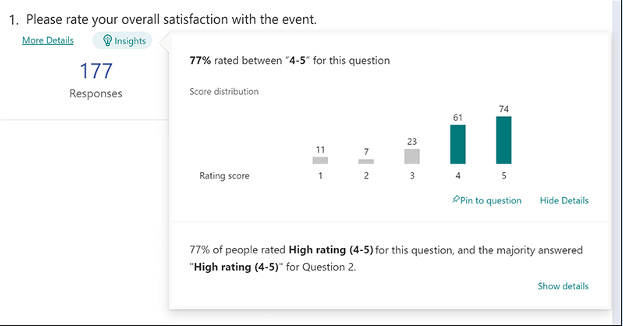
1. Online Survey Application
Doing an annual customer satisfaction survey is a great way to check in with customers. Successful businesses take the feedback that they get and use it to make their company better.
But doing these surveys through a Word document attached to an email is so last decade! Use an online survey application to make the process seamless for you and your customers.
Many online survey tools are available online. If you have Microsoft 365, you will find one included. These allow people to fill out surveys on any device and not worry about sending them back in an attachment.
On the receiving end, there is no long process of collating data. Just open your form survey tool and see the results instantly.
2. Smart Chat Bot
Most businesses have a limit on how many hours per day that they can pay staff to answer questions. Customer service hours are typically the same as business hours and staff can get busy. This means that answers may take longer to send back to an inquiry.
Putting a smart chatbot on your business website can improve customer satisfaction. It allows people to get an answer right away. They can also get that answer any time of day or night.
68% of consumers like chatbots because they give them fast answers to questions. While they can’t answer every single question, they can handle quite a few. For example, in healthcare and banking, chatbots can take 75-90% of questions.
3. Business Mobile App
People tend to live on their mobile phones these days. They carry them with them everywhere. Mobile apps are often the preferred method of connecting with data and businesses. More Google searches are now done via mobile devices than by desktops.
Think about creating a business mobile app. You want one that allows customers to connect with you to order products and services. You can use it for customer support, initiating virtual calls, etc.
4. Facebook Messenger Support
Facebook Messenger is the 2nd most popular iOS app of all time. This Facebook-connected application makes it easy to communicate with friends, family and companies.
Many businesses now use Messenger to connect with leads and provide customer support. When you use an app that is so popular in this way, you make it easier for customers to reach you. The ability to get a quick answer through Messenger can boost a customer’s opinion of your company.
5. VoIP Phone System with Good Mobile App
When customers must juggle different numbers for your staff, it gets confusing. Should they call your sales rep at their desk line or mobile number? Using a VoIP phone system simplifies the entire process.
Employees can have a single number that they use when at their desks, at their home office or anywhere else. Make sure the VoIP service has a good mobile app. You want one that is easy for employees to use. This ensures that they can easily handle customer calls using their smartphone. It also keeps them from reverting to using their number.
6. Text Notification Apps
SMS is becoming the new email for many companies. Retailers like Shoe Carnival and World Market have customers opt-in to text messaging. Customers like this for shipping notifications and to get sale and coupon alerts.
There are several services online that you can use for this purpose. Offering text updates can significantly improve your customers’ experience. Use them for appointment reminders, sale notices or shipping alerts.
7. All-in-One CRM & Sales Platform
One thing that frustrates customers is a disconnect between sales and support. They may have had a conversation with a salesperson to customize an order only to find out that customer service knows nothing about it.
To streamline the information flow, look for an all-in-one CRM/Sales platform. These are cloud services that offer a CRM module and a sales module and both connect. There is a single customer record so that all notes from the sales and customer support side are in the same place. Both teams can view all customer interactions.
This improves the customer experience and results in fewer dropped balls. Efficiency and productivity improve as well because everyone is on the same page.
Get Help with Customer-Facing Technology Support
It is easy to get lost in a sea of different cloud applications. Let us help you navigate to a better customer experience. Contact us today for a free consultation.
Microsoft 365 is the most popular of all major office productivity software. It has 48.8% of the global market share (just edging out Google’s apps by a couple of percentage points).
It is used by individuals, small & mid-sized businesses and larger enterprise organizations. It does everything that a modern office needs including word processing and spreadsheet work as well as cloud storage and video conferencing.
Microsoft 365 is a vast platform containing over 20 apps in total. It can be easy to miss helpful features. People tend to stick with what is familiar. This often causes them to miss out on time and money-saving bonuses in M365 beyond the core apps.
Some of the many apps that you get (depending on your subscription plan) include:
- Excel
- Word
- PowerPoint
- Outlook
- To Do
- OneDrive
- Teams
- Forms
- Defender
- SharePoint
- Yammer
- Lists
- Access
- Bookings
- Intune
- Planner
- Visio
Do you want to get more value from your subscription? We will go through some of the most helpful apps and features in Microsoft 365 that you may now know about.
Get More Out of M365 With These Tips
1. Skip the Menu Bar by Using Search to Find Functions
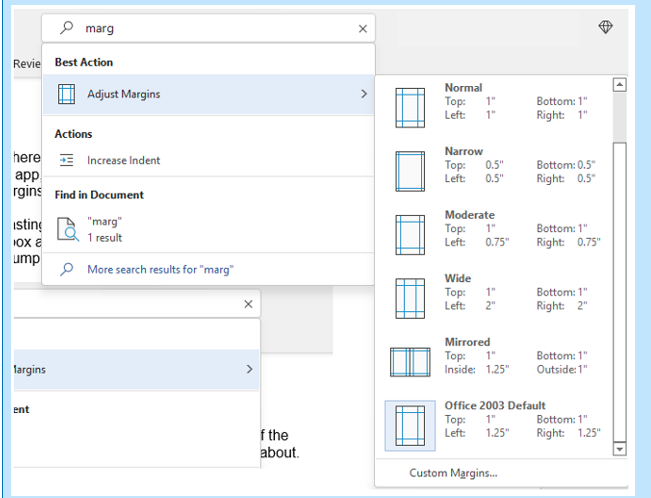
We have all been there at one time or another. You know there is a way to do something in an app but you can't find it in the menu. For example, you may be trying to change your margins in Microsoft Word to give you more space on the page.
You can stop wasting time clicking through one tab after another, and instead, use the search box at the top. It is not just for searching for help topics. You can use a search to quickly jump to settings like margins, page orientation, etc.
2. Leverage the Free Stock Images, Icons & Videos
Most businesses need to have nice-looking images from time to time. They’re used on websites, brochures and presentations. However, finding good business images can be expensive.
You can’t just do a Google search to find them because they may be copyrighted. You need to have images that you can use commercially without any problems.
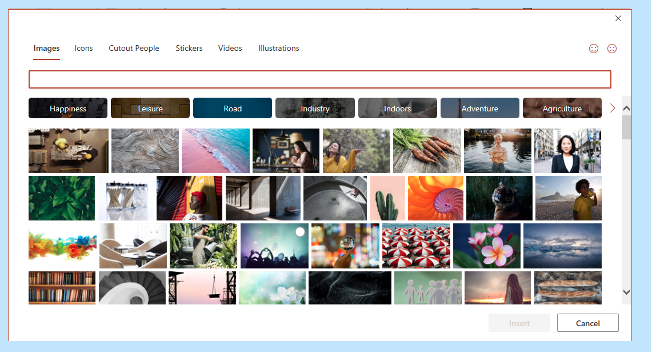
Inside the Word, Excel and PowerPoint, you have a treasure trove of images. These are free to use in your marketing. You also have videos, icons and even 3D models there for the picking.
Find them by going to Insert > Pictures > Stock Images.
Use the tab at the top to tab between the different media. Click to insert it directly into your document, spreadsheet or presentation.
3. Save Time by Using Data Types in Excel
Researching things like the population of a city or the nutrition value of a new menu can take days. Did you know that inside Excel you have access to several databases?
You can leverage facts and figures stored inside Excel’s “data types." They include topics on everything from chemistry to yoga poses. Use data types to populate tons of data in seconds for various topics.
- Start by adding your list (e.g. a list of menu items).
- Highlight your list.
- Click the Data tab.
- In the Data Types window, choose the type of data it is (e.g., Food, Plant, etc).
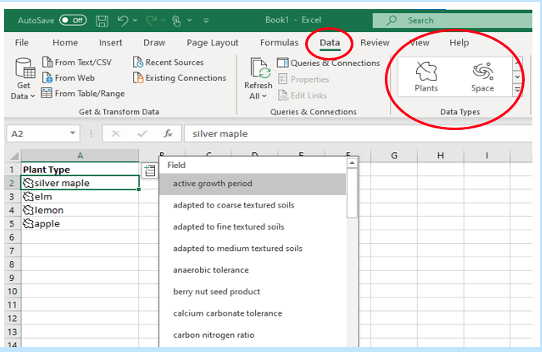
- Next, click the small database icon that appears at the top of the list.
- Choose the type of data you want.
- The details will populate into the next open column on the right for each list item.

4. Save Time on Customer Surveys with Microsoft Forms
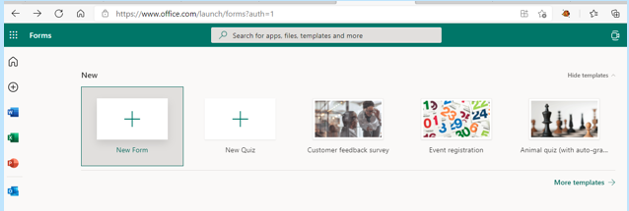
Microsoft Forms is one of the best-kept secrets of M365. This cloud-based survey and form builder makes it simple to send out surveys to people. You get the results back as soon as they click “submit” on the cloud-based form.
You can even download the results directly to Excel. Then you can use them for graphing or upload them into a software template.
5. Use PPT’s Presenter Coach to Improve Your Skills
Do you worry when it comes time to give a presentation to clients or your own team? Not everyone feels comfortable about public speaking even when it is virtual.
PowerPoint can help with a handy AI-powered feature called Presenter Coach. Turn this coach on when practicing your presentation. It will give you tips on your pacing, use of filler words (e.g. umm), repetitive language and much more!
Look for the “Rehearse with Coach” option on the Slide Show menu.
6. Save Recurring Email Text in Outlook’s Quick Parts
Do you have certain emails you send to customers that have the same paragraphs of text in them? For example, it might be directions to your building or how to contact support.
Stop retyping the same info every time. Outlook has a feature called Quick Parts that saves and then inserts blocks of text into emails.
- Create a Quick Part by highlighting the text to save in an email.
- On the Insert menu, click Quick Parts.
- Save Quick Part.
When ready to insert that text into another email, just use the same menu. Then click to insert the Quick Part.

7. Create a Keyboard Shortcut to Paste as Unformatted Text
Keyboard shortcuts are great for saving time. However, there is not always one there when you need it. One handy keyboard shortcut to add for MS Word is to paste as text only. This method removes any formatting that copied text might have had so your document isn’t messed up.
Here is how to make a keyboard shortcut for this:
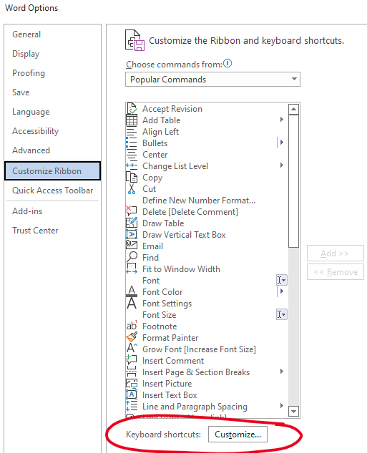
- In Word, click File > Options.
- Click Customize Ribbon.
- At the bottom of the panel (next to Keyboard shortcuts) click Customize.
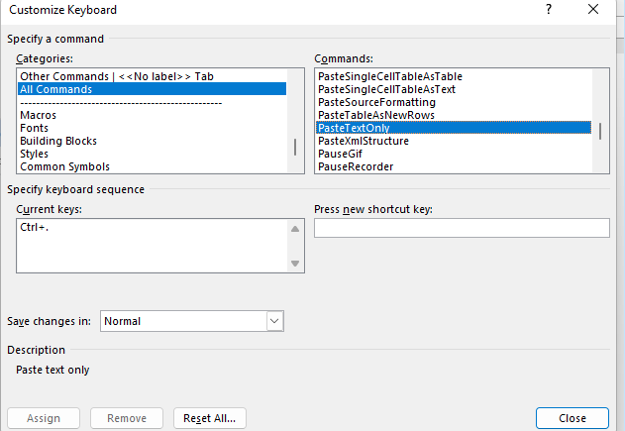
- Scroll in the left pane to All Commands.
- Look for “PasteTextOnly”.
- Type your keyboard command and click Assign.
Need Help Optimizing Microsoft 365?
Microsoft 365 has many security-enhancing, time-saving and dollar-saving features. Learn other ways that we can help by scheduling a consultation today. Give us a call at (860) 577-8060 or use our contact form.
As a small business owner, you know that every penny counts. When it comes to making a large purchase like a new PC, you want to be sure that you’re getting the best possible value for your money while also offering the performance you need to keep your operation running.
In this blog post, we will outline some of the most important features to look for when buying a new PC so that you can avoid any post-purchase regrets.
Where to Start?
First and foremost, you will want to make sure that the computer you are buying is powerful enough to handle all of your business needs. If you’re planning on using demanding software or running complex calculations, you will need a machine with a robust processor and a healthy amount of RAM.
If you’re mostly just using your PC for tasks like email and web browsing, you can get away with something a bit less powerful and save some money in the process.
Let us take a closer look at some of these components:
CPU
The central processing unit (CPU) is the brain of the operation. It is responsible for carrying out all the instructions that make your software run. It is important to pay attention to the CPU type and speed when shopping for a new PC. Intel and AMD are the two most popular CPU manufacturers and you will often see references to “i3”, “i5” and “i7” processors. These refer to the Intel Core line of CPUs which are divided into the budget, mid-range and high-end models. AMD’s Ryzen line offers similar options with their Ryzen 3, Ryzen 5, Ryzen 7 and so on.
Generally, faster is better. However, if you’re on a tight budget, you can always start with a mid-range model and upgrade to a faster processor down the road. Just make sure the motherboard in your new PC can accommodate a faster CPU.
Memory
One of the most important things to consider when buying a new PC is the amount of memory (or RAM) that it has. Memory is what allows your computer to store and access information quickly and more memory will always result in better performance.
For small businesses, it is recommended to have a minimum of 8GB of RAM. However, 16GB or more is even better.
Storage Space
Another important consideration is storage space. There are two main types of drives in this category:
- Hard Drives (HDD)
- Solid-State Drives (SSD)
The kinds of files you work with will determine which is the best option for you. If you’re working with large files or dealing with a lot of data, you will need a computer with a sizable storage solution.
Hard drives are generally slower than solid-state drives but they offer more storage for the price. Solid-state drives are much faster than hard drives. If speed is a priority, you will want to choose a computer with an SSD.
Both HDD and SSD drives come in a variety of form factors so you will need to choose the right size for the needs of your specific build.
Display
Displays are your window into the work you’re doing. You will want to make sure that it is the right fit for your needs.
If you are going to be doing a lot of graphics work, you will want to make sure you get a higher resolution. If you are just going to be doing basic work, you can save some money and go with a lower resolution.
There are also other considerations like display size and color accuracy.
Display size is simply how large the physical display is. If you have a small workspace, then you will want to make sure that you get a smaller display. If you are doing any sort of color work, you will want to make sure that the display’s colors are as accurate as possible. This is usually not a problem with higher-end displays but it can be an issue with lower-end ones.
Peripherals
Once you have decided on the specs of your new computer, you will also need to think about the peripherals. In addition to a monitor, keyboard and mouse, you may need additional devices like a printer, scanner or an external hard drive for portable storage needs. Make sure to factor in the cost of these items when budgeting for your new PC.
Warranty
As a small business owner, the last thing you want is to need to shell out more money for a new PC because something went wrong with the one you just bought. Make sure the PC that you are buying comes with a warranty that will cover you in case of any unforeseen problems.
Assess Your Needs
Before making a decision, sit down and assess your specific needs.
- What type of software will you be using?
- How much storage space do you need?
- What is your budget?
Once you have answers to these questions, you will be in a much better position to choose the right PC for your business.
We Can Help You Choose the Best PC For Your Needs
No matter what size company you have, picking out the right computer is important. Contact us at (860) 577-8060 or via our contact form to learn more.
Few things invoke instant panic like missing a mobile device or laptop. These devices hold a good part of our lives. This includes files, personal financials, apps, passwords, pictures, and videos.
The information they hold is more personal than even that which is in your wallet. It's because of all your digital footprints. This makes a lost or stolen device a cause for alarm.
It is not the device that is usually the biggest concern. It is the data on the device and access the device has to cloud accounts and websites. The thought of that being in the hands of a criminal is quite scary.
There are approximately 70 million lost smartphones every year. The owners only recover about 7% of them. Workplace theft is all too common. The office is where 52% of stolen devices go missing.
If it is a work laptop or smartphone that goes missing, it is even worse. This can mean the company is subject to a data privacy violation. It could also suffer a ransomware attack originating from that stolen device.
In 2020, Lifespan Health System paid a $1,040,000 HIPAA fine. This was due to an unencrypted stolen laptop breach.
The Minutes After the Loss of Your Device Are Critical
The things you do in the minutes after missing a device are critical. This is the case whether it is a personal or business device. The faster you act means the less chance there is for exposure of sensitive data.
What Types of Information Does Your Device Hold?
When a criminal gets their hands on a smartphone, tablet or laptop, they have access to a treasure trove. This includes:
- Documents
- Photos & videos
- Access to any logged-in app accounts on the device
- Passwords stored in a browser
- Cloud storage access through a syncing account
- Emails
- Text messages
- Multi-factor authentication prompts that come via SMS
Steps to Take Immediately After Missing Your Device
As we mentioned, time is of the essence when it comes to a lost mobile device. The faster you act means the more risk you mitigate for a breach of personal or business information.
Here are steps you should take immediately after the device is missing.
Activate a “Lock My Device” Feature
Most mobile devices and laptops will include a “lock my device” feature. It allows for remote activation if you have enabled it. You will also need to enable “location services.” While good thieves may be able to crack a passcode, turning that on immediately can slow them down.
What about “find my device?”
There is usually also a “find my device” feature available in the same setting area. Only use this to try to locate your device if you feel it has been misplaced rather than stolen. You don’t want to end up face to face with criminals!
Report the Device Missing to Your Company If It is Used for Work
If you use the device for business, notify your company immediately. Even if all you do is get work email on a personal smartphone, it still counts. Many companies use an endpoint device manager. In this case, access to the company network can be immediately revoked.
Reporting your device missing immediately can allow your company to act fast. This can often mitigate the risk of a data breach.
Log Out & Revoke Access to SaaS Tools
Most mobile devices have persistent logins to SaaS tools. SaaS stands for Software as a Service. These are accounts like Microsoft 365, Trello, Salesforce, etc.
Use another device to log into your account through a web application. Then go to the authorized device area of your account settings. Locate the device that is missing and log it out of the service. Revoke access if it is an option.
This disconnects the device from your account so the thief can’t gain access.
Log Out & Revoke Access to Cloud Storage
It is very important to include cloud storage applications when you revoke access. Is your missing device syncing with a cloud storage platform? If so, the criminal can exploit that connection.
They could upload a malware file that infects the entire storage system. They could also reset your device to resell it and delete files from cloud storage.
Active a “Wipe My Device” Feature
Hopefully, you are backing up all your devices. This ensures that you have a copy of all your files in the case of a lost device.
Does it look like the device is not simply misplaced? Has it been stolen or lost for good? If so, then you should use a remote “wipe my device” feature if it has been set up. This will wipe the hard drive of data.
Need Mobile Device Security Solutions?
No matter what size company you have, mobile device management is vital. Contact us at (860) 577-8060 or via our contact form to learn more about our endpoint security solutions.
One constant about technology is that it changes rapidly. Technology tools that were once staples, like Internet Explorer and Adobe Flash, age out. New technology tools replace those that are obsolete. Discontinued technology can leave computers and networks vulnerable to attacks.
While older technology may still run fine on your systems, that doesn’t mean that it is okay to use. One of the biggest dangers of using outdated technology is that it can lead to a data breach.
Outdated software and hardware no longer receive vital security updates. Updates often patch newly found and exploited system vulnerabilities. No security patches means a device is a sitting duck for a cybersecurity breach.
Approximately 1 in 3 data breaches are due to unpatched system vulnerabilities.
Another problem with using discontinued technology is that it can leave you behind. Your business can end up looking like you’re in the stone ages to your customers and they can lose faith and trust.
Important reasons to keep your technology updated to a supported version are:
- Reduce the risk of a data breach or malware infection
- Meet data privacy compliance requirements
- To keep a good reputation and foster customer trust
- To be competitive in your market
- To mitigate hardware and software compatibility issues
- To enable employee productivity
Older systems are clunky and get in the way of employee productivity. If you keep these older systems in use, it can lead to the loss of good team members due to frustration.
49% of surveyed workers say they would consider leaving their jobs due to poor technology.
The following is a list of outdated technology tools that you should replace as soon as possible. Are any of these still in use on your home computer or within your business?
Get Rid of This Tech Now If You’re Still Using It
Internet Explorer
Internet Explorer (IE) used to be the number one browser in the world. Over time, Google Chrome and other browsers edged it out. This includes its replacement (Microsoft Edge).
Microsoft began phasing out IE with the introduction of Microsoft Edge in 2015. In recent years, fewer applications have been supporting use in IE. The browser lost all support beginning on June 15, 2022.
Adobe Flash
Millions of websites used Adobe Flash in the early 2000's. However, other tools can now do the animations and other neat things Flash could do. This made the tool obsolete and Adobe ended it.
The Adobe Flash Player lost all support, including security updates, as of January 1, 2021. Do you still have this lingering on any of your computers? If so, you should uninstall the browser plugin and any Flash software.
Windows 7 and Earlier
Windows 7 was a very popular operating system but it has now gone the way of the dinosaur. The replacements of Windows 10 and Windows 11 are now in widespread use. The Windows 7 OS lost support on January 14, 2020.
While it may still technically run, it’s very vulnerable to hacks. Microsoft Windows OS is also a high-value target for hackers. You can be sure they are out there looking for systems still running this obsolete version of Windows.
MacOS 10.14 Mojave and Earlier
Due to the cost of iMacs and MacBooks, people tend to hang onto them as long as possible. Once these devices get to a certain point, updates no longer work. This leaves the hardware stuck on an older and non-supported macOS version.
If you are running macOS 10.14 Mojave or earlier, your OS is no longer supported by Apple and you need to upgrade.
Oracle 18c Database
If your business uses Oracle databases, you may want to check your current version. If you are running the Oracle 18C Database, you are vulnerable. Breaches can easily happen due to unpatched system vulnerabilities.
The Oracle 18C Database lost all support in June of 2021. If you have upgraded, then you will want to keep an eye out for another upcoming end-of-support date. Both Oracle 19C and 21C will lose premiere support in April of 2024.
Microsoft SQL Server 2014
Another popular database tool is Microsoft’s SQL. If you are using SQL Server 2014, mainstream support has already ended. In July of 2024, all support (including security updates) will stop.
This gives you a little more time to upgrade before you’re in danger of not getting security patches. However, it is better to upgrade sooner rather than later. This leaves plenty of time for testing and verification of the upgrade.
Get Help Upgrading Your Technology & Reducing Risk
Upgrades can be scary when everything that you have been using has been running great. You may be afraid that a migration or upgrade will cause issues. We can help you upgrade your technology smoothly and do thorough testing afterward. Schedule a technology review today by calling us at (860) 577-8060 or using our convenient contact form.