
In this age of digital overload, our lives are intricately entwined with technology. From smartphones and laptops to tablets and smartwatches, our digital devices are constantly generating data on both a personal and professional level. Read more

In today's world, sustainability isn't just a buzzword. It is a necessity. Businesses around the globe are increasingly embracing eco-friendly practices and tech habits. This isn’t only for the positive impact on the environment. It is also for the benefits they can bring to the bottom line.
Sustainable technology habits are not only about reducing your carbon footprint. They are also about improving efficiency, cutting costs and attracting environmentally conscious customers.
“Going green” can mean saving more dollars in addition to helping the planet. We will explore several sustainable tech habits you can adopt. These are not only good for the environment but also a win for your business's bottom line.
1. Energy-Efficient Hardware and Appliances
Investing in energy-efficient hardware and appliances can lead to significant cost savings. Energy-efficient devices consume less electricity which results in lower utility bills.
Consider upgrading to Energy Star-rated equipment and using LED lighting to reduce your energy consumption. It may surprise you how fast your electric bill goes down after replacing lightbulbs.
2. Virtualization and Cloud Computing
Virtualization and cloud computing solutions can help you optimize your IT infrastructure. By consolidating servers and resources, you can reduce the number of physical devices. This leads to lower energy consumption and reduced hardware maintenance costs.
3. Remote Work and Telecommuting
Embrace remote work and telecommuting. This reduces the need for office space. It also cuts down on commuting-related emissions. Employees who work remotely also report increased job satisfaction and productivity. Both of these can positively impact your bottom line.
4. Renewable Energy Source
Consider transitioning to renewable energy sources like solar or wind power. The initial investment may be significant but renewable energy can lead to big savings on electricity costs. Additionally, it demonstrates your commitment to sustainability which can attract eco-conscious customers.
5. E-Waste Recycling Programs
Put in place e-waste recycling programs. These help you properly dispose of outdated or non-functioning electronic equipment. Many electronics can be refurbished, resold or recycled. This reduces waste and potentially generates revenue through resale.
6. Optimize Data Centers
Data centers are notorious for their high energy consumption. Optimize your data center by doing things like:
- Using energy-efficient servers
- Implementing efficient cooling systems
- Consolidating data storage to reduce power usage
7. Green Web Hosting
Choose a web hosting provider that uses renewable energy for their data centers. This reduces your website's carbon footprint. It can also lead to improved website performance and uptime.
8. Paperless Office
Transitioning to a paperless office can save money on paper, ink and storage costs. Use digital documents, electronic signatures and cloud storage solutions to reduce paper usage.
Office workers spend about 6 hours a week searching for paper documents. Digitizing files allows for keyword searching. This reduces those wasted hours and improves productivity.
9. Eco-Friendly Office Supplies
Buy eco-friendly office supplies. This includes recycled paper, biodegradable pens and reusable office products. These sustainable choices can reduce your office expenses. They also show your commitment to environmental responsibility.
10. Software Optimization
Regularly update and optimize your software to reduce system resource usage. Unnecessary background processes and inefficient code can strain your hardware as well as increase energy consumption.
11. Remote Monitoring and Control
Install remote monitoring and control systems to manage your facility's energy usage. This technology allows you to adjust heating, cooling and lighting remotely. This reduces energy waste. Smart thermostats are very affordable now. That makes this an easy energy energy-efficient win.
12. Green Transportation Policies
Promote green transportation policies for employees. These might include:
- Carpooling
- Biking
- Using public transportation
Incentives like subsidies for eco-friendly commuting options can help. They promote the reduction of transportation costs for your team.
13. Sustainable Data Practices
Adopt sustainable data practices by cleaning and organizing your databases. The goal is to remove redundant or outdated information. Efficient data management reduces storage requirements and enhances data processing speed.
14. Green IT Certification
Consider pursuing green IT certifications such as the ISO 14001 or the Green Business Bureau certification. These certifications can improve your environmental standing and boost your company's reputation.
15. Employee Education and Engagement
Educate your employees about sustainable tech habits. Encourage their participation in eco-friendly initiatives. Engaged employees can help identify more cost-saving opportunities.
16. Supply Chain Sustainability
Collaborate with suppliers and partners committed to sustainability. Sustainable sourcing and procurement practices can lead to cost reductions as well as a more resilient supply chain.
17. Lifecycle Assessments
Conduct lifecycle assessments of your products and services. This helps you identify areas where you can make environmental and cost improvements. This process can help you optimize your offerings and reduce waste.
18. Green Marketing
Leverage your sustainability efforts as a selling point in your marketing campaigns. Customers are increasingly seeking out eco-conscious businesses. Promoting your sustainability can help you stand out from the competition. It can lead to increased brand loyalty and sales.
Get Help Going Green to Save Money & Help the Planet
Sustainable tech habits are not just about being environmentally responsible. They can also help your bottom line. The world has become increasingly aware of the importance of environmental responsibility. Embracing these sustainable tech habits can be a win-win for your business and the planet.
We can help you put together a sustainable tech roadmap that makes sense. Give us a call today to schedule a chat.
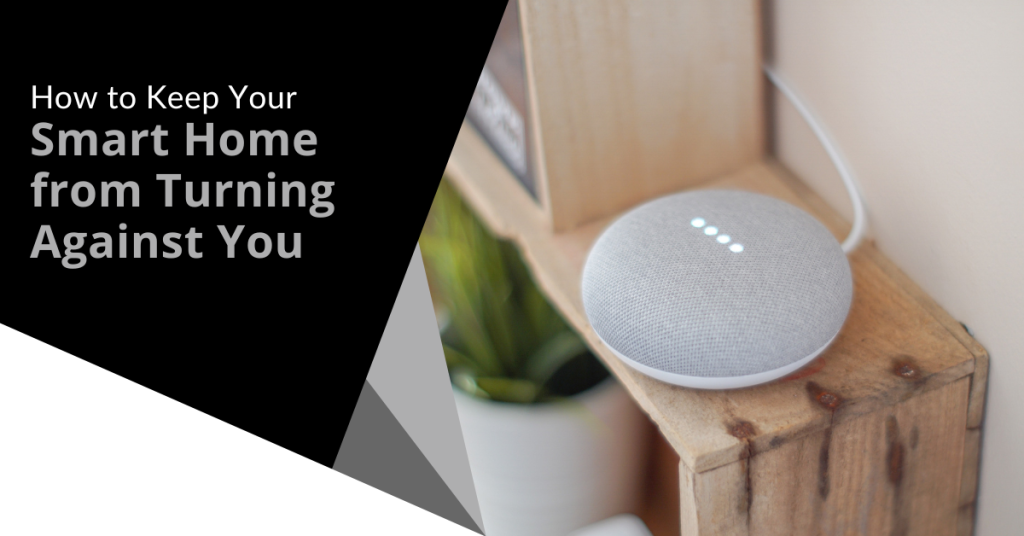
A smart home has become a ubiquitous part of modern living. It doesn’t even seem unusual anymore to tell your refrigerator to add milk to the digital grocery list.
Smart homes offer unparalleled convenience and efficiency. You can control your lights and thermostat with a smartphone app and have a virtual assistant like Alexa at your beck and call. As we embrace the convenience, it is essential to consider the potential risks as well as take proactive steps to ensure that your smart home doesn't turn against you.
Recent headlines have shed light on the vulnerabilities of smart home technology such as the story in the New York Post's article titled "Locked Out & Hacked: When Smart Homes Turn on Owners".
The article describes smart home nightmares including the new owner of a smart home that unexpectedly got locked in. The prior owner had left preprogrammed settings. At 11:30 p.m., the home told him it was time to go to bed and locked every door in the house.
Another technology victim was a woman terrorized by lights and sounds at home. Her ex-partner was maliciously manipulating the smart technology.
As homes get smarter, how can you avoid a similar experience? We will explore some key strategies to protect your home and your privacy.
Smart Home Safety Tips You Need to Use
1. Secure Your Network
The foundation of any smart home is its network. Just as you wouldn't leave your front door wide open, you shouldn't neglect Wi-Fi security.
Here are best practices:
- Change your router's default password to something strong and unique.
- Use WPA3 encryption (look for Wi-Fi 6).
- Create a separate guest network to isolate your smart devices from your main network.
- Regularly update your router's firmware. Ensure it is equipped with the latest security patches.
2. Strengthen Device Passwords
When setting up your smart devices, be diligent about choosing strong and unique passwords. Avoid using easily guessable information like "123456" or "password." Use a combination of upper and lower-case letters, numbers and symbols. For added security, consider using a password manager.
3. Enable Two-Factor Authentication (2FA)
Many smart home device manufacturers offer 2FA as an extra layer of security. By enabling 2FA, you can keep people out. This is true even if someone manages to guess your password. They won't be able to get past the secondary authentication step. This provides an extra safeguard against unauthorized access.
4. Regularly Update Firmware
Firmware updates are essential for fixing security vulnerabilities in your smart devices. Manufacturers release these updates to patch discovered weaknesses. Make it a habit to check for firmware updates regularly and apply them promptly.
5. Vet Your Devices
Not all smart devices are created equal. When choosing new devices for your smart home, research the manufacturer's reputation. Look for products that have a history of prompt updates and robust security features. Avoid purchasing devices from obscure or untrusted brands.
6. Isolate Sensitive Devices
Consider segregating your most sensitive devices onto a separate network (if possible). For example, use a dedicated network for:
- Smart locks
- Security cameras
- Other critical devices
This keeps them separate from your less critical gadgets such as smart bulbs or speakers. Even if a hacker compromises one network, the other devices remain secure.
7. Review App Permissions
Smart home apps often request access to various permissions on your devices. Before granting these permissions, scrutinize what data the app is trying to access. Decide whether it is necessary for the device's functionality. Restrict permissions to the least required for the device to operate.
8. Be Cautious with Voice Assistants
Voice-activated assistants like Alexa and Google Assistant are incredibly convenient but they can also pose privacy risks. Review your voice assistant's privacy settings. Be cautious about what information you share with them. Consider muting the microphone when you are not actively using it. This prevents unintended eavesdropping.
9. Check Your Devices Regularly
Regularly check the status and activity of your smart devices. Look for any unusual behavior such as devices turning on or off unexpectedly or unknown devices appearing on your network. If you notice anything suspicious, investigate and take action promptly.
10. Understand Your Device's Data Usage
Review your smart device's privacy policy. Understand how it uses your data. Some devices may collect and share your information with third parties. It can be for advertising or other purposes. Make informed decisions about the devices you bring into your home.
11. Stay Informed
Stay informed about the latest developments in smart home security. Subscribe to security newsletters. Follow reputable tech blogs. Keep up with news articles like the one in the New York Post. The more you know, the better equipped you will be to protect your smart home.
Get Expert Help With Smart Home Security
Smart homes offer incredible convenience but they also come with risks you shouldn’t ignore. Do you need some expert help setting up your smart home security?
Give us a call today to schedule a chat.

Two monitors are often better than one when it comes to getting things done efficiently. A dual-monitor setup can significantly enhance your productivity. This is true whether you are a gamer, a creative professional or an office wiz who loves to multitask.
A study by Jon Peddie Research found that dual displays can increase productivity by 42%. However, it is not as simple as just setting up an extra screen.
It is common for people to feel “off kilter” when trying to work from two monitors. They may even find it harder despite having more screen real estate. The cause is usually the setup. They either have the screens positioned wrong or aren’t optimizing the settings.
We will dive into some dual-monitor setup best practices. These should help you improve your two-screen experience and take it to the next level.
Best Practices for a Great Two-Screen Setup
1. Match Size and Resolution
Before you jump into the excitement of a dual-monitor setup, do some matching. Make sure your monitors are well-matched with each other. Try to use monitors of the same size and resolution. This helps to avoid any jarring differences in image quality or screen real estate. Your eyes will thank you for the consistency!
2. Get the Right Cables
Picture this: You have set up your dual monitors and you are all excited to fire them up. However, your cables don't fit the ports! To avoid this headache, check your device outputs and inputs to ensure that you have the right cables on hand. HDMI, DisplayPort and DVI are common options. Make sure to verify which ones you need for optimal performance.
3. Positioning is Everything
Now that you have your monitors ready to go, let's talk positioning. Placing your monitors correctly can make a world of difference. This is true for both your comfort and productivity.
Arrange them side by side and keep the top edges aligned. Adjust the angle to reduce neck strain and make sure the distance is comfortable for your eyes since you will be spending a lot of time in front of these screens.
4. Embrace the Extended Desktop
It is tempting to mirror your displays and have the same content on both screens. However, that is not the full potential of a dual-monitor setup. Embrace the extended desktop feature. It allows you to have separate content on each screen.
This means you can work on a document on one screen and browse the web or handle email on the other. Double the productivity!
5. Focus on Taskbar Tweaks
A cluttered taskbar can quickly turn your dual-monitor setup into chaos. Keep things organized. Set the taskbar to display only the active applications on the screen that they are open in.
Steps:
- Right-click on the taskbar and go to "Taskbar settings”.
- Open “Taskbar behaviors”.
- Adjust the setting, “When using multiple displays, show my taskbar apps on". Set it to the taskbar where the window is open.
No more hunting for the right window across two taskbars.
6. Leverage Shortcuts
Did you know that Windows has some nifty window-snapping shortcuts? Use the Windows key plus the left or right arrow to snap an application to one side of the screen. It will fill exactly half of it.
This is perfect for comparing documents as well as writing while researching or watching a video while working. It is a productivity boost that you won't be able to live without once you have tried it!
7. Gaming in Style
If you're a gamer, a dual-monitor setup can bring your gaming experience to a whole new level. Many modern games support dual monitors which allow you to have an extended field of view. This is especially true in racing and flight simulation games. Just remember to adjust your graphics settings accordingly for the best performance.
8. Mastering Multitasking
Multitasking is where dual monitors truly shine. For example, you can have your design software open on one screen and your reference images on the other.
Writers can have research materials on one screen with their writing software on the other. The possibilities are endless. It is like having a productivity superhero at your disposal! Explore workflows that make the most of both screens.
9. Tame the Cable Chaos
Dual monitors mean double the cables. If you're not careful, it can quickly turn into a cable jungle. To keep things tidy, invest in some cable management solutions such as adhesive cable clips or cable sleeves. Your setup will look cleaner. It will also be easier to make changes or upgrades in the future.
10. Don't Forget the Ergonomics
As you immerse yourself in your dual-monitor world, remember to consider ergonomics. Ensure that your monitors are at eye level and your keyboard and mouse are at a comfortable height and angle.
Good ergonomics can prevent strain and discomfort. This allows you to enjoy your setup for longer without any aches or pains.
Need Help with Hardware or Software Setup?
Why struggle with hardware or software setup? Come to the pros to save time and avoid frustration.
Give us a call today to schedule a chat about your technology needs.
Data security and privacy are paramount in today's world and having an access management strategy is no longer a luxury. It is a necessity for organizations. With the increasing frequency and sophistication of cyber threats, businesses of all sizes must ensure that only authorized individuals have access to sensitive information and resources. Read more
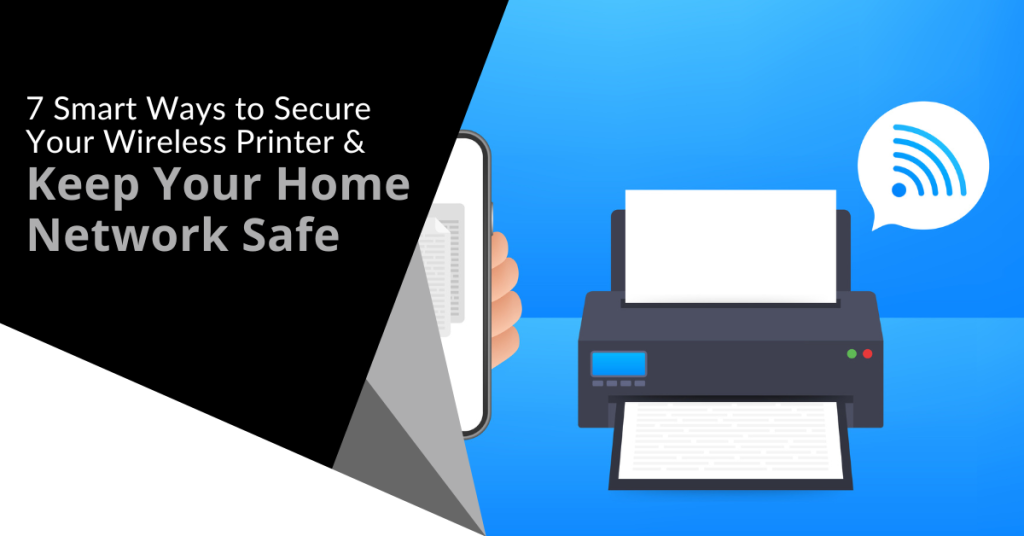
Many people worry about someone hacking their computer. However, they are not really thinking about their wireless printer getting breached. It is a tool that most individuals use sporadically like when you want to print out tax forms or mailing labels.
Printers tend to be out of sight, out of mind. That is until you need to print something and run out of ink. They not out of the mind of hackers. In fact, unsecured printers are a classic way for criminals to gain access to a home network.
To illustrate this point, Cybernews purposely hacked printers. It hijacked nearly 28,000 unsecured printers globally. The success rate was 56%. What did it do once it gained access? It made the printers print out a guide on printer security.
Are you wondering how exposed your network is from your printer? We have some security tips below to help. These tips can enable you to better secure your network and keep data on all devices more secure.
1. Change the Default Login Credentials
When you buy a new wireless printer, it will likely have included default information. Manufacturers give you a way to connect and set up your device. This usually involves default login information.
Immediately change that information during set up. Hackers use a master list of all these defaults. They plug it into an automated script and just keep trying them all until they get a hit. Change these and make sure you create a strong password.
2. Keep Printer Firmware Updated
Keeping firmware updated is vital to keeping your wireless printer secure. Hardware needs updating just like computers, software and apps do. Those updates often contain important security patches.
Firmware updates aren’t usually as visible as software updates. Software and OS updates usually give you a popup notification. However, updates to the drivers and firmware that run printers aren’t so visible.
Some of the places you can check for firmware updates are:
- The PC manufacturer’s utility app on a connected device
- The printer’s information panel
- The printer manufacturer’s app installed on a PC
3. Use a Network Firewall
A network firewall is important to ensure the monitoring of traffic. Firewalls can block suspicious activity to keep hackers out of your network. You should configure the firewall to watch incoming and outgoing printer traffic.
4. Put Your Printer on a Guest Network
Most of today’s home routers allow you to set up a guest network. This is a separate Wi-Fi that runs from the same router you use for your main network. It is harder for hackers to get from one network to another.
Keeping a less secure device separated from computers and phones improves security. You can still print to your printer from devices on another network. You just need to have things configured correctly. If you need help with that, let us know.
5. Disable Unused Ports or Services
IoT devices (like printers) often have many ways to connect. You may not need all the ports or services that come with your printer. These ports are risk areas where hackers could find a way in.
It is best to disable any ports and sharing features that you don’t need. This reduces the risk of a breach.
6. Unplug It When Not in Use
Most home printers aren’t used as much as work printers. People may only use them once a month or a few times a year. If you are not using your printer constantly, unplug it when not in use.
One surefire way to cut off a hacker’s access is to unplug the device. When it is shut down, no access is available at all.
7. Teach Your Family Cybersecurity Best Practices
Your printer is one device on your network. Most families connect several devices to their home Wi-Fi. In 2022, the average number of connected devices per U.S. household was 22.
Families need to know and adopt good cyber habits. This keeps everyone’s data more secure. It also helps you avoid costly identity theft breaches or the takeover of things like baby monitors.
Some standard best practices to follow for good cyber hygiene are:
- Always use strong passwords (at least 10-12 characters & include a mix of letters, numbers and symbols).
- Keep software & firmware on devices updated.
- Use multi-factor authentication wherever possible.
- Enable device firewalls & other protections.
- All devices that should have a good antivirus installed.
- Never login to an account from a link you receive via email or text.
- Learn how to identify phishing & get a second opinion before clicking.
- Get a security checkup from a pro at least every year or two.
Get Some Help Keeping Your Family’s Data Secure
IT pros don’t only work with businesses. We also help families ensure their data is safe & devices are running smoothly. Give us a call today to schedule a home security checkup.
Netflix is one of the most popular and well-known streaming services. It has nearly 231 million subscribers around the world. It has been growing steadily for almost a decade.
The platform has become an essential part of many people's daily entertainment routines. They fire up their devices, log in and pick right back up on their favorite shows.
Unfortunately, Netflix accounts can be vulnerable to hacking. It is a baked-in risk when you have a service that is only protected by a username and password.
If you experience an account hack, it can be shocking, confusing and infuriating. You may not know exactly what to do and may react without thinking first. This is a dangerous space to be in because it can cause you to do things that only make things worse.
In this article, we will give you the steps to take when you suspect someone has hacked your Netflix account. Let us first cover how hackers typically operate when deploying an account takeover.
How Does a Netflix Hack Typically Work?
Phishing overload is a problem that hackers take advantage of in these types of breaches. People receive fake emails all the time that spoof brands like Netflix. One common phishing ploy is an email stating, “There has been suspicious activity on your account.” It will include a link to log in to a spoofed site that looks like the brand’s normal login page. This is a classic trick to steal your login credentials.
Hacked Netflix accounts typically go for $12 each on the dark web.
People get numb to these emails because they get so many of them. They tend to tune them out because they know that clicking on them could be dangerous. Hackers take advantage of this and hope that you will ignore the real ones from Netflix that warn you of a suspicious login.
They lay low and don’t take any action yet that will lock you out. They wait for you to receive a few more of these emails so that you will completely ignore them. Then they attempt a takeover.
Accounts hacks can go in various ways. Here is one typical scenario of a Netflix hack:
- The account owner gets an email about a suspicious login. Often it will be from a different country.
- They may log into their Netflix account to see if there are any unknown devices logged in. Usually none will show yet. The hacker logs back out. The goal is to get you to check and see that nothing is wrong and assume that the real notice is phishing.
- This same scenario may happen 2-4 more times in the span of a month.
- Once the hacker feels the user is ignoring the Netflix warnings, they will make their move.
- They add their credit card to your account. This is so they can call Netflix and give them a method of verification.
- They may increase your subscription plan to a higher level.
They also usually replace any user profile names on your account with numbers (1, 2, 3, etc.)
- At this point, the account owner will typically receive an email. It will note a change in account information. This could be the account email, password, phone number, etc.
- The hacker is now trying to lock the account owner out of their account.
What Do You Do If Someone Has Hacked Your Netflix Account?
1. Go to the Netflix site & try to log in.
If you suspect a hacked account, visit the Netflix site directly from your browser. Do not go through a link you received via email, DM or SMS.
See if you can log in using your password. You may be able to if you caught the hacker before they lock you out. If not, skip to Step 4 below which is calling Netflix support.
2. If you can log in, change your password immediately.
If you can log into your account, change the password right away. Ensure it is a strong password that is at least 10-12 characters in length. It should also include a combination of letters, numbers and symbols.
Do not use a variation of the breached password. You should not use any part of your old password to create the new one.
3. If you can log in, remove any strange payment methods.
If you can still access your account and settings, go to the payment methods area. Often hackers will add another payment card to your account. They use it to verify the account to Netflix support.
Remove any strange payment method that is not yours. If you remove your own payment card, you will need another way to verify your account with Netflix. You will want to call before you do that.
4. Call Netflix support. (Don’t skip this step!)
Everyone’s experience may be different. Some users that have gone through a hack have praised the fast and helpful support from Netflix.
Contact Netflix support whether you have or have not succeeded in logging in. There may be things the hacker has done that you aren’t aware of. They may have changed subscription information.
Let the support representative know that you think you are the victim of an account hack. They will walk you through the process of undoing what the hacker has done.
5. Watch your bank statements.
Continue to watch your bank statements for any unusual charges. You should do this after any account hack.
6. Change the password for other accounts that used the same one as your Netflix account.
People often use the same or the nearly same password for several accounts. Make sure to change the password for any accounts that used the one that was just hacked.
Get Help Securing Your Passwords & Accounts
Don’t wait until a hack happens to you. Give us a call today to schedule a chat about our password security solutions.
You wouldn’t think a child’s toy could lead to a breach of your personal data and identity theft. However, this happens all the time. What about your trash can sitting outside? Is it a treasure trove for an identity thief trolling the neighborhood at night?
Many everyday objects can lead to identity theft. They often get overlooked because people focus on their computers and cloud accounts. It is important to have strong passwords and use antivirus on your PC. You also need to be wary of other ways that hackers and thieves can get to your personal data.
Here are six common things that criminals can use to steal your information.
Old Smart Phones
People replace their smartphones about every two and a half years. That is a lot of old phones laying around containing personal data.
Just think of all the information that our mobile phones hold. We have synced connections with cloud services. Phones also hold banking apps, business apps and personal health apps. These are all nicely stored on one small device.
As chip technology has advanced, smartphones have been able to hold more “stuff.” This means documents and spreadsheets can now be easily stored on them along with reams of photos and videos.
A cybercriminal could easily strike data theft gold by finding an old smartphone. They often end up at charity shops or in the trash. Make sure that you properly clean any old phones by erasing all data. You should also dispose of them properly. You shouldn’t just throw electronics away like normal garbage.
Wireless Printers
Most printers are wireless these days. This means they are part of your home or work network. Printing from another room is convenient. However, the fact that your printer connects to the internet can leave your data at risk.
Printers can store sensitive documents such as tax paperwork or contracts. Most people don't think about printers when putting data security protections in place. This leaves them open to a hack. When this happens, a hacker can get data from the printer. They could also leverage it to breach other devices on the same network.
Protect printers by ensuring that you keep their firmware updated. Always install updates as soon as possible. You should also turn it off when you don’t need it. When it is off, it is not accessible by a hacker.
USB Sticks
Did you ever run across a USB stick laying around? Perhaps you thought you scored a free removable storage device or you are a good Samaritan and want to try to return it to the rightful owner. First you need to see what is on it to find them.
You should never plug a USB device of unknown origin into your computer. This is an old trick in the hacker’s book. They plant malware on these sticks and then leave them around as bait. As soon as you plug it into your device, it can infect it.
Old Hard Drives
When you are disposing of an old computer or old removable drive, make sure it is clean. Just deleting your files isn’t enough. Computer hard drives can have other personal data stored in system and program files.
If you are still logged into a browser, a lot of your personal data could be at risk. Browsers store passwords, credit cards, visit history and more.
It is best to get help from an IT professional to properly erase your computer drive. This will make it safe for disposal, donation or reuse.
Trash Can
Identity theft criminals aren’t only online. They can also be trolling the neighborhood on trash day. Be careful what you throw out in your trash.
It is not unusual for garbage to enable identity theft. It can include pre-approved credit card offers that you considered “junk mail.” Your trash can also hold voided checks, old bank statements and insurance paperwork. Any of these items could have the information thieves need to commit fraud or pose as you.
A shredder can be your best friend in this case. You should shred any documents that contain personal information. Do this before you throw them out. This extra step could save you from a costly incident.
Children’s IoT Devices
From electronic bears to smart kid watches and Wi-Fi-connected Barbies, these are all toys that hackers love. Mattel’s Hello Barbie was found to enable the theft of personal information. A hacker could also use its microphone to spy on families.
These futuristic toys are often what kids want. Parents might think they are cool but don’t consider their data security. After all, these are children’s toys. However, that often means that they can be easier to hack. Cybercriminals also zero in on these IoT toys while knowing they aren’t going to be as hard to breach.
You should be wary of any new internet-connected devices that you bring into your home. That includes toys! Install all firmware updates. Additionally, do your homework to see if a data breach has involved the toy.
Schedule a Home IT Security Audit & Sleep Better at Night
Don’t let the thought of identity theft keep you up at night. Give us a call today and schedule a home IT security audit. You will be glad you did.
Cybersecurity never loses its importance. This is especially true with the increase in cyberattacks and data breaches. Both big and small companies need to be vigilant about securing their data and preventing any unauthorized access to their systems. One effective way to enhance cybersecurity is by using threat modeling.
Threat modeling is a systematic approach that helps companies identify potential cyber threats and vulnerabilities in their systems or apps. It involves analyzing the architecture, design and functionality of the system to identify potential security risks and then prioritizing them based on their impact and likelihood of occurrence.
Threat modeling helps organizations proactively identify security risks, mitigate them and build more secure systems.
In this article, we will discuss how to use threat modeling to improve cybersecurity.
-
Understand Your System and Identify Critical Assets
The first step in threat modeling is to understand your system and identify critical assets. Critical assets refer to any data, system or application that is essential to your business operations or has a high value. These assets need to be protected against unauthorized access, modification or destruction.
To identify critical assets, you need to understand how your system works, what data it stores and how it interacts with other systems. You can use data flow diagrams, system diagrams and other architectural models to gain a better understanding of your system.
-
Identify Threats and Vulnerabilities
Once you have identified critical assets, the next step is to identify potential threats and vulnerabilities. Threats are any potential attacks or exploits that could compromise the security of your system. Vulnerabilities are weaknesses or flaws in your system that can be exploited by attackers.
To identify threats and vulnerabilities, you can use techniques like:
- brainstorming
- checklists
- attack trees
Brainstorming involves identifying potential threats and vulnerabilities based on your knowledge and experience while checklists are predefined lists of common threats and vulnerabilities that you can use as a starting point. Attack trees are graphical representations of attack scenarios that show the different steps an attacker might take to compromise your system.
-
Assess the Risks and Prioritize Them
After identifying your threats and vulnerabilities, the next step is to assess the risks and prioritize them based on their impact and likelihood of occurrence. Risk assessment involves estimating the likelihood and impact of each threat and vulnerability and then assigning a risk score based on these factors.
To assess the risks, you can use:
- risk matrices
- risk heat maps
- risk scoring models
Risk matrices are graphical representations of risk scores based on the likelihood and impact of each risk. Risk heat maps are similar to risk matrices but use colors to indicate the severity of each risk and risk scoring models are mathematical models that calculate risk scores based on various factors such as likelihood, impact and control effectiveness.
-
Mitigate the Risks
Once you have assessed the risks and prioritized them, the next step is to mitigate them. Risk mitigation involves implementing controls and countermeasures to reduce the likelihood or impact of each risk.
To mitigate the risks, consider using:
- access controls
- encryption
- intrusion detection systems
- firewalls
Access controls are mechanisms that restrict access to sensitive data or systems to authorized users only. Encryption is the process of converting data into a coded form that can only be deciphered by authorized users.
Intrusion detection systems are tools that monitor network traffic for suspicious activity and alert administrators to potential security breaches and firewalls are network security devices that monitor and control incoming and outgoing network traffic.
-
Review and Update Your Threat Model
The final step in threat modeling is to review and update your threat model regularly. Threats and vulnerabilities are constantly evolving so it is essential to keep your threat model up to date to ensure that you are adequately protected.
To review and update your threat model, you should conduct regular security assessments, penetration testing and vulnerability scans. You should also keep updated with the latest security trends and threat intelligence to identify emerging threats and vulnerabilities.
Get Started Today
Threat modeling is an effective way to improve your cybersecurity by identifying potential threats and vulnerabilities, assessing the risks and mitigating them. By using threat modeling, you can build more secure systems and protect your critical assets against unauthorized access, modification or destruction.
If you are interested in improving your cybersecurity and need help with threat modeling or other cybersecurity services, contact Sound Computers. We offer a wide range of cybersecurity services, including threat modeling, penetration testing, vulnerability scanning and security assessments.
Microsoft 365 is one of the most popular cloud platforms in the world with about 345 million paid seats. Microsoft cloud tools numbers were up 32% in Q3 2022 compared to the previous year.
One of the reasons for its continued growth is the suite of cloud tools offered in the service. Users get a stable of over 20 different apps including the core MS Office suite.
With so many different apps, it is not uncommon for some to go unused. Companies may not even be aware that they have access to these other helpful tools. One of the handiest apps you get with a Microsoft 365 subscription is Microsoft Forms.
From sending year-end customer surveys to assessing change readiness, Forms makes it easy. This online survey and form-building tool has a lot to offer organizations. If you have a subscription to Microsoft 365, then you already get Forms included for free.
What Is Microsoft Forms?
Microsoft Forms is a drag-and-drop form, quiz and survey creator. It is simple to use and allows you to send out surveys via a link. Recipients can fill out your form online from any device.
Once recipients fill out the survey, the results come into the software instantly. You can see the collated results charted in the software. You can also export the results to Excel.
How to Get Started in Forms:
- Visit Forms.office.com and log into your Microsoft account.
- Choose “New Form” or “New Quiz" from the top menu
- OR you can choose to explore the built-in templates.
- Click “Add New” to add a new form field. You can choose from field types:
- Choice (i.e., multiple-choice question)
- Text
- Rating
- Date
- Ranking
- Likert (a scale that records attitudes/opinions about a topic)
- Net Promoter Score® (a scale from “not likely” to “extremely likely”)
- Section (separator that can include a title and image).
- Enter your questions.
- Once finished, click “Send” at the top. You can distribute the survey using the following options:
- Link to a web form
- QR code
- Embed in a web page
- Via Facebook or Twitter.
- View responses on the “Responses” tab.
Advantages of Using Microsoft Forms
It is Included in Microsoft 365 Subscriptions
If you already subscribe to Microsoft 365, it makes sense to use Forms. It can save you money if you’re using a separate survey tool like Survey Monkey. It is easily accessible by signing in with your Microsoft account.It Saves Time
Sending a survey by email is time-consuming. You need to worry about emails bouncing due to an attachment. You also need to spend time collating all the results as they come in.Using MS Forms can save you a lot of time. People don’t need to download anything or open an email file attachment. They simply follow your link and fill out the form online. As soon as they fill the survey out, you get the result. Forms also collates all the answers for you.
Get Charted Results Automatically
You can quickly see the results of the survey in meaningful graphs. Forms makes it simple to export to Excel if you want to upload the survey results into another platform.On the “Responses” tab, you can hover over the result graphs to see the details.
It is Easy to Use
There is a very low learning curve with Microsoft Forms. The interface is intuitive and simple so just about everyone can jump in and start using it.What Are Some Ways You Can Leverage Microsoft Forms?
Annual Customer Satisfaction Survey
Using a web-based survey can increase your response rate from customers. They can fill out your satisfaction survey from any device which makes it quick and easy for them.You can see results instantly. Then chart them to gain insights into what your business is doing right and what you can improve upon.
Employee Security Awareness Quiz
Send a security awareness quiz to your employees using Forms. It can be easily integrated into your cybersecurity awareness training. The platform also tells you the average response time per person.Change Readiness Survey
Change management is a growing focus of many organizations. This is due to the speed of technology-driven transitions. You can use Forms to improve user readiness for change adoption. Create and send out a change readiness survey to affected groups.Event Registrations
Are you hosting an event? You can easily gather registration details. Send out a Forms link via QR code, social media, text or email.Volunteer Registration Form
Embed an MS Forms registration form on your web page to sign up volunteers. The platform will automatically collate different talents or other volunteer information. This helps you better match people's talents to your needs.And More
You will find more ideas from the Forms templates such as:• Competitive analysis study
• Post-event feedback survey
• Office facility request form
• Employee satisfaction survey
• Product pricing survey
• Food catering request form
• Save the date form
• Course enrollment form