

Article Summary: Allow personal devices only for approved work, through approved apps and when the device meets your security requirements. Use company-owned devices for administration, sensitive work or jobs that require large amounts of data to be stored locally.
Employees often use personal devices for work before the business has made a decision about it. They add work email to a phone, download a file to a home laptop or sign into a company app from a computer shared with family.
Once business data is stored on a personal device, you have less control over updates, installed apps, backups and who else uses the device. You also need a way to remove company data when the employee leaves or the device is lost.
Personal devices can be allowed but the business should decide which devices, applications and types of work are permitted.
What BYOD Includes
Bring your own device (usually shortened to BYOD) means an employee uses a personally owned phone, tablet or computer for work.
That can include:
- Adding work email to a personal phone
- Signing into Microsoft 365 or Google Workspace
- Joining online meetings
- Opening customer or company files
- Using a business messaging app
- Accessing accounting, CRM or project management software
- Downloading documents to a personal computer
Depending on the application, business information may remain in the cloud or be downloaded to the device as messages, attachments, cached data or files.
What You Cannot Fully Control on a Personal Device
Your IT team can set and monitor security on company-owned devices. With personal devices, employees choose which apps to install, when to update the operating system, who else uses the device and where files are backed up.
Management software can enforce some rules but the available controls depend on the device, operating system, application and enrollment method.
Other People May Use the Device
An employee may share a home computer or tablet with a partner, child or another family member. Separate user accounts can reduce the risk but many personal devices are used through one shared account.
The UK National Cyber Security Centre says BYOD access should not be permitted when an employee cannot follow the required security rules. Its example includes a device that cannot keep the employee’s work separate from other family users. NCSC BYOD guidance
Updates May Be Missing
Your IT provider may not be able to confirm whether a personal device runs a supported operating system or has current security updates.
An employee may delay an update because the device lacks storage, an older application might stop working or the device is rarely restarted.
Business Files May Enter Personal Storage
A file downloaded from work email or cloud storage may remain in the Downloads folder, a personal document folder or a device backup.
A personal cloud backup service could then copy the file to an account the business does not manage. Opening the document in a personal application may create another unmanaged copy.
Other Applications May Access Business Information
Personal devices contain applications chosen by the employee. Some may have permission to read files, contacts, browser activity or information copied to the clipboard.
The business may not know which applications are installed or what those applications can access.
Repairs Can Expose Business Data
A broken personal phone or laptop may be taken to a repair shop chosen by the employee. Business email, saved sessions or downloaded files could still be available on the device.
Your policy should tell employees who to contact before a device is repaired and what to do if the device cannot be opened.
Company Data May Remain After Employment Ends
Disabling an employee’s account stops future access to many cloud services. It does not remove copies that were downloaded to personal folders, opened in unmanaged applications or copied to personal storage.
Managed work profiles and protected applications make it easier to remove company data. They can only remove the information they control.
Decide What Work is Allowed
Set access based on the work being performed and the information involved.
You might allow employees to read work email through an approved mobile app while requiring a company computer for customer database exports. Staff handling financial records, health information, legal documents or large amounts of customer data may also need company-owned devices.
Administrative work should be performed from a managed device. Anyone responsible for user accounts, security settings, backups or business systems should not do that work from an unmanaged personal computer.
Apply the same rules to contractors. Their access should be limited to the applications and information required for their work.
Security Requirements for Personal Devices
A personal device should meet your requirements before it can access company information.
Use a supported operating system.
The device should run an operating system that still receives security updates. Block access from devices that can no longer install current updates.
Install security updates.
Operating system and application updates should install automatically where possible. Employees should restart their devices when an update requires it.
Require a screen lock.
Require a PIN, password, fingerprint or facial recognition to unlock the device. Configure the screen to lock automatically when the device is not being used.
Require device encryption.
Encryption helps protect stored information if a device is lost or stolen. The Australian Cyber Security Centre recommends full-device encryption when personal devices may store business information. Cyber.gov.au BYOD guidance
Encryption must be enabled before the device is lost. It also needs to be supported by a strong device password or PIN.
Require MFA.
Require MFA for work email, cloud storage and other important systems. The NCSC recommends MFA as a minimum for BYOD access.
Use MFA for account sign-ins. Protect downloaded information with encryption and managed applications.
Block rooted or jailbroken devices.
Rooting or jailbreaking removes some of the operating system’s built-in restrictions. These devices should not be allowed to access company data.
Detection is not perfect so it should be used with the other security controls in this article.
Approve the applications used for work.
Tell employees which applications they may use for email, messaging, file access and other work.
Where your management service supports it, prevent business information from being saved to personal storage or copied into unmanaged applications.
Use separate accounts on shared computers.
A personal computer used for work should have a separate account for the employee. Other users should have their own accounts and should not know the employee’s password.
Do not allow BYOD access when work cannot be kept separate from other users of the device.
Tell employees how to report problems.
Employees need to know who to contact if a device is lost, stolen, repaired, replaced or infected with malware.
Early reporting gives the business more time to disable access, check account activity and remove managed data.
Control Business Data with Managed Apps or Work Profiles
Device and application management services can help keep work information separate from personal information.
Mobile device management (or MDM) can apply settings to an enrolled device and report whether it meets company requirements. The amount of control depends on the platform and enrollment method.
Mobile application management (or MAM) applies controls to supported work applications and their data. Depending on the product, it may restrict copying, block saving to personal storage, require another PIN or remove company information from managed apps.
For example, Microsoft Intune can remove company data from protected applications when a device is lost or an employee leaves. Personal information can remain on the device.
Selective removal only affects data managed by the service. It cannot delete a file copied into an unmanaged application, personal backup or unsupported storage location.
A factory reset removes personal and business data. Microsoft warns administrators about the risk of applying full device management to computers and phones the business does not own. Configure selective removal where possible and tell employees exactly what your management service can see and do. Microsoft Intune planning guide.
What Your BYOD Policy Should Cover
Your policy should answer these questions:
- Which employees and contractors may use personal devices?
- Which types of devices are permitted?
- What work can be performed on them?
- Which applications must be used?
- Can company files be downloaded?
- Can the device be shared with other people?
- Which security settings are required?
- What information can the business or IT provider see?
- What settings can the business control?
- Can company information be removed remotely?
- What happens if the device is lost or stolen?
- What must happen before the device is repaired or sold?
- What happens when the employee leaves?
- Who pays for mobile data, repairs or replacement?
Privacy, employment and data protection requirements vary between countries. Have the policy reviewed for each location where you employ people.
Employees should read and accept the policy before company access is added to their devices.
What to Do When a Personal Device is Lost or Stolen
The employee should contact the business or IT provider as soon as possible.
Your response may include:
- Disabling access if the device cannot be accounted for
- Revoking active sign-in sessions
- Removing company data from managed applications
- Removing the device from approved-device lists
- Checking account activity for unexpected sign-ins
- Resetting credentials if they may have been exposed
- Recording which company files may have been stored on the device
Remote locking and removal commands only work after the device connects to the management service. A device that remains switched off or offline may never receive the command.
Encryption and account controls are still required because remote removal might not run.
What to Do When an Employee Leaves
Disable the employee’s account and revoke active sessions at the agreed time. Remove company data from managed applications or work profiles.
Check whether business files were downloaded to the device and confirm how those copies will be returned or deleted.
Remove the device from your approved-device records. Where your management service supports it, remove business applications, certificates, email profiles and VPN settings.
When Personal Devices Should Not be Allowed
Provide a company-owned device when:
- The employee handles sensitive information
- The role requires administrator access
- Large amounts of company data must be stored locally
- The device is shared with other people
- The operating system is no longer supported
- Encryption cannot be enabled
- The business cannot separate or remove its data
- The employee does not accept the required security controls
- The device has been rooted or jailbroken
Company-owned devices are easier for your IT provider to support because their settings and installed software are known.
Frequently Asked Questions
Can employees use a web browser without enrolling their personal device?
You can allow browser access but information may still remain in the browser cache, Downloads folder, saved passwords, screenshots or active sessions.
Access policies can limit the devices and browsers that are permitted. Sensitive work may still require a managed device.
Is MFA enough to secure a personal device?
MFA helps protect the employee’s account. Device encryption protects stored files while managed applications control how company information is used and copied.
You still need updates, screen locks, approved applications and a process for lost devices.
Can the business see an employee’s personal information?
It depends on the management method. App management focuses on business applications and their data. Device enrollment can show device details and allow broader control.
Give employees a written explanation of what your IT team can see, change, lock or remove before they enroll.
Can the business erase a personal phone?
Some enrollment methods support a full factory reset while app-only management does not. A factory reset deletes personal information as well as company data.
Use selective removal for employee-owned devices where it is available.
Is BYOD cheaper than providing company devices?
BYOD may reduce hardware purchases but it can add costs for management, support, security and administration. Whether it saves money depends on the devices, applications and work you allow.
Sources and Further Reading
- NCSC: Bring your own device guidance
- NCSC: BYOD costs and security requirements
- Australian Cyber Security Centre: Risk management of enterprise mobility and BYOD
- Australian Cyber Security Centre: Securing customer personal data
- Microsoft Learn: Protect data and devices with Intune
- Microsoft Learn: Remove company data from protected applications
- Microsoft Learn: Intune planning guide
If employees already use personal devices for work, ask your IT provider to check what they can access and whether the required controls are in place.
If you don’t have an IT provider, feel free to reach out to us and we will help you sort it out.

The modern office extends far beyond traditional cubicles or open-plan spaces. Since the concept of remote work became popularized in the COVID and post-COVID era, employees now find themselves working from their homes, libraries, bustling coffee shops and even vacation destinations. These environments, often called “third places,” offer flexibility and convenience but can also introduce risks to company IT systems.
With remote work now a permanent reality, businesses must adapt their security policies accordingly. A coffee shop cannot be treated like a secure office because its open environment exposes different types of threats. Employees need clear guidance on how to stay safe and protect company data.
Neglecting security on public Wi-Fi can have serious consequences as hackers often target these locations to exploit remote workers. Equip your team with the right knowledge and tools and enforce a robust external network security policy to keep company data safe.
The Dangers of Open Networks
Free internet access is a major draw for remote workers frequenting cafes, malls, libraries and coworking spaces. However, these networks rarely have encryption or strong security and even when they do, they lack the specific controls that would be present in a secure company network. This makes it easy for cybercriminals to intercept network traffic and steal passwords or sensitive emails in a matter of seconds.
Attackers often set up fake networks that look legitimate. They might give them names such as “Free Wi-Fi” or give them a name resembling a nearby business (such as a coffee shop or café) to trick users. Once they are connected the hacker who controls the network sees everything the employee sends. This is a classic “man-in-the-middle” attack.
It is critical to advise employees never to rely on open connections. Networks that require a password may still be widely shared and pose significant risks to business data. Exercise caution at all times when accessing public networks.
Mandating Virtual Private Networks
The most effective tool for remote security is a VPN. A Virtual Private Network encrypts all data leaving the laptop by creating a secure tunnel through the unsecured public internet. This makes the data unreadable to anyone trying to snoop.
Providing a VPN is essential for remote work and employees should be required to use it whenever they are outside the office. Ensure the software is easy to launch and operate as overly complex tools may be ignored. Whenever possible, configure the VPN to connect automatically on employee devices to eliminate human error and ensure continuous protection.
At the same time, enforce mandatory VPN usage by implementing technical controls that prevent employees from bypassing the connection when accessing company servers.
The Risk of Visual Hacking
Digital threats are not the only concern in public spaces since someone sitting at the next table can easily glance at a screen. Visual hacking involves stealing information just by looking over a shoulder which makes it low-tech but highly effective and hard to trace.
Employees often forget how visible their screens are to passersby and in a crowded room full of prying eyes, sensitive client data, financial spreadsheets and product designs are at risk of being viewed and even covertly photographed by malicious actors.
To address this physical security gap, issue privacy screens to all employees who work remotely. Privacy screens are filters that make laptop and monitor screens appear black from the side and only the person sitting directly in front can see the content. Some devices come with built-in hardware privacy screens that obscure content so that it cannot be viewed from an angle.
Physical Security of Devices
Leaving a laptop unattended is a recipe for theft. In a secure office, you might walk away to get water or even leave the office and expect to find your device in the same place and untouched. In a coffee shop, that same action can cost you a device because thieves are always scanning for distracted victims and are quick to act.
Your remote work policy should stress the importance of physical device security. Employees must keep their laptops with them at all times and never entrust them to strangers. A laptop can be stolen and its data accessed in just seconds.
Encourage employees to use cable locks (particularly if they plan to remain in one location for an extended period). While not foolproof, locks serve as a deterrent in coworking spaces where some level of security is expected. The goal is to make theft more difficult and staying aware of the surroundings helps employees assess potential risks.
Handling Phone Calls and Conversations
Coffee shops can be noisy but conversations still travel through the air. Discussing confidential business matters in public is risky because you never know who might be listening. Competitors or malicious actors could easily overhear sensitive information.
Employees should avoid discussing sensitive matters in these “third places.” If a call is necessary, they should step outside or move to a private space such as a car. While headphones prevent others from hearing the other side, the employee’s own voice can still be overheard.
Creating a Clear Remote Work Policy
Employees shouldn’t need to guess the rules. A written policy clarifies expectations, sets standards and supports training and enforcement.
Include dedicated sections on public Wi-Fi and physical security and explain the reasoning behind each rule so employees understand their importance. Make sure the policy is easily accessible on the company intranet.
The most important thing is to review this policy annually as technology changes. As new threats emerge, your guidelines must also evolve to counter them. Make routine updates to the policy and reissue the revised versions to keep the conversation about security alive and ongoing.
Empower Your Remote Teams
While working from a “third place” offers flexibility and a morale boost, it also requires a higher level of vigilance. This makes prioritizing public Wi-Fi security and physical awareness non-negotiable and you must equip your team to work safely from anywhere.
With the right tools and policies, you can manage the risks while enjoying the benefits of remote work. Success comes from balancing freedom with responsibility and well-informed employees serve as your strongest line of defense. Protect your data no matter where your team works.
Is your team working remotely without a safety net? We help businesses implement secure remote access solutions and policies to ensure your data stays private even on public networks. Call us today to fortify your remote workforce.
If your team operates in-house, it is easy to set up a solid security protocol. This is because all communications and data move through a centralized system. Intrusion detection tools can be placed on company-owned devices and networks.Read more

The landscape of remote work has transformed dramatically over the past several years. What began as a reactive shift to keep operations going during a major global disruption has now solidified into a permanent mode of working for many organizations (especially small businesses).
If you are running a business in this evolving digital landscape, it is not enough to rely on good intentions or outdated security protocols. To stay protected, compliant and competitive, your security measures must evolve just as quickly as the threats themselves.
In this article, we dive into advanced and up-to-date remote work security strategies tailored for 2025 to help you secure your business, empower your team and protect your bottom line. Whether you are managing customer data in the cloud, coordinating global teams or simply offering hybrid work options, today's remote operations come with complex security demands.
What is the New Remote Reality in 2025?
Remote and hybrid work has evolved from trends into expectations and for many, they are deal-breakers when choosing an employer. According to a 2024 Gartner report, 76% of employees now anticipate flexible work environments as the default. This shift offers more flexibility and efficiency. It also creates new vulnerabilities.
With employees accessing sensitive data from homes, cafés, shared workspaces and even public Wi-Fi networks, businesses face an expanded and more complex threat landscape.
Remote work in 2025 isn't just about handing out laptops and setting up Zoom accounts. It is about crafting and implementing comprehensive security frameworks that account for modern-day risks (from rogue devices and outdated apps to phishing schemes and credential theft).
Here is why updated security matters more than ever:
- Phishing attacks have evolved to mimic trusted sources more convincingly and make remote workers prime targets.
- Regulatory compliance has grown more intricate with higher penalties for noncompliance.
- Employees are juggling more tools and platforms which raises the risk of unmonitored and unauthorized software usage.
Advanced Remote Work Security Strategies
A secure remote workplace in 2025 is not defined by perimeter defenses. It is powered by layered, intelligent and adaptable systems. Let's explore the critical upgrades and strategic shifts your business should adopt now.
Embrace Zero Trust Architecture
Assume breach and verify everything. Zero Trust isn't a buzzword anymore. It is the backbone of modern security. This model ensures that no device, user or network is trusted by default even if it is inside the firewall.
Steps to implement:
- Deploy Identity and Access Management (IAM) systems with robust multi-factor authentication (MFA).
- Create access policies based on roles, device compliance, behavior and geolocation.
- Continuously monitor user activity and flag any behavior that seems out of the ordinary.
Expert tip:
Use services like Okta or Azure Active Directory for their dedicated support of conditional access policies and real-time monitoring capabilities.
Deploy Endpoint Detection and Response (EDR) Solutions
Legacy antivirus software is no match for today's cyber threats. EDR tools provide 24/7 visibility into device behavior and offer real-time alerts, automated responses and forensic capabilities.
Action items:
- Select an EDR platform that includes advanced threat detection, AI-powered behavior analysis and rapid incident response.
- Integrate the EDR into your broader security ecosystem to ensure data flows and alerts are centralized.
- Update policies and run simulated attacks to ensure your EDR system is correctly tuned.
Strengthen Secure Access with VPN Alternatives
While VPNs still have a place, they are often clunky, slow and prone to vulnerabilities. Today's secure access strategies lean into more dynamic and cloud-native solutions.
Recommended technologies:
- Software-Defined Perimeter (SDP) - Restricts access dynamically based on user roles and devices.
- Cloud Access Security Brokers (CASBs) - Track and control cloud application use.
- Secure Access Service Edge (SASE) - Merges security and networking functions for seamless remote connectivity.
These solutions offer scalability, performance and advanced control for increasingly mobile teams.
Automate Patch Management
Unpatched software remains one of the most exploited vulnerabilities in remote work setups. Automation is your best defense.
Strategies to succeed:
- Use Remote Monitoring and Management (RMM) tools to apply updates across all endpoints.
- Schedule regular audits to identify and resolve patching gaps.
- Test updates in sandbox environments to prevent compatibility issues.
Critical reminder:
Studies show that the majority of 2024's data breaches stemmed from systems that were missing basic security patches.
Cultivate a Security-First Culture
Even the most advanced technology can't compensate for user negligence. Security must be part of your company's DNA.
Best practices:
- Offer ongoing cybersecurity training in bite-sized and easily digestible formats.
- Conduct routine phishing simulations and share lessons learned.
- Draft clear and jargon-free security policies that are easy for employees to follow.
Advanced tip:
Tie key cybersecurity KPIs to leadership performance evaluations to drive greater accountability and attention.
Implement Data Loss Prevention (DLP) Measures
With employees accessing and sharing sensitive information across various devices and networks, the risk of data leaks (whether intentional or accidental) has never been higher. Data Loss Prevention (DLP) strategies help monitor, detect and block the unauthorized movement of data across your environment.
What to do:
- Use automated tools to classify data by identifying and tagging sensitive information based on content and context.
- Enforce contextual policies to restrict data sharing based on factors like device type, user role or destination.
- Enable content inspection through DLP tools to analyze files and communication channels for potential data leaks or exfiltration.
Expert recommendation:
Solutions like Microsoft Purview and Symantec DLP provide deep visibility and offer integrations with popular SaaS tools to secure data across hybrid work environments.
Adopt Security Information and Event Management (SIEM) for Holistic Threat Visibility
In a distributed workforce, security incidents can originate from anywhere endpoint devices, cloud applications or user credentials. A SIEM system acts as a centralized nerve center by collecting and correlating data from across your IT environment to detect threats in real-time and support compliance efforts.
Strategic steps:
- Aggregate logs and telemetry by ingesting data from EDR tools, cloud services, firewalls and IAM platforms to build a unified view of security events.
- Automate threat detection and response using machine learning and behavioral analytics to detect anomalies and trigger automated actions such as isolating compromised devices or disabling suspicious accounts.
- Simplify compliance reporting with SIEM tools that generate audit trails and support adherence to regulations like GDPR, HIPAA or PCI DSS with minimal manual effort.
Expert Tips for Creating a Cohesive Remote Security Framework for Small Business Success
In the modern workplace, security is not a static wall. It is a responsive network that evolves with every connection, device and user action. A strong remote security framework doesn't rely on isolated tools. It relies on seamless integration across systems that can adapt, communicate and defend in real time.
Here are five essential tips to help you unify your security approach into a cohesive and agile framework that can stand up to today's advanced threats:
Centralize Your Visibility with a Unified Dashboard
Why it matters:
Disconnected tools create blind spots where threats can hide. A centralized dashboard becomes your security command center and gives you a clear view of everything from endpoint health to suspicious activity.
What to do:
- Implement a Security Information and Event Management (SIEM) solution like Microsoft Sentinel, Splunk or LogRhythm to gather data across EDR, IAM, firewalls and cloud services.
- Integrate Remote Monitoring and Management (RMM) tools for real-time insights on endpoint performance and patch status.
- Create custom dashboards for different roles (IT, leadership, compliance) so everyone gets actionable and relevant data.
Standardize Identity and Access with Unified IAM
Why it matters:
Multiple sign-on systems cause confusion, increase risk and slow productivity. A centralized IAM platform streamlines access control while strengthening your security posture.
What to do:
- Enable Single Sign-On (SSO) across business-critical applications to simplify user login and reduce password reuse.
- Enforce Multi-Factor Authentication (MFA) for all accounts (without exception).
- Set conditional access rules based on device health, location, behavior and risk level.
- Regularly audit access permissions and apply the principle of least privilege (PoLP) to limit unnecessary access.
Use Automation and AI for Faster and Smarter Threat Response
Why it matters:
Cyberattacks move fast so your defense must move faster. AI and automation help you detect and neutralize threats before they escalate.
What to do:
- Configure your SIEM and EDR systems to take automatic actions (like isolating devices or locking compromised accounts) based on predefined rules.
- Use SOAR platforms or playbooks to script coordinated incident responses ahead of time.
- Employ AI-driven analytics to spot subtle anomalies like unusual login patterns, data transfers or access attempts from unexpected locations.
Run Regular Security Reviews and Simulations
Why it matters:
Cybersecurity isn't "set it and forget it". Your business evolves and so do threats. Regular reviews help you stay aligned with both.
What to do:
- Conduct quarterly or biannual audits of your full stack including IAM, EDR, patch management, backup strategies and access controls.
- Perform penetration testing or run simulated attacks to expose gaps and stress-test your systems.
- Monitor user behavior and adjust training programs to address new risks or recurring mistakes.
If you are stretched thin, work with a trusted Managed IT Service Provider (MSP). They can provide 24/7 monitoring, help with compliance and advise on strategic upgrades to act as an extension of your internal team.
Build for Long-Term Agility and Not Just Short-Term Fixes
Why it matters:
Your security framework should be as dynamic as your workforce. Flexible and scalable systems are easier to manage and more resilient when your needs change.
What to do:
- Choose platforms that offer modular integrations with existing tools to future-proof your stack.
- Look for cloud-native solutions that support hybrid work without adding unnecessary complexity.
- Prioritize usability and interoperability (especially when deploying across multiple locations and devices).
Remote and hybrid work are here to stay and that is a good thing. They offer agility, talent access and productivity. However, these advantages also introduce fresh risks that demand smarter and more resilient security practices. With tools like Zero Trust frameworks, EDR, SASE, patch automation and employee training, you can turn your remote setup into a secure and high-performing environment. These advanced tactics not only keep your systems safe but also ensure business continuity, regulatory compliance and peace of mind.
Are you ready to take your security to the next level? Connect with us today so you can have a reliable IT partner and discover how cutting-edge strategies can safeguard your business and keep you one step ahead of tomorrow's threats. Your defense starts now.

Is your team working remotely? That is great for flexibility and productivity but it also opens the door to a whole new world of cybersecurity concerns. Unlike in a traditional office environment, your team's home networks and personal devices probably don't come with enterprise-grade security. Without the right protections, remote work can become a hacker's playground.Read more

You can make your computer experience more unique by changing the style of your desktop. It lets you organize your area well which makes it easier to get to files and programs you use often. There are many ways to change things whether you are using Windows, macOS or Linux.
This can make a big difference in how your desktop looks and how it works which can help you get more done and make your computer feel more like your own. We will look at ten ways to change the layout of your screen.
10 Ways to Customize Your Desktop
Customizing your desktop can be both fun and rewarding. It offers a wide range of possibilities from changing backgrounds and themes to organizing icons and widgets. Here are ten tips to help you get started:
1. Change Your Desktop Background
One of the easiest and most effective ways to make your computer your own is to change the background of your screen. A lot of different pictures are available such as family photos, artwork and backgrounds that change throughout the day.
This can help make your workspace feel more like home. For instance, if you are working on a creative project, a bright and colorful background might help you think of new ideas. If you need to concentrate, a more muted image might be better.
Most of the time, you need to go to your operating system's settings to change your screen background. Right-click on the screen in Windows and choose "Personalize." Then you can pick a background from your files or one of the ones that come with Windows. Mac users can choose or share a new background picture by going to System Preferences > Desktops & Screensaver.
2. Use Custom Themes
Using custom themes can completely overhaul the look of your desktop including colors, fonts and even the design of windows and menus. Themes are available for most operating systems and can be easily installed from the internet or created using third-party software. Custom themes allow you to match your desktop to your personal style or work environment and makes your computer feel more personalized.
For Windows users, themes can be downloaded from the Microsoft Store or from third-party websites. macOS users can also find themes online even though they might require additional software to install. Linux users often have the most flexibility because they can customize almost every aspect of their desktop using open-source tools.
3. Organize Icons and Folders
Organizing icons and folders is essential for keeping your desktop clutter-free and accessible. By categorizing files and applications into logical groups, you can quickly find what you need without having to search through a messy desktop. This organization can significantly reduce stress and improve productivity.
To organize your icons and folders, you can create folders for different types of files or projects and place them in a logical order on your desktop. You can also use labels or colors to differentiate between different types of files. Additionally, consider using the “Dock” on macOS or the “Taskbar” on Windows to pin frequently used applications for easy access.
4. Add Widgets and Gadgets
Adding widgets and gadgets can provide quick access to information like weather forecasts, news updates or system performance metrics. These small applications can be placed anywhere on the desktop and make them a convenient way to stay informed without cluttering your workspace. Widgets can be particularly useful for monitoring system resources or staying up-to-date with current events.
On Windows, you can use tools like Rainmeter to create custom widgets. On macOS, GeekTool is a popular choice for adding custom widgets to your desktop. Linux users can use tools like Conky to display system information in a customizable format.
5. Create Custom Icons
Creating custom icons is another way to personalize your desktop. By designing or downloading custom icons, you can replace the default icons for folders, files and applications to give your desktop a consistent look that reflects your style. Custom icons can make your desktop feel more cohesive and visually appealing.
To create custom icons, you can use graphic design software like Adobe Photoshop or free alternatives like GIMP. Once you have designed your icons, you can replace the default icons by right-clicking on the file or folder and selecting “Properties” (on Windows) or “Get Info” (on macOS) and then dragging your custom icon into the icon preview area.
6. Set Up Multiple Desktops
Setting up multiple desktops or workspaces is a powerful feature available on many operating systems. This allows users to separate different tasks or projects into distinct environments and reduces clutter and improves focus. Multiple desktops can help you stay organized and avoid distractions.
On Windows, you can use the Task View feature to create multiple desktops. On macOS, you can use Spaces to set up different workspaces. Linux users often use tools like GNOME or KDE to manage multiple desktops.
7. Use Keyboard Shortcuts
Using keyboard shortcuts is a simple yet effective way to streamline your workflow. By assigning custom shortcuts to frequently used applications or actions, you can save time and improve productivity. Custom shortcuts can help you work more efficiently by reducing the need to navigate menus or click through multiple windows.
To create custom shortcuts, you typically need to access your operating system’s keyboard settings. On Windows, you can go to Settings > Ease of Access > Keyboard to set up custom shortcuts. On macOS, you can use the Keyboard preferences in System Preferences to create custom shortcuts.
8. Automate Tasks
Automating tasks is another powerful customization strategy. Tools like AutoHotkey for Windows or Automator for macOS enable users to create scripts that automate repetitive tasks to free up time for more important activities. Automation can significantly reduce the time spent on routine tasks to allow you to focus on more creative or strategic work.
To automate tasks, you can start by identifying repetitive actions you perform regularly such as renaming files or sending emails. Then use automation software to create scripts that perform these tasks automatically. This can range from simple actions to complex workflows that involve multiple applications.
9. Customize the Taskbar or Dock
To get the most out of your desktop setup, you can change the taskbar or dock. You can make your desktop easier to use and understand by moving icons around, adding custom tools or changing how these things look. A dock or desktop that is well-organized can help you get to your most-used programs quickly.
When you right-click on the taskbar in Windows, you can change how it looks and add new icons. You can pin apps to the dock on macOS so they are easy to get to. You can also change the dock's size and location to fit your needs.
10. Use Third-Party Software
Using third-party software can enhance your desktop customization experience. Programs like Rainmeter for Windows or GeekTool for macOS allow users to create custom widgets and skins that can display a wide range of information from system stats to inspirational quotes. Third-party software provides a high degree of flexibility to enable users to design their desktops with unique and functional elements.
To get started with third-party software, you can explore online communities or forums where users share their customizations and provide tutorials on how to implement them. This can be a great way to find inspiration and learn new techniques for customizing your desktop.
Try Customizing Your Desktop
It is fun and satisfying to change the layout of your desktop and it can make your computer experience much better. There are many ways to make your computer feel more like your own whether you want to be more productive, show off your talent or just make it feel more like you. You can make a workspace that fits your wants and style perfectly by exploring the different customization options. If you want to know more about designing your desktop or need help putting these ideas into action, please don't hesitate to get in touch with us.
The rise of remote workers has redefined the modern workplace. Gone are the days of rigid office schedules and commutes. With this flexibility comes a new set of challenges – cybersecurity threats. Use of remote teams often introduces vulnerabilities to your organization's data and systems.
73% of executives believe that remote work increases security risk.
This doesn’t mean you can’t mitigate that risk. We will equip you with essential security practices for remote teams. You will learn how to keep company data safe and secure regardless of your location.
1. Securing Home Networks
Strong Wi-Fi Encryption
Ensure that your Wi-Fi is encrypted with the latest security protocols (such as WPA3). This is a foundational step in securing a home network. This prevents unauthorized users from accessing your network and intercepting data.
Changing Default Router Settings
Many routers come with default usernames and passwords. These are well-known to cyber criminals. Change these to unique and strong credentials. This helps prevent unauthorized access to your network.
2. Use Strong and Unique Passwords
Password Managers
Remote workers use several accounts and services to access their work. This means managing passwords can be a daunting task. Password managers can generate, store and autofill complex passwords. This helps ensure that each account has a unique and strong password.
Multi-Factor Authentication (MFA)
Installing MFA adds an extra layer of security. Even if a hacker compromises a password, MFA requires a second form of verification. This is usually a text message code or app authentication. This second step makes it much harder for attackers to breach accounts.
3. Protecting Devices
Antivirus/Anti-Malware Software
Ensure that all devices used for work purposes have up-to-date anti-malware software installed. These tools can detect and neutralize threats before they cause significant damage.
Regular Software Updates
Outdated software can have vulnerabilities that are exploited by cybercriminals. To stay protected against the latest threats, enable automatic updates for your:
- Operating system
- Applications
- Security software
Encrypted Storage
Use encrypted storage for sensitive data. This ensures that even if a device is lost or stolen, the data remains inaccessible to hackers. You can use both built-in options and third-party solutions.
4. Secure Communication Channels
Virtual Private Networks (VPNs)
A VPN encrypts your internet traffic. This makes it difficult for attackers to intercept and access your data. Using a reputable VPN service is crucial. This is especially true when accessing company resources over public or unsecured networks.
Encrypted Messaging and Email
Use encrypted communication tools. These protect the content of your messages and emails. When choosing messaging and email services, ask about encryption. This can ensure that your communications remain private and secure.
5. Safe Browsing Practices
Browser Security
Ensure that your web browser is up-to-date and configured for security. This includes:
- Enabling features such as pop-up blockers
- Disabling third-party cookies
- Using secure (HTTPS) connections whenever possible
Avoiding Phishing Attacks
Phishing attacks are a common threat to remote workers. Be vigilant about unsolicited emails or messages asking for sensitive information. Verify the sender’s identity before clicking on links or downloading attachments. Report suspicious communications to your IT department. This helps others on your team avoid the same emails.
Use of Ad Blockers
Ad blockers can prevent malicious ads from displaying on your browser. These often contain malware or phishing links. This adds an extra layer of security while browsing the web.
6. Education and Training
Regular Security Training
Continuous education on the latest security practices and threats is essential. This includes phishing simulations and best practices for device and data security. Teams should also be aware of any new security protocols.
Incident Response Plan
Put a clear incident response plan in place. This ensures that all employees know what steps to take in the event of a security breach. This should include:
- Reporting procedures
- Mitigation steps
- Contact information for the IT support team
7. Personal Responsibility and Vigilance
Personal Device Hygiene
Employees should maintain good digital hygiene on their personal devices. This includes regular backups and secure configurations. They should also separate personal and professional activities where possible.
Being Aware of Social Engineering
Social engineering attacks exploit emotions to gain access to systems and data. Be aware of common tactics such as pretexting and baiting. Maintaining a healthy skepticism can prevent falling victim to these attacks.
Need Help Improving Remote Work Cybersecurity?
The transition to remote work has brought about significant changes. You need to evolve how you approach digital security. As cyber threats continue to grow, security practices must grow.
Do you need some help? Our experts can help ensure that you are well-equipped to handle remote work securely.
Contact us today to schedule a chat about your cybersecurity.
Calendars, task lists and project planning are important business tools. Many people use Microsoft’s apps to power these processes including Microsoft Planner, Microsoft To Do and Project for the web.
These tools help keep processes on track and enable task accountability. However, they are separate apps. Switching between apps can be cumbersome. It adds more complexity to a workflow.
On average, employees switch between 22 different apps 350 times per day.
Microsoft is putting a dent in app overload. The company is rolling out a brand-new version of Microsoft Planner in early 2024. It is packed with exciting features designed to simplify your project management journey.
What apps does the new Planner include?
The new Microsoft Planner combines:
- The current Planner’s collaboration features
- The simplicity of Microsoft To Do for task management
- The capabilities of Microsoft Project for the web
- The automation of Microsoft Copilot (the company’s AI companion)
The new Planner promises to be a powerful tool for staying organized as well as boosting collaboration and achieving your goals with more ease.
Unifying Your Workflow: Tasks, Plans & Projects in One Place
Say goodbye to juggling several apps and hello to a streamlined experience. The new Planner goes beyond basic to-do lists. It seamlessly integrates tasks, plans and projects under one roof.
This means you can manage everything from large to small including simple daily tasks to complex multi-phased projects. You can do it all within a single intuitive interface.
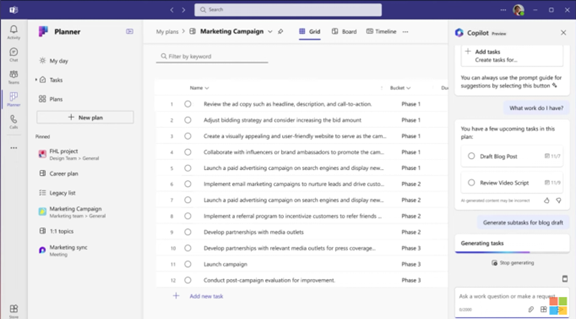
You can use the new Microsoft Planner from within Microsoft Teams or via a web browser. Here are some of the exciting things you will be able to do with it.
Enhanced Collaboration: Working Together Made Easy
Collaboration is key in today's fast-paced world. Working remotely has become the new normal. This means that the tools need to keep people coordinated wherever they are.
The new Planner empowers teams to work together seamlessly. Real-time updates ensure everyone stays on the same page. Features like shared task ownership and comments foster clear communication and efficient collaboration.
AI-Powered Insights: Your Smart Copilot for Success
The new Planner incorporates the power of AI with Microsoft Copilot built in. This intelligent assistant helps you stay on top of your work. It can suggest relevant plans, tasks and goals based on your needs and context. It can even analyze your progress and suggest adjustments to keep you on track.
Scaling with Your Needs: From Simple Tasks to Enterprise Projects
One size doesn't fit all. The new Planner understands that. It offers flexibility to cater to both individual needs and complex enterprise projects. Microsoft Planner can adapt to your specific requirements. It is flexible for use to fill big or small needs. Use it for managing a personal grocery list or to plan and deploy a large-scale company transformation.
Pre-Built Templates: Get Started Fast & Save Time
You don’t need to start from “square 1” unless you want to. Microsoft Planner provides several ready-made templates. You can use these to get started on a new project or goal quickly.
You will see templates for things like:
- Project Management
- Software Development
- Sprint Planning
- Marketing Campaign
- Commercial Construction
- Employee Onboarding
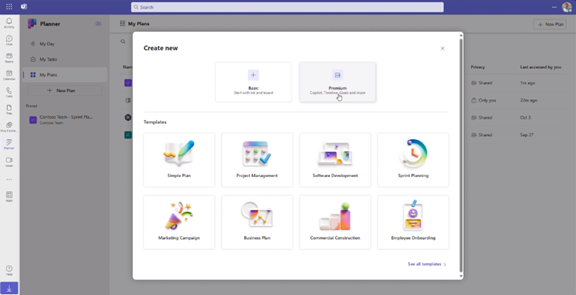
Here is a sneak peek at some key features of the new Microsoft Planner 2024:
- Improved Navigation: A redesigned interface makes finding what you need faster and easier.
- Enhanced Task Views: It has different views (like grid and board views). These let you customize how you see and organize your tasks.
- Microsoft App Integration: Planner integrates with many Microsoft tools including Power BI, Teams, Microsoft Viva Goals, Power Automate and more.
- Customizable Fields: Add custom fields to tasks. Use them to capture specific information relevant to your project needs.
- Goal Setting: Define clear goals and track progress visually within your plans.
- Critical Path: Identify the essential tasks needed to complete your project on time.
- Improved Search: Find the information you need quickly and easily. The app has powerful search functionality.
Access and Availability
Mark your calendars! The new Planner will be available in preview in early 2024. It will become generally available soon after. Some features will roll out later in the year. You can visit Microsoft’s site to sign up for updates and see a feature roadmap.
The Future of Tasks, Planning & Project Management
The new Microsoft Planner 2024 is an example of a trend that we have seen in the digital world. Less is more. This means fewer apps to juggle and more streamlined interfaces.
Planner’s powerful features make it an invaluable tool that both individuals and teams alike can leverage to streamline workflows. It also has an intuitive interface and AI-powered assistant to drive productivity.
Get Expert Business Software Support & Management
Managing both legacy and new cloud tools can be complex. Features often go underutilized and security can be a big problem if it is not done right. Our team of business software experts is here to help you.
Contact us today to schedule a chat.
The rise of remote work has transformed the way businesses operate and offers flexibility and efficiency like never before. However, along with the numerous benefits of freelancers and remote workers come significant challenges concerning data protection and cybersecurity. Read more
Remote work has become increasingly popular in recent times. It provides flexibility and convenience for employees. Additionally, telecommuting reduces office costs for employers. Many also cite productivity benefits due to fewer distractions.
Research shows a 56% reduction in unproductive time when working at home vs. the office.
However, there are some drawbacks to working outside the office. It is crucial to be aware of the cybersecurity risks that come with remote and hybrid work. Keeping an eye on device and network security isn’t as easy. About 63% of businesses have experienced a data breach due to remote employees.
This news doesn’t mean that you must risk security to enjoy remote working. You can strike a balance. Be aware of the cybersecurity concerns and address them to do this.
We will discuss some of the top cybersecurity risks associated with remote work as well as provide practical tips on how employees and employers can address them.
Remote Work Risks & Mitigation
1. Weak Passwords and Lack of Multi-Factor Authentication
Using weak passwords puts accounts at risk of a breach. Also, reusing passwords across several accounts is a big cybersecurity risk. Remote workers often access company systems, databases and sensitive information from various devices.
To mitigate this risk, you should create strong and unique passwords for each account. Additionally, enable multi-factor authentication (MFA) whenever possible. This adds an extra layer of security by requiring a second form of verification.
Employers can set up access management systems. These solutions help automate the authentication process. They can also deploy safeguards like contextual MFA.
2. Unsecured Wi-Fi Networks
Working remotely often means connecting to different Wi-Fi networks such as public hotspots or home networks that may not be adequately secured. These unsecured networks can expose your sensitive data to hackers.
To protect company data, use a Virtual Private Network (VPN). Turn on the VPN when connecting to public or unsecured Wi-Fi networks. A VPN encrypts the internet traffic. This ensures that data remains secure even on untrusted networks.
3. Phishing Attacks
Phishing attacks remain a prevalent threat and remote workers are particularly vulnerable. Attackers may send deceptive emails or messages. These messages trick users into revealing their login credentials or downloading malicious attachments.
To defend against phishing attacks, be cautious when opening emails (especially those from unknown sources). Avoid clicking on suspicious links. Verify the sender's email address.
Be wary of any requests for sensitive information. If in doubt, contact your IT support team to confirm the legitimacy of the communication.
4. Unsecured Home Network Devices
Many remote workers use Internet of Things (IoT) devices. These include smart speakers, home security systems and thermostats. These devices can introduce vulnerabilities to your home network if not properly secured.
To address this risk, make sure to change the default passwords on your IoT devices. Keep them updated with the latest firmware. Consider creating a separate network for your IoT devices. A "guest" network can isolate them from your work devices and data.
Employers can improve security for remote teams using an endpoint device manager such as Microsoft Intune. These devices make it easier to manage security across many employee devices.
5. Lack of Security Updates
Regularly updating your devices and software is crucial for maintaining strong cybersecurity. Remote workers may neglect these updates due to busy schedules or limited awareness. Cybercriminals often exploit vulnerabilities in outdated software to gain unauthorized access to systems.
To mitigate this risk, enable automatic updates on devices and software whenever possible. Regularly check for updates. Install them promptly to ensure you have the latest security patches.
6. Data Backup and Recovery
Remote workers generate and handle a significant amount of data. The loss or corruption of this data can be devastating. Implementing a robust data backup and recovery plan is essential.
Back up your important files to a secure cloud storage service or an external hard drive. This ensures that if a hacker compromises a device, your data remains safe and can be easily restored.
7. Insufficient Employee Training
Remote workers should receive proper cybersecurity training. It helps them to understand security risks and best practices. Unfortunately, many companies neglect this aspect of cybersecurity. This leaves employees unaware of the potential threats they may encounter.
Organizations must provide comprehensive cybersecurity training to remote workers. This training should cover topics such as:
- Identifying phishing emails
- Creating strong passwords
- Recognizing suspicious online behavior
- New forms of phishing (such as SMS-based “smishing”)
Get Help Improving Remote Team Cybersecurity
Remote work offers many benefits. However, it is important to remain vigilant about the associated cybersecurity risks. Address these risks head-on and put in place the suggested measures. If you would like some help, let us know and we would be happy to schedule a chat.