

Are you using OneDrive, Google Drive or Dropbox as a backup system? If so, you may be surprised to find out that cloud storage systems are not the same as a data backup.
In fact, 1 out of 3 companies have lost data that is stored in SaaS (Software as a Service) applications. Often this data loss comes out of the blue and it is only then that a business owner realizes that data in cloud services needs to be backed up just like data on computers or servers.
Microsoft says as much in its services agreement. The company warns that users can lose access to data if services become unavailable and recommends that “you regularly backup your content and data” stored in Microsoft services.
If you think your backup and recovery strategy has you covered but it doesn’t include your cloud services, then you could be in for a data loss incident in the future.
Ways You Can Lose Data from Cloud Services
It is easy to think of cloud storage as your “back up copy” when a cloud service is syncing a file on your computer. However, there are some big differences between cloud storage and a true backup and recovery service.
If a file is saved to a backup and recovery solution, that file is not in sync with the copy on your computer so it can’t be deleted from inside the backup. The same is not true of a cloud application.
There are several ways your data can be deleted from the cloud. Let us take a look at the reasons why you need to be backing your data up separately in a backup and recovery solution as part of your business continuity and disaster recovery strategy.
Files Can be Overwritten
Your files in a shared cloud account can be accidentally overwritten by an employee. They might think they have a revision file but they are actually editing a master copy.
Once enough time has passed after the file has been overwritten the original copy is lost forever.
Files Can be Deleted
Since files in cloud storage are designed to be updated and represent a “live” version of your data, they can be deleted. However, files in a backup solution cannot be deleted.
Entire folders can be wiped out by a careless employee or by a hacker who has gained access to user credentials.
Another way that you can lose your cloud data in a platform like Microsoft 365 is when a user is deleted because they no longer work for your company. If the administrator does not transfer all of their data over to another user, the deleted user’s files will be deleted and purged from the system after 30 days.
Ransomware Can Infect Cloud Storage Files
Cloud storage is not impervious to ransomware attacks. If an infected computer is syncing with Dropbox or Google Drive, then those cloud files could also be infected.
If those infected cloud files are not backed up somewhere else, you can end up having to pay a costly ransom to get them decrypted and usable again.
Retention Policies Can Mean Lost Data
Most cloud services are not going to keep files indefinitely and have certain retention policies for deleted email, stored files and more.
For example, Gmail uses a policy that keeps messages for a minimum of 30 days once they have a “deleted” label.
If you do not understand file retention policies of cloud services, it can cause you to lose files that you need to archive for legal or historical reasons.
Breached Accounts Can Lead to Data Loss
Credential theft is on the rise because companies are keeping more of their data in cloud accounts behind a username/password login.
Over 34% of businesses around the world are impacted by insider threats each year. An “insider threat” can be a malicious employee or a hacker that has logged in as an employee using stolen credentials.
Once a cloud account is compromised, the hacker can steal your data and delete it all from your cloud account if they like.
Server Crashes & Outages
Cloud service providers take precautions to avoid downtime for their customers. However, server crashes and outages do occur even on the largest platforms. Servers can be down for hours or even days and there is always the risk with a crash that data was destroyed.
In 2019, services that saw outages included Salesforce, Amazon AWS, Apple Cloud and Microsoft Azure.
A cloud service outage can bring your office to a standstill if you don’t have access to your business data any other way. This is another reason that backing it up is essential to business continuity.
Get Backup & Recovery In Place for the Cloud from Sound Computers
We can help your business put a solid strategy in place to ensure you have a copy of all data in your cloud services so you don’t run the risk of a devastating data loss incident.
Contact us today to schedule a free consultation. Call 860-577-8060 or reach us online.
Just one ransomware incident can cost a business an average of $732,520 and that is if they don’t have to pay the ransom. If they pay it, their losses are nearly doubled!
Ransomware is a form of malware and it can be one of the most costly for a company because it can bring operations to a standstill. This will cost the company hundreds of thousands of dollars in downtime.
One recent attack that happened in Stamford was at the Pitney Bowes headquarters. Ransomware encrypted some of their data which disrupted customer access to some of the company’s services like the ability to refill postage meters.
Organizations of any size can become a ransomware victim and often small and mid-sized businesses are targeted. Hackers look to make off with a quick ransom and then move onto the next unsuspecting target.
54% of U.S. businesses reported being attacked by ransomware within the last year.
As part of your IT security strategy, you should address ransomware and how to avoid falling victim to an attack. This takes a multi-pronged approach that deploys several best practices.
Keep All Your Data Backed Up Regularly
Some organizations hit with ransomware end up coming out mostly unscathed and with much lower costs than the average. This is because they have a solid backup and recovery strategy in place in their business continuity plan.
If you have a protected and managed backup in place that can be easily restored to your devices once the ransomware is removed, you can reduce downtime and get your systems up and running much faster. It also gives you peace of mind to know that you have done everything possible to minimize the threat of a ransomware attack.
You want to ensure that you are backing up all of your data which includes data in cloud storage systems because they can also be infected with ransomware from a syncing computer. Check your backups regularly to ensure they are working properly or use managed backup services through a trusted IT provider like Sound Computers.
Use Anti-Phishing & Spam Filters
Phishing has been the #1 delivery method for ransomware and other types of malware for several years. Phishing emails are getting more sophisticated all the time which makes it more challenging for employees to detect them.
Reduce your risk by putting an anti-phishing and anti-spam filter in place for your business emails to quarantine suspicious emails and keep them out of employee inboxes.
Use an AI-Based Antivirus/Anti-Malware Solution
If you are only using a signature-based anti-malware solution, it is going to miss the majority of the dangerous scripts.
50% of all the malware detected in 2019 was considered “zero-day” which means it is so new that it has not yet been added to a threat database.
In order to detect zero-day threats, you need to have an antivirus/anti-malware solution that uses AI to detect suspicious behavior of code or processes. This will give you a much better chance at catching the newest forms of ransomware before they can infect your system.
Keep All Devices Updated
One of the cybersecurity best practices for just about any type of threat is to keep computers, routers, servers and other devices updated in a timely manner.
Updates often install critical security patches that fix vulnerabilities in a code that can allow software to be manipulated. Ransomware and other forms of malware often take advantage of these vulnerabilities.
Managed IT services can help you take the burden of updates off of your shoulders and ensure those updates are happening when they need to be.
Use DNS Filtering for Safe Browsing
A majority of malicious code spread by phishing emails comes from employees clicking links to malicious sites rather than through opening a file attachment.
Criminals use links as a way to get past an anti-malware or anti-spam application.
DNS filtering will block malicious sites and send employees that click a dangerous link to a warning page rather than the hacker’s website.
Employee Awareness Training
Well-trained employees lead to fewer cybersecurity incidents and can mitigate your risk of being infected with ransomware.
Here are some tips for employee awareness training related to ransomware that can be an effective means of protection:
- Train employees how to spot phishing emails
- Do simulated phishing drills
- Create a step-by-step guide on what to do if ransomware is detected on a device
- Teach employees about social phishing and text-based phishing
- Train regularly instead of just during an onboarding process.
Put System Protections in Place Such as Ringfencing
One of the protections you can put in place on a system to help prevent ransomware from infecting and encrypting files is called ringfencing.
This type of protocol sets parameters on how different programs can interact with each other and can help keep a rogue ransomware application from deploying encryption commands.
Another tactic you can use is application whitelisting which can prevent any unknown applications from running on a computer at all.
Get a Ransomware Protection Checkup from Sound Computers
How well does your current cybersecurity plan have you protected from ransomware? We can do a full IT security checkup and let you know if you are vulnerable.
Contact us today to schedule a free consultation. Call 860-577-8060 or reach us online.

2020 has been a memorable year for businesses in Connecticut and around the world. The pandemic has changed the way that many companies think about how they operate and what their technology solutions need to look like.
Cloud solutions for things like phone systems and video conferencing have become a necessity and businesses are incorporating new hybrid workforces with employees working both from the office and from home.
64% of workers would like to spend at least some time at the office with co-workers rather than being remote 100% of the time.
Autumn is under way and school is back in session (both physically and virtually) so many employees are headed back to the office for the first time in months.
It can be heartening to see your office come to life again with your team but it also takes a careful safety strategy to ensure that employees and any customers that may visit feel safe and protected.
What is the “Swiss Cheese” Risk Mitigation Strategy?
There is a model that has been used since the early 1990’s in the healthcare industry along with others. It is designed as a set of layers that provide a cumulative benefit for mitigating risk.
This “Swiss Cheese” model was named as a way to demonstrate how several strategies deployed together do things like reduce a patient’s risk of infection or create an environment that results in fewer airline safety incidents.
How does this relate to making your business safe for your returning employees?
Think of each COVID safety strategy as one slice of Swiss cheese. Each one will have “holes” (i.e. vulnerabilities) when used alone. However, when they are stacked together your entire strategy will have fewer vulnerabilities or areas of potential coronavirus spread.
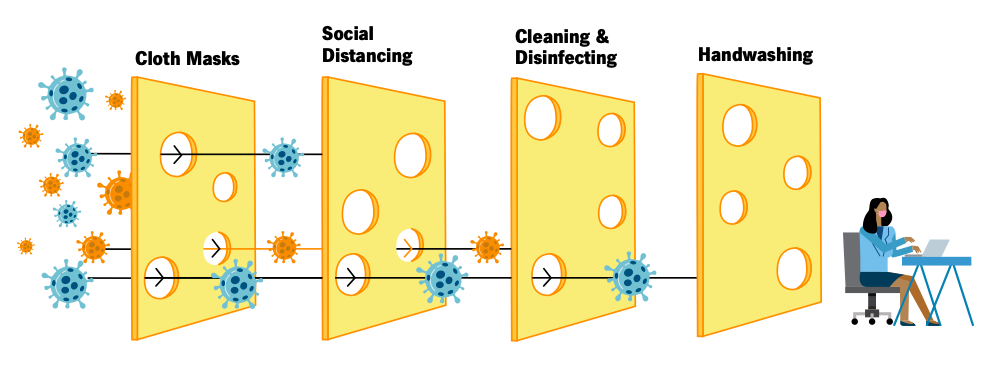
Cleveland Clinic “Return to Work Amid COVID-19” Guide.
Layers to Put in Place to Make Your Workplace “COVID Safe”
A layered strategy to make your workplace safe for employees is similar to one used for cybersecurity to prevent malware infections and data breaches.
Many of the practices below may seem like common sense and have been touted by experts for months now. However, the biggest take away is to use several of them together rather than just one or two so that you can strengthen your COVID safety and reduce the risk of spread.
Here are several layers you should use to keep your workplace free of coronavirus:
Distance Work Areas & Use Distancing Markers
One of the challenges for businesses with smaller office or retail spaces is trying to distance everyone between 6-8 feet apart.
This could be where a hybrid strategy comes in handy. This means employees will rotate which days they work at the office and which days they work from home so that fewer workstations are required.
You want to put up distancing markers around the office to remind everyone of a 6 to 8 foot minimum.
Use Plexiglass Counter and Desk Shields
Plexiglass shields have been showing up in grocery stores and other retailers as a way to help prevent the spread of coronavirus. They can also be very helpful at your business.
Use them around employee desks, the front reception desk and anywhere else people may be positioned for more than a few minutes.
These have the dual effect of both helping prevent the airborne spread of COVID-19 and making those on the other side of the plexiglass shield feel more secure.
Mandate Use of Masks
Wearing face masks has been found to be a very helpful layer in any COVID risk mitigation strategy. Mandating mask wearing at your building can help make everyone feel safer.
If you have some employees resisting, you could mandate it when employees are walking through the building or are not distanced by 6-8 feet as a compromise.
Provide Sanitizing & Handwashing Stations
You can encourage frequent handwashing which is another important safety measure for mitigating the spread of the virus. Make sanitizing and hand washing stations convenient for employees to use throughout the day.
Sanitize All Surfaces on a Schedule
The additional sanitizing can be a burden to some small businesses but it is a necessary step to ensure everyone is safe from potential contraction of the coronavirus.
You can work with a cleaning service that comes in nightly or in the early morning hours to sanitize or enlist the help of your employees to keep all surfaces disinfected on a regular schedule.
Here are some tips from the CDC on cleaning and disinfecting your facility.
Use the Outdoors (or Bring Them In) When Possible
Once that fall chill hits the air here in Connecticut conducting meetings outside is is going to be a challenge for most businesses.
However, anything you can do to conduct certain activities (like team meetings) outside or simply opening windows to bring in fresh air can also be a helpful risk mitigation layer in your Swiss cheese strategy.
Get a Pro to Help You Distance Your Workstations & IT
Trying to move your technology around yourself for distancing measures could leave you with connection issues or safety hazards. Call on Sound Computers to help move your workstations and other IT equipment safely.
Contact us today to schedule a free consultation. Call 860-577-8060 or reach us online.
Does your business use a lot of spreadsheets to keep track of different items? This type of manual list process to track devices, visitor logs and content scheduling can be tedious and make sharing that information cumbersome.
In order to optimize your Connecticut business for efficiency, one of the things you should look at is technology solutions that may be able to replace manual processes.
More than 40% of employees spend at least 25% of their work week on manual and repetitive processes.
Some of the top manual processes that surveyed workers said they would like to see automated to save time include:
- Data Collection
- Approvals
- Updates
Each of these areas can be addressed with a brand new app that was just added to Microsoft 365 business and enterprise subscriptions with SharePoint. That app is Microsoft Lists.
How Does Microsoft Lists Work?
Microsoft Lists gives you a way to track information, collaborate on list-based work processes with others and use rules to create automated updates to increase productivity.
Lists can be moved from a basic spreadsheet to a dynamic cloud environment that allows you and others to access them via the web, a mobile app or from inside Microsoft Teams.
Microsoft Lists was rolled out during the summer of 2020 and has the ability to replace manual workflows, all those cumbersome spreadsheets and possibly other paid cloud apps (like a task manager).
Here are some of the things you can do with Microsoft Lists:
Access All List Workflows from One Place
Rather than having spreadsheets saved in different folders, Lists keeps all of your lists instantly accessible from one centralized home page. You can also access and use them from within Teams.
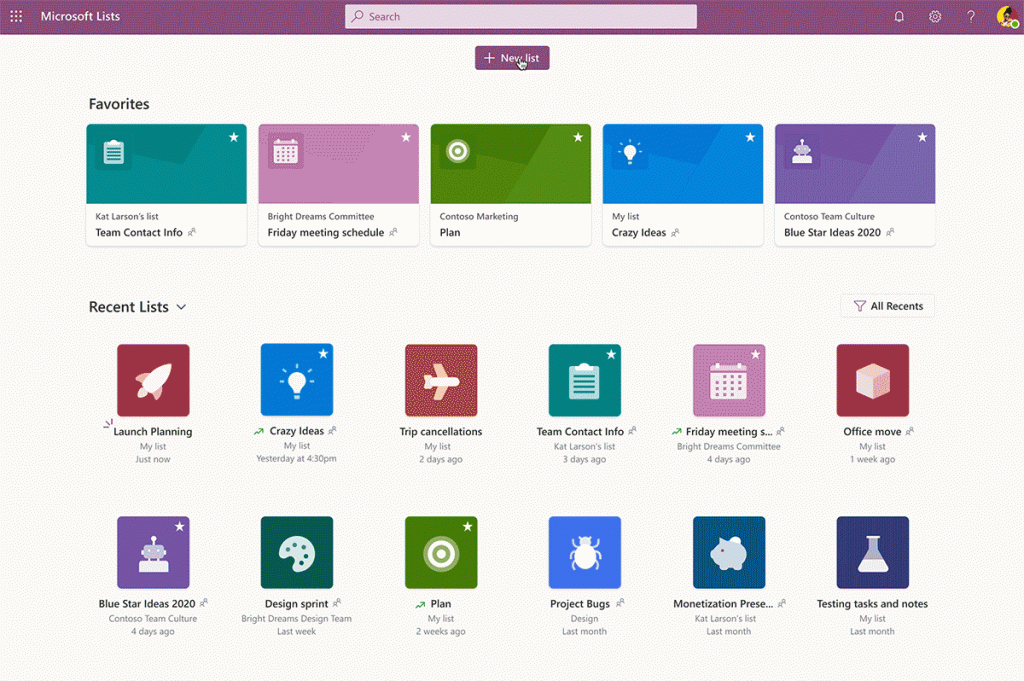
Recently used lists are at the bottom of the home page and those lists that you have designated as “favorites” are at the top. That means no more time wasted searching for your lists.
Quickly Create a List Workflow from a Template
The templates in Lists allow you to easily unleash the power of the platform and get an idea of just how much it can do. You can have two different list workflows that look completely different depending upon the template you use and the view you choose.
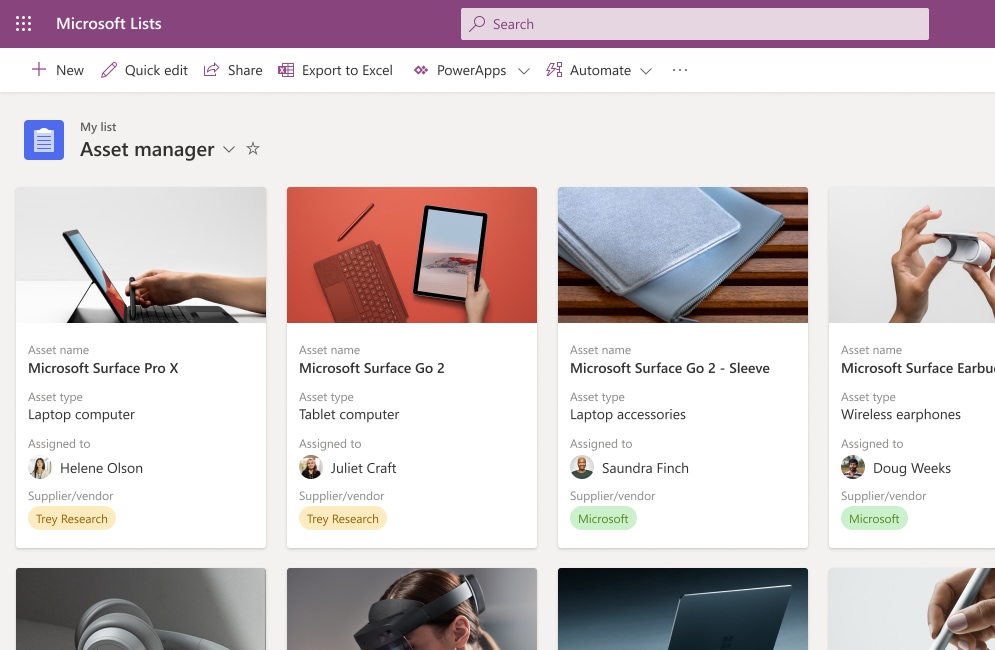
For example, the Asset Manager template allows you to add an asset photo and keep track of things like who has a device checked out and the warranty information.
The Issue Tracker template can give you a data-driven view of current issues being tracked, who is responsible for resolving them and their current status.
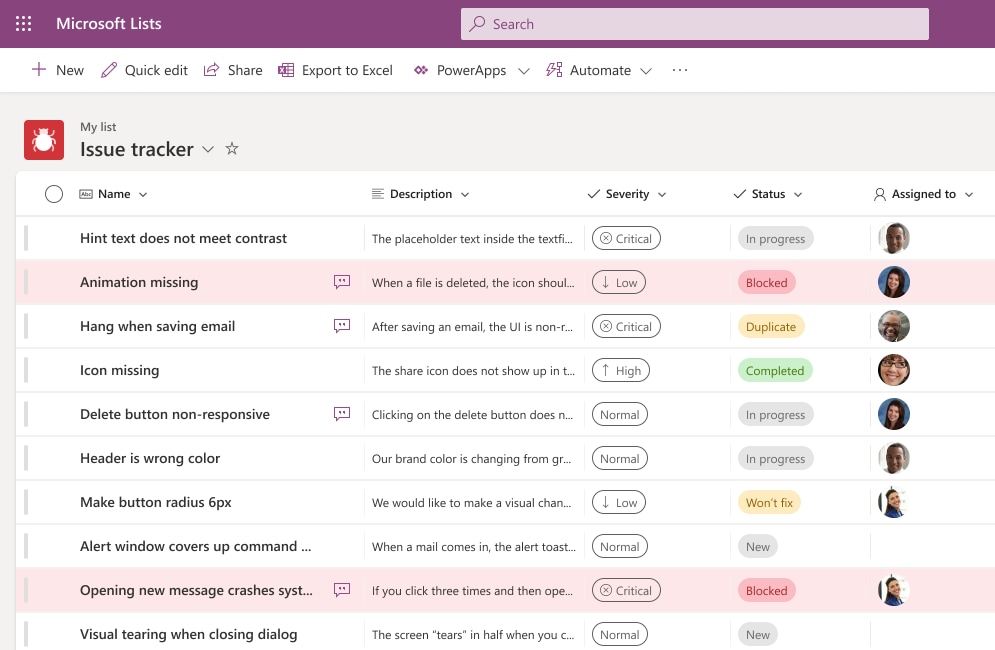
You can see that Lists can be morphed to fit whatever list-based workflow you have.
The current list of built-in templates for Lists include:
- Asset Manager
- Content Scheduler
- Employee Onboarding
- Event Itinerary
- Issue Tracker
- Recruitment Tracker
- Travel Requests
- Work Progress Tracker
Automate Notifications
You can reduce the time you spend following up to see if a task has been done and move an approvals process along more quickly by using the rules in Microsoft Lists.
You can set up rules that send an email notification to a designated address if any of the following activities occur:
- A list column changes
- A column value changes to a specific value (such as from “in-progress” to “done”)
- When a new list item is created
- When an item is deleted
Use Views to See Data in Multiple Ways
Another powerful feature of Lists is the ability to see your data in multiple views. This allows you to use a standard view that looks similar to a spreadsheet to view tasks or use a calendar view that can help with planning according to a schedule.
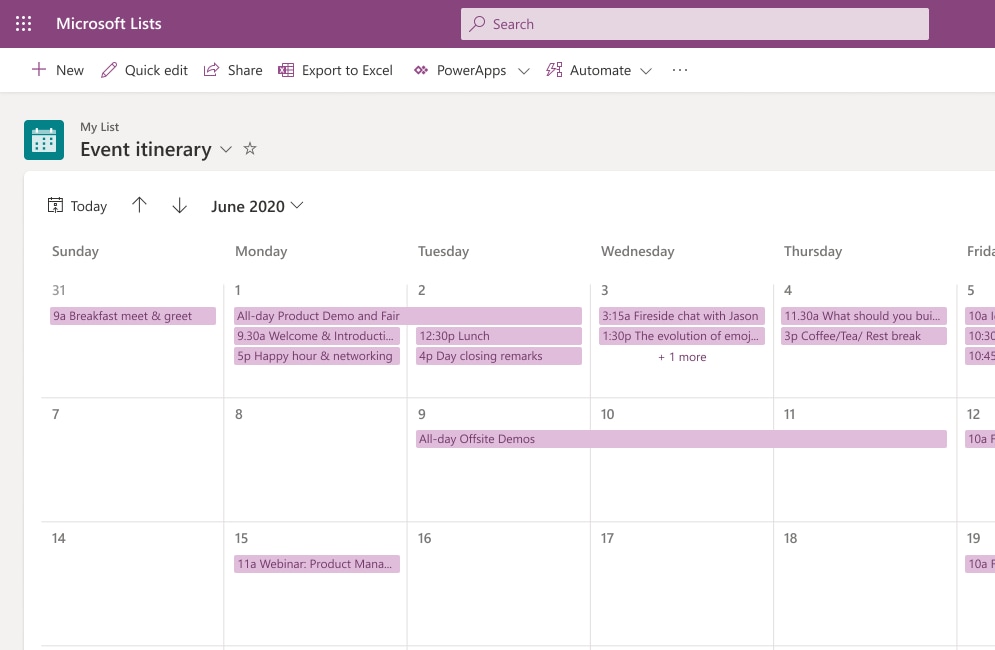
Microsoft Lists Calendar View
Some of the view options you have in Lists include:
- Standard view
- Calendar view
- Datasheet view
- Grid/Gallery view
Collaborate with Others
A feature that makes Microsoft Lists particularly useful to replace manual processes and repetitive apps is the ability to collaborate with others in the app.
Multiple people can work together on the same list-based process and you can even open Lists right inside Microsoft Teams which gives you the ability to message alongside your list workflow.
Giving everyone the ability to stay in sync on list activities removes the need to continually follow up with people and ensures everyone is on the same page. It also removes the need to email static spreadsheets back and forth.
Create Lists from Excel Spreadsheets
You have several options that make it easy to create a list. You can create one from a blank list, use a template, use another list as a base or create one from an Excel spreadsheet.
The ability to use an existing Excel list to create a dynamic Lists workflow makes it easy to replace those cumbersome spreadsheets with a much smoother, automated and more collaborative workflow.
Put Smart Productivity-Boosting Tools In Place at Your Business
Sound Computers can help your business take advantage of tools like Microsoft 365 to boost productivity and lower costs.
Contact us today to schedule a free consultation. Call 860-577-8060 or reach us online.

The late American author Kurt Vonnegut once wrote, “New knowledge is the most valuable commodity on earth. The more truth we have to work with, the richer we become.” Written in the 20th century, it has been put in practice by 21st century businesses. As the Internet has grown, the amount of companies expanded, and the amount of data that those companies collect has grown exponentially, especially now that there is a market for such data.
Read more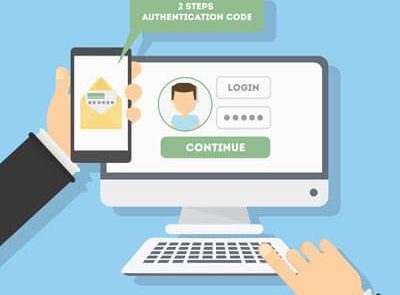
The password isn’t nearly as secure as it used to be. Hackers have begun to take advantage of extremely powerful solutions designed to brute force their way into accounts by using software to rapidly guessing thousands of passwords per second, making it extraordinarily difficult to prepare yourself for them.
What’s the best way to guarantee that passwords aren’t going to be the downfall of your company? A great start is by taking a close look at password best practices and two-factor authentication.
Read more
Data security isn’t a matter to be taken lightly, as too many businesses have found out the hard way. Unfortunately, there are far too many simple ways to correct common security issues - enough that it’s foolish not to do so. We’ll review a few ways to fix security issues, after discussing one of, if not the, most egregious security failings in modern history.
Read more
Despite what detractors say, regulations are in place for good reason. They typically protect individuals from organizational malfeasance. Many of these regulations are actual laws passed by a governing body and cover the entire spectrum of the issue, not just the data involved. The ones that have data protection regulations written into them mostly deal with the handling and protection of sensitive information. For organizations that work in industries covered by these regulations there are very visible costs that go into compliance. Today, we look at the costs incurred by these organizations as a result of these regulations, and how to ascertain how they affect your business.
Read more
There is no question that a small business can benefit from technology, as has been proven time and time again. However, an issue can arise if a business bites off more than it can chew, so to speak, and ultimately creates a spike in costs. A responsible business owner will resist this temptation and prioritize the solutions they need over the ones they want - building profitability and generating capital needed to make other improvements.
In this blog, we’ll examine some of the implementations that can deliver a good return on investment to a small business.
Read more
How much does your business rely on technology to keep your organization running forward? As business technology becomes more complex, it’s becoming increasingly popular for organizations to have their own internal IT departments to manage and maintain it. Yet, small businesses don’t often have the necessary funds for such a feat. How can your company afford quality IT service? You can start by pursuing managed IT solutions from a managed service provider.
Read more