

2020 was a good example of how unanticipated events can happen and have a serious impact on your business operations. They can stop operations altogether and they can also impact buying behaviors that can affect your bottom line.Read more
Voice assistants and doorbell cameras are not the only devices multiplying in homes. IoT devices are as well. They are also popping up in offices throughout Connecticut and across the rest of the country.Read more
One of the major IT security problems at a business (regardless of size) is access security. Passwords are often the only thing keeping hackers out of everything from company cloud storage accounts to remote server access.Read more

Microsoft 365 is one of the most popular productivity tools in the world. Over 651,000 companies in the U.S. use the platform for its core business tools (Word, Excel, Outlook, PowerPoint) as well as collaborative features like Teams.Read more

Year end is when many companies are doing reviews in order to plan ahead for the new year. One area where it is vital to do this is cybersecurity.Read more
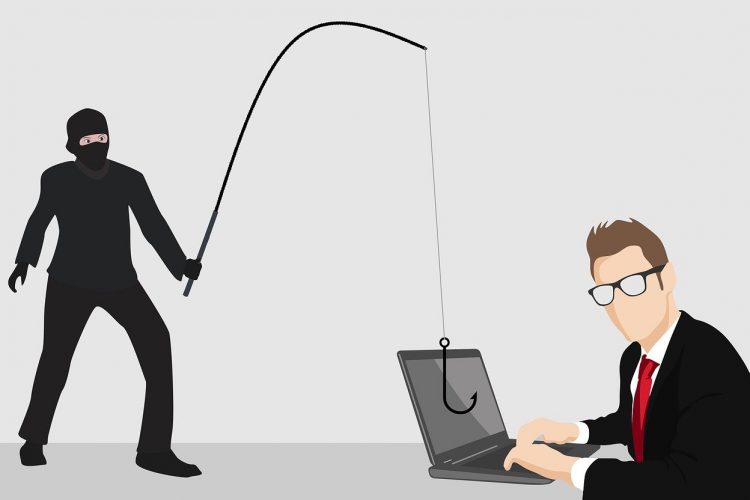
Ongoing employee cybersecurity training offers a major safeguard to businesses. Keeping employees well trained can protect a company from phishing attacks and the resulting security incidents like ransomware infections or data breaches.
IT security risks can be reduced by as much as 70% when a business invests time and effort into keeping employees aware and trained on cybersecurity on a continuous basis.
Some typical training topics that employees need to know include:
- How to protect against a ransomware attack
- How to spot phishing emails
- How to properly handle data securely
- How to identify seasonal phishing attacks
94% of all malware is delivered by email. This is why phishing awareness should be a core training area for employees.
This includes keeping them apprised each holiday season of the typical types of phishing scams that they can expect to see. Phishing during this time of year is particularly dangerous because people tend to be distracted by the holidays and the change in routines.
We have put together a list of several popular holiday season phishing scams for you to warn your employees about to boost your employee training program. We will also include tips on how to avoid them.
It is smart to use remote IT support services as an employee aid for scanning systems for any potential malware or other problems.
Stay Safe by Being Aware of Dangerous Seasonal Phishing Scams
Fake Tracking Emails
Tracking emails that show up in inboxes multiply this time of year due to all the online holiday shopping. This makes it easy for hackers to slip convincing fake tracking notices in between all the real ones and trick a recipient into clicking a malicious link.
92% of employees check their personal email at work. So, if an employee is on a work network and accidentally clicks a phishing link received to their personal email, it can still cause a malware infection of your network.
The best way to avoid falling victim to a fake tracking email that looks just like the real thing is to never check tracking through an email link. Go directly to the retailer or shipper’s website instead.
Work-Related Holiday Celebration Surveys
Who doesn’t welcome the opportunity to break up a long workday by doing something fun? This includes weighing in on what the company should do for holiday celebrations or employee appreciation gifts this year.
Employees seeing a “holiday survey” that looks to be from inside their company may immediately click open a link or file attachment without even giving it a second thought.
This is another common phishing scam during this time of the year. Often scammers will spoof the company’s domain in the “From” line to make the email appear to be legitimate.
Employees should know that even though an email domain they recognize is in the “From” line, it doesn’t mean that is the email address that actually sent the message.
Two ways to avoid this scam:
- Look at the raw text of the message header to see the real sending address.
- Check with your company by another means (not by replying to the message) to ask if the survey is legitimate.
Fake Amazon or Other Retailer Order
Fake order emails are another popular seasonal phishing scam and they will typically elicit one of two responses from a user. One of these responses is anger that somehow the retailer has “messed up” with an order. Another user might wonder if they ordered something and completely forgot about it.
In either case, the recipient can click before they think and end up logging into a page that looks like Amazon’s but is actually a phishing site. 
One of the best practices of phishing detection is to hover over any links in an email without clicking on them. This reveals a popup with the true URL of the link. It is often the easiest way to spot a fake.
Holiday Hours Schedules from Vendors
One other way that scammers take advantage of the season is to send out phishing that purports to be a holiday hours schedule from a vendor. These types of emails are common this time of year which makes a fake one harder to tell from a legitimate one.
This is another case where you want to avoid taking any action on the email itself. Contact the vendor directly instead to ensure that the email really did come from their company.
Gift Card Purchase Scam
This particular phishing attack can come via email or via text. It is usually more targeted because the scammer has done a little homework on the company directory.
It will appear as a request from someone with a higher title in the company (such as a manager). The request will ask an employee to purchase “forgotten” gift cards for clients at the last minute.
Hallmarks of this scam:
- The sender will be “unavailable” for a few hours to discourage checking with them by phone.
- The sender needs the cards in a short period of time.
- The sender will promise to reimburse the employee when they are back at the office.
- The sender asks that the gift card numbers be sent to them.
- The sender does an assumptive close by complimenting the employee on “saving the day”.
Employees should be wary of any type of request involving gift card purchases and should check directly with their supervisor if any are received.
Ensure Your Employees Have Access to Instant IT Help
Phishing can be even more dangerous when employees are working from home and cut off from their normal office support system. Get them the help they need to stay protected through Sound Computers’ remote IT support. We can help with multiple issues including security and system performance.
Contact us today to schedule a free consultation. Call 860-577-8060 or reach us online.

If you’re using your Microsoft 365 business account without any security customizations, your data and user accounts could be at risk of a breach.
Many users think that the most secure settings are activated by default in a cloud platform but this is not the case. Microsoft gives users the ability for great security but it is left up to the company to configure these settings. Many business owners don’t even realize that they need to do this.
Unprotected cloud data can be subject to being infected by ransomware or other malware or can be compromised by a hacker gaining account access. 70% of surveyed organizations reported suffering a public cloud data breach within the last 12 months.
The lack of awareness about security configurations in cloud platforms like Microsoft 365 is a major cause of data breaches and account compromise. Over the past year, data breaches due to misconfigured settings have skyrocketed by 424%.
Many Connecticut businesses now rely on cloud platforms for a large part of their business technology, so it is vital that cloud security is a top priority.
What are some of the easy ways that you can secure your Microsoft 365 account to avoid becoming a victim of a hacker or malware attack?
We have several tips below for settings that you can put in place to significantly increase your account security.
Tips for Securing Your Microsoft 365 Business Account
Implement MFA Account Wide
What is a single thing you can do to block 99.9% of hacked account breaches? Implement multi-factor authentication (MFA).
Those few extra seconds that users take to receive and enter a login code are very much worth it when it comes to account security in Microsoft 365 or any other cloud platform.
As MFA is turned on for all users, employees will receive a prompt at their next login to set up a device to receive the MFA code. Every time they log in, they will be sent a code that will be required along with their username and password.
Stop Outside Domain Auto-Forwards
If a Microsoft 365 account is breached, that means that the hacker has access to the user’s files as well as the email that is set up in Microsoft 365.
This can allow them to send spam or auto-forward all the user’s emails to their own account. Auto-forwards can go undetected for quite a while because a user will not notice it in most cases unless they specifically look at their mail forward settings.
You can set up a rule to stop auto-forwards for all emails when the sender is internal and the recipient is external. Do this in the Exchange admin center > Mail flow > Rules > Create new rule.
Improve Malware Protection by Blocking Malicious Attachments
There are certain file attachment types that commonly contain viruses, ransomware and other types of malware. These include types like .exe, .vbs, .bat and many others.
You can improve your company’s security against phishing attacks by turning on a common attachment types filter that blocks these known file threats.
To do this:
- Go to the Security & Compliance Center
- Choose Threat Management > Policy > Anti-Malware
- Double-click to edit the default company-wide policy
- Select, Settings
- Click to turn on the Common Attachments Types Filter
- Select, Save
You can also edit the file types being blocked in this window.
Turn on Safe Links to Block Malicious URLs (Microsoft 365 Business Premium)
A majority of phishing emails contain links to malicious sites rather than file attachments. This is because emails without any malware contained in them can often make it past mail security programs. So, they link the user to a site that contains malware or that is designed to steal login credentials.
If you are a Microsoft 365 Business Premium subscriber, you get more security tools through Microsoft Defender for Office 365. Safe Links is one of these tools.
Safe Links will actually block any malicious URLs that it detects in incoming emails or in other Microsoft applications and documents to help protect users from falling for a phishing scam.
To enable this protection:
- Go to the Security & Compliance Center
- Choose Threat Management > Policy > Safe Links
- Under “Policies that apply to the entire organization,” double-click the default policy to edit
- Under “Settings that apply to content except email,” select, “Office 365 applications, Do not track when users click safe links,” and “Do not let users click through safe links to the original URL.”
- Select, Save
Enjoy Custom Microsoft 365 Configurations for Security & Productivity
Sound Computers has experts that can customize your Microsoft 365 account for both security and productivity so that you can stay protected and get the full value from your subscription.
Contact us today to schedule a free consultation. Call 860-577-8060 or reach us online.

November and December are the months when online holiday shopping ramps up. This year is expected to be even bigger than past years due to the pandemic.
Online shopping over the 2020 holiday season is expected to increase 33% compared to last year. This will result in approximately $189 billion in sales. However, you can also expect an increase in identity theft, phishing attacks and other threats related to online shopping.
In 2019, online purchase fraud jumped by 29%.
Scammers often take advantage of online shoppers during this time of year with fake sales, bogus tracking emails and scams designed to steal credit card details. People are often distracted due to the flurry and excitement of the season which can cause them to drop their guard.
Just one wrong click can end up in a ransomware infection, credit card fraud or the need to look for Connecticut computer repair to remove malware.
We have put together some savvy online shopping tips to help you avoid scams and stay safe when browsing those holiday sales:
Research Sites Before You Shop
It is best to only shop on sites that you know are legitimate to help avoid any unsavory retailers out there who are just trying to get your credit card number or sell substandard knockoffs.
If you really want to buy a unique gift from a retailer that you have not purchased from before, you will want to research them thoroughly. This also goes for retailers on large shopping platforms like Amazon and Etsy.
Use sites like the Better Business Bureau (BBB) and review websites like Trustpilot to research a website before you buy so you know what you are getting into.
Use a Mobile Anti-Malware App
Most people know to have anti-malware on their computer but do you have it on your smartphone or tablet? 68% of holiday shopping traffic in 2019 was via mobile devices.
It is easy to get fooled by a malicious app that looks like it offers great Black Friday or Cyber Monday deals. It could also be planting spyware on your device.
Protect yourself by using a reliable mobile anti-malware application for device protection.
Don’t Shop Online When On Free Public Wi-Fi
It is smart to avoid shopping online and putting any sensitive information into a form (like your credit card number) when you are connected to a public Wi-Fi. Hackers often hang out on these free hotspots and can use software to spy on the unencrypted traffic of others using the same network.
If you are not at home or work and want to do some online shopping, you have two options to secure your connection:
- Click your Wi-Fi off in your phone’s settings so your connection switches to your mobile carrier.
- Use a VPN that will encrypt your connection when on an unsecure Wi-Fi.
Delete Payment Details from Sites After Checkout
It can be convenient to store your payment card details with a retailer you use often. However, it can also leave your information at risk of being stolen in a breach.
Large brands like Target, Dunkin’ Donuts and Macy’s have all experienced data breaches in recent years in which sensitive information was stolen.
Your best bet is to get into the habit of immediately deleting your payment method out of an online shopping site right after checkout. This will not stop the transaction from going through because it goes through when you click the purchase link. Once the purchase has been completed, you can safely delete your payment information. Some sites even give you an option to save the card to your account or to just type it in each time that you use your account for a purchase. This will save you a few extra clicks.
Use Payment Methods That Hide Your Card Details
A way to protect yourself from an unsavory retailer gaining access to your card details is to use an alternate payment method that does not expose your personal card information.
These include:
- PayPal
- Apple Pay
- Google Pay
- Samsung Pay
- Prepaid debit card
Use a DNS Filter
Phishing scammers will often send fake sale emails during this time of year that look too good to be true.
You can protect yourself from accidentally clicking on a known phishing site by using a DNS filter on your device. The DNS filter will block any malicious sites that it detects before loading them in your browser and redirect you to a warning page instead.
Look for the Lock Icon and HTTPS
Never shop on a website that only uses “HTTP://” in the address. This indicates that the site traffic is not secure.
Only shop sites that have a lock icon directly to the left of the URL in the browser and that have addresses that begin with “HTTPS://”. This is an indicator that the site traffic (including any credit card details you send through a form) is properly encrypted.
Secure Your Devices with Help from Sound Computers
Are your mobile devices and computers properly protected with DNS filtering and anti-malware? We can help you ensure that you have the safeguards in place to make holiday shopping less of a risk.
Contact us today to schedule a free consultation. Call 860-577-8060 or reach us online.

Internet Explorer was introduced in 1995. This makes it one of the first internet browsers. However, in recent years it has become obvious that Microsoft has been planning a retirement for IE at some point in the not too distant future.
IE has been edged out over the years by Chrome, Safari and others. The first sign that IE was on its way out was the new Edge browser that Microsoft introduced five years ago. Now IE 11 is about to lose support from some major Microsoft applications.
In 2012, Internet Explorer had nearly 40% of the browser market share. Five years later, it had dropped to about 10%.
While it is normal for technology to evolve and software and IT solutions to reach the end of the road, it is still disruptive to businesses in Connecticut and everywhere else when they do.
If your workflows rely on a certain digital tool that is no longer being fully supported by a developer, it can mean:
- The need to revamp workflows
- Trying to find work arounds for processes that no longer work
- Security issues due to lack of patches/updates
- Migration challenges to move data from the old application to a new one
The big milestone that Internet Explorer 11 is reaching is the elimination of support from Microsoft Teams and Microsoft 365.
We will go over the important answers that you need to know regarding this drop in support so that your business can be properly prepared.
Dates & Details About the Phasing Out of the IE 11 Browser
When Will Microsoft Teams Stop Working in IE 11?
As of November 30, 2020, Microsoft Teams will no longer work correctly in IE 11. This will impact the ability to use Teams on the web and for people to join video calls via the browser.
Even if your own office does not use Internet Explorer, this drop of support could impact your Teams meetings. If you invite others from outside your organization, there may be a client that uses IE that suddenly can no longer connect to your video calls as usual.
If you use Teams, you will want to ensure that everyone inside your organization upgrades to supported browsers. It is also a good idea to add a note to your Teams meeting invites that IE 11 is no longer supported.
When Will Microsoft 365 Stop Working in IE 11?
You have a little more time before all the other Microsoft 365 apps no longer support IE 11. This happens on August 17, 2021.
This will include all the services in the platform – Word, Excel, Outlook, OneDrive, SharePoint, Microsoft Lists, etc. None of these will be usable in the same way (or at all) from inside Internet Explorer.
What Happens When Support for IE Ends?
Microsoft describes the impact after each of the dates pass as customers having “a degraded experience” or being “unable to connect to Microsoft 365 apps and services on IE 11".
A degraded experience means that you may experience one or more of the following:
- New Microsoft 365 features not being available
- Certain features may stop working
Is Internet Explorer Reaching End of Life?
IE is not yet at the end of its life and it will still receive vital security patch updates. It is only Microsoft Teams and Microsoft 365 that are no longer going to support the browser.
As a component of Windows, IE has the same life cycle as the operating system. This means that if you are using Windows 10 your IE is still being supported. That OS is not reaching its end of life until 2025.
However, if you happen to have a computer that is using IE on the Windows 7 operating system, this OS has already reached its end of life (in January 2020) and needs to be upgraded as soon as possible because it is a big security risk.
What Browsers Support Microsoft 365 & Teams?
You can choose from a few different browsers when upgrading from IE 11. Here are your options:
- Microsoft Edge: If you want to stick with a Microsoft browser, the Chromium-powered Edge has been slowly gaining in popularity. It also has an IE Mode that can be used to access older legacy IE sites.
- Chrome: Chrome is by far the most popular browser. It is well supported but it does tend to be heavy on the memory usage.
- Safari: If you use Apple devices, Safari is a good browser option. Just note that some forms don’t work properly in the browser and it does not support the Windows OS.
- Firefox: Another option that often is praised for better privacy than Chrome is Firefox. However, Microsoft warns that some Teams features don’t work in this browser.
Need Help Migrating Your Data & Workflows?
Sound Computers can help your business upgrade from IE or other software that is no longer supported. We will ensure that your data is transferred safely and that your workflows stay intact.
Contact us today to schedule a free consultation. Call 860-577-8060 or reach us online.
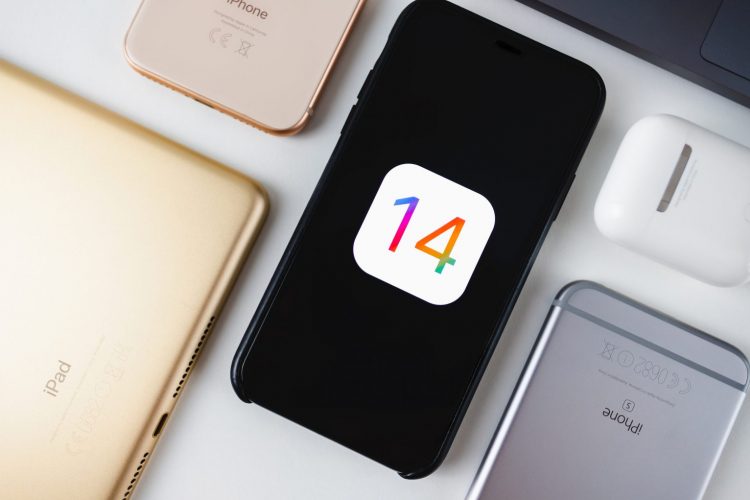
In many offices, a majority of the workload is now done via mobile devices. This means that mobile OS (operating system) updates have a larger impact on work productivity than they have in the past.
In 2013, the percentage of mobile internet traffic was just 16.2%. In 2019, it skyrocketed to 53.3%. This makes mobile devices one of the most important business technology tools for a Connecticut company.
Many of the typical struggles that smartphone users encounter are addressed in this update:
- Trouble finding an app among multiple screens
- Accidentally messaging in the wrong conversation
- Inability to multi-task while on a video call
We will go through some of the most exciting updates in iOS 14 to help you work more efficiently.
Pin Your Most Important Conversations
If you have several text conversations going on, it is easy to pick up the wrong one when you are texting in a hurry. You might accidentally text your client (instead of your significant other) something like, “I’ll be home for dinner in an hour. Traffic is rough. xx”
“Mis-texting” can be embarrassing and also costs you more time because you need to apologize for the misfire and re-text the information to the person it was originally meant for.
iOS 14 allows you to pin important conversations to the top of the messages screen. It makes it easy to locate those people/groups that you message often. The accompanying image makes it easy to locate who you need in a hurry.
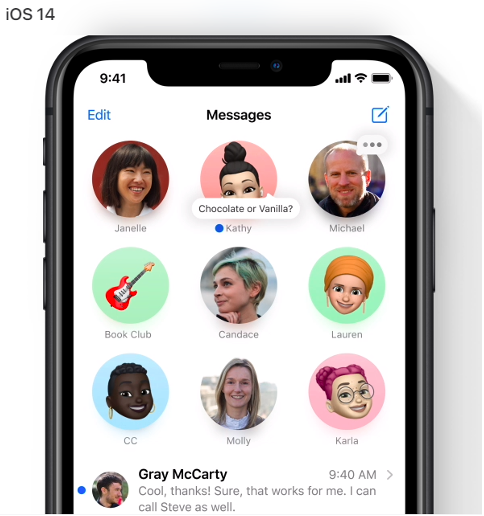
(All images are from Apple)
Pinned conversations will also sync across Messages in iOS, iPadOS and macOS.
Use Widgets on Your Home Screen
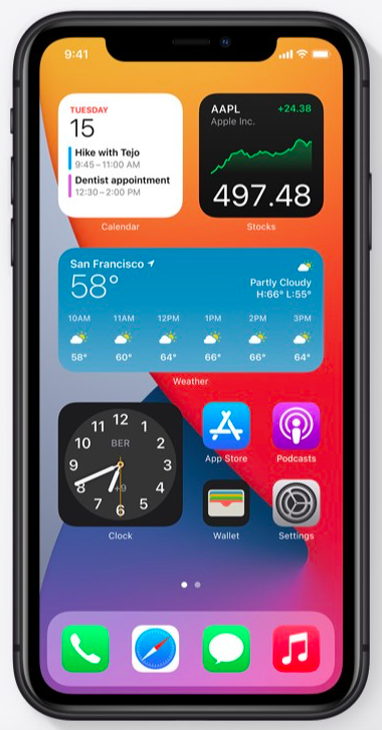
Those iPhone widgets that have been in your far-left screen for a while have received a huge update and are more powerful and helpful than ever before.
You now have more widgets to choose from and you can bring them over to your home screen. Add a widget for your calendar and you will see the next meeting coming up as soon as you pick up your phone.
You can make widgets small, medium or large and can also stack several in a window. This allows you to use less Home screen real estate while being able to access more of your widgets.
Compact Screen UI Makes Multi-tasking Easier
No more will an incoming call take up your entire phone screen. The new compact UI in iOS 14 has calls now showing up as a small banner that you can easily click to answer or decline.
Other compact UI features include:
- Siri being more compact
- FaceTime calls coming in as a banner
- Third-party VoIP apps like Skype can also support the compact UI.
Do More While on Video
A new Picture in Picture feature allows you to work in another app while on FaceTime or watching a video.
The video will show up in a small box overlaid on top of your screen. You can pinch to resize the video window to make it larger or smaller. You can also drag it to any corner of your screen and minimize the window if needed.
Smart App Library Solves the “Lost App” Problem
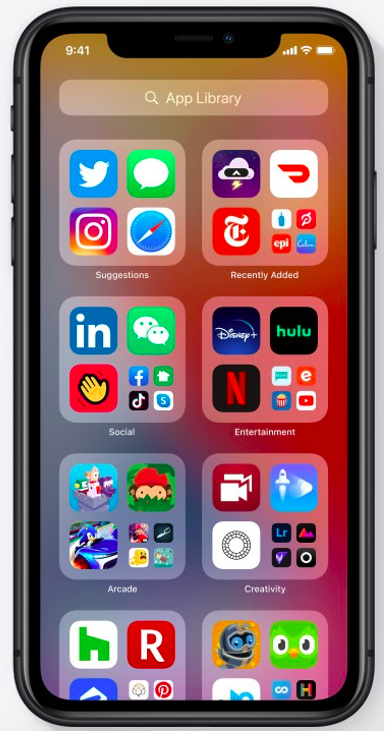
One of the most helpful features that you will find in iOS 14 is a new App Library that automatically organizes and categorizes all your apps as soon as you upgrade.
All apps can now be found in a single screen, instead of having to page through multiple screens. They are easy to see and can be opened with a single click.
Send Audio Messages with Siri
If you are in a rush and don’t have time to type out a detailed text message, you can have Siri send an audio message by text instead. This is much more efficient and less time consuming for long messages that may include directions or detailed instructions.
To send an audio message with Siri:
- Activate Siri (“Hey Siri” or by pushing the home button)
- Say “Send an audio message to (contact name)”
- Siri will prompt you with, “OK, recording”
- Speak your message to Siri
- When you stop speaking for a few seconds, Siri will give you the option to Send, Cancel or Play Back the audio.
More Uses for Maps
If you have not used Maps much on iPhone other than to look up an address from time to time, you will want to explore the new capabilities that iOS 14 brings to this app.
Here are a few of the Maps improvements:
- Maps now routes cyclists along bike lanes
- Get recommendations from Guides for places to visit in a city
- View congestion zones in major cities
- Know when you are approaching speed cameras
- Use Siri to give your ETA to a contact while using Maps.
Get Help Optimizing Your Business Devices from Sound Computers
Most offices in Westbrook and other Connecticut towns now have a mix of computer and mobile device workflows. We can help you optimize to make your processes secure and efficient.
Contact us today to schedule a free consultation. Call 860-577-8060 or reach us online.