
Misconfiguration of cloud solutions is often overlooked when companies plan cybersecurity strategies. Cloud apps are typically quick and easy to sign up for. The user often assumes that they don't need to worry about security because it is handled.
This is an incorrect assumption because cloud security is a shared model. The provider of the solution handles securing the backend infrastructure but the user is responsible for configuring security settings in their account properly.
The problem with misconfiguration is huge. It is the number one cause of cloud data breaches. It is also an unforced error. Misconfiguration means that a company has made a mistake. It hasn't adequately secured its cloud application.
Perhaps they gave too many employees administrative privileges. They may have neglected to turn on a security function that prevented the downloading of cloud files by an unauthorized user.
Misconfiguration covers a wide range of negligent behavior. It all has to do with cloud security settings and practices. A finding in The State of Cloud Security 2021 report shed light on how common this issue can be. 45% of organizations experience between 1 and 50 cloud misconfigurations per day.
Some of the main causes of misconfiguration are:
- Lack of adequate oversight and controls
- A team lacking security awareness
- Too many cloud APIs to manage
- No adequate cloud environment monitoring
- Negligent insider behavior
- Not enough expertise in cloud security
Use the tips below to reduce your risk of a cloud data breach and improve cloud security.
Enable Visibility into Your Cloud Infrastructure
Do you know all the different cloud apps employees are using at your business? If not, you’re not alone. It is estimated that shadow IT use is approximately 10x the size of known cloud use.
When an employee uses a cloud app without authorization, it is considered “shadow IT.” This is because the app is in the shadows and outside the purview of the company’s IT team.
How can you protect something you don’t know about? This is why shadow cloud applications are so dangerous and why they often result in breaches due to misconfiguration.
Gain visibility into your entire cloud environment so that you know what you need to protect. One way you can do this is through a cloud access security application.
Restrict Privileged Accounts
The more privileged accounts you have, the higher the risk of a misconfiguration. There should be very few users that can change security configurations. You don’t want someone that doesn’t know better to accidentally open a vulnerability such as removing a cloud storage sharing restriction. It could leave your entire environment open for hackers.
Audit privileged accounts in all cloud tools. Then reduce the number of administrative accounts to the least needed to operate.
Put in Place Automated Security Policies
Automation helps mitigate human error. Automating as many security policies as possible helps prevent cloud security breaches.
For example, if you use a feature like sensitivity labels in Microsoft 365, you can set a “do not copy” policy. It will follow the file through each supported cloud application. Users don’t need to do anything to enable it once you put the policy in place.
Use a Cloud Security Audit Tool (Like Microsoft Secure Score)
How secure is your cloud environment? How many misconfigurations might there be right now? It is important to know this information so you can correct issues to reduce risk.
Use an auditing tool like Microsoft Secure Score. You want a tool that can scan your cloud environment and let you know where problems exist. It should also be able to provide recommended remediation steps.
Set Up Alerts for When Configurations Change
Once you get your cloud security settings right, they won’t necessarily stay that way. Several things can cause a change in a security setting without you realizing it. These include:
- An employee with elevated permissions accidentally changes them.
- A change caused by an integrated 3rd party plug-in.
- Software updates.
- A hacker that has compromised a privileged user credential.
Be proactive by setting up alerts. You should have an alert for any significant change in your cloud environment (like when the setting to force multi-factor authentication gets turned off).
If an alert is set up, then your team knows right away when a change occurs to an important security setting. This allows them to take immediate steps to research and rectify the situation.
Have a Cloud Specialist Check Your Cloud Settings
Business owners, executives and office managers aren’t cybersecurity experts. No one should expect them to know how to configure the best security for your organization’s needs.
It is best to have a cloud security specialist from a trusted IT company check your settings. We can help ensure that they’re set up to keep your data protected without restricting your team.
Improve Cloud Security & Lower Your Chances for a Data Breach
Most work is now done in the cloud and companies store data in these online environments. Don’t leave your company at risk by neglecting misconfiguration. Give us a call today to set up a cloud security assessment.
Our technology inevitably comes with us when we travel. Most of us won’t even travel to the end of the block without our smartphones. When you go on a trip, not having your technology there when you need it can ruin your day.
Travel smarter and more securely by doing several checks before you go. Use our handy tech travel checklist. It can save you from suffering from lost devices, missing chargers or a data breach.
1. Check Your Apps
Have you ever sat at an airport gate wondering why it looked so empty? You then found out that your gate had changed and you had no idea. You go rushing to the other end of the concourse and hope that you are not too late.
How did everyone else know about the gate change? They most likely had the app for the airline and received a notification.
Before you leave for a trip, make sure to download any apps you may need. It is better to download them when you are at home on your own Wi-Fi. If you wait until you are at the airport, reception may be an issue.
Some of the apps you may want to grab or update before your trip are:
- Airline app
- Train app
- Hotel app
- Theme park app
- Camping ground app
- Weather app
- City tourism app
2. Check Your Cords & Adapters
People leave behind countless chargers and adapters every day. They litter airports, restaurants and train stations around the world. Make sure to bring a backup charger for your laptop, tablet or phone. You don't want to find yourself paying a premium for a new charger in a gift shop. Your device could also go black if you lose its charger and can’t quickly get a new one.
3. Check Your Power
A great way to ensure that you have the power you need is to buy a small charging battery. You can find these in most major retailers or online. They are small “blocks” that hold a charge and can power up a cell phone in a pinch.
Having this extra backup also helps you to avoid potential juice-jacking ports. These are fake or compromised public USB charging ports. Hackers use them to steal your data when you plug in.
4. Check Your Mobile Plan
If you are traveling out of the country, you will want to check your mobile plan. If you don’t have the ability to call internationally, you may not be able to text or call home.
Carriers can add an international capability to your plan but be sure to ask about pricing. It can get expensive if you are on long calls or using mobile data. An alternative is to set up a VoIP app that you can use with your office, friends or family while you are traveling. These enable both calls and SMS but you do need an internet connection.
5. Check or Add a VPN
Free Wi-Fi may be a welcome site when you are on the road but it can also be dangerous. You don’t know who else is using that Wi-Fi. A hacker hanging out on the connection can easily steal your data if you’re not protected.
It is better to use either your mobile carrier connection or a virtual private network (VPN) app. VPN plans are inexpensive and will keep your data encrypted even if you are on public Wi-Fi.
6. Check Your Backup
Unfortunately, mishaps occur when traveling. You may leave your phone behind on a boat, have your luggage lost or get your device stolen while in a crowded area.
10% of all laptop thefts happen in airports.
Don’t lose all your data with the device! Back up your devices to the cloud or local storage before you travel. This ensures that you won’t lose the valuable information on your device. You also won't need to think twice about enacting a remote “wipe my device” command if necessary.
7. Check Your Device Security
Make your devices as secure as possible before you hit the road. When we are traveling, our minds are occupied by other things. So, you may not think to check your antivirus or avoid suspicious phishing links.
Protect your devices before you go using:
- Antivirus/anti-malware
- DNS filtering
- Screen lock with passcode
- Sharing features turned off
- VPN application
- Find-My-Device feature turned on
8. Check Your Double-Checks
What do we mean by checking your double-checks? Use the buddy system as a backup. When the family is getting off a plane, each should check with the other that they have all their devices.
If you’re traveling alone, have a friend or family member check up by text. Did you grab your charger? Is your VPN turned on?
Those little reminders can go a long way toward avoiding digital travel nightmares.
Improve the Security of Your Devices Now
Don’t leave your devices unprotected. This could mean a breach of your banking app or personal data. Contact us for device security solutions to reduce your risk.
It seems that nearly as long as passwords have been around, they have been a major source of security concern. Eighty-one percent of security incidents happen due to stolen or weak passwords. Additionally, employees continue to neglect the basics of good cyber hygiene.
For example, 61% of workers use the same password for multiple platforms and 43% have shared their passwords with others. These factors are why compromised credentials are the main cause of data breaches.
Access and identity management have become a priority for many organizations. This is largely due to the rise of the cloud as well as the practice of people needing to only enter a username and password to access systems.
Once a cybercriminal gets an employee’s login information, they can access the account and any data that it contains. This is especially problematic when it is an account like Microsoft 365 or Google Workspace. These accounts can access things like cloud storage and user email.
So what is conditional access and how does it work with multi-factor authentication (MFA)? What are the advantages of moving to a conditional access process?
What Is Conditional Access?
Conditional access is also known as contextual access. It is a method of controlling user access. You can think of it as several “if/then” statements (meaning “if” this thing is present, “then” do this).
For example, conditional access allows you to set a rule that would state the following. “If a user is logging in from outside the country, require a one-time-passcode.”
Conditional access allows you to add many conditions to the process of user access to a system. It is typically used with MFA. This is to improve access security without unnecessarily inconveniencing users.
Some of the most common contextual factors used include:
- IP address
- Geographic location
- Time of day
- The device used
- Role or group the user belongs to
Conditional access can be set up in Azure Active Directory. It can also be set up in another identity and access management tool. It is helpful to get the assistance of your IT partner. We can help with setup and the conditions that would make the most sense for your business.
The Benefits of Implementing Conditional Access for Identity Management
Improves Security
Using conditional access improves security. It allows you more flexibility in challenging user legitimacy. It doesn't just grant access to anyone with a username and password. Instead, the user needs to meet certain requirements.
Contextual access could block any login attempts from countries where no employees are located. It could also present an extra verification question when employees use an unrecognized device.
Automates the Access Management Process
Once the if/then statements are set up, the system takes over. It automates the monitoring for contextual factors and takes the appropriate actions. This reduces the burden on administrative IT teams. It also ensures that no one is falling between the cracks.
Automated processes are more accurate and reliable than manual processes. Automation removes the human error component. This helps ensure that each condition is being verified for every single login.
Allows Restriction of Certain Activities
Conditional access isn’t only for keeping unauthorized users out of your accounts. You can use it in other ways. One of these is to restrict the activities that legitimate users can do.
For example, you could restrict access to data or settings based on a user’s role in the system. You can also use conditions in combination (such as lowering permissions to view-only). You could trigger this if a user holds a certain role and is logging in from an unknown device.
Improves the User Login Experience
Studies show that as many as 67% of businesses don’t use multi-factor authentication. This is despite the fact that it is one of the most effective methods to stop credential breaches.
One of the biggest reasons it is not used is because of the inconvenience factor for employees. They may complain that it interferes with productivity or say that it makes it harder for them to use their business applications.
Using conditional access with MFA can improve the user experience. For example, you can require MFA only if users are outside of the premises. You can put in place extra challenge questions on a role or context-based basis. This keeps all users from being inconvenienced.
Enforces the Rule of Least Privilege
Using the rule of least privilege is a security best practice. It means only granting the lowest level of access in a system as necessary for a user to do their work. Once you have roles set up in your identity management system, you can base access on those roles.
Conditional access simplifies the process of restricting access to data or functions. You can base this on job needs. It streamlines identity management. This is because it contains all functions in the same system for access and MFA rules. Everything stays together which makes management easier.
Get Help Implementing Conditional Access Today!
Once conditional access is set up, the automated system takes over. It improves your security and reduces the risk of an account breach. Contact us today for a free consultation to enhance your cybersecurity.

Business owners often face a battle between productivity and cost efficiency. This is especially true when it comes to the question of replacing their employees’ desktops and laptop computers. At the end of the day, you want to get the most out of these expensive devices. However, if you don’t upgrade your hardware regularly then you actually run the risk of your older devices costing even more than brand new ones due to the expenses of downtime, repairs and maintenance. There is also the intangible losses of harmed employee productivity to consider. Read more

Aging servers are a huge risk to company profitability and productivity. If you don’t proactively upgrade your servers regularly, you may find that you face unplanned downtime because your server breaks down out of the blue. It costs you time and money to fix a broken server and that downtime eats away at your profit margin. In fact, it can cost about $5,600 per minute according to estimates! Read more
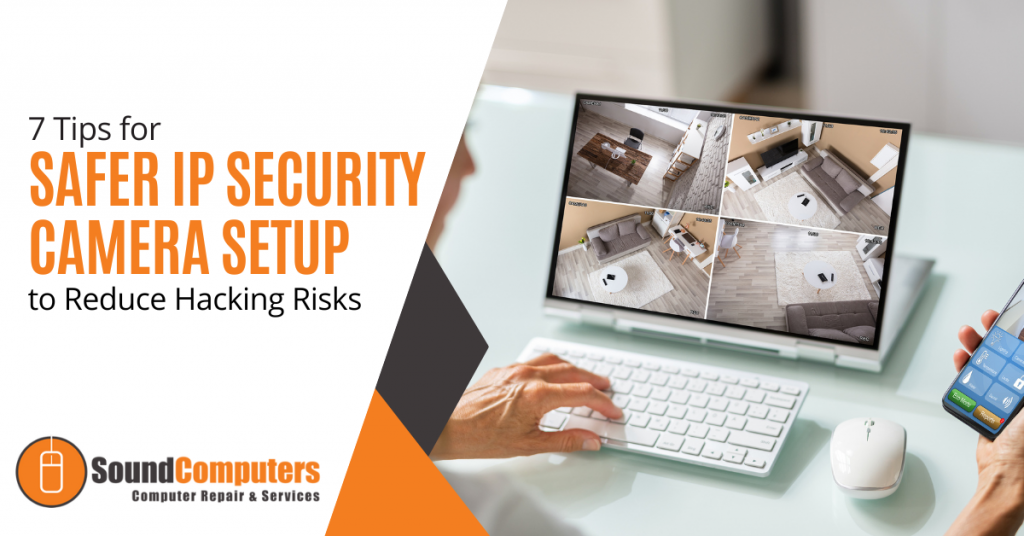
Modern video surveillance systems contain a number of critical components including IP (Internet Protocol) cameras. IP surveillance cameras (that transmit and receive information through a computing network and via the internet) offer organizations a range of advantages over analog closed-circuit cameras. They can watch and manage their video security system remotely and store video footage in the cloud to allow for significant cost savings.Read more
The holiday shopping season is taking off. This means that scammers have also revved up their engines. They are primed and ready to take advantage of all those online transactions.
Don’t forget to stay safe online during the buying frenzy that occurs this time of year. An ounce of cybersecurity prevention is definitely worth a pound of cure. It can also save you from a financial or privacy nightmare.
Here are some of the most critical safety tips to improve your online holiday shopping.
Check for Device Updates Before You Shop
Computers, tablets and smartphones that have old software are vulnerable. While you may not want to wait through a 10-minute iPhone update, it is going to keep you more secure.
Hackers often use vulnerabilities found in device operating systems. Updates install patches for known vulnerabilities which reduces your risk. Make sure to install all updates before you use your device for online holiday shopping.
Don’t Go to Websites from Email Links
It may be a bit annoying to need to type in “amazon.com” rather than just clicking a link in an email. However, phishing scams are at an all-time high at this time of year. If you click on an email link to a malicious site, it can start an auto download of malware.
It is best to avoid clicking links. You can stay safe by visiting the website directly. If you want to make things easier, save sites as shopping bookmarks in your browser. This is safer than clicking on a text or email link.
Use a Wallet App Where Possible
It is always a risk when you give your debit or credit card to a website. The risk is even higher if you’re doing holiday shopping on a site where you haven’t purchased from before.
Try to buy items by using a wallet app or PayPal when it is possible to do so. This eliminates the need to give your payment card details directly to the merchant. Instead, you share them with the wallet app service (Apple Pay, Google Pay, PayPal, etc). The retailer doesn’t get them.
Remove Any Saved Payment Cards After Checking Out
There are many websites (including Amazon) that automatically save your payment card details. This is bad. It may make the next buy more convenient but it puts you at risk. A hacker with access to your device or account could make purchases.
There is also the risk of a data breach of the retailer. These are common and can leak sensitive customer payment information. The fewer databases that you allow to store your payment details means better security.
Immediately after you check out, remove your payment card from the site. You will usually need to go to your account settings to do this.
Make Sure the Site Uses HTTPS (Emphasis on “S”)
HTTPS has largely become the standard for websites now. This is instead of “HTTP” without the “S” on the end. HTTPS means that a website encrypts the data transmitted through the site including your name, address and payment information.
You should NEVER shop on a website that doesn’t use HTTPS in the address bar. An extra indicator is a small lock icon in front of the website address.
Double Check the Site URL
We all make typos from time to time (especially when typing on a small smartphone screen). One typo can land you on a copycat site (such as Amazonn(dot)com).
Hackers buy domains that are close to the real ones for popular retailers. Then they put up copycat sites designed to fool users that make a mistake when typing the URL.
Take those extra few seconds to double-check that you have landed on the correct website. Do this before you start shopping.
Never Shop Online When on Public Wi-Fi
When you connect your device to public Wi-Fi, you might as well expect a stranger to be stalking you. Hackers LOVE the holiday shopping season and will hang out in popular public Wi-Fi spots.
They spy on the activities of other devices connected to that same free hotspot. This can give them access to everything you type in (passwords, credit card information, etc).
Never shop online when you’re connected to a public Wi-Fi network. Instead, switch off Wi-Fi and move to your mobile carrier’s connection.
Be On High Alert for Brand Impersonation Emails & Texts
Phishing scammers were very active during the holiday shopping season of 2021. There was a 397% increase in typo-squatting domains connected to phishing attacks.
While you need to be careful all the time about phishing, it is even worse during the holiday season. Attackers know that people are expecting retailer holiday sales emails. They also get a flurry of order confirmations and shipping notices this time of year.
Hackers use these emails as templates. They impersonate brands like Target, UPS, Amazon, etc. Their emails look nearly identical to the real thing. They trick you to get you to click and/or log in to a malicious website.
Be on high alert for brand impersonation emails. This is another reason why it is always better to go to a site directly rather than by using an email link.
Enable Banking Alerts & Check Your Account
Check your bank account regularly. Look for any suspicious charges that could signal a breach. One way to automate a monitoring process is to set up banking alerts through your online banking app.
For example, many banks allow you to set up alerts for events such as:
- When a purchase occurs over a specified dollar amount
- When a purchase occurs from outside the country
How Secure Is Your Mobile Device?
Mobile malware is often deployed in holiday shopping scams. How secure is your device from malicious apps and malware?
Contact us today for a security checkup.

With the end of 2022 fast approaching, business owners may have started planning for the following year. Therefore, it is important to do a year-end technology review to have a clear picture of how the current year was spent and know what to prepare for in the future.Read more
You know how it goes. We are working on our PC's at one moment and enjoying how things are going. The next moment there is a notification that pings. You need to allow the most recent updates. Without thinking, we hit the "remind me later" button. We say we are busy and there is so much to do today. We say we can always do it later. Read more

Many small businesses make the mistake of skipping policies. They feel that things don’t need to be so formal. They will just tell staff what is expected when it comes up and think that is good enough.
This way of thinking can cause issues for small and mid-sized business owners. Employees are not mind readers. Things that you think are obvious might not be to them.
Not having policies can also leave you in poor legal standing should a problem occur. This includes things like a lawsuit due to misuse of a company device or email account.
Did you know that 77% of employees access their social media accounts while at work? 19% of them average 1 full working hour per day spent on social media. In some cases, employees are ignoring a company policy. In others, there is no specific policy for them to follow.
IT policies are an important part of your IT security and technology management. No matter what size your business is, you should have them. We will get you started with some of the most important IT policies that your company should have in place.
Do You Have These IT Policies? (If Not, You Should)
Password Security Policy
About 77% of all cloud data breaches originate from compromised passwords. Compromised credentials are also now the number one cause of data breaches globally.
A password security policy will lay out for your team how to handle their login passwords. It should include things like:
- How long passwords should be
- How to construct passwords (e.g. using at least one number and symbol)
- Where and how to store passwords
- The use of multi-factor authentication (if it’s required)
- How often to change passwords
Acceptable Use Policy (AUP)
The Acceptable Use Policy is an overarching policy. It includes how to properly use technology and data in your organization. This policy will govern things like device security. For example, you may need employees to keep devices updated. If this is the case, you should include that in this policy.
Another thing to include in your AUP would be where it is acceptable to use company devices. You may also restrict remote employees from sharing work devices with family members.
Data is another area of the AUP. It should dictate how to store and handle data. The policy might require an encrypted environment for security.
Cloud & App Use Policy
The use of unauthorized cloud applications by employees has become a big problem. It is estimated that the use of this “shadow IT” ranges from 30% to 60% of a company’s cloud use.
Employees often use cloud apps on their own because they don’t know any better. They don’t realize that using unapproved cloud tools for company data is a major security risk.
A cloud and app use policy will tell employees what cloud and mobile apps are okay to use for business data. It should restrict the use of unapproved applications. It should also provide a way to suggest apps that would enhance productivity.
Bring Your Own Device (BYOD) Policy
Approximately 83% of companies use a BYOD approach for employee mobile use. Allowing employees to use their own smartphones for work saves companies money. It can also be more convenient for employees because they don’t need to carry around a second device.
If you don’t have a policy that dictates the use of BYOD, there can be security and other issues. Employee devices may be vulnerable to attack if the operating system isn’t updated. There can also be confusion about compensation for the use of personal devices at work.
The BYOD policy clarifies the use of employee devices for business. This should include the required security of those devices. It may also note the required installation of an endpoint management app. It should also cover compensation for business use of personal devices.
Wi-Fi Use Policy
Public Wi-Fi is an issue when it comes to cybersecurity. 61% of surveyed companies say employees connect to public Wi-Fi from company-owned devices.
Many employees won’t think twice about logging in to a company app or email account (even when on a public internet connection). This could expose those credentials and lead to a breach of your company network.
Your Wi-Fi use policy will explain how employees need to ensure that they have safe connections. It may dictate the use of a company VPN. Your policy may also restrict the activities employees can do when on public Wi-Fi such as not entering passwords or payment card details into a form.
Social Media Use Policy
With social media use at work so common, it’s important to address it. Otherwise, endless scrolling and posting could steal hours of productivity every week.
Include details like these in your social media policy:
- Restricting when employees can access personal social media
- Restricting what employees can post about the company
- Noting “safe selfie zones” or facility areas that are not okay for public images
Get Help Improving Your IT Policy Documentation & Security
We can help your organization address IT policy deficiencies and security issues. Reach out today at (860) 577-8060 or via our contact form to schedule a consultation to get started.