

Aging servers are a huge risk to company profitability and productivity. If you don’t proactively upgrade your servers regularly, you may find that you face unplanned downtime because your server breaks down out of the blue. It costs you time and money to fix a broken server and that downtime eats away at your profit margin. In fact, it can cost about $5,600 per minute according to estimates! Read more
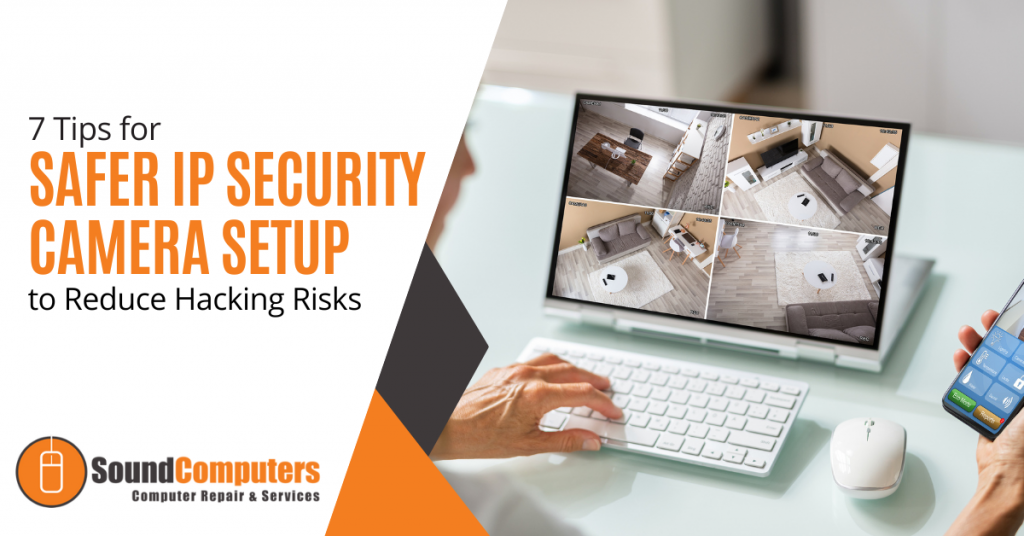
Modern video surveillance systems contain a number of critical components including IP (Internet Protocol) cameras. IP surveillance cameras (that transmit and receive information through a computing network and via the internet) offer organizations a range of advantages over analog closed-circuit cameras. They can watch and manage their video security system remotely and store video footage in the cloud to allow for significant cost savings.Read more
The holiday shopping season is taking off. This means that scammers have also revved up their engines. They are primed and ready to take advantage of all those online transactions.
Don’t forget to stay safe online during the buying frenzy that occurs this time of year. An ounce of cybersecurity prevention is definitely worth a pound of cure. It can also save you from a financial or privacy nightmare.
Here are some of the most critical safety tips to improve your online holiday shopping.
Check for Device Updates Before You Shop
Computers, tablets and smartphones that have old software are vulnerable. While you may not want to wait through a 10-minute iPhone update, it is going to keep you more secure.
Hackers often use vulnerabilities found in device operating systems. Updates install patches for known vulnerabilities which reduces your risk. Make sure to install all updates before you use your device for online holiday shopping.
Don’t Go to Websites from Email Links
It may be a bit annoying to need to type in “amazon.com” rather than just clicking a link in an email. However, phishing scams are at an all-time high at this time of year. If you click on an email link to a malicious site, it can start an auto download of malware.
It is best to avoid clicking links. You can stay safe by visiting the website directly. If you want to make things easier, save sites as shopping bookmarks in your browser. This is safer than clicking on a text or email link.
Use a Wallet App Where Possible
It is always a risk when you give your debit or credit card to a website. The risk is even higher if you’re doing holiday shopping on a site where you haven’t purchased from before.
Try to buy items by using a wallet app or PayPal when it is possible to do so. This eliminates the need to give your payment card details directly to the merchant. Instead, you share them with the wallet app service (Apple Pay, Google Pay, PayPal, etc). The retailer doesn’t get them.
Remove Any Saved Payment Cards After Checking Out
There are many websites (including Amazon) that automatically save your payment card details. This is bad. It may make the next buy more convenient but it puts you at risk. A hacker with access to your device or account could make purchases.
There is also the risk of a data breach of the retailer. These are common and can leak sensitive customer payment information. The fewer databases that you allow to store your payment details means better security.
Immediately after you check out, remove your payment card from the site. You will usually need to go to your account settings to do this.
Make Sure the Site Uses HTTPS (Emphasis on “S”)
HTTPS has largely become the standard for websites now. This is instead of “HTTP” without the “S” on the end. HTTPS means that a website encrypts the data transmitted through the site including your name, address and payment information.
You should NEVER shop on a website that doesn’t use HTTPS in the address bar. An extra indicator is a small lock icon in front of the website address.
Double Check the Site URL
We all make typos from time to time (especially when typing on a small smartphone screen). One typo can land you on a copycat site (such as Amazonn(dot)com).
Hackers buy domains that are close to the real ones for popular retailers. Then they put up copycat sites designed to fool users that make a mistake when typing the URL.
Take those extra few seconds to double-check that you have landed on the correct website. Do this before you start shopping.
Never Shop Online When on Public Wi-Fi
When you connect your device to public Wi-Fi, you might as well expect a stranger to be stalking you. Hackers LOVE the holiday shopping season and will hang out in popular public Wi-Fi spots.
They spy on the activities of other devices connected to that same free hotspot. This can give them access to everything you type in (passwords, credit card information, etc).
Never shop online when you’re connected to a public Wi-Fi network. Instead, switch off Wi-Fi and move to your mobile carrier’s connection.
Be On High Alert for Brand Impersonation Emails & Texts
Phishing scammers were very active during the holiday shopping season of 2021. There was a 397% increase in typo-squatting domains connected to phishing attacks.
While you need to be careful all the time about phishing, it is even worse during the holiday season. Attackers know that people are expecting retailer holiday sales emails. They also get a flurry of order confirmations and shipping notices this time of year.
Hackers use these emails as templates. They impersonate brands like Target, UPS, Amazon, etc. Their emails look nearly identical to the real thing. They trick you to get you to click and/or log in to a malicious website.
Be on high alert for brand impersonation emails. This is another reason why it is always better to go to a site directly rather than by using an email link.
Enable Banking Alerts & Check Your Account
Check your bank account regularly. Look for any suspicious charges that could signal a breach. One way to automate a monitoring process is to set up banking alerts through your online banking app.
For example, many banks allow you to set up alerts for events such as:
- When a purchase occurs over a specified dollar amount
- When a purchase occurs from outside the country
How Secure Is Your Mobile Device?
Mobile malware is often deployed in holiday shopping scams. How secure is your device from malicious apps and malware?
Contact us today for a security checkup.

With the end of 2022 fast approaching, business owners may have started planning for the following year. Therefore, it is important to do a year-end technology review to have a clear picture of how the current year was spent and know what to prepare for in the future.Read more
You know how it goes. We are working on our PC's at one moment and enjoying how things are going. The next moment there is a notification that pings. You need to allow the most recent updates. Without thinking, we hit the "remind me later" button. We say we are busy and there is so much to do today. We say we can always do it later. Read more

Many small businesses make the mistake of skipping policies. They feel that things don’t need to be so formal. They will just tell staff what is expected when it comes up and think that is good enough.
This way of thinking can cause issues for small and mid-sized business owners. Employees are not mind readers. Things that you think are obvious might not be to them.
Not having policies can also leave you in poor legal standing should a problem occur. This includes things like a lawsuit due to misuse of a company device or email account.
Did you know that 77% of employees access their social media accounts while at work? 19% of them average 1 full working hour per day spent on social media. In some cases, employees are ignoring a company policy. In others, there is no specific policy for them to follow.
IT policies are an important part of your IT security and technology management. No matter what size your business is, you should have them. We will get you started with some of the most important IT policies that your company should have in place.
Do You Have These IT Policies? (If Not, You Should)
Password Security Policy
About 77% of all cloud data breaches originate from compromised passwords. Compromised credentials are also now the number one cause of data breaches globally.
A password security policy will lay out for your team how to handle their login passwords. It should include things like:
- How long passwords should be
- How to construct passwords (e.g. using at least one number and symbol)
- Where and how to store passwords
- The use of multi-factor authentication (if it’s required)
- How often to change passwords
Acceptable Use Policy (AUP)
The Acceptable Use Policy is an overarching policy. It includes how to properly use technology and data in your organization. This policy will govern things like device security. For example, you may need employees to keep devices updated. If this is the case, you should include that in this policy.
Another thing to include in your AUP would be where it is acceptable to use company devices. You may also restrict remote employees from sharing work devices with family members.
Data is another area of the AUP. It should dictate how to store and handle data. The policy might require an encrypted environment for security.
Cloud & App Use Policy
The use of unauthorized cloud applications by employees has become a big problem. It is estimated that the use of this “shadow IT” ranges from 30% to 60% of a company’s cloud use.
Employees often use cloud apps on their own because they don’t know any better. They don’t realize that using unapproved cloud tools for company data is a major security risk.
A cloud and app use policy will tell employees what cloud and mobile apps are okay to use for business data. It should restrict the use of unapproved applications. It should also provide a way to suggest apps that would enhance productivity.
Bring Your Own Device (BYOD) Policy
Approximately 83% of companies use a BYOD approach for employee mobile use. Allowing employees to use their own smartphones for work saves companies money. It can also be more convenient for employees because they don’t need to carry around a second device.
If you don’t have a policy that dictates the use of BYOD, there can be security and other issues. Employee devices may be vulnerable to attack if the operating system isn’t updated. There can also be confusion about compensation for the use of personal devices at work.
The BYOD policy clarifies the use of employee devices for business. This should include the required security of those devices. It may also note the required installation of an endpoint management app. It should also cover compensation for business use of personal devices.
Wi-Fi Use Policy
Public Wi-Fi is an issue when it comes to cybersecurity. 61% of surveyed companies say employees connect to public Wi-Fi from company-owned devices.
Many employees won’t think twice about logging in to a company app or email account (even when on a public internet connection). This could expose those credentials and lead to a breach of your company network.
Your Wi-Fi use policy will explain how employees need to ensure that they have safe connections. It may dictate the use of a company VPN. Your policy may also restrict the activities employees can do when on public Wi-Fi such as not entering passwords or payment card details into a form.
Social Media Use Policy
With social media use at work so common, it’s important to address it. Otherwise, endless scrolling and posting could steal hours of productivity every week.
Include details like these in your social media policy:
- Restricting when employees can access personal social media
- Restricting what employees can post about the company
- Noting “safe selfie zones” or facility areas that are not okay for public images
Get Help Improving Your IT Policy Documentation & Security
We can help your organization address IT policy deficiencies and security issues. Reach out today at (860) 577-8060 or via our contact form to schedule a consultation to get started.
Large companies and small businesses are seeing an ever-growing number of cyber threats that attack their endpoints. Their regular endpoint security software may fail against advanced cyberattacks and render them ineffective and outdated. According to a report by Ponemon Institute, 2018 placed a destructive hit on 64% of organizations due to endpoint attacks. Read more
You have completed your annual phishing training. This includes teaching employees how to spot phishing emails. You’re feeling good about it. That is until about 5-6 months later. Your company suffers a costly ransomware infection due to a click on a phishing link.
You wonder why you seem to need to train on the same information every year. You still suffer from security incidents. The problem is that you’re not training your employees often enough.
People can’t change behaviors if training isn’t reinforced. They can also easily forget what they have learned after several months go by.
How often is often enough to improve your team’s cybersecurity awareness? It turns out that training every four months is the “sweet spot.” This is when you see more consistent results in your IT security.
Why Is Cybersecurity Awareness Training Every 4-Months Recommended?
Where does this four-month recommendation come from? There was a study presented at the USENIX SOUPS security conference recently. It looked at users’ ability to detect phishing emails versus training frequency. It looked at training on phishing awareness and IT security.
Employees took phishing identification tests at several different time increments:
- 4-months
- 6-months
- 8-months
- 10-months
- 12-months
The study found that scores were still good four months after their training. Employees were still able to accurately identify and avoid clicking on phishing emails. However, after 6-months, their scores started to get worse. Scores continued to decline as the months passed after their initial training.
To keep employees well prepared, they need training and refreshers on security awareness. This will help them to act as a positive agent in your cybersecurity strategy.
Tips on What & How to Train Employees to Develop a Cybersecure Culture
The gold standard for security awareness training is to develop a cybersecure culture. This is one where everyone is cognizant of the need to protect sensitive data as well as avoid phishing scams and keep passwords secured.
This is not the case in most organizations. According to the 2021 Sophos Threat Report, one of the biggest threats to network security is a lack of good security practices.
The report states the following:
“A lack of attention to one or more aspects of basic security hygiene has been found to be at the root cause of many of the most damaging attacks we've investigated.”
Well-trained employees significantly reduce a company’s risk. They reduce the chance of falling victim to any number of different online attacks. To be well-trained doesn’t mean you need to conduct a long day of cybersecurity training. It is better to mix up the delivery methods.
Here are some examples of engaging ways to train employees on cybersecurity. You can include these in your training plan:
- Self-service videos that get emailed once per month
- Team-based roundtable discussions
- Security “Tip of the Week” in company newsletters or messaging channels
- Training session given by an IT professional
- Simulated phishing tests
- Cybersecurity posters
- Celebrate Cybersecurity Awareness Month in October
When conducting training, phishing is a big topic to cover. However, it’s not the only one. Here are some important topics that you want to include in your mix of awareness training.
Phishing by Email, Text & Social Media
Email phishing is still the most prevalent form. SMS phishing (“smishing”) and phishing over social media are both growing. Employees must know what these look like so that they can avoid falling for these sinister scams.
Credential & Password Security
Many businesses have moved most of their data and processes to cloud-based platforms. This has led to a steep increase in credential theft because it’s the easiest way to breach SaaS cloud tools.
Credential theft is now the #1 cause of data breaches globally. This makes it a topic that is critical to address with your team. Discuss the need to keep passwords secure and the use of strong passwords. Also, help them learn tools like a business password manager.
Mobile Device Security
Mobile devices are now used for a large part of the workload in a typical office. They’re handy for reading and replying to an email from anywhere. Most companies will not even consider using software these days if it doesn’t have a great mobile app.
Review security needs for employee devices that access business data and apps such as securing the phone with a passcode and keeping it properly updated.
Data Security
Data privacy regulations are something else that has been rising over the years. Most companies have more than one data privacy regulation requiring compliance.
Train employees on proper data handling and security procedures. This reduces the risk that you will fall victim to a data leak or breach that can end up in a costly compliance penalty.
Need Help Keeping Your Team Trained on Cybersecurity?
Take training off your plate and train your team with cybersecurity professionals. We can help you with an engaging cybersecurity awareness training program that helps your team change their behaviors to improve cyber hygiene. You can reach us at (860) 577-8060 or use our convenient contact form.
Insider Threats have been on the rise lately and companies find it hard to figure out the best security service or strategy that will thwart them. According to research, incidents associated with insider attacks had a 44% rise in the last two years. Employees contribute to about 40% of these threats with easy access to sensitive information. Business owners must deal with such incidents by wielding weapons as strong as those used against external attackers. Read more
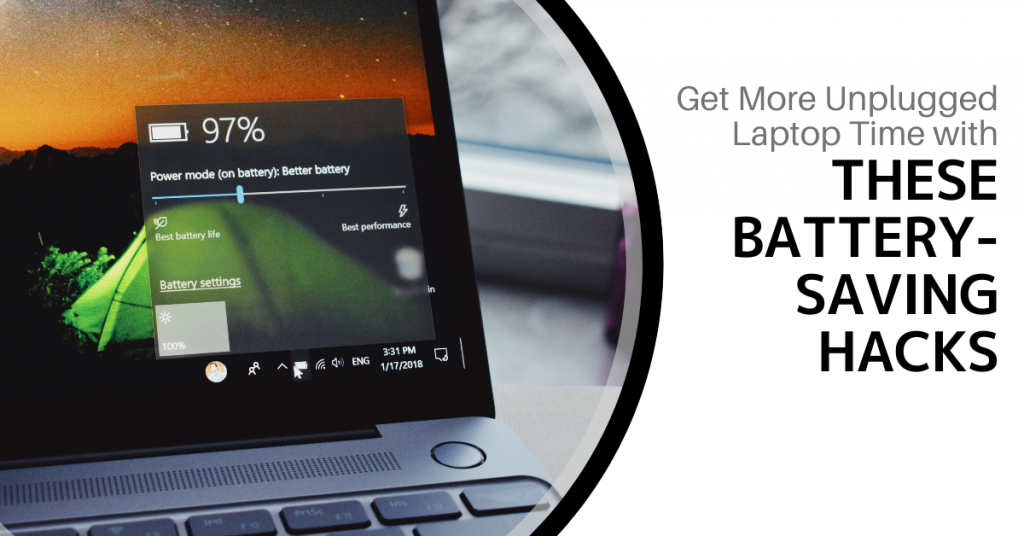
One of the big draws of a laptop computer is that you can use it anywhere. You don’t need to have it plugged in all of the time because it has an internal battery.
Your laptop may start out with several hours of battery life when you first buy it. However, the lifespan can get shorter as time goes by and battery health takes a hit. Sometimes this can be due to a lack of PC maintenance. Other times, it's due to the environments that the laptop is subject to (such as a hot car).
Seeing your laptop’s battery capacity shrink can be frustrating. There are several things that you can do to increase the time you can go without needing to plug it in.
Lower the Display Brightness
The brighter your display means the more battery power it’s taking. Have you ever hit the automated low battery mode on a laptop? Then you know you immediately notice a difference in brightness. This is because that setting turns down the brightness. It's one of the ways to reduce battery consumption.
You can turn down the brightness of your screen in your display settings. You can also use the brightness keys that are usually in the top row of keys on a laptop keyboard.
Reduce PC Battery Use in Power/Sleep Settings
Here is one way to increase the time that you can use your unplugged laptop without a power source. Adjust some of its power and sleep settings.
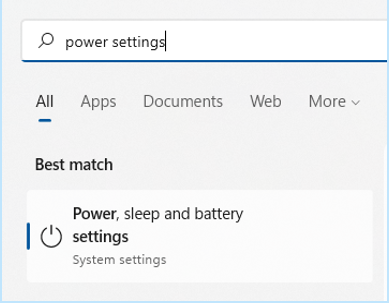
If you’re using Windows, open the search on the Task Bar. Type in “power settings." This directs you to the power, sleep and battery settings in your system settings.
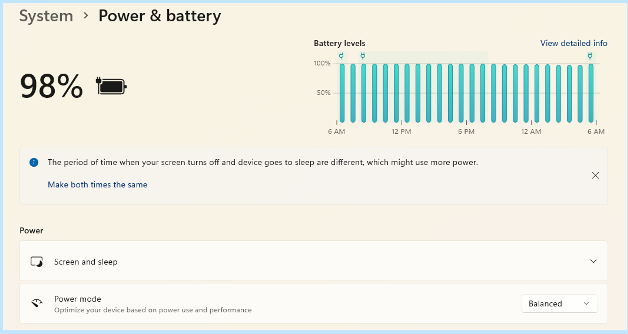
Look for any tips at the top for increasing battery longevity. This includes making the time your screen goes dark after inactivity and the time it goes to sleep the same.
Then review the settings (such as Screen, Sleep and Power mode). Find the ones that will reduce your PC’s battery consumption. This will extend the time that you can go without a new charge.
Enable Battery-Saver Mode
You don’t need to wait until your PC hits 10% for it to go into battery-saver mode. You can control this and enable it yourself in your system settings.
Do you know you’re going to be without a power source for a while? Put your PC in power-saver or battery-saver mode right away so that you can extend the charge as long as possible.
Use the Manufacturer’s Calibration Tool
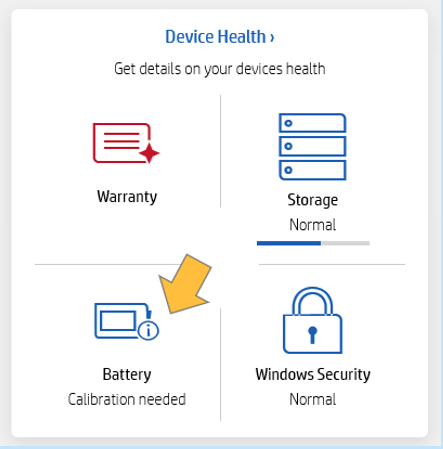
Manufacturers will have their own PC maintenance tools installed that you can use for battery calibration. Sometimes calibrating the battery can correct an issue with a battery life. This is especially true if life has gotten shorter than when you first purchased your laptop.
Look for a manufacturer’s built-in maintenance app. It will usually be on the Task Bar unless you have hidden it. When you open that, you may find that you need to do a calibration or other maintenance task.
Get a Computer Tune-up
If you have processes running in the background, it can sap your battery life. Processes that aren't needed can often run anyhow. Getting a computer tune-up from your IT provider can solve a lot of different issues. This includes computers that get sluggish and battery life.
Consider Using Microsoft Edge Browser for Its Efficiency Settings
If you keep a lot of browser tabs open while you’re working on your PC. They could be sapping your battery power.
Consider trying Microsoft’s Edge browser. It has been gaining in popularity ever since it incorporated the Chromium engine. This is same one Chrome uses.
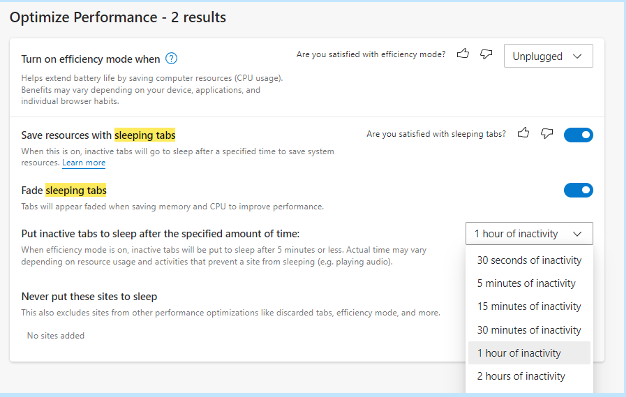
The browser has several power-saving features that you can enable in your settings. Search “sleeping tabs” in Edge settings to find these. They include:
- Enable efficiency mode (choose from the available options).
- Enable Sleeping Tabs and fade them when asleep.
- Choose when you would like to put inactive browser tabs to sleep to conserve power.
Turn Off Unnecessary Apps Hogging Power
Check the apps that are running on your PC in the Task Manager. Do you really need them all to run when you’re unplugged and trying to conserve battery power?
Often processes that aren’t 100% necessary all the time will be running. These include an update service or cloud storage syncing app. Close the apps that you don’t need to use at that time to lengthen battery life.
Keep Your PC Out of Too Much Heat or Freezing Temps
Both excess heat and freezing temperatures can be bad for a computer. This includes shortening the battery life.
You should never leave your laptop in a car on a hot day or when it’s freezing outside. Also, it might not seem particularly hot to you but if it’s sunny the inside of a vehicle can heat up pretty quickly. Be aware of the temperature extremes that your laptop is subject to.
Looking for a PC Tune-Up or Battery Replacement?
We can help you with a full system tune-up or a laptop battery replacement if needed. Don’t struggle when you can have that fixed in no time! Give us a call today at (860) 577-8060 or fill out our contact form and let’s chat.