
Microsoft 365 is the most popular of all major office productivity software. It has 48.8% of the global market share (just edging out Google’s apps by a couple of percentage points).
It is used by individuals, small & mid-sized businesses and larger enterprise organizations. It does everything that a modern office needs including word processing and spreadsheet work as well as cloud storage and video conferencing.
Microsoft 365 is a vast platform containing over 20 apps in total. It can be easy to miss helpful features. People tend to stick with what is familiar. This often causes them to miss out on time and money-saving bonuses in M365 beyond the core apps.
Some of the many apps that you get (depending on your subscription plan) include:
- Excel
- Word
- PowerPoint
- Outlook
- To Do
- OneDrive
- Teams
- Forms
- Defender
- SharePoint
- Yammer
- Lists
- Access
- Bookings
- Intune
- Planner
- Visio
Do you want to get more value from your subscription? We will go through some of the most helpful apps and features in Microsoft 365 that you may now know about.
Get More Out of M365 With These Tips
1. Skip the Menu Bar by Using Search to Find Functions
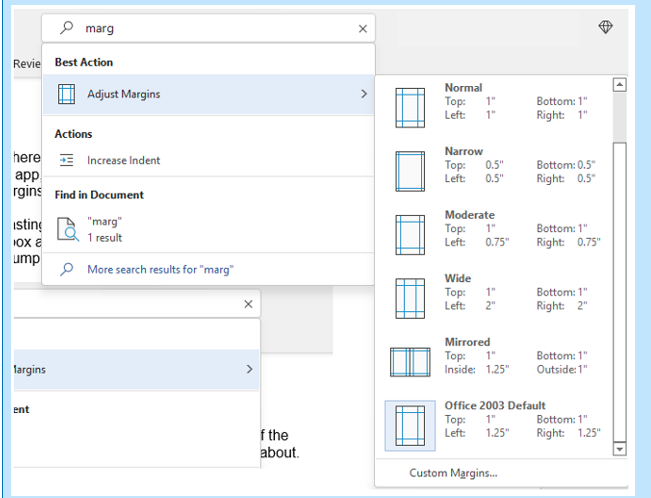
We have all been there at one time or another. You know there is a way to do something in an app but you can't find it in the menu. For example, you may be trying to change your margins in Microsoft Word to give you more space on the page.
You can stop wasting time clicking through one tab after another, and instead, use the search box at the top. It is not just for searching for help topics. You can use a search to quickly jump to settings like margins, page orientation, etc.
2. Leverage the Free Stock Images, Icons & Videos
Most businesses need to have nice-looking images from time to time. They’re used on websites, brochures and presentations. However, finding good business images can be expensive.
You can’t just do a Google search to find them because they may be copyrighted. You need to have images that you can use commercially without any problems.
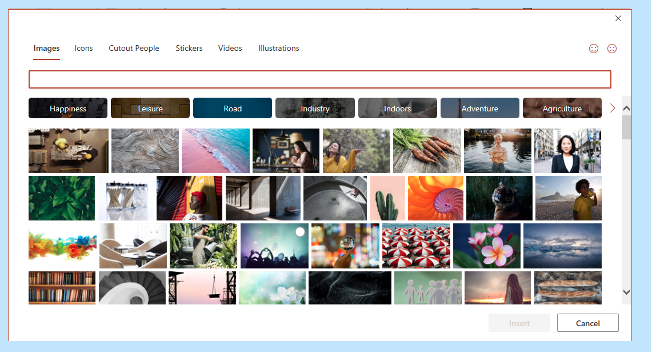
Inside the Word, Excel and PowerPoint, you have a treasure trove of images. These are free to use in your marketing. You also have videos, icons and even 3D models there for the picking.
Find them by going to Insert > Pictures > Stock Images.
Use the tab at the top to tab between the different media. Click to insert it directly into your document, spreadsheet or presentation.
3. Save Time by Using Data Types in Excel
Researching things like the population of a city or the nutrition value of a new menu can take days. Did you know that inside Excel you have access to several databases?
You can leverage facts and figures stored inside Excel’s “data types." They include topics on everything from chemistry to yoga poses. Use data types to populate tons of data in seconds for various topics.
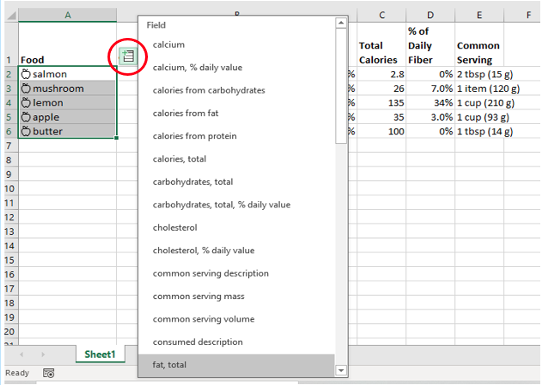
- Start by adding your list (e.g. a list of menu items).
- Highlight your list.
- Click the Data tab.
- In the Data Types window, choose the type of data it is (e.g., Food, Plant, etc).
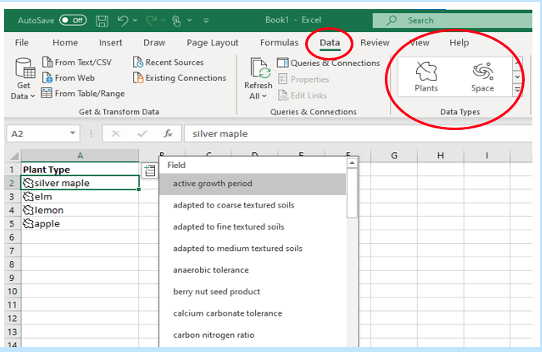
- Next, click the small database icon that appears at the top of the list.
- Choose the type of data you want.
- The details will populate into the next open column on the right for each list item.
4. Save Time on Customer Surveys with Microsoft Forms
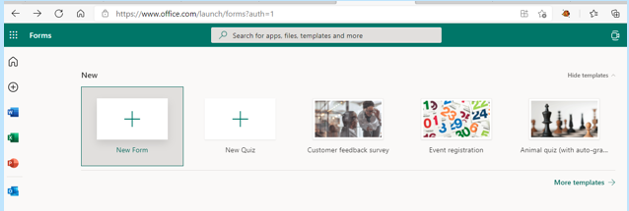
Microsoft Forms is one of the best-kept secrets of M365. This cloud-based survey and form builder makes it simple to send out surveys to people. You get the results back as soon as they click “submit” on the cloud-based form.
You can even download the results directly to Excel. Then you can use them for graphing or upload them into a software template.
5. Use PPT’s Presenter Coach to Improve Your Skills
Do you worry when it comes time to give a presentation to clients or your own team? Not everyone feels comfortable about public speaking even when it is virtual.
PowerPoint can help with a handy AI-powered feature called Presenter Coach. Turn this coach on when practicing your presentation. It will give you tips on your pacing, use of filler words (e.g. umm), repetitive language and much more!
Look for the “Rehearse with Coach” option on the Slide Show menu.
6. Save Recurring Email Text in Outlook’s Quick Parts
Do you have certain emails you send to customers that have the same paragraphs of text in them? For example, it might be directions to your building or how to contact support.
Stop retyping the same info every time. Outlook has a feature called Quick Parts that saves and then inserts blocks of text into emails.
- Create a Quick Part by highlighting the text to save in an email.
- On the Insert menu, click Quick Parts.
- Save Quick Part.
When ready to insert that text into another email, just use the same menu. Then click to insert the Quick Part.

7. Create a Keyboard Shortcut to Paste as Unformatted Text
Keyboard shortcuts are great for saving time. However, there is not always one there when you need it. One handy keyboard shortcut to add for MS Word is to paste as text only. This method removes any formatting that copied text might have had so your document isn’t messed up.
Here is how to make a keyboard shortcut for this:
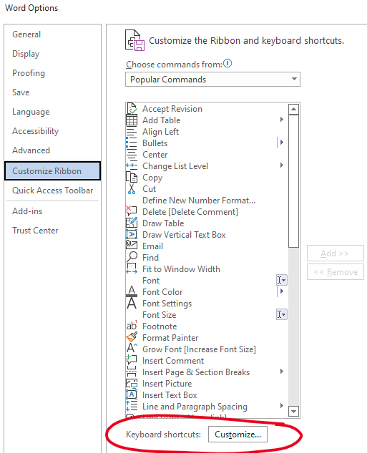
- In Word, click File > Options.
- Click Customize Ribbon.
- At the bottom of the panel (next to Keyboard shortcuts) click Customize.
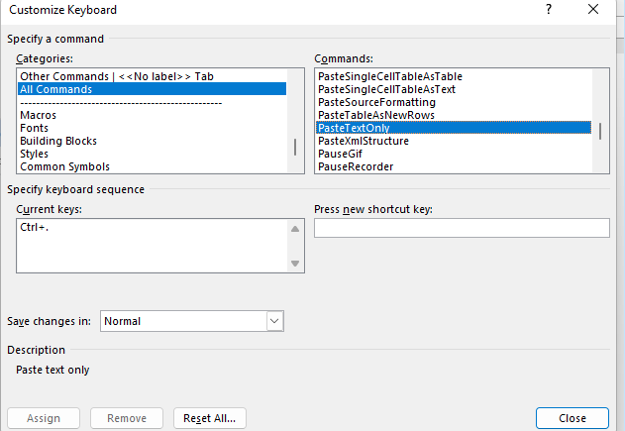
- Scroll in the left pane to All Commands.
- Look for “PasteTextOnly”.
- Type your keyboard command and click Assign.
Need Help Optimizing Microsoft 365?
Microsoft 365 has many security-enhancing, time-saving and dollar-saving features. Learn other ways that we can help by scheduling a consultation today. Give us a call at (860) 577-8060 or use our contact form.
When you hear about Microsoft adding security apps to M365, it is often the business versions. However, the pandemic has changed the way that we see the workplace. It is now a hybrid world made up of several connected “mini-offices” located in employee homes.
The outsourcing market has also contributed to the change in company networks. Freelancers are often contracted to work the same hours as employees. This means less overhead and taxes to pay. Approximately 68% of large consumer products companies outsource a part of their workforce.
What we’re getting at is that the need for home devices and network security has never been greater. Company data is now at the mercy of employee devices situated in homes across the globe.
55% of employees use their own devices and software to work from home.
Microsoft has been at the forefront of this huge shift in the work environment. Their latest release is another example of how it has positioned its products to address new needs.
The latest security offering by Microsoft is not for business plans. It is for Personal and Family users of Microsoft 365. The company announced Microsoft Defender for Individuals on June 16, 2022. This is a brand-new digital home security tool.
The Basics of Microsoft Defender for Individuals
Microsoft Defender is a new app that Microsoft 365 subscribers can download. Anyone with a Personal or Family plan can access it for no extra cost.
According to Microsoft, there was a main driver for offering Microsoft Defender. It was to protect the digital life of small businesses and families. Small companies will often use consumer Microsoft 365 plans. This is because they are less expensive than the business plans.
This app brings many digital protections together into one dashboard. These include the following.
Online Security Visibility
Most families have several devices connected to their network. This includes computers, tablets and smartphones. It can be hard to know which are vulnerable before a hacked device infects the others.
Microsoft Defender gives you visibility into the security status of your devices. It does this in a single place. For example, you could see if that new phone of Sally’s has antivirus enabled. You can also easily add or remove devices.
Device Safeguards
The app includes extra protections from online threats. These are in the form of help from antivirus and anti-phishing protection.
You can use it to continually scan devices for both new and existing threats. You also gain control of scanning customization. For example, you can note certain apps as safe and tell Microsoft Defender what to scan.
Real-Time Alerts & Recommendations
Hackers use automation and AI to unleash their attacks and help them spread. This means that it is often a race against the clock to stop a breach from getting worse.
You need to know something is wrong to be able to act quickly. Microsoft Defender helps you by giving you real-time alerts. These also come with recommended actions so that you know something is wrong and what to do about it.
What Else Should You Know?
Here are a few other important things you should know about using Microsoft Defender for Individuals.
Where Can You Download It?
You can download Microsoft Defender for Individuals from Microsoft here. You need to have a Microsoft 365 subscription to either the Personal or Family plan.
What Devices Can Use It?
You can use Defender to secure and monitor the following devices:
- Windows: Windows 10 version 19041.0 and higher
- Mac: Intel Macs from Catalina 10.15 and higher, and Apple silicon-based devices from 11.2.3 and up
- iPhone: iOS 13.0 or later
- Android: Android OS 6.0 or later
How Many Devices Can You Add?
Microsoft Defender allows you to watch the security of many of your home or work devices. The M365 plan you have will dictate how many.
- If you have the Microsoft 365 Personal plan, you can receive protection on up to 5 devices at the same time.
- If you have the Microsoft 365 Family plan, you can receive protection on up to 30 devices at the same time (5 devices per person, 6 people total).
What Are the Key Differences Between the Personal & Family Plans?
Both plans can access the many different Office and other Microsoft applications. The main difference is how many people and devices can use the Microsoft 365 services.
- Microsoft 365 Personal: $69.99 US/year, 1 person, 5 devices
- Microsoft 365 Family: $99.99 US/year, 6 people, 5 devices per person
If you want to sign up at least 2 people, you’re saving quite a bit with the Family plan. You save even more if you have six people total using the service.
What is the Difference Between Microsoft Security on Windows & Microsoft Defender?
Most Windows users are already familiar with the Microsoft Security app. It comes pre-installed on Windows. Microsoft Defender differs from this app in several ways.
Microsoft Defender:
- Is not pre-installed on Windows. You must download it.
- It is a cross-device application used on many different devices.
- It includes features for online security.
- It includes alerts and security tips.
Learn More About Defender & Microsoft 365 Today
Are you looking to get more from your Microsoft 365 subscription? We can help! Reach out today to schedule a technology consultation with our M365 experts. Give us a call at (860) 577-8060 or use our convenient contact form.