
In today’s digital landscape, data breaches have become an unfortunate reality for organizations of all sizes. The consequences of a breach can be severe and range from financial losses and legal ramifications to long-lasting reputational damage. Read more

The office landscape is undergoing a dramatic transformation. Gone are the days of sterile cubicles and monotonous routines. Today's smart offices are hubs of innovation. They are designed to empower employees, optimize workflows and foster collaboration.
This shift is driven by technology including smart features that seamlessly integrate into the physical workspace. With so many options available, where do you begin?
Here are the top six smart office trends you should consider adopting. They can power productivity and boost employee satisfaction.
1. Internet of Things (IoT) Devices
Connected Office Equipment
IoT devices are revolutionizing the workplace. These devices connect office equipment and allow them to communicate and operate more efficiently. For example, smart printers can alert you when they need more paper or toner. Smart coffee machines can ensure a fresh brew is ready when you arrive. IoT devices help automate mundane tasks to save time and reduce stress.
Smart Lighting and Climate Control
Smart lighting and climate control systems can adjust based on occupancy and time of day. These systems use sensors to track the environment and make adjustments. This ensures optimal comfort while reducing energy costs. Employees work better in a well-lit and comfortable space. Automating these adjustments improves office efficiency.
Enhanced Security
IoT devices can also enhance office security. Smart locks and cameras provide real-time monitoring and control. You can grant access remotely or receive alerts if something unusual occurs. This provides peace of mind and ensures your office remains secure.
2. Artificial Intelligence (AI) and Machine Learning
Personalized Workspaces
AI can create personalized workspaces. It learns employees' preferences and adjusts settings accordingly. This includes desk height, lighting and even digital workspace layout. Personalized environments improve comfort and productivity.
Virtual Assistants
AI-powered virtual assistants help manage tasks and schedules. They can set reminders, book meetings and provide information on demand. Virtual assistants like these streamline daily activities. This allows employees to focus on more critical tasks.
Predictive Maintenance
AI can predict when office equipment will need maintenance. This reduces downtime and ensures everything runs smoothly. Predictive maintenance extends the lifespan of equipment and prevents unexpected breakdowns.
3. Collaborative Technologies
Unified Communication Platforms
Unified communication platforms integrate messaging, video conferencing and email. This simplifies communication and ensures everyone stays connected. Platforms like these reduce the need to juggle several apps and streamline workflows.
On average, employees waste nearly 4 hours each week reorienting after an app switch.
Digital Whiteboards
Digital whiteboards enhance collaboration during meetings. They allow team members to share ideas in real time regardless of location. Digital whiteboards save and share notes instantly and improve meeting efficiency and follow-up.
Project Management Tools
Project management tools keep everyone on the same page. They track tasks, deadlines and progress. These tools provide visibility into project status. This helps ensure nothing falls through the cracks. By using project management software, teams can work more efficiently as well as meet deadlines consistently.
4. Remote Work Solutions
Cloud-Based Services
Cloud-based services enable remote work. They allow employees to access files and applications from anywhere. This flexibility is crucial in today’s work environment. Cloud services also provide robust security and backup solutions to ensure data remains safe.
Virtual Private Networks (VPNs)
VPNs secure remote connections. They encrypt data and protect against cyber threats. VPNs ensure that employees can work safely from any location. Implementing a VPN is essential for maintaining security in a remote work setup.
Video Conferencing Tools
Video conferencing tools promote communication with remote teams. They provide face-to-face interaction which is vital for team cohesion. High-quality video and audio ensure effective communication. These tools also offer features like screen sharing and recording to enhance their utility.
5. Smart Furniture
Ergonomic Designs
Smart furniture includes ergonomic designs that promote health and productivity. Adjustable desks and chairs can be customized to fit each employee. This reduces the risk of injury and improves comfort. Ergonomic furniture is an investment in employee well-being.
Integrated Technology
Some smart furniture integrates technology such as wireless charging and built-in sensors. Desks with integrated charging stations keep devices powered without clutter. Sensors can remind employees to take breaks or adjust their posture. These features contribute to a more efficient and healthy workspace.
Modular Furniture
Modular furniture offers flexibility. It can be easily reconfigured to fit changing needs. This is ideal for dynamic work environments. Modular furniture supports collaboration. It can also be adapted as teams grow or projects change.
6. Data Analytics
Performance Metrics
Data analytics tools track performance metrics. They provide insights into productivity, workflow efficiency and employee satisfaction. By analyzing this data, managers can make informed decisions. This leads to improved processes and better resource allocation.
Space Utilization
Analytics can also optimize the use of space. Sensors and software track how office space is used. This information helps in designing more efficient layouts. Optimizing space reduces costs and creates a more functional work environment.
Predictive Insights
Predictive analytics forecast trends and potential issues. This allows businesses to proactively address problems before they escalate. Predictive insights can improve everything from inventory management to employee scheduling.
Contact Us for Help Optimizing Your Technology
Adopting smart office trends can transform your workplace. By integrating these trends, businesses can create a more productive work environment. Stay ahead of the curve and embrace these innovations to improve your workflow.
The future of work is smart and the time to start is now. Need some help from our IT optimization experts?
Contact us today to schedule a chat.

In today’s digital landscape, email remains a critical communication tool for businesses of all sizes. However, it also continues to be one of the most vulnerable entry points for cyberattacks. Read more

Buying a used laptop can be a great way to save money but it comes with risks. You need to be careful and thorough in your evaluation. Otherwise, you could end up wasting your money.
You can’t only look at the outside when evaluating technology. This guide will help you understand what to look for when buying a used laptop (or desktop PC). These steps can keep you from losing money on a bad tech decision.
Determine Your Needs
Identify Your Purpose
Identify why you need the laptop. Are you buying it for work, gaming or general use? Your purpose will dictate the specifications you need. For example, gaming laptops need powerful GPUs. Business laptops focus on reliability and battery life.
Set a Budget
Decide how much you are willing to spend. Setting a budget helps narrow down your choices. Remember that used laptops vary greatly in price. Knowing your budget beforehand prevents overspending.
Check the Condition
Inspect the Physical Condition
Examine the laptop carefully. Check for any visible damage like cracks, dents or scratches. Inspect the hinges to ensure they are not loose. A well-maintained exterior often indicates the care the laptop received.
Test the Keyboard and Touchpad
The keyboard and touchpad should work flawlessly. Type a few sentences to see if all keys respond. Test the touchpad for responsiveness and accuracy. These are crucial components and any issues can be annoying.
Look at the Screen
Turn on the laptop and check the screen. Look for dead pixels, discoloration or flickering. Ensure the brightness levels adjust properly. A damaged screen can be costly to replace.
Inspect the Ports
Check all the ports on the laptop. Test USB ports, headphone jacks and charging ports. These should all function correctly. Non-working ports can be inconvenient and limit the laptop’s usability.
Check the Battery Life
Ask About the Battery
Ask the seller about the battery life. An old battery may not hold a charge well. Turn on the laptop and see how long it lasts on battery power. Replacing a battery can be expensive so ensure the current one meets your needs.
Check Battery Health
Use software to check the battery’s health. Some operating systems have built-in tools for this. A healthy battery should keep most of its original capacity. Poor battery health might mean it needs a replacement soon.
Assess the Internal Components
Processor
The processor determines the laptop’s performance. Check the processor model and speed. Compare it with current standards. Older processors might struggle with modern applications.
RAM
RAM affects multitasking capabilities. Ensure the laptop has enough RAM for your needs. 8GB is the minimum for general use while 16GB or more is ideal for gaming or heavy multitasking.
Storage
Look at the storage type and capacity. SSDs are faster and more reliable than HDDs. Make sure the laptop has enough storage for your files and programs. An SSD with at least 256GB is recommended.
Graphics Card
If you need the laptop for gaming or graphic design, check the GPU. Ensure it meets the requirements for your applications. Integrated graphics are fine for general use but dedicated GPUs are better for demanding tasks.
Verify the Software Operating System
Pre-installed Software
Check what software comes pre-installed. Ensure there are no unnecessary or malicious programs. A fresh installation of the operating system is ideal.
Operating System License
Verify the operating system is genuine and licensed. This ensures you receive updates and support. Ask for proof of sale or license keys if necessary.
Research the Seller
Check Seller’s Reputation
Research the seller’s reputation. Look for reviews and ratings from previous customers. A reputable seller is more likely to provide a quality product and good customer service.
Ask Questions
Don’t hesitate to ask the seller questions. Inquire about the laptop’s history, reason for selling and any past issues. Honest sellers will provide clear and detailed answers.
Test the Laptop
Perform a Thorough Test
Before finalizing the sale, test the laptop thoroughly. Run different applications to check performance. Connect to Wi-Fi and test the internet connection. Play a video to ensure the speakers and display work well.
Use Diagnostic Tools
Use diagnostic tools to test hardware components. These tools can identify any hidden issues. They help ensure you don’t encounter problems later.
Consider Upgradability
Check Upgrade Options
Some laptops allow easy upgrades. Check if you can upgrade the RAM or storage. This can extend the laptop’s lifespan and improve performance. Upgradable laptops offer more flexibility and value.
Cost of Upgrades
Consider the cost of potential upgrades. Calculate if upgrading an older laptop is worth it compared to buying a new one. Sometimes the cost of upgrades can approach the price of a new laptop.
Compare Prices
Research Market Prices
Research the market prices for similar models. Ensure you are getting a fair deal. Compare prices from different sellers. A lower price isn’t always better if the laptop has issues.
Factor in Extra Costs
Include extra costs in your budget. These might include new batteries, chargers or software. Factor these into the total cost to avoid surprises.
Looking for a Good and Affordable Computer?
Buying a used laptop can be a smart choice if you do your homework. It can also be a nightmare if you buy one from the wrong person. If you’re looking for reliable hardware for business or home, we are here to help. We have some great options for value and performance.
Contact us today to learn more.
Traveling with technology has become a necessity. Whether for work, communication or entertainment, we rely heavily on our devices. However, traveling exposes these gadgets to various risks. Theft, damage and loss are common concerns.
We have put together some helpful tips to mitigate the risk of any tech mishaps on your next trip. Follow these eight best practices to ensure your devices remain safe when traveling.
1. Use Protective Cases
Invest in quality protective cases. They shield your gadgets from bumps, drops and scratches. Look for cases that are sturdy and provide a snug fit. For laptops and tablets, consider hard shell cases. For smartphones, use cases that cover the edges and have raised bezels. This simple step can save you from costly repairs.
2. Leverage Tracking Apps
Install tracking apps on your devices. These apps help you locate your devices if they are lost or stolen. Many operating systems have built-in tracking features. Enable them before you travel. For example, use "Find My" for Apple devices or "Find My Device" for Android. These tools provide the location of your devices. They also offer remote locking and wiping capabilities.
3. Keep Devices Close
Always keep your devices within reach. Avoid placing them in checked luggage. Carry them in your personal bag. Use a backpack or a crossbody bag with secure compartments. If you need to leave your device unattended, store it in a hotel safe. The less exposure your gadgets have means the lower the risk of theft or damage.
4. Use Strong Passwords
Protect your devices with strong passwords. This includes smartphones, laptops and tablets. Use a combination of letters, numbers and special characters. Avoid using easily guessable information like birthdays or common words. Enable two-factor authentication for an added layer of security. Strong passwords help protect your data if your device falls into the wrong hands.
5. Be Cautious with Public Wi-Fi
Public Wi-Fi networks are convenient but risky. Avoid accessing sensitive information on public networks. If you must use public Wi-Fi, use a Virtual Private Network (VPN). A VPN encrypts your data and makes it harder for hackers to intercept. Turn off automatic connections to public networks. Always verify the legitimacy of the Wi-Fi network before connecting.
6. Back Up Your Data
Regularly back up your data before you travel. Use cloud storage or external hard drives. This ensures that you don't lose important information if your device is lost or stolen. Set up automatic backups to simplify the process. Backing up your data protects you from data loss. It also ensures continuity even if something goes wrong.
7. Be Mindful of Your Surroundings
Stay alert to your surroundings. Crowded places are hotspots for theft. Be particularly cautious in airports, train stations and tourist attractions. Don’t leave your devices unattended. Keep a firm grip on your bag. When using your gadget in public, avoid displaying it for long periods. Awareness and vigilance go a long way in protecting your gadgets.
8. Use Anti-Theft Accessories
Invest in anti-theft accessories. These include items like locks and cables for laptops. Anti-theft backpacks have hidden zippers and cut-proof materials. They make it difficult for thieves to access your belongings. Consider using RFID-blocking wallets to protect against electronic pickpocketing. Anti-theft accessories provide extra security for your gadgets.
Extra Considerations
Besides the main tips, consider following the measures below. They can enhance the safety of your gadgets while traveling.
Insure Your Devices
Consider getting insurance for your gadgets. Many insurance companies offer policies that cover theft, loss and damage. Check the coverage details and ensure it fits your needs. Insurance provides financial protection and peace of mind. This is especially true when traveling with expensive devices.
Customize Your Device Settings
Before you travel, adjust your device settings for added security. Enable remote wiping capabilities. This allows you to erase your data if a thief steals your device. Turn off Bluetooth and location services when not in use. This reduces the risk of unauthorized access and tracking.
Keep a Record of Your Devices
Document the make, model and serial numbers of your gadgets. Keep this information in a secure place. If you have your device lost or stolen, these details are useful for reporting and recovery. They also help when filing insurance claims.
Be Prepared for Customs Inspections
Be aware that customs officials may inspect your gadgets. Have them easily accessible in your carry-on luggage. Be ready to turn them on if requested. Ensure your devices are fully charged before you travel. Compliance with customs inspections prevents unnecessary delays and complications.
Practical Scenarios
Let's look at some practical scenarios where you can apply these tips.
Scenario 1: Airport Security
At airport security, remove your laptop from your bag. Place it in a separate bin for screening. Keep a close eye on your belongings as they pass through the X-ray machine. After screening, quickly retrieve and secure your devices before moving on.
Scenario 2: Hotel Room
In your hotel room, store your gadgets in the room safe when not in use. If there is no safe, use a portable lockbox. Avoid leaving your devices out in the open especially when housekeeping is scheduled. This minimizes the risk of theft.
Scenario 3: Public Transport
On public transport, keep your gadgets close and secure. Use a bag with anti-theft features. Avoid using your devices near exits where they can be easily snatched. Be discreet when taking out your gadgets and put them away securely after use.
Contact Us for Help Securing Your Devices
Technology is indispensable for modern travelers. Protecting your devices requires proactive measures and vigilance. Would you like some help beyond these tips?
Contact us today to schedule a chat about beefing up your device security.

The recent CrowdStrike outage sent shockwaves through the cybersecurity world. It affected thousands of businesses and highlighted the critical importance of robust disaster recovery plans. This unprecedented event (which occurred on July 19, 2024) caused widespread disruption and forced many organizations to confront the fragility of their digital infrastructure. Read more

Imagine this. You walk into your office on a busy Monday morning ready to tackle the week. Something is wrong. Computers are unresponsive. Phones are silent. The internet is a ghost town. Your business has come to a grinding halt. You are the victim of an IT outage which means IT downtime.
It is a scenario every business owner fears. Beyond the initial frustration are expenses you may not immediately see. IT downtime carries hidden costs that can significantly impact your bottom line. Let's peel back the layers and expose the true price of IT outages.
The Immediate Impact: Lost Productivity
When IT systems go down, your employees are effectively sidelined. Sales can't be processed. Emails pile up unanswered. Deadlines are missed. Every minute of downtime translates to lost productivity. This is a cost measured in lost revenue and delayed projects.
Customer Impact: Frustration and Lost Trust
An IT outage isn't just an internal inconvenience. It directly impacts your customers. Imagine an online store experiencing downtime during a peak sales period. Frustrated customers can't place orders or access their accounts. This not only leads to lost sales but also damages customer trust. This can potentially drive your customers to competitors.
Reputational Damage: A Hit to Your Brand Image
IT outages can tarnish your brand image. Customers expect businesses to be reliable and accessible. Frequent downtime paints a picture of inefficiency and unpreparedness. In today's competitive landscape, a damaged reputation can be difficult to repair.
Hidden Costs: Beyond the Obvious
The financial impact of IT downtime extends beyond lost productivity and sales. There are other costs that may not be on your radar. Here are some hidden costs of downtime to consider.
Employee Demoralization
Frustrated employees stuck waiting for systems to come online can be demoralized. They can also lose motivation. They can feel like they can’t get anything done. So why bother? Frequent downtime can cause employees to jump ship for more tech stability.
Emergency Repairs
IT outages often need emergency repair efforts. This can be costly and time-consuming. It can cost even more if you don’t have a managed IT service agreement in place. In the middle of an emergency is not when you should be choosing an IT provider to trust with your business IT.
Data Loss or Corruption
In severe cases, outages can lead to data loss or corruption. This can mean expensive recovery efforts. If the data can’t be recovered, it can mean hours of staff time entering data just get you to where you were before the outage.
Compliance Issues
Depending on your industry, regulatory compliance might be at risk during an outage. If there is any data compromise, this could lead to fines and penalties.
Calculating the Cost: It is More Than You Think
The exact cost of IT downtime varies depending on your industry, size and the duration of the outage. Studies estimate the average cost of IT downtime to be in the thousands of dollars per hour. For larger businesses, this figure can skyrocket into the millions.
A Ponemon Institute study estimates the average IT downtime cost from $5,600 to nearly $9,000 per minute.
Prevention is Key: Proactive Measures for Business Continuity
The good news? Most IT downtime is preventable. Here is how to be proactive:
- Invest in Reliable IT Infrastructure: Focus on high-quality hardware and software. Look for a proven track record of reliability.
- Regular System Maintenance: Schedule regular maintenance to identify and address potential issues. This keeps them from snowballing into outages.
- Data Backup and Recovery: Install robust data backup and recovery to mitigate data loss in case of an outage.
- Disaster Recovery Plan: Develop a comprehensive disaster recovery plan. It should outline steps to take in case of an outage and ensure a swift and efficient recovery.
- Employee Training: Educate employees on cybersecurity best practices. This minimizes the risk of human error causing downtime.
Investing in Uptime: Building Business Resilience
IT downtime is a threat every business faces. By understanding the true cost and taking proactive measures, you can reduce the risk as well as build a more resilient business. Downtime isn't just an inconvenience. It is a financial burden. It also has the potential to damage your reputation and customer relationships.
Focus on IT security and invest in preventative measures. This helps ensure your business stays up and running. Every minute counts when it comes to technology operating smoothly.
Need Some Help Improving Your Downtime Resilience?
Don’t wait until after you have incurred the cost of downtime to put preventative measures in place. Our IT experts can help your business build an IT strategy that mitigates downtime. We will also put systems in place to get you back up and running fast if it should happen.
Contact us today to schedule a chat about your technology.

Running a small business is a whirlwind. You juggle a million tasks and wear countless hats. You also constantly fight the clock. What if you could reclaim some of that precious time? Enter task automation.
It is your secret weapon for streamlining your workflow and boosting productivity. By automating routine and repetitive tasks, small businesses can gain many benefits such as freeing up valuable time and resources. Every minute saved can translate to increased productivity and profitability.
This guide will walk you through the essentials of small business task automation. It is designed to help you understand its benefits and identify tasks to automate as well as choose the right tools and install automation effectively.
What is Task Automation?
Task automation involves using technology to automate repetitive and manual tasks. Imagine software handling data entry, scheduling appointments or sending out invoices without your constant oversight. This frees you up to focus on strategic initiatives that drive growth.
88% of small business owners say that automation helps them compete with larger companies.
Why Automate in Your Small Business?
Here is why task automation is a game-changer for small businesses:
- Boosts Efficiency: Repetitive tasks take a huge chunk of time. Automation eliminates the need for manual effort. This allows your team to focus on higher-value activities.
- Reduces Errors: Humans make mistakes. Automation minimizes errors in data entry as well as calculations and other repetitive tasks. This ensures better accuracy and consistency.
- Saves Money: Time saved is money saved. By automating tasks, you can free up your team's time as well as reduce the need for more manpower.
- Improves Customer Service: Automation can handle routine customer inquiries. It can also send out order confirmations. This frees your team to focus on providing personalized service to customer needs.
- Enhances Scalability: As your business grows, automation can handle the increased workload. You can grow without needing to add more staff immediately.
What Tasks Can You Automate?
You can automate many tasks across different departments in a small business. Here are some examples:
- Marketing: Schedule social media posts and send automated email campaigns. You can also generate personalized marketing materials.
- Sales: Generate quotes and send automated follow-up emails. Track sales performance through automated reports.
- Customer Service: Set up chatbots to answer frequently asked questions. Automate email responses for order confirmations. Have automation manage appointment scheduling.
- Human Resources: Automate payroll processing and manage employee onboarding tasks. Send out automated reminders for performance reviews.
- Finance: Automate data entry for invoices and receipts. Schedule recurring payments and generate automated financial reports.
Getting Started with Task Automation:
Ready to automate? Successfully implementing automation requires careful planning and execution. Here is how to get started.
Identify Repetitive Tasks
Analyze your daily workflows and pinpoint repetitive tasks. Look for tasks that consume a significant amount of time. Ask employees what manual tasks take them the most time.
Choose the Right Tools
There is a vast array of automation tools available. You will find everything from simple scheduling apps to complex workflow management platforms. Research and choose tools that integrate seamlessly. They should be compatible with your existing software. Get expert IT help for guidance on ensuring the tools cater to your specific needs.
Start Small
Don't try to automate everything at once. You and your team can easily get overwhelmed. Begin by automating a few key tasks. Then gradually expand as you get comfortable with the technology.
Invest in Training
Provide your team with proper training on the new automation tools. Ensure they understand how to use them effectively. You want them to feel comfortable integrating them into their workflow.
Overcoming Common Challenges
Implementing task automation can come with challenges. Here are some common issues and how to overcome them:
- Resistance to Change: Employees may resist new technologies. Address this by communicating the benefits of automation. Involve them in the process.
- Technical Difficulties: Technical issues can arise during implementation. Work closely with your provider's support team to resolve any problems quickly.
- Integration Issues: Ensure your automation tools can seamlessly integrate with your existing systems. Test integrations thoroughly before full implementation.
- Cost Concerns: The initial investment in automation tools can be high. Focus on the long-term savings and benefits to justify the cost.
- Security Risks: Automating tasks can introduce security risks. Put in place strong security measures to protect sensitive data.
The Future of Automation for Small Businesses
Automation is not about replacing humans. It is about empowering them. By automating repetitive tasks, you free up your team's time and talent. This allows them to focus on the things that only they can do including strategic thinking, creative problem-solving and building strong customer relationships.
Automation technology will continue to evolve. Small businesses will have access to even more powerful tools to boost productivity. Automating now gets you ahead of the competition.
Ready to Embrace the Time-Saving Power of Automation?
We can help you reclaim your time and empower your team. Our technology experts can guide you in technology optimization. We will help you find the right automation areas for the biggest benefit.
Contact our automation experts today to schedule a chat.
Technical debt is a pervasive issue that plagues many businesses and is often lurking beneath the surface until it becomes too big to ignore. Like financial debt, it can accumulate over time and hinder growth, productivity and innovation. In this article, we will explore the concept of technical debt, its impact on businesses and provide actionable strategies to reduce it effectively.Read more
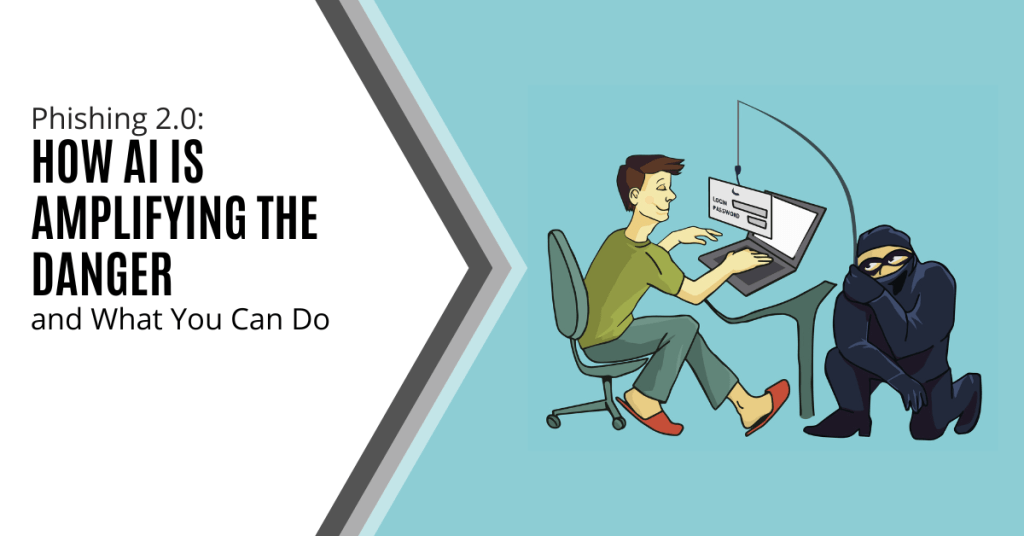
Phishing has always been a threat. With AI, it is more dangerous than ever. Phishing 2.0 is here. It is smarter, more convincing and harder to detect. Understanding this new threat is crucial.
A recent study found a 60% increase in AI-driven phishing attacks. This is a wake-up call that phishing is only getting worse. Here is how AI is amplifying phishing and what you can do to protect yourself.
The Evolution of Phishing
Phishing began simply. Attackers sent out mass emails. They hoped someone would take the bait. The emails were often crude and used poor grammar and obvious lies were common. Many people could spot them easily.
Things have changed. Attackers now use AI to improve their tactics. AI helps them craft convincing messages. It also helps them target specific individuals. This makes phishing more effective.
How AI Enhances Phishing
Creating Realistic Messages
AI can analyze huge amounts of data. It studies how people write and speak. This helps it create realistic phishing messages. These messages sound like they come from a real person. They mimic the tone and style of legitimate communications. This makes them harder to spot.
Personalized Attacks
AI can gather information from social media and other sources. It uses this information to create personalized messages. These messages mention details about your life. They might reference your job, hobbies or recent activities. This personalization increases the chances that you will believe the message is real.
Spear Phishing
Spear phishing targets specific individuals or organizations. It is more sophisticated than regular phishing. AI makes spear phishing even more dangerous. It helps attackers research their targets in depth. They can craft highly tailored messages. These messages are hard to distinguish from legitimate ones.
Automated Phishing
AI automates many aspects of phishing. It can send out thousands of phishing messages quickly. It can also adapt messages based on responses. If someone clicks a link but doesn’t enter information, AI can send a follow-up email. This persistence increases the likelihood of success.
Deepfake Technology
Deepfakes use AI to create realistic fake videos and audio. Attackers can use deepfakes in phishing attacks. For example, they might create a video of a CEO asking for sensitive information. This adds a new layer of deception. It makes phishing even more convincing.
The Impact of AI-Enhancing Phishing
Increased Success Rates
AI makes phishing more effective. More people fall for these sophisticated attacks. This leads to more data breaches. Companies lose money. Individuals face identity theft and other issues.
Harder to Detect
Traditional phishing detection methods struggle against AI-enhanced attacks. Spam filters may not catch them. Employees may not recognize them as threats. This makes it easier for attackers to succeed.
Greater Damage
AI-enhanced phishing can cause more damage. Personalized attacks can lead to significant data breaches. Attackers can gain access to sensitive information. They can also disrupt operations. The consequences can be severe.
How to Protect Yourself
Be Skeptical
Always be skeptical of unsolicited messages. Even if they appear to come from a trusted source. Verify the sender’s identity. Don’t click on links or download attachments from unknown sources.
Check for Red Flags
Look for red flags in emails. These might include generic greetings, urgent language or requests for sensitive information. Be cautious if the email seems too good to be true.
Use Multi-Factor Authentication (MFA)
MFA adds an extra layer of security. Even if an attacker gets your password, they will need another form of verification. This makes it harder for them to access your accounts.
Educate Yourself and Others
Education is key. Learn about phishing tactics. Stay informed about the latest threats. Share this knowledge with others. Training can help people recognize and avoid phishing attacks.
Verify Requests for Sensitive Information
Never provide sensitive information via email. If you receive a request, verify it through a separate communication channel. Contact the person directly using a known phone number or email address.
Use Advanced Security Tools
Invest in advanced security tools. Anti-phishing software can help detect and block phishing attempts. Email filters can screen out suspicious messages. Keep your security software up to date.
Report Phishing Attempts
Report phishing attempts to your IT team or email provider. This helps them improve their security measures. It also helps protect others from similar attacks.
Enable Email Authentication Protocols
Email authentication protocols like SPF, DKIM and DMARC help protect against email spoofing. Ensure these protocols are enabled for your domain. This adds an extra layer of security to your emails.
Regular Security Audits
Conduct regular security audits. This helps identify vulnerabilities in your systems. Addressing these vulnerabilities can prevent phishing attacks.
Need Help with Safeguards Against Phishing 2.0?
Phishing 2.0 is a serious threat. AI amplifies the danger and makes attacks more convincing and harder to detect. Have you had an email security review lately? Maybe it is time.
Contact us today to schedule a chat about phishing 2.0 safety.