
Many small business owners feel like cybercriminals have bigger fish to fry. However, the numbers tell a different story. In a Mastercard survey, 46% of small businesses have experienced a cyber-attack. More of those incidents than ever are starting somewhere you can’t see: inside your devices’ firmware and hardware.Read more

Buying a used laptop can be a great way to save money but it comes with risks. You need to be careful and thorough in your evaluation. Otherwise, you could end up wasting your money.
You can’t only look at the outside when evaluating technology. This guide will help you understand what to look for when buying a used laptop (or desktop PC). These steps can keep you from losing money on a bad tech decision.
Determine Your Needs
Identify Your Purpose
Identify why you need the laptop. Are you buying it for work, gaming or general use? Your purpose will dictate the specifications you need. For example, gaming laptops need powerful GPUs. Business laptops focus on reliability and battery life.
Set a Budget
Decide how much you are willing to spend. Setting a budget helps narrow down your choices. Remember that used laptops vary greatly in price. Knowing your budget beforehand prevents overspending.
Check the Condition
Inspect the Physical Condition
Examine the laptop carefully. Check for any visible damage like cracks, dents or scratches. Inspect the hinges to ensure they are not loose. A well-maintained exterior often indicates the care the laptop received.
Test the Keyboard and Touchpad
The keyboard and touchpad should work flawlessly. Type a few sentences to see if all keys respond. Test the touchpad for responsiveness and accuracy. These are crucial components and any issues can be annoying.
Look at the Screen
Turn on the laptop and check the screen. Look for dead pixels, discoloration or flickering. Ensure the brightness levels adjust properly. A damaged screen can be costly to replace.
Inspect the Ports
Check all the ports on the laptop. Test USB ports, headphone jacks and charging ports. These should all function correctly. Non-working ports can be inconvenient and limit the laptop’s usability.
Check the Battery Life
Ask About the Battery
Ask the seller about the battery life. An old battery may not hold a charge well. Turn on the laptop and see how long it lasts on battery power. Replacing a battery can be expensive so ensure the current one meets your needs.
Check Battery Health
Use software to check the battery’s health. Some operating systems have built-in tools for this. A healthy battery should keep most of its original capacity. Poor battery health might mean it needs a replacement soon.
Assess the Internal Components
Processor
The processor determines the laptop’s performance. Check the processor model and speed. Compare it with current standards. Older processors might struggle with modern applications.
RAM
RAM affects multitasking capabilities. Ensure the laptop has enough RAM for your needs. 8GB is the minimum for general use while 16GB or more is ideal for gaming or heavy multitasking.
Storage
Look at the storage type and capacity. SSDs are faster and more reliable than HDDs. Make sure the laptop has enough storage for your files and programs. An SSD with at least 256GB is recommended.
Graphics Card
If you need the laptop for gaming or graphic design, check the GPU. Ensure it meets the requirements for your applications. Integrated graphics are fine for general use but dedicated GPUs are better for demanding tasks.
Verify the Software Operating System
Pre-installed Software
Check what software comes pre-installed. Ensure there are no unnecessary or malicious programs. A fresh installation of the operating system is ideal.
Operating System License
Verify the operating system is genuine and licensed. This ensures you receive updates and support. Ask for proof of sale or license keys if necessary.
Research the Seller
Check Seller’s Reputation
Research the seller’s reputation. Look for reviews and ratings from previous customers. A reputable seller is more likely to provide a quality product and good customer service.
Ask Questions
Don’t hesitate to ask the seller questions. Inquire about the laptop’s history, reason for selling and any past issues. Honest sellers will provide clear and detailed answers.
Test the Laptop
Perform a Thorough Test
Before finalizing the sale, test the laptop thoroughly. Run different applications to check performance. Connect to Wi-Fi and test the internet connection. Play a video to ensure the speakers and display work well.
Use Diagnostic Tools
Use diagnostic tools to test hardware components. These tools can identify any hidden issues. They help ensure you don’t encounter problems later.
Consider Upgradability
Check Upgrade Options
Some laptops allow easy upgrades. Check if you can upgrade the RAM or storage. This can extend the laptop’s lifespan and improve performance. Upgradable laptops offer more flexibility and value.
Cost of Upgrades
Consider the cost of potential upgrades. Calculate if upgrading an older laptop is worth it compared to buying a new one. Sometimes the cost of upgrades can approach the price of a new laptop.
Compare Prices
Research Market Prices
Research the market prices for similar models. Ensure you are getting a fair deal. Compare prices from different sellers. A lower price isn’t always better if the laptop has issues.
Factor in Extra Costs
Include extra costs in your budget. These might include new batteries, chargers or software. Factor these into the total cost to avoid surprises.
Looking for a Good and Affordable Computer?
Buying a used laptop can be a smart choice if you do your homework. It can also be a nightmare if you buy one from the wrong person. If you’re looking for reliable hardware for business or home, we are here to help. We have some great options for value and performance.
Contact us today to learn more.
When it comes to purchasing a used laptop, there are several critical factors to consider to ensure you get a reliable and high-performing device. In this article, we will explore the key aspects to assess (including the processor and memory to the display and battery life) to ensure you make an informed decision.Read more
In our increasingly digital world, the turnover of electronic devices has become a regular occurrence. We upgrade our smartphones, replace our laptops and discard outdated desktop computers. While this constant advancement in technology is bringing us invaluable new devices, it brings with it a significant environmental concern - electronic waste or e-waste. Read more
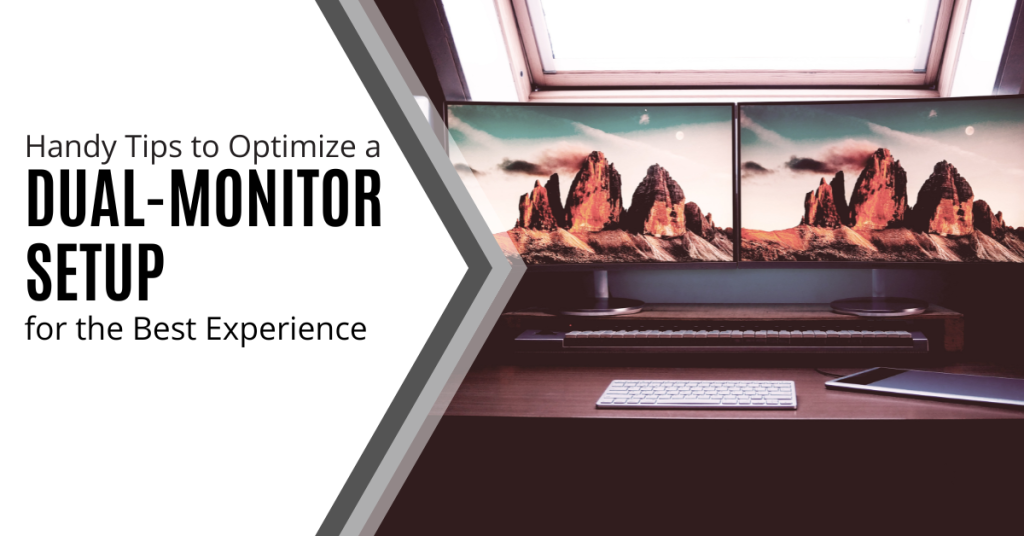
Two monitors are often better than one when it comes to getting things done efficiently. A dual-monitor setup can significantly enhance your productivity. This is true whether you are a gamer, a creative professional or an office wiz who loves to multitask.
A study by Jon Peddie Research found that dual displays can increase productivity by 42%. However, it is not as simple as just setting up an extra screen.
It is common for people to feel “off kilter” when trying to work from two monitors. They may even find it harder despite having more screen real estate. The cause is usually the setup. They either have the screens positioned wrong or aren’t optimizing the settings.
We will dive into some dual-monitor setup best practices. These should help you improve your two-screen experience and take it to the next level.
Best Practices for a Great Two-Screen Setup
1. Match Size and Resolution
Before you jump into the excitement of a dual-monitor setup, do some matching. Make sure your monitors are well-matched with each other. Try to use monitors of the same size and resolution. This helps to avoid any jarring differences in image quality or screen real estate. Your eyes will thank you for the consistency!
2. Get the Right Cables
Picture this: You have set up your dual monitors and you are all excited to fire them up. However, your cables don't fit the ports! To avoid this headache, check your device outputs and inputs to ensure that you have the right cables on hand. HDMI, DisplayPort and DVI are common options. Make sure to verify which ones you need for optimal performance.
3. Positioning is Everything
Now that you have your monitors ready to go, let's talk positioning. Placing your monitors correctly can make a world of difference. This is true for both your comfort and productivity.
Arrange them side by side and keep the top edges aligned. Adjust the angle to reduce neck strain and make sure the distance is comfortable for your eyes since you will be spending a lot of time in front of these screens.
4. Embrace the Extended Desktop
It is tempting to mirror your displays and have the same content on both screens. However, that is not the full potential of a dual-monitor setup. Embrace the extended desktop feature. It allows you to have separate content on each screen.
This means you can work on a document on one screen and browse the web or handle email on the other. Double the productivity!
5. Focus on Taskbar Tweaks
A cluttered taskbar can quickly turn your dual-monitor setup into chaos. Keep things organized. Set the taskbar to display only the active applications on the screen that they are open in.
Steps:
- Right-click on the taskbar and go to "Taskbar settings”.
- Open “Taskbar behaviors”.
- Adjust the setting, “When using multiple displays, show my taskbar apps on". Set it to the taskbar where the window is open.
No more hunting for the right window across two taskbars.
6. Leverage Shortcuts
Did you know that Windows has some nifty window-snapping shortcuts? Use the Windows key plus the left or right arrow to snap an application to one side of the screen. It will fill exactly half of it.
This is perfect for comparing documents as well as writing while researching or watching a video while working. It is a productivity boost that you won't be able to live without once you have tried it!
7. Gaming in Style
If you're a gamer, a dual-monitor setup can bring your gaming experience to a whole new level. Many modern games support dual monitors which allow you to have an extended field of view. This is especially true in racing and flight simulation games. Just remember to adjust your graphics settings accordingly for the best performance.
8. Mastering Multitasking
Multitasking is where dual monitors truly shine. For example, you can have your design software open on one screen and your reference images on the other.
Writers can have research materials on one screen with their writing software on the other. The possibilities are endless. It is like having a productivity superhero at your disposal! Explore workflows that make the most of both screens.
9. Tame the Cable Chaos
Dual monitors mean double the cables. If you're not careful, it can quickly turn into a cable jungle. To keep things tidy, invest in some cable management solutions such as adhesive cable clips or cable sleeves. Your setup will look cleaner. It will also be easier to make changes or upgrades in the future.
10. Don't Forget the Ergonomics
As you immerse yourself in your dual-monitor world, remember to consider ergonomics. Ensure that your monitors are at eye level and your keyboard and mouse are at a comfortable height and angle.
Good ergonomics can prevent strain and discomfort. This allows you to enjoy your setup for longer without any aches or pains.
Need Help with Hardware or Software Setup?
Why struggle with hardware or software setup? Come to the pros to save time and avoid frustration.
Give us a call today to schedule a chat about your technology needs.
The global pandemic put a big emphasis on the need to run a business from anywhere. Enabling employees to work remotely requires cloud solutions. This includes collaborative platforms like Google Workspace and Microsoft 365. VoIP (Voice over Internet Protocol) phone systems have also become critical.
VoIP allows companies to stay in contact with customers and potential customers. Employees can work from anywhere and still answer the business phone line. Callers get a similar experience regardless of where employees may be working (office or home).
When you have people working from home, those old landline systems are inefficient. This has led to a large movement by businesses to VoIP because of necessity and cost-savings.
According to Microsoft, 82% of organizations have reported saving money after implementing VoIP.
While VoIP is the way to go for the future, this doesn’t mean that it is foolproof. Companies that don’t set up their system efficiently can experience issues. This includes things like dropped calls, low bandwidth and features left unused.
If you have been struggling to make your cloud phone system more efficient, check out these tips below. They provide the best setup practices for VoIP. Use these to positively impact your bottom line.
1. Check Network Capabilities
You can’t just assume that you can enable a VoIP system and all will be well. Your network may not be able to handle the extra bandwidth needs without adjustments.
Things that you want to look at include jitter and packet loss. Additionally, review router settings to make sure it can handle peak traffic times. Experiencing dropped calls or choppy audio shows a need to address issues. These may include adjusting network hardware and/or increasing your ISP bandwidth.
2. Prioritize Your VoIP Software Using QoS Rules
Quality of Service (QoS) is a router settings area that allows you to say which traffic is most important. If QoS is not in place, it means resource issues. A large cloud backup could kick in and interrupt your calls because it is taking up bandwidth.
QoS sets up “traffic lanes” that give priority to certain functions. You will want to have your VoIP software prioritized to get the bandwidth it needs. This avoids issues with less critical processes hogging up internet resources.
Using QoS keeps your calls smooth. It also improves the reliability of your cloud phone system. It is also a good idea to use these rules for other important cloud activities.
3. Provide Quality Headsets for Your Team
A cheap headset can ruin the call experience for a potential customer. If someone calls in and can’t hear anything or gets choppy reception, they will quickly get frustrated. They will most likely figure that your company doesn’t have its act together.
Your employees may not be able to afford high-quality headsets. They also may not know what type to buy. Head off potential problems by issuing quality headsets for your team to use.
4. Set Up Departments & Ring Groups
One of the great features of VoIP phone systems is the ability to set up ring groups. You first set up your department groups (accounting, marketing, etc). Then set up the included employee extensions.
Creating a ring group allows you to have a call go to your customer support department as a whole. This is better than one person who may be busy. This way the whole group gets the ring and the first available person can pick up.
Ring groups improve the caller experience by reducing the wait time. It can also mitigate the need for the caller to leave a voicemail and get stuck waiting on a call back.
5. Create Your Company Directory
Auto assistants are extremely helpful and nearly all VoIP systems have them. You set up your company directory first and then record messages to prompt the caller.
For example, you can set up a message that prompts them to input the last name of the person that they are trying to reach. If they aren’t calling a specific person, they can be routed to a department.
While setting up a company directory takes a little effort up front, it will save much more. You no longer will need to have someone specifically routing every call. Callers can also get to the person or department they need faster. This improves the customer experience and boosts office productivity.
6. Have Employees Set Up Their Voicemail & VM to Email
When you get out of a long meeting, going through a bunch of voicemails can take time. Instead of needing to listen to each one to see which calls are a priority, you could simply read through them.
The voicemail to email feature in VoIP phone systems will automatically transcribe voicemails. They are then emailed to the recipient. This improves efficiency. It also eliminates wasted time spent on listening to entire messages to know who called.
Have employees set up this feature with their extension and email address. Some VoIP systems also offer an option to have transcribed voicemails sent via SMS.
7. Train Your Team on the Call Handling Process
Don’t leave your employees to jump in and learn a VoIP system themselves. It is important to train them on the features and the company calling process. This ensures that your team can enjoy all of those time-saving features.
Get Help Enhancing Your Business Phone System
Need help improving your business phone system? Looking for a better customer experience? Give us a call and schedule a consultation. We can help!
BYOD programs (bring your own device) is a concept that took hold after the invention of the smartphone. When phones got smarter, software developers began creating apps for those phones. Mobile device use has now overtaken desktop use at work.
According to Microsoft, mobile devices make up about 60% of the endpoints in a company network. They also handle about 80% of the workload. However, they are often neglected when it comes to strong cybersecurity measures.
This is especially true with employee-owned mobile devices. BYOD programs differ from corporate-owned mobile use programs. Instead of using company tools, employees are using their personal devices for work. Many businesses find this to be the most economical way to keep their teams productive.
Purchasing phones and wireless plans for staff is often out of reach financially. It can also be a pain for employees to carry around two different devices (personal and work).
It is estimated that 83% of companies have some type of BYOD policy.
You can run BYOD programs securely if you have some best practices in place. Many times business owners don’t even know all the devices that are connecting to business data or which ones may have data stored on them.
Here are some tips to overcome the security and challenges of BYOD. These should help you enjoy a win-win situation for employees and the business.
Define Your BYOD Policy
If there are no defined rules for BYOD, you can’t expect the process to be secure. Employees may leave business data unprotected or they may connect to public Wi-Fi and then enter their business email password which exposes it.
If you allow employees to access business data from personal devices, you need a policy. This policy protects the company from unnecessary risk. It can also lay out specifics that reduce potential problems. For example, it can explain the compensation for employees that use personal devices for work.
Keep Your Policy “Evergreen"
As soon as a policy gets outdated, it becomes less relevant to employees. Someone may look at your BYOD policy and note that one directive is old. They may think that they should ignore the entire policy for that reason.
Make sure that you keep your BYOD policy “evergreen.” This means updating it regularly if any changes impact those policies.
Use VoIP Apps for Business Calls
Before the pandemic, 65% of employees gave their personal phone numbers to customers. This often happens due to the need to connect with a client when away from an office phone. Clients may also save a personal number for a staff member if the employee calls the customer from their own device.
Customers having employees’ personal numbers is a problem for everyone. Employees may leave the company and no longer answer those calls. The customer may not realize why.
You can avoid the issue by using a business VoIP phone system. These services have mobile apps that employees can use. VoIP mobile apps allow employees to make and receive calls through a business number.
Create Restrictions on Saved Company Data
Remote work has exasperated the security issue with BYOD programs. While BYOD may have meant mobile devices in the past, it now means computers too. Remote employees often will use their own PCs when working outside the office.
Regardless of the type of device, you should maintain control of business data. It is a good idea to restrict the types of data that staff can store on personal devices. You should also ensure that it is backed up from those devices.
Require Device Updates
When employee devices are not updated or patched, they invite a data breach. Any endpoint connected to your network can enable a breach. This includes those owned by employees.
It can be tricky to ensure that a device owned by an employee is kept updated. Therefore, many businesses turn to endpoint management solutions. An endpoint device manager can push through automated updates. It also allows you to protect business data without intruding on employee privacy.
The monitoring and management capabilities of these tools improve security. This includes the ability to safelist devices. Safelisting can block devices not added to the endpoint manager.
Include BYOD in Your Offboarding Process
If an employee leaves your company, you need to clean their digital trail. Is the employee still receiving work email on their phone? Do they have access to company data through persistent logins? Are any saved company passwords on their device?
These are all questions to ask when offboarding a former staff member. You should also make sure to copy and remove any company files on their personal device. Additionally, ensure that you deauthorize their device(s) from your network.
Let Us Help You Explore Endpoint Security Solutions
We can help you explore solutions to secure a BYOD program. We will look at how your company uses personal devices at your business and recommend the best tools. Contact us today for a free consultation.
Have you ever bought a new computer and then had buyer’s remorse a few months later? Maybe you didn’t pay attention to the storage capacity and ran out of space. You may have glossed over memory and experienced constant freeze-ups.
An investment in a new PC isn’t something you want to do lightly. Doing your research ahead of time and consulting with a trusted friend or IT shop can help. It will keep you from making major mistakes that could come back to haunt you later.
Here are several things to consider before you put down your hard-earned money on a new computer.
The Amount of Memory (RAM)
One of the big mistakes that people make when looking for a new computer is to ignore the RAM. Random access memory may be called RAM on the specification or “memory.” If your system has low memory, you run into all sorts of problems.
These issues can include:
- Browser freezing up when you have too many tabs open
- Issues watching videos
- Some software not working properly
- Sluggish behavior
- Inability to open multiple applications
- Constant freezes
Memory is the “thought process” of the PC. If there isn’t enough, it can’t take on another task until it completes the current processing tasks. This can cause frustration and ruin your productivity.
People often go for those low-priced computer deals when looking for a new device. However, these can include only 4GB of RAM. That is not a lot if you do much more than staying in a single application or just a few browser tabs.
The higher the RAM means the more responsive the system performance. Look for PCs with at least 8GB of RAM or higher if you do any graphics/video or other processing-intensive activities.
User Reviews for Longevity
Buying a new computer is an investment. It is natural to want that investment to last as long as possible. You don’t want to spend $700 on a new computer only to begin experiencing problems when it is just two years old.
Take your time to research user reviews on the specific models that you are considering. You will begin to see patterns emerging. Steer clear of models that have consistent complaints about breakdowns sooner than expected.
You may need to pay a little more for a system that has a better track record of performance but it will save you in the long run when you have more years of usable life before that device needs replacement.
Whether the PC is for Personal or Business Use
If you have a small business or are a freelancer, you may try to save money by buying a consumer PC. This could end up costing you more in the long run.
Consumer PCs are not designed for continuous “9-to-5” use. They also often lack certain types of firmware security present in business-use models. The price gap has also shortened between good consumer computers and business versions. If you’re not looking at the cheap systems, you will find that it is not that much more to get a business-grade device.
The Processor Used
It can be confusing to read through the processor specifications on a computer. How do you know if Intel Core i7 or i3 is best for your needs? What is the performance difference between AMD and Intel processors?
If you don’t want to do the research yourself, you could call up your local IT shop. We will be happy to steer you in the right direction. We will explain the differences in layman’s terms as well as which processor makes the most sense for your intended use.
For Laptops: The Case Type
If you’re looking for a laptop computer, it is important that it is durable. Laptops have some unique characteristics that differ from desktops. For example, the screen is often folded down one or more times per day. Additionally, the keyboard is part of the case and is not easily replaced by the user.
If you get a laptop with a cheap plastic case, it is likely to break during normal use. Keys could also easily pop off the keyboard which will require a trip to a computer repair shop.
You want to consider the materials used for the case. Paying an extra $20-$30 upcharge for a better casing is definitely worth it. It can help you avoid unneeded headaches.
Storage Capacity
Storage capacity can be a pain point that you experience after the fact. If you buy a computer without paying attention to hard drive space, you could regret it. You may not be able to transfer over all of your “stuff” from the old system.
Storage capacity can also be an area where you can save some money. If you store most of your files in the cloud, you may not need a lot of hard drive space. The less space you need means the lower the price.
Hard Drive Type
If you can get a computer with a solid-state drive (SSD) rather than a traditional hard disk drive (HDD), you should. SSDs are faster and less likely to have read/write issues. They have no moving parts so they are quieter as well.
Solid-state drives have come down in price quite a bit recently. There are many affordable options and you will also find some PCs with both a hard drive and SSD.
Come to Us Before You Spend Money on a New Computer
Don’t blindly invest in a new computer without some expert guidance. Contact us today for a free consultation to save you from a bad new PC experience.
Business owners often face a battle between productivity and cost efficiency. This is especially true when it comes to the question of replacing their employees’ desktops and laptop computers. At the end of the day, you want to get the most out of these expensive devices. However, if you don’t upgrade your hardware regularly then you actually run the risk of your older devices costing even more than brand new ones due to the expenses of downtime, repairs and maintenance. There is also the intangible losses of harmed employee productivity to consider. Read more
As a small business owner, you know that every penny counts. When it comes to making a large purchase like a new PC, you want to be sure that you’re getting the best possible value for your money while also offering the performance you need to keep your operation running.
In this blog post, we will outline some of the most important features to look for when buying a new PC so that you can avoid any post-purchase regrets.
Where to Start?
First and foremost, you will want to make sure that the computer you are buying is powerful enough to handle all of your business needs. If you’re planning on using demanding software or running complex calculations, you will need a machine with a robust processor and a healthy amount of RAM.
If you’re mostly just using your PC for tasks like email and web browsing, you can get away with something a bit less powerful and save some money in the process.
Let us take a closer look at some of these components:
CPU
The central processing unit (CPU) is the brain of the operation. It is responsible for carrying out all the instructions that make your software run. It is important to pay attention to the CPU type and speed when shopping for a new PC. Intel and AMD are the two most popular CPU manufacturers and you will often see references to “i3”, “i5” and “i7” processors. These refer to the Intel Core line of CPUs which are divided into the budget, mid-range and high-end models. AMD’s Ryzen line offers similar options with their Ryzen 3, Ryzen 5, Ryzen 7 and so on.
Generally, faster is better. However, if you’re on a tight budget, you can always start with a mid-range model and upgrade to a faster processor down the road. Just make sure the motherboard in your new PC can accommodate a faster CPU.
Memory
One of the most important things to consider when buying a new PC is the amount of memory (or RAM) that it has. Memory is what allows your computer to store and access information quickly and more memory will always result in better performance.
For small businesses, it is recommended to have a minimum of 8GB of RAM. However, 16GB or more is even better.
Storage Space
Another important consideration is storage space. There are two main types of drives in this category:
- Hard Drives (HDD)
- Solid-State Drives (SSD)
The kinds of files you work with will determine which is the best option for you. If you’re working with large files or dealing with a lot of data, you will need a computer with a sizable storage solution.
Hard drives are generally slower than solid-state drives but they offer more storage for the price. Solid-state drives are much faster than hard drives. If speed is a priority, you will want to choose a computer with an SSD.
Both HDD and SSD drives come in a variety of form factors so you will need to choose the right size for the needs of your specific build.
Display
Displays are your window into the work you’re doing. You will want to make sure that it is the right fit for your needs.
If you are going to be doing a lot of graphics work, you will want to make sure you get a higher resolution. If you are just going to be doing basic work, you can save some money and go with a lower resolution.
There are also other considerations like display size and color accuracy.
Display size is simply how large the physical display is. If you have a small workspace, then you will want to make sure that you get a smaller display. If you are doing any sort of color work, you will want to make sure that the display’s colors are as accurate as possible. This is usually not a problem with higher-end displays but it can be an issue with lower-end ones.
Peripherals
Once you have decided on the specs of your new computer, you will also need to think about the peripherals. In addition to a monitor, keyboard and mouse, you may need additional devices like a printer, scanner or an external hard drive for portable storage needs. Make sure to factor in the cost of these items when budgeting for your new PC.
Warranty
As a small business owner, the last thing you want is to need to shell out more money for a new PC because something went wrong with the one you just bought. Make sure the PC that you are buying comes with a warranty that will cover you in case of any unforeseen problems.
Assess Your Needs
Before making a decision, sit down and assess your specific needs.
- What type of software will you be using?
- How much storage space do you need?
- What is your budget?
Once you have answers to these questions, you will be in a much better position to choose the right PC for your business.
We Can Help You Choose the Best PC For Your Needs
No matter what size company you have, picking out the right computer is important. Contact us at (860) 577-8060 or via our contact form to learn more.