
Efficiency is everything when you are growing a small business. With the pace of business today, tools that help you work smarter (not harder) can give you a serious edge. Cloud-based accounting software has become a game-changer for businesses looking to simplify their finances, save time and stay on top of their cash flow. Read more

In today’s world, everything is connected. That includes the software supply chain that your business relies on regardless of whether you have installed that software locally or use it in the cloud.
Protecting the entire process that creates and delivers your software is very important. From the tools developers use to the way updates reach your computer, every step matters. A breach or vulnerability in any part of this chain can have severe consequences.
A recent example is the global IT outage that happened last July. This outage brought down airlines, banks and many other businesses. The culprit for the outage was an update gone wrong. This update came from a software supplier called CrowdStrike. It turns out that the company was a link in a LOT of software supply chains.
What can you do to avoid a similar supply chain-related issue? Let’s talk about why securing your software supply chain is absolutely essential.
1. Increasing Complexity and Interdependence
Many Components
Modern software relies on several components. These include open-source libraries, third-party APIs and cloud services. Each component introduces potential vulnerabilities. Ensuring the security of each part is essential to maintaining system integrity.
Continuous Integration and Deployment
Continuous integration and deployment (CI/CD) practices are now common. These practices involve frequent updates and integrations of software. While this speeds up development, it also increases the risk of introducing vulnerabilities. Securing the CI/CD pipeline is crucial to prevent the introduction of malicious code.
2. Rise of Cyber Threats
Targeted Attacks
Cyber attackers are increasingly targeting the software supply chain. Attackers infiltrate trusted software to gain access to wider networks. This method is often more effective than direct attacks on well-defended systems.
Sophisticated Techniques
Attackers use sophisticated techniques to exploit supply chain vulnerabilities. These include advanced malware, zero-day exploits and social engineering. The complexity of these attacks makes them difficult to detect and mitigate. A robust security posture is necessary to defend against these threats.
Financial and Reputational Damage
A successful attack can result in significant financial and reputational damage. Companies may face regulatory fines, legal costs and loss of customer trust. Recovering from a breach can be a lengthy and expensive process. Proactively securing the supply chain helps avoid these costly consequences.
3. Regulatory Requirements
Compliance Standards
Various industries have strict compliance standards for software security. These include regulations like GDPR, HIPAA and the Cybersecurity Maturity Model Certification (CMMC). Non-compliance can result in severe penalties. Ensuring supply chain security helps meet these regulatory requirements.
Vendor Risk Management
Regulations often require robust vendor risk management. Companies must ensure that their suppliers adhere to security best practices. This includes assessing and monitoring vendor security measures. A secure supply chain involves verifying that all partners meet compliance standards.
Data Protection
Regulations emphasize data protection and privacy. Securing the supply chain helps protect sensitive data from unauthorized access. This is especially important for industries like finance and healthcare. In these industries, data breaches can have serious consequences.
4. Ensuring Business Continuity
Preventing Disruptions
A secure supply chain helps prevent disruptions in business operations. Cyber-attacks can lead to downtime and impact productivity and revenue. Ensuring the integrity of the supply chain minimizes the risk of operational disruptions.
Maintaining Trust
Customers and partners expect secure and reliable software. A breach can erode trust and damage business relationships. By securing the supply chain, companies can maintain the trust of their stakeholders.
Steps to Secure Your Software Supply Chain
Put in Place Strong Authentication
Use strong authentication methods for all components of the supply chain. This includes multi-factor authentication (MFA) and secure access controls. Ensure that only authorized personnel can access critical systems and data.
Do Phased Update Rollouts
Keep all software components up to date but don’t do all systems at once. Apply patches and updates to a few systems first. If those systems aren’t negatively affected, roll out the update more widely.
Conduct Security Audits
Perform regular security audits of the supply chain. This involves assessing the security measures of all vendors and partners. Identify and address any weaknesses or gaps in security practices. Audits help ensure ongoing compliance with security standards.
Use Secure Development Practices
Adopt secure development practices to reduce vulnerabilities. This includes code reviews, static analysis and penetration testing. Ensure that security is integrated into the development lifecycle from the start.
Monitor for Threats
Install continuous monitoring for threats and anomalies. Use tools like intrusion detection systems (IDS) as well as security information and event management (SIEM) systems. Monitoring helps detect and respond to potential threats in real-time.
Educate and Train Staff
Educate and train staff on supply chain security. This includes developers, IT personnel and management. Awareness and training help ensure that everyone understands their role in maintaining security.
Get Help Managing IT Vendors in Your Supply Chain
Securing your software supply chain is no longer optional. A breach or outage can have severe financial and operational consequences. Investing in supply chain security is crucial for the resilience of any business.
Need some help managing technology vendors or securing your digital supply chain? Reach out to us today.

Microsoft Copilot has been heading up the business AI charge. It is used in Word, Excel, Edge, Windows and more. This Generative AI-powered app is also showing up in various function-related activities. The latest development is to improve finance processes.
Microsoft Copilot for Finance is a game-changer. It injects the power of next-generation AI into the heart of your everyday workflow. Imagine having an AI companion that understands the intricacies of finance as well as collaborates seamlessly with you.
It can help a seasoned financial analyst or a curious learner. It automates repetitive tasks and provides real-time insights. Copilot is poised to revolutionize how we navigate the fiscal realm.
Read on to see why this innovative tool should be on your financial radar.
What Is Microsoft Copilot for Finance?
Let's do an overview of this new application. Copilot for Finance is a new Copilot experience in Microsoft 365. It features AI-assisted help for financial professionals. It does this from within productivity apps they use every day.
Microsoft Copilot for Finance connects to business financial systems such as Dynamics 365 and SAP. It provides finance-based insights and guided actions in:
- Outlook
- Excel
- Microsoft Teams
- Other Microsoft 365 applications
Benefits of Using Copilot for Finance
Breaking Free from the Manual Grind
Finance professionals are drowning in repetitive tasks. These include data entry, review cycles and report generation. Copilot for Finance throws a lifeline to finance professionals. It automates these mundane activities and frees up valuable time for strategic thinking. Imagine a world where you can focus on high-impact tasks like financial planning, risk analysis and driving business growth.
AI-Powered Insights at Your Fingertips
Copilot for Finance isn't just about automation. It is about intelligence. This AI assistant learns your organization's financial data and behavior. It surfaces insights you might have missed.
Imagine uncovering hidden trends and predicting cash flow issues as well as identifying areas for cost optimization. All of this is powered by AI that works seamlessly within your existing Microsoft 365 environment.
Tailored for Your Team
Copilot for Finance isn't a one-size-fits-all solution. It caters to the specific needs of different financial roles. Imagine streamlining audits with a simple prompt or simplifying collections with automated communication and payment plans. It can also speed up financial reporting with effortless variance detection. Copilot for Finance empowers every member of your finance team. It does this with role-specific workflows and features.
Seamless Integration for a Frictionless Experience
Copilot for Finance integrates effortlessly with your existing Microsoft 365 tools such as Excel, Outlook and Teams. This means no more jumping between applications. You won't be struggling to import data. Imagine accessing financial insights directly within your familiar workflow. This eliminates silos and streams communication across your team.
Built with Trust in Mind
Security and compliance are paramount in the world of finance. Copilot for Finance inherits the robust security features you trust from Microsoft 365. Imagine leveraging a solution that adheres to the strictest data privacy regulations. This gives you peace of mind and ensures your financial data remains secure.
A Glimpse into the Future of Finance
Copilot for Finance represents a significant leap forward in financial technology. It is more than just automation. It is about harnessing the power of AI to augment human expertise as well as transform the way finance operates.
Imagine a future where tedious tasks are a thing of the past. They are replaced by a world of data-driven insights and strategic decision-making and all at the click of a button or text prompt.
Getting Started with Copilot for Finance
Microsoft Copilot for Finance is currently available for early adopters. Do you want to experience its transformative potential? Here is how to get started:
- Visit the Copilot for Finance website: This website provides a wealth of information. This includes product details, functionalities and more.
- Review Requirements: Ensure you meet the licensing requirements. These include specific Microsoft 365 subscriptions as well as browser specifics and other guidelines.
- Connect with Your IT Provider: We can offer support to set up Copilot for Finance. We will ensure it is integrated and secured as well as train your team on its helpful features.
The Future is Now: Embrace the Power of AI
The world of finance is evolving rapidly. Microsoft Copilot for Finance empowers you to embrace this change as well as navigate the future with confidence. Copilot for Finance offers AI-powered insights, streamlined workflows and seamless integration. It could soon become an indispensable tool for every finance professional.
Get Expert Microsoft 365 & Copilot Guidance
AI tools in Copilot are dominating business transformations. You can join or risk missing out on what AI has to offer. We can help you unlock the full potential of Copilot in Microsoft 365 as well as propel your business forward with AI power.
Contact us today to see how we can help your business.
If you are still using Windows 8.1, it is time to start thinking about upgrading. Microsoft ended support for Windows 8.1 on January 10, 2023, which means they will no longer be providing security updates, bug fixes or technical support.
While it may be tempting to continue using Windows 8.1, doing so can leave your computer vulnerable to security risks and software incompatibility issues. In this article, we will explore what to do when software is sunset and how to upgrade to a newer operating system.
What Is Software Sunset?
Software sunset (also known as end-of-life) is the point at which software developers stop supporting a particular version of their product. This can happen for several reasons including the release of a new version of the software or a shift in the developer's business focus.
When software is sunset, it means that the developer will no longer be providing updates or technical support for that version. This can leave the software vulnerable to security risks, compatibility issues with new hardware or software and other problems.
What Happens When Windows 8.1 is No Longer Supported
When Microsoft ended support for Windows 8.1, it meant that they would no longer be providing support for the operating system. This can leave your computer open to security risks including:
- Viruses
- Malware
- Ransomware
- Security breaches
As new hardware and software is released, they may not be compatible with Windows 8.1. This can make it difficult to use new software or hardware on your computer which limits your productivity and potentially leaves you at a disadvantage in your personal or professional life.
What Are The Upgrade Options For Windows 8.1?
If you are currently using Windows 8.1, it is important to start thinking about upgrading to a newer operating system. Here are a few options to consider:
Upgrade to Windows 11
Windows 11 is the latest version of the Windows operating system and it is widely considered to be an improvement over Windows 8.1. Upgrading to Windows 11 will ensure that you continue to receive security updates and bug fixes as well as support for new hardware and software.
Switch to a Different Operating System
While Windows is one of the most popular operating systems, it is not the only option available. There are many other operating systems to choose from with some of the top choices being:
- MacOS
- Linux
- Chrome OS
Each has its advantages and disadvantages. It is important to research your options and choose the one that is right for you.
Upgrade Your Hardware
If your computer is older and not capable of running a newer operating system, you may need to upgrade your hardware. This can be costly but it may be necessary if you want to continue using your computer for the next few years.
How Should I Prepare to Upgrade to Windows 11?
Before you upgrade to a new operating system, there are a few steps you should take to ensure a smooth transition:
Back up Your Data
Before you make any changes to your computer, it is important to back up your data. This will ensure that you don't lose any important files if something goes wrong during the upgrade process.
Check for Compatibility Issues
If you are upgrading to a newer version of Windows, make sure that your hardware and software are compatible with the new operating system. You can use Microsoft's Upgrade Assistant tool to check for compatibility issues before you begin the upgrade.
Consider a Clean Install
While upgrading your operating system is generally a straightforward process, you may encounter issues during the upgrade. Consider doing a clean install of the new operating system to avoid any potential problems.
Ready to Upgrade?
When software is sunset, it is important to take action to ensure that you are still able to use your computer safely and effectively. If you're still using Windows 8.1, it is time to start thinking about upgrading to a newer operating system.
While the process of upgrading can be intimidating, it is essential to take the necessary steps to keep your computer secure and up to date.
There are several upgrade options to consider including upgrading to Windows 11, switching to a different operating system or upgrading your hardware. Before you upgrade, be sure to back up your data, check for compatibility issues and consider doing a clean install.
At Sound Computers, we strive to educate our customers about the dangers of staying on an unsupported operating system and leaving your computer vulnerable to security risks and compatibility issues.
If you need assistance upgrading your computer, call us at (860) 577-8060 to speak with one of our experts and learn more about our IT services.
By taking the time to upgrade, you can ensure that your computer is running smoothly and securely for years to come.
Microsoft Teams is a lot of things. It is a video conferencing tool, a team messaging channel and a tool for in-app co-authoring. During the pandemic, the popularity of Teams skyrocketed.
User numbers for MS Teams jumped from 20 million in November 2019 to 75 million in April 2020. As of this year, Microsoft reports a user count of 270 million for the platform. This makes it the most popular business tool for team communications.
One of the things that makes the app popular is also one that can make the setup complex. Microsoft Teams has many moving parts. To use them effectively, they need to be well organized. Additionally, users need to have a chance to learn the system and train on best practices.
What Can Microsoft Teams Do?
Let us look at the different areas of Microsoft Teams and what it can do. Then we will give you a simple setup checklist to help your team get up and running productively.
You can think of Teams as a virtual office in the cloud. It is a centralized hub where teams can communicate, collaborate and manage tasks. There is also an external communication component to Teams. You can use the app to video conference with anyone. You can also invite guests to a chat channel.
Here are some of the features of MS Teams:
- Siloed chat channels
- Security for team communications
- Integration with Office apps
- Integration with 3rd party apps
- File sharing
- Video and audio conferencing
- VoIP phone system (with an extra add-on)
- Keep all team resources in a single place
Microsoft Teams Versions
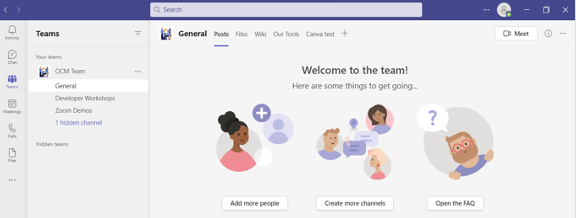
Some good news for small businesses is that there is a free version of Microsoft Teams. If you sign up for a Microsoft 365 business plan, you get the app included with a few extra features.
Microsoft has also been pushing MS Teams for personal use. You can use it to keep your departments better coordinated at work, manage family video calls or collaborate for a PTA meeting. It is a versatile and scalable virtual office platform.
Easy Checklist for Setting Up Microsoft Teams
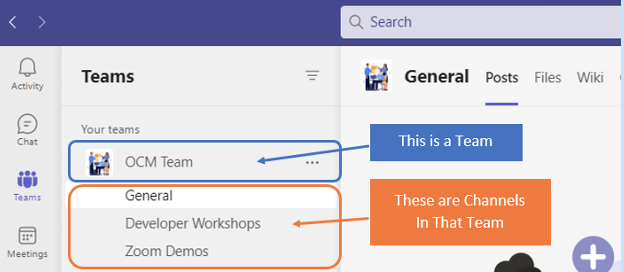
1. Set Up Your Teams/Departments
One of the advantages of Teams is that it allows you to set up specific areas for your groups to collaborate. You do not want everyone to set these teams up on their own or you could end up with an unorganized mess.
Some ideas for setting these up:
- Set up teams by department (accounting, marketing, etc.)
- Add a company-wide team (where everyone can collaborate)
- Set up teams by role (office managers, executives, etc.)
Typically, if you mirror the hierarchy of your organization, that is a good place to start. Team areas are secured so that only those users who are invited can see or access any of the content in that team.
2. Add Team Members
For each team, add the members allowed to take part in that team. These would be people that can see the resources posted in that team area. It would normally be the members of the department or group that the team is designed for.
3. Set Up Team Channels
The next level beneath the Team is the Channels. These team channels help organize conversations. For example, within a team set up for your marketing department, you may decide to add three channels. This keeps conversations more focused and makes it easier to find things.
For instance, you could have channels for:
- Website Management
- Social Media
- Offline Advertising
Team channels are another area that you want to control. Don’t let everyone set up channels without a plan. Otherwise, things can get messy fast.
4. Set Up Team Labs
Tabs are a great way to foster productivity. Say that employees on your accounting team need to access a tax reporting website. Inevitably, there can be time wasted asking for that link or a login. This is especially true if someone is filling in for a co-worker.

You can add that website link and info to the Tabs area at the top of the team channels. Just click the plus sign to add a new resource and consolidate things for your team members.
5. Schedule MS Teams Training
One of the reasons that company initiatives fail is that users weren’t properly enabled. If users aren’t trained on using MS Teams, then they will revert to using whatever they used before. This negates the benefits of moving to Teams when not everyone is on board.
Work with a Microsoft professional to train your teams. We can provide tips on the most productive features as well as short-cut their learning curve quite a bit! Make sure to have a realistic timeframe. You should also survey users on whether they feel they need more training.
Need Some Help Implementing Teams in Your Organization?
We can help you over many of the roadblocks that organizations face when starting with Teams. Contact us today for a free consultation to enhance your collaboration and productivity.

One constant about technology is that it changes rapidly. Technology tools that were once staples, like Internet Explorer and Adobe Flash, age out. New technology tools replace those that are obsolete. Discontinued technology can leave computers and networks vulnerable to attacks.
While older technology may still run fine on your systems, that doesn’t mean that it is okay to use. One of the biggest dangers of using outdated technology is that it can lead to a data breach.
Outdated software and hardware no longer receive vital security updates. Updates often patch newly found and exploited system vulnerabilities. No security patches means a device is a sitting duck for a cybersecurity breach.
Approximately 1 in 3 data breaches are due to unpatched system vulnerabilities.
Another problem with using discontinued technology is that it can leave you behind. Your business can end up looking like you’re in the stone ages to your customers and they can lose faith and trust.
Important reasons to keep your technology updated to a supported version are:
- Reduce the risk of a data breach or malware infection
- Meet data privacy compliance requirements
- To keep a good reputation and foster customer trust
- To be competitive in your market
- To mitigate hardware and software compatibility issues
- To enable employee productivity
Older systems are clunky and get in the way of employee productivity. If you keep these older systems in use, it can lead to the loss of good team members due to frustration.
49% of surveyed workers say they would consider leaving their jobs due to poor technology.
The following is a list of outdated technology tools that you should replace as soon as possible. Are any of these still in use on your home computer or within your business?
Get Rid of This Tech Now If You’re Still Using It
Internet Explorer
Internet Explorer (IE) used to be the number one browser in the world. Over time, Google Chrome and other browsers edged it out. This includes its replacement (Microsoft Edge).
Microsoft began phasing out IE with the introduction of Microsoft Edge in 2015. In recent years, fewer applications have been supporting use in IE. The browser lost all support beginning on June 15, 2022.
Adobe Flash
Millions of websites used Adobe Flash in the early 2000's. However, other tools can now do the animations and other neat things Flash could do. This made the tool obsolete and Adobe ended it.
The Adobe Flash Player lost all support, including security updates, as of January 1, 2021. Do you still have this lingering on any of your computers? If so, you should uninstall the browser plugin and any Flash software.
Windows 7 and Earlier
Windows 7 was a very popular operating system but it has now gone the way of the dinosaur. The replacements of Windows 10 and Windows 11 are now in widespread use. The Windows 7 OS lost support on January 14, 2020.
While it may still technically run, it’s very vulnerable to hacks. Microsoft Windows OS is also a high-value target for hackers. You can be sure they are out there looking for systems still running this obsolete version of Windows.
MacOS 10.14 Mojave and Earlier
Due to the cost of iMacs and MacBooks, people tend to hang onto them as long as possible. Once these devices get to a certain point, updates no longer work. This leaves the hardware stuck on an older and non-supported macOS version.
If you are running macOS 10.14 Mojave or earlier, your OS is no longer supported by Apple and you need to upgrade.
Oracle 18c Database
If your business uses Oracle databases, you may want to check your current version. If you are running the Oracle 18C Database, you are vulnerable. Breaches can easily happen due to unpatched system vulnerabilities.
The Oracle 18C Database lost all support in June of 2021. If you have upgraded, then you will want to keep an eye out for another upcoming end-of-support date. Both Oracle 19C and 21C will lose premiere support in April of 2024.
Microsoft SQL Server 2014
Another popular database tool is Microsoft’s SQL. If you are using SQL Server 2014, mainstream support has already ended. In July of 2024, all support (including security updates) will stop.
This gives you a little more time to upgrade before you’re in danger of not getting security patches. However, it is better to upgrade sooner rather than later. This leaves plenty of time for testing and verification of the upgrade.
Get Help Upgrading Your Technology & Reducing Risk
Upgrades can be scary when everything that you have been using has been running great. You may be afraid that a migration or upgrade will cause issues. We can help you upgrade your technology smoothly and do thorough testing afterward. Schedule a technology review today by calling us at (860) 577-8060 or using our convenient contact form.

Internet Explorer was introduced in 1995. This makes it one of the first internet browsers. However, in recent years it has become obvious that Microsoft has been planning a retirement for IE at some point in the not too distant future.
IE has been edged out over the years by Chrome, Safari and others. The first sign that IE was on its way out was the new Edge browser that Microsoft introduced five years ago. Now IE 11 is about to lose support from some major Microsoft applications.
In 2012, Internet Explorer had nearly 40% of the browser market share. Five years later, it had dropped to about 10%.
While it is normal for technology to evolve and software and IT solutions to reach the end of the road, it is still disruptive to businesses in Connecticut and everywhere else when they do.
If your workflows rely on a certain digital tool that is no longer being fully supported by a developer, it can mean:
- The need to revamp workflows
- Trying to find work arounds for processes that no longer work
- Security issues due to lack of patches/updates
- Migration challenges to move data from the old application to a new one
The big milestone that Internet Explorer 11 is reaching is the elimination of support from Microsoft Teams and Microsoft 365.
We will go over the important answers that you need to know regarding this drop in support so that your business can be properly prepared.
Dates & Details About the Phasing Out of the IE 11 Browser
When Will Microsoft Teams Stop Working in IE 11?
As of November 30, 2020, Microsoft Teams will no longer work correctly in IE 11. This will impact the ability to use Teams on the web and for people to join video calls via the browser.
Even if your own office does not use Internet Explorer, this drop of support could impact your Teams meetings. If you invite others from outside your organization, there may be a client that uses IE that suddenly can no longer connect to your video calls as usual.
If you use Teams, you will want to ensure that everyone inside your organization upgrades to supported browsers. It is also a good idea to add a note to your Teams meeting invites that IE 11 is no longer supported.
When Will Microsoft 365 Stop Working in IE 11?
You have a little more time before all the other Microsoft 365 apps no longer support IE 11. This happens on August 17, 2021.
This will include all the services in the platform – Word, Excel, Outlook, OneDrive, SharePoint, Microsoft Lists, etc. None of these will be usable in the same way (or at all) from inside Internet Explorer.
What Happens When Support for IE Ends?
Microsoft describes the impact after each of the dates pass as customers having “a degraded experience” or being “unable to connect to Microsoft 365 apps and services on IE 11".
A degraded experience means that you may experience one or more of the following:
- New Microsoft 365 features not being available
- Certain features may stop working
Is Internet Explorer Reaching End of Life?
IE is not yet at the end of its life and it will still receive vital security patch updates. It is only Microsoft Teams and Microsoft 365 that are no longer going to support the browser.
As a component of Windows, IE has the same life cycle as the operating system. This means that if you are using Windows 10 your IE is still being supported. That OS is not reaching its end of life until 2025.
However, if you happen to have a computer that is using IE on the Windows 7 operating system, this OS has already reached its end of life (in January 2020) and needs to be upgraded as soon as possible because it is a big security risk.
What Browsers Support Microsoft 365 & Teams?
You can choose from a few different browsers when upgrading from IE 11. Here are your options:
- Microsoft Edge: If you want to stick with a Microsoft browser, the Chromium-powered Edge has been slowly gaining in popularity. It also has an IE Mode that can be used to access older legacy IE sites.
- Chrome: Chrome is by far the most popular browser. It is well supported but it does tend to be heavy on the memory usage.
- Safari: If you use Apple devices, Safari is a good browser option. Just note that some forms don’t work properly in the browser and it does not support the Windows OS.
- Firefox: Another option that often is praised for better privacy than Chrome is Firefox. However, Microsoft warns that some Teams features don’t work in this browser.
Need Help Migrating Your Data & Workflows?
Sound Computers can help your business upgrade from IE or other software that is no longer supported. We will ensure that your data is transferred safely and that your workflows stay intact.
Contact us today to schedule a free consultation. Call 860-577-8060 or reach us online.

Does your business use a lot of spreadsheets to keep track of different items? This type of manual list process to track devices, visitor logs and content scheduling can be tedious and make sharing that information cumbersome.
In order to optimize your Connecticut business for efficiency, one of the things you should look at is technology solutions that may be able to replace manual processes.
More than 40% of employees spend at least 25% of their work week on manual and repetitive processes.
Some of the top manual processes that surveyed workers said they would like to see automated to save time include:
- Data Collection
- Approvals
- Updates
Each of these areas can be addressed with a brand new app that was just added to Microsoft 365 business and enterprise subscriptions with SharePoint. That app is Microsoft Lists.
How Does Microsoft Lists Work?
Microsoft Lists gives you a way to track information, collaborate on list-based work processes with others and use rules to create automated updates to increase productivity.
Lists can be moved from a basic spreadsheet to a dynamic cloud environment that allows you and others to access them via the web, a mobile app or from inside Microsoft Teams.
Microsoft Lists was rolled out during the summer of 2020 and has the ability to replace manual workflows, all those cumbersome spreadsheets and possibly other paid cloud apps (like a task manager).
Here are some of the things you can do with Microsoft Lists:
Access All List Workflows from One Place
Rather than having spreadsheets saved in different folders, Lists keeps all of your lists instantly accessible from one centralized home page. You can also access and use them from within Teams.
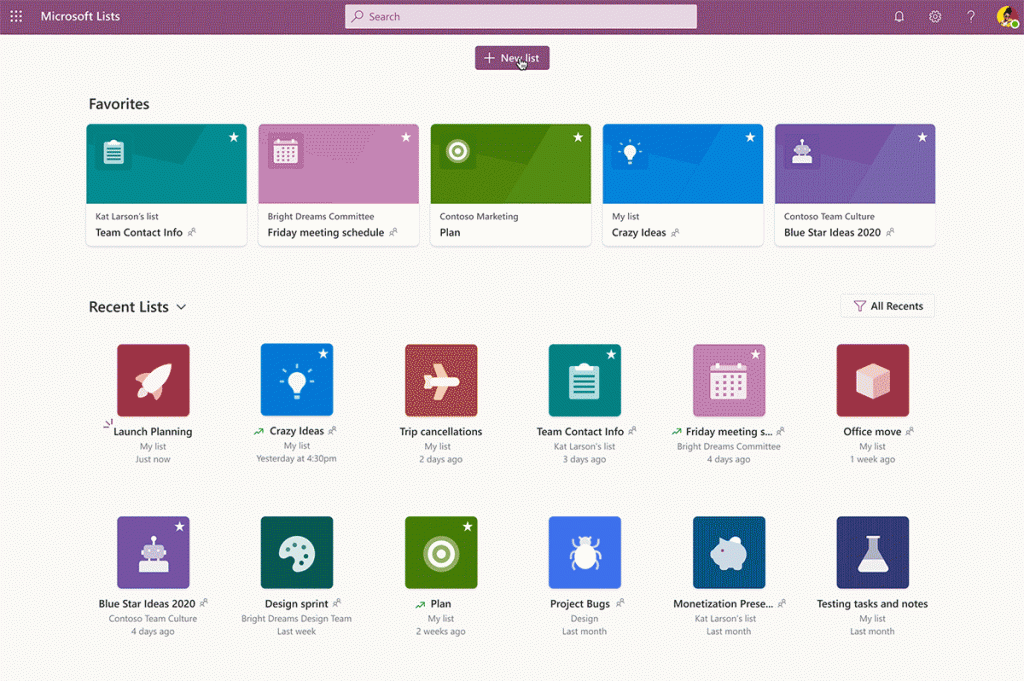
Recently used lists are at the bottom of the home page and those lists that you have designated as “favorites” are at the top. That means no more time wasted searching for your lists.
Quickly Create a List Workflow from a Template
The templates in Lists allow you to easily unleash the power of the platform and get an idea of just how much it can do. You can have two different list workflows that look completely different depending upon the template you use and the view you choose.
For example, the Asset Manager template allows you to add an asset photo and keep track of things like who has a device checked out and the warranty information.
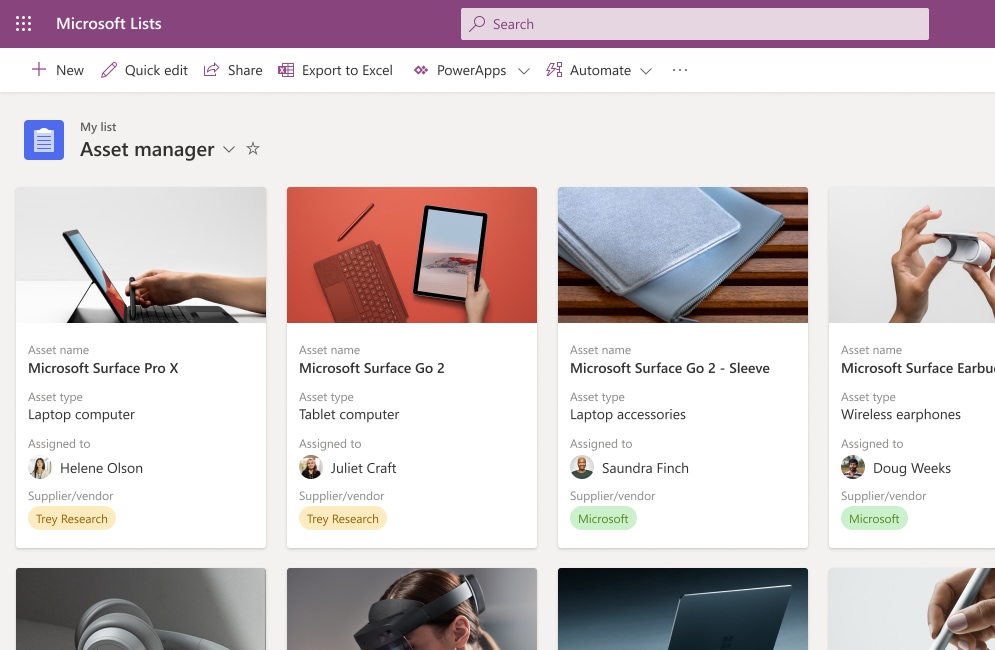
The Issue Tracker template can give you a data-driven view of current issues being tracked, who is responsible for resolving them and their current status.
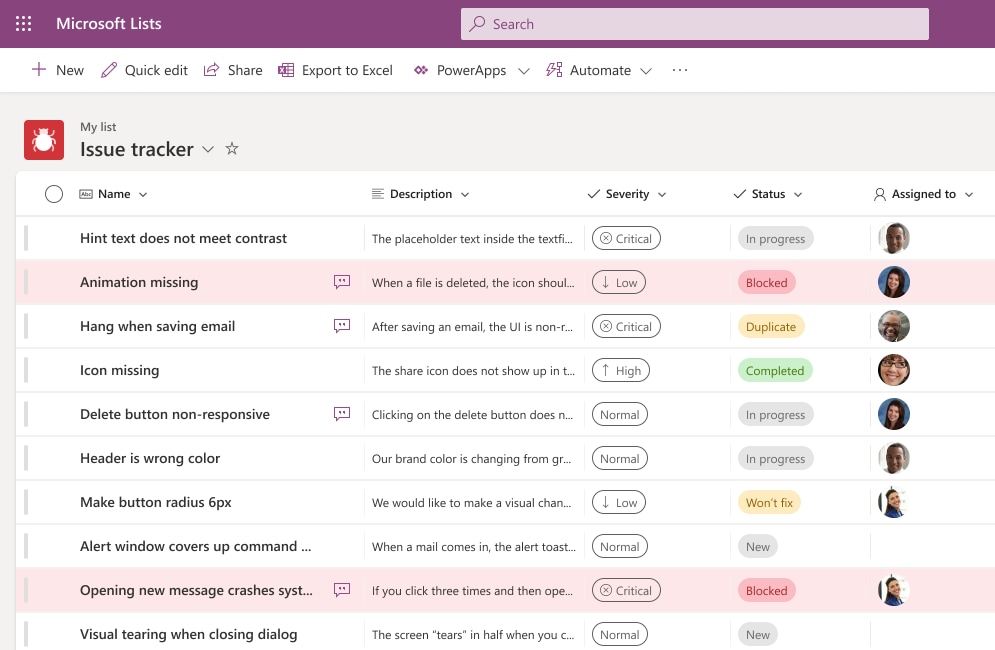
You can see that Lists can be morphed to fit whatever list-based workflow you have.
The current list of built-in templates for Lists include:
- Asset Manager
- Content Scheduler
- Employee Onboarding
- Event Itinerary
- Issue Tracker
- Recruitment Tracker
- Travel Requests
- Work Progress Tracker
Automate Notifications
You can reduce the time you spend following up to see if a task has been done and move an approvals process along more quickly by using the rules in Microsoft Lists.
You can set up rules that send an email notification to a designated address if any of the following activities occur:
- A list column changes
- A column value changes to a specific value (such as from “in-progress” to “done”)
- When a new list item is created
- When an item is deleted
Use Views to See Data in Multiple Ways
Another powerful feature of Lists is the ability to see your data in multiple views. This allows you to use a standard view that looks similar to a spreadsheet to view tasks or use a calendar view that can help with planning according to a schedule.
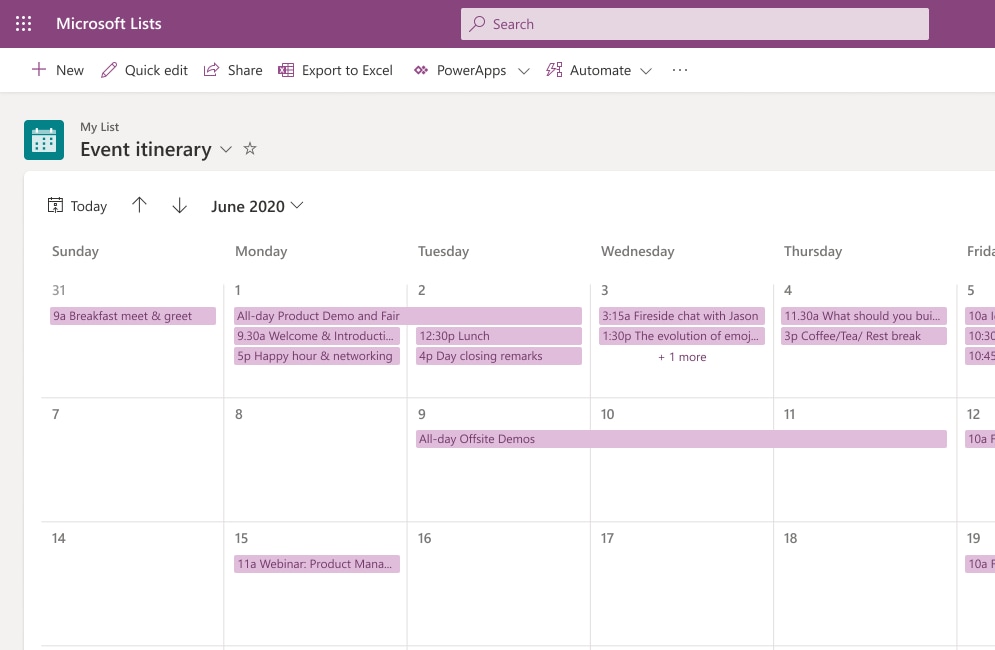
Microsoft Lists Calendar View
Some of the view options you have in Lists include:
- Standard view
- Calendar view
- Datasheet view
- Grid/Gallery view
Collaborate with Others
A feature that makes Microsoft Lists particularly useful to replace manual processes and repetitive apps is the ability to collaborate with others in the app.
Multiple people can work together on the same list-based process and you can even open Lists right inside Microsoft Teams which gives you the ability to message alongside your list workflow.
Giving everyone the ability to stay in sync on list activities removes the need to continually follow up with people and ensures everyone is on the same page. It also removes the need to email static spreadsheets back and forth.
Create Lists from Excel Spreadsheets
You have several options that make it easy to create a list. You can create one from a blank list, use a template, use another list as a base or create one from an Excel spreadsheet.
The ability to use an existing Excel list to create a dynamic Lists workflow makes it easy to replace those cumbersome spreadsheets with a much smoother, automated and more collaborative workflow.
Put Smart Productivity-Boosting Tools In Place at Your Business
Sound Computers can help your business take advantage of tools like Microsoft 365 to boost productivity and lower costs.
Contact us today to schedule a free consultation. Call 860-577-8060 or reach us online.

In April 2020, about 50% of surveyed businesses had 81% or more of their employees working remotely. That meant buildings were sitting empty while companies were being run completely remotely.
Now that re-openings are occurring around the US, many small and large business owners in Connecticut and the rest of the country are contemplating what it would take to keep their business remote and close their physical office to save money on overhead.
Technology solutions have made things possible that most companies would not have considered in the past. One of these is the ability to eliminate a physical office and put that money saved back into their business.
Even before the pandemic began, companies like Apple and U-Haul were running their customer support departments through at-home workers. Many organizations are considering a permanent switch to a virtual office now that the initial shut down from the pandemic has started to lift because they realize that it CAN be done.
One big reason is the cost savings. It is estimated that for each remote worker a business will save approximately $22,000 per year.
Where do those savings come from? A number of areas contribute to the savings:
- Improved productivity
- Office space savings
- Savings on utilities and other physical office costs
- Travel/commuting costs
- Improved employee retention
- Reduced absenteeism
- Ability to hire Independent Contractors for Virtual Help which potentially reduces the cost of benefits and wasted downtime by paying for only what they need
- Business continuity improvements.
If you have been thinking about the boost in bottom line from lowering your overhead by closing your physical office, read on for the things you need in place to make that happen.
How to Successfully Transition from a Physical to Virtual Office
There are some core things you need to have in place to ensure your business can run virtually just as well (or better) than it did with a physical office location.
Virtual Office Address Service
One thing you lose when you close your physical office is your business address. You want to keep a professional address and also have a level of separation between your home and work life which is why using your home address for your business is not a good idea.
There are many virtual office address services you can use that give you a little more legitimacy than just a P.O. box. A virtual address typically will be to a physical office building that provides conference room rental, office rental and more.
It gives you a physical address so that if someone were to look you up on Google street view, it would be to an office park or office building that allows you to have mail handling services for your company. This also keeps your Google My Business listing as an effective tool.
Team Collaboration Tool with Video & Chat
Your employees need to have the ability to virtually “stop by each other’s office” and this can be facilitated with a tool like Microsoft Teams. It makes it easy to chat, share files, use team channeled messaging and video/audio chat.
Encouraging the use of short video chats and team video meetings keeps everyone feeling connected and like part of the team even though they are all working in different locations.
Cloud Productivity & Storage Apps
The cloud is what is powering the ability for companies to work remotely. You want to put in a streamlined cloud productivity suite that includes cloud storage.
Utilizing less app platforms will be better for integration, automation and the user learning curve. Platforms like Microsoft 365 and G Suite give you cloud storage and several productivity tools that all integrate and make co-authoring and online collaboration easy.
Device & Network Security
Even though the computers accessing your business data are now located in employee homes instead of an office, you still need to ensure they have protection to keep your data safe.
The best way to do this is through a managed IT services plan that provides multiple security and user benefits, including:
- PC health monitoring
- Managed updates
- Managed antivirus/anti-malware
- Web protection
- Helpdesk support
- Remote support
When it comes to network security, the best way to secure data transmissions on so many different home networks is to use a business virtual private network (VPN).
A VPN will encrypt all online sessions no matter how unsecure the Wi-Fi network might be and can be used on computers and mobile devices.
VoIP Phone System
Virtual company phone lines is a must for a business without a physical office. VoIP allows your phone lines to be answered from anywhere and gives a professional sounding experience to the caller.
VoIP also costs much less than a traditional landline phone system and you can easily add or remove users whenever you need to.
Clear Virtual Work Policies
It is important to have policies in place so employees will know what is expected of them now that you operate from a virtual office.
For example, set up work hours, break times, etc. just as you would at a physical office.
Also, create policies for communications that might not have been necessary when everyone worked at the same location. For instance, instruct employees to set a “status message” in your office communications app when they are away from their desk or on the phone.
Get Help Transitioning to a Fully Virtual Office
If you have been considering making the switch to a virtual office, Sound Computers can help you put the technology pieces in place to ensure a successful transition.
Contact us today to schedule a free consultation. Call 860-577-8060 or reach us online.

As computers age, they inevitably begin to have problems. They slow down, cause more downtime and can begin to have strange issues like programs getting stuck and requiring a reboot.
Longevity studies of business computers show that PC’s that are older than four years have twice the downtime of three-year old computers.
If you are finding your Connecticut business continually having to pay for computer repairs on slow or problematic machines but you are not ready to completely replace them, some smart upgrades could make a big difference.
Upgrading the right areas of a computer can make it seem like you have an entirely new machine. This is especially true if certain components, like memory, were not particularly robust to begin with.
Renew Your Computer With Upgrades that Pack a Punch
One of the biggest costs of not upgrading an underperforming PC is the productivity loss. Technology is designed to improve productivity. However, it can also hold it back if it is slow or problematic.
If you have a PC that is slowing an employee down just 40 minutes per day, that adds up to over 13 hours per month in lost productivity! That means an employee making $20/hour will equate to a loss of $260 each month or over $3,000 per year. That money saved could be put to better use in your business.
The right computer upgrade can be the best of both worlds for a budget-conscious business owner. It can improve PC performance and productivity while only being a fraction of the cost of a full computer replacement.
Here are some of the best computer upgrades for your money:
Memory Upgrade
If you have a PC with just 4GB of memory, you are going to have problems with running certain programs (like Photoshop) and with multi-tasking or having too many browser windows open at the same time.
Low memory often leads to stuck programs, crashes and other frustrating slowdowns.
Most PC’s will have the ability to upgrade the memory. Increasing your computer’s memory (aka RAM) is a low-cost upgrade that can significantly improve performance and make it seem like you have a whole new computer.
Upgrade Your HDD to an SSD
Hard disk drives (HDD) have been used on computers since the beginning to store all the data and run programs but there is now a faster and more efficient replacement called a solid-state drive (SSD).
SSD’s have come down in cost in the past few years which makes them an affordable upgrade that can significantly improve stability and speed.
SSD’s do not have any moving parts (unlike HDD’s) which makes them more durable. They also use flash memory to write information which makes them much faster when it comes to booting, opening programs and retrieving files.
SSD read/write speeds are about 4x faster than HDD.
Fan/Cooling System Replacement
Cooling systems can begin to deteriorate as computers age and heat will cause a PC to run slower or have other problems.
Are you noticing that your computer or laptop seems to get hotter than it used to? Then a fan or cooling system replacement could be the upgrade you need to give your computer more years of usable life and stop heat-related performance issues.
Upgrade to a Larger Monitor
Limited screen real estate can make multi-tasking more challenging and make tasks take longer. If you have to continually switch between apps instead of being able to have them on screen side-by-side, it can seriously degrade productivity.
Employees switch between apps approximately 1,100 times per day and that activity takes a toll.
A larger monitor for your desktop computer, a second monitor for your desktop or a monitor to use with a laptop can make a big difference in your workflow by giving you more screen space.
Graphics Card Upgrade
The creation of drag-and-drop video and photo editors have made it easier for novices to create graphics and enriching marketing content. However, these programs often require a decent video card or they can slow your system down when you try to use them.
A graphics card upgrade can stop problems and slowdowns that happen in graphic-rich applications and are a fairly easy upgrade to make.
Add More USB Ports
One thing that can be frustrating is when you have fewer USB ports than you need on your PC. Another problem is if you have two ports so close together that if you have one device with a larger USB plugin being used, you can’t access the other port.
You can easily add more USB port capability by using a port hub. The port hub is like when you plug a power strip into an outlet. It will expand your USB capability and allow you to plug more devices into your PC at the same time.
Improve Your PC Performance with a Cost-Saving Upgrade
Sound Computers can help your company get better performance out of your business PC’s without needing to completely replace them.
Contact us today to schedule a free consultation. Call 860-577-8060 or reach us online.