

In many offices, a majority of the workload is now done via mobile devices. This means that mobile OS (operating system) updates have a larger impact on work productivity than they have in the past.
In 2013, the percentage of mobile internet traffic was just 16.2%. In 2019, it skyrocketed to 53.3%. This makes mobile devices one of the most important business technology tools for a Connecticut company.
Many of the typical struggles that smartphone users encounter are addressed in this update:
- Trouble finding an app among multiple screens
- Accidentally messaging in the wrong conversation
- Inability to multi-task while on a video call
We will go through some of the most exciting updates in iOS 14 to help you work more efficiently.
Pin Your Most Important Conversations
If you have several text conversations going on, it is easy to pick up the wrong one when you are texting in a hurry. You might accidentally text your client (instead of your significant other) something like, “I’ll be home for dinner in an hour. Traffic is rough. xx”
“Mis-texting” can be embarrassing and also costs you more time because you need to apologize for the misfire and re-text the information to the person it was originally meant for.
iOS 14 allows you to pin important conversations to the top of the messages screen. It makes it easy to locate those people/groups that you message often. The accompanying image makes it easy to locate who you need in a hurry.
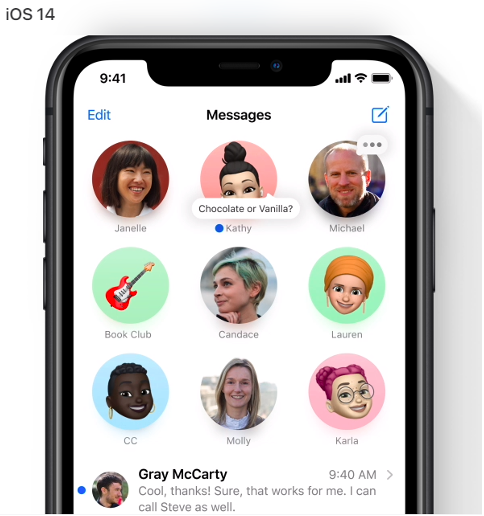
(All images are from Apple)
Pinned conversations will also sync across Messages in iOS, iPadOS and macOS.
Use Widgets on Your Home Screen
Those iPhone widgets that have been in your far-left screen for a while have received a huge update and are more powerful and helpful than ever before.
You now have more widgets to choose from and you can bring them over to your home screen. Add a widget for your calendar and you will see the next meeting coming up as soon as you pick up your phone.
You can make widgets small, medium or large and can also stack several in a window. This allows you to use less Home screen real estate while being able to access more of your widgets.

Compact Screen UI Makes Multi-tasking Easier
No more will an incoming call take up your entire phone screen. The new compact UI in iOS 14 has calls now showing up as a small banner that you can easily click to answer or decline.
Other compact UI features include:
- Siri being more compact
- FaceTime calls coming in as a banner
- Third-party VoIP apps like Skype can also support the compact UI.
Do More While on Video
A new Picture in Picture feature allows you to work in another app while on FaceTime or watching a video.
The video will show up in a small box overlaid on top of your screen. You can pinch to resize the video window to make it larger or smaller. You can also drag it to any corner of your screen and minimize the window if needed.
Smart App Library Solves the “Lost App” Problem
One of the most helpful features that you will find in iOS 14 is a new App Library that automatically organizes and categorizes all your apps as soon as you upgrade.
All apps can now be found in a single screen, instead of having to page through multiple screens. They are easy to see and can be opened with a single click.

Send Audio Messages with Siri
If you are in a rush and don’t have time to type out a detailed text message, you can have Siri send an audio message by text instead. This is much more efficient and less time consuming for long messages that may include directions or detailed instructions.
To send an audio message with Siri:
- Activate Siri (“Hey Siri” or by pushing the home button)
- Say “Send an audio message to (contact name)”
- Siri will prompt you with, “OK, recording”
- Speak your message to Siri
- When you stop speaking for a few seconds, Siri will give you the option to Send, Cancel or Play Back the audio.
More Uses for Maps
If you have not used Maps much on iPhone other than to look up an address from time to time, you will want to explore the new capabilities that iOS 14 brings to this app.
Here are a few of the Maps improvements:
- Maps now routes cyclists along bike lanes
- Get recommendations from Guides for places to visit in a city
- View congestion zones in major cities
- Know when you are approaching speed cameras
- Use Siri to give your ETA to a contact while using Maps.
Get Help Optimizing Your Business Devices from Sound Computers
Most offices in Westbrook and other Connecticut towns now have a mix of computer and mobile device workflows. We can help you optimize to make your processes secure and efficient.
Contact us today to schedule a free consultation. Call 860-577-8060 or reach us online.

Does your business use a lot of spreadsheets to keep track of different items? This type of manual list process to track devices, visitor logs and content scheduling can be tedious and make sharing that information cumbersome.
In order to optimize your Connecticut business for efficiency, one of the things you should look at is technology solutions that may be able to replace manual processes.
More than 40% of employees spend at least 25% of their work week on manual and repetitive processes.
Some of the top manual processes that surveyed workers said they would like to see automated to save time include:
- Data Collection
- Approvals
- Updates
Each of these areas can be addressed with a brand new app that was just added to Microsoft 365 business and enterprise subscriptions with SharePoint. That app is Microsoft Lists.
How Does Microsoft Lists Work?
Microsoft Lists gives you a way to track information, collaborate on list-based work processes with others and use rules to create automated updates to increase productivity.
Lists can be moved from a basic spreadsheet to a dynamic cloud environment that allows you and others to access them via the web, a mobile app or from inside Microsoft Teams.
Microsoft Lists was rolled out during the summer of 2020 and has the ability to replace manual workflows, all those cumbersome spreadsheets and possibly other paid cloud apps (like a task manager).
Here are some of the things you can do with Microsoft Lists:
Access All List Workflows from One Place
Rather than having spreadsheets saved in different folders, Lists keeps all of your lists instantly accessible from one centralized home page. You can also access and use them from within Teams.
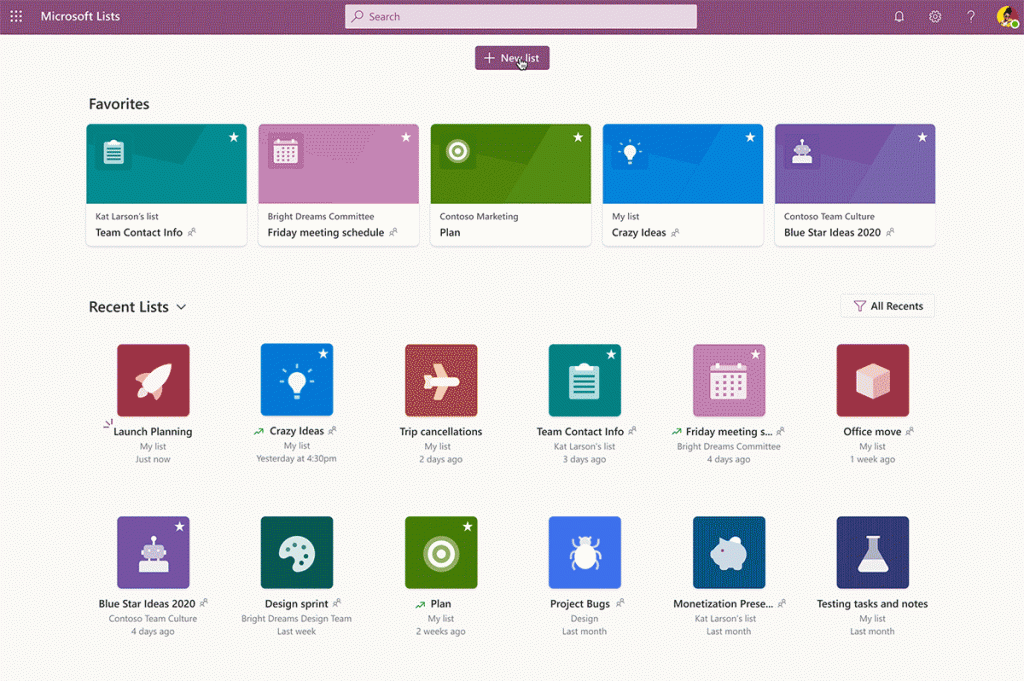
Recently used lists are at the bottom of the home page and those lists that you have designated as “favorites” are at the top. That means no more time wasted searching for your lists.
Quickly Create a List Workflow from a Template
The templates in Lists allow you to easily unleash the power of the platform and get an idea of just how much it can do. You can have two different list workflows that look completely different depending upon the template you use and the view you choose.
For example, the Asset Manager template allows you to add an asset photo and keep track of things like who has a device checked out and the warranty information.
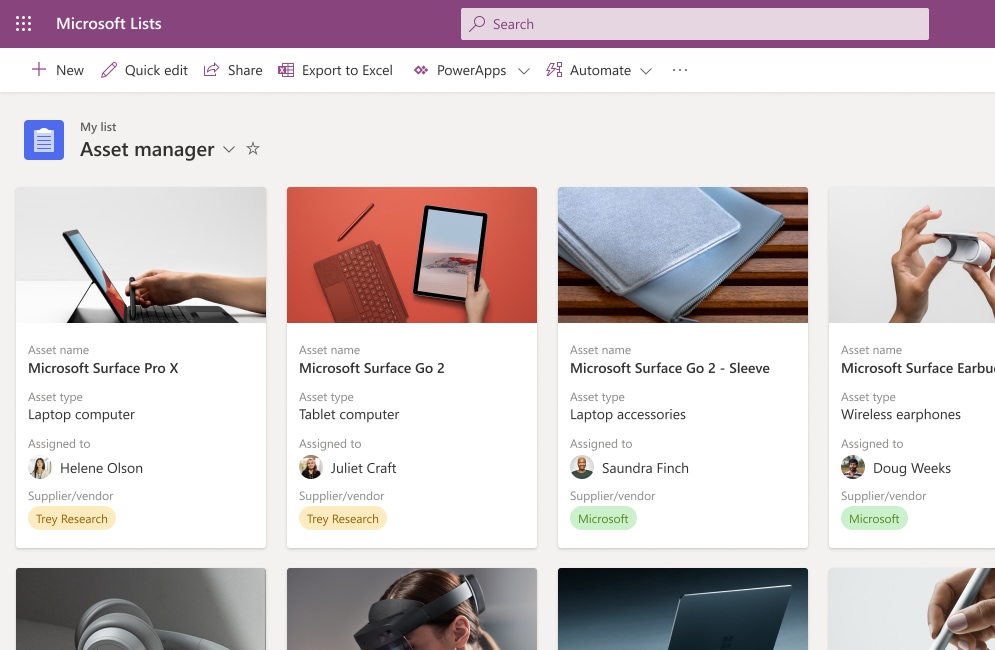
The Issue Tracker template can give you a data-driven view of current issues being tracked, who is responsible for resolving them and their current status.
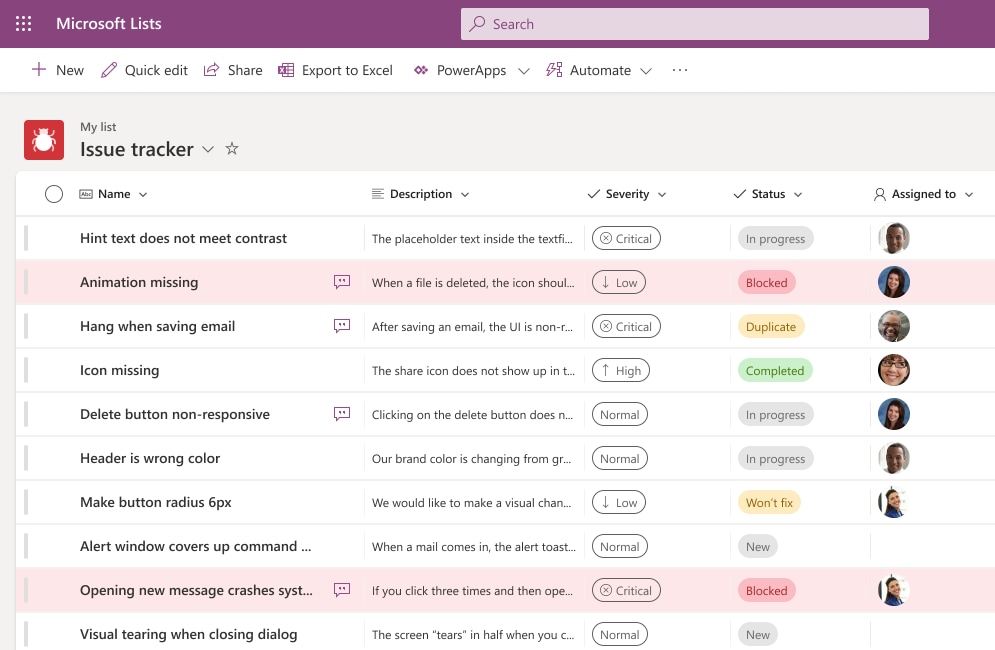
You can see that Lists can be morphed to fit whatever list-based workflow you have.
The current list of built-in templates for Lists include:
- Asset Manager
- Content Scheduler
- Employee Onboarding
- Event Itinerary
- Issue Tracker
- Recruitment Tracker
- Travel Requests
- Work Progress Tracker
Automate Notifications
You can reduce the time you spend following up to see if a task has been done and move an approvals process along more quickly by using the rules in Microsoft Lists.
You can set up rules that send an email notification to a designated address if any of the following activities occur:
- A list column changes
- A column value changes to a specific value (such as from “in-progress” to “done”)
- When a new list item is created
- When an item is deleted
Use Views to See Data in Multiple Ways
Another powerful feature of Lists is the ability to see your data in multiple views. This allows you to use a standard view that looks similar to a spreadsheet to view tasks or use a calendar view that can help with planning according to a schedule.
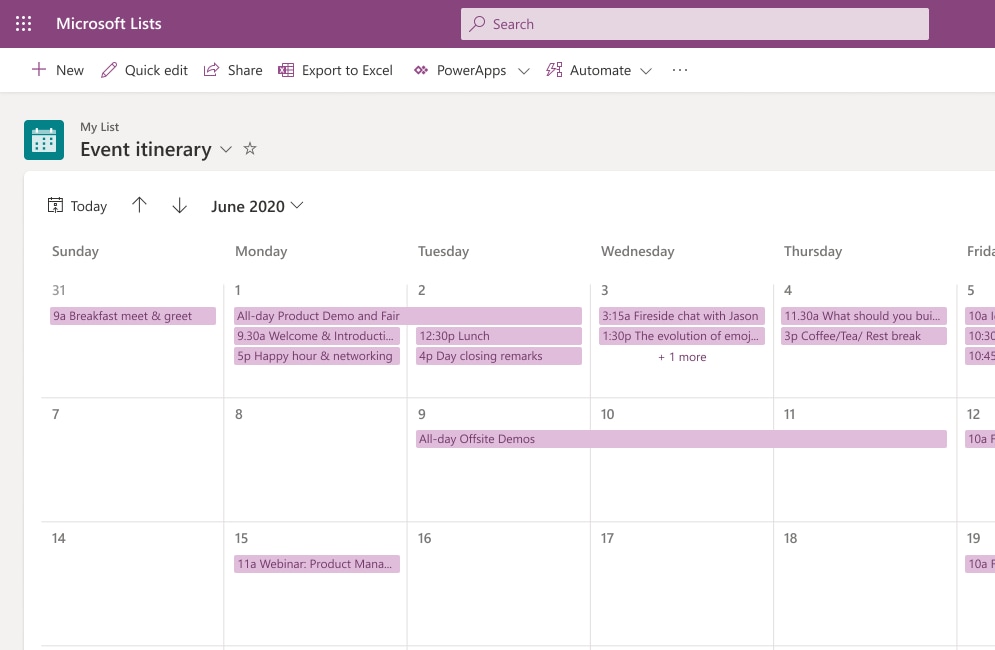
Microsoft Lists Calendar View
Some of the view options you have in Lists include:
- Standard view
- Calendar view
- Datasheet view
- Grid/Gallery view
Collaborate with Others
A feature that makes Microsoft Lists particularly useful to replace manual processes and repetitive apps is the ability to collaborate with others in the app.
Multiple people can work together on the same list-based process and you can even open Lists right inside Microsoft Teams which gives you the ability to message alongside your list workflow.
Giving everyone the ability to stay in sync on list activities removes the need to continually follow up with people and ensures everyone is on the same page. It also removes the need to email static spreadsheets back and forth.
Create Lists from Excel Spreadsheets
You have several options that make it easy to create a list. You can create one from a blank list, use a template, use another list as a base or create one from an Excel spreadsheet.
The ability to use an existing Excel list to create a dynamic Lists workflow makes it easy to replace those cumbersome spreadsheets with a much smoother, automated and more collaborative workflow.
Put Smart Productivity-Boosting Tools In Place at Your Business
Sound Computers can help your business take advantage of tools like Microsoft 365 to boost productivity and lower costs.
Contact us today to schedule a free consultation. Call 860-577-8060 or reach us online.

In April 2020, about 50% of surveyed businesses had 81% or more of their employees working remotely. That meant buildings were sitting empty while companies were being run completely remotely.
Now that re-openings are occurring around the US, many small and large business owners in Connecticut and the rest of the country are contemplating what it would take to keep their business remote and close their physical office to save money on overhead.
Technology solutions have made things possible that most companies would not have considered in the past. One of these is the ability to eliminate a physical office and put that money saved back into their business.
Even before the pandemic began, companies like Apple and U-Haul were running their customer support departments through at-home workers. Many organizations are considering a permanent switch to a virtual office now that the initial shut down from the pandemic has started to lift because they realize that it CAN be done.
One big reason is the cost savings. It is estimated that for each remote worker a business will save approximately $22,000 per year.
Where do those savings come from? A number of areas contribute to the savings:
- Improved productivity
- Office space savings
- Savings on utilities and other physical office costs
- Travel/commuting costs
- Improved employee retention
- Reduced absenteeism
- Ability to hire Independent Contractors for Virtual Help which potentially reduces the cost of benefits and wasted downtime by paying for only what they need
- Business continuity improvements.
If you have been thinking about the boost in bottom line from lowering your overhead by closing your physical office, read on for the things you need in place to make that happen.
How to Successfully Transition from a Physical to Virtual Office
There are some core things you need to have in place to ensure your business can run virtually just as well (or better) than it did with a physical office location.
Virtual Office Address Service
One thing you lose when you close your physical office is your business address. You want to keep a professional address and also have a level of separation between your home and work life which is why using your home address for your business is not a good idea.
There are many virtual office address services you can use that give you a little more legitimacy than just a P.O. box. A virtual address typically will be to a physical office building that provides conference room rental, office rental and more.
It gives you a physical address so that if someone were to look you up on Google street view, it would be to an office park or office building that allows you to have mail handling services for your company. This also keeps your Google My Business listing as an effective tool.
Team Collaboration Tool with Video & Chat
Your employees need to have the ability to virtually “stop by each other’s office” and this can be facilitated with a tool like Microsoft Teams. It makes it easy to chat, share files, use team channeled messaging and video/audio chat.
Encouraging the use of short video chats and team video meetings keeps everyone feeling connected and like part of the team even though they are all working in different locations.
Cloud Productivity & Storage Apps
The cloud is what is powering the ability for companies to work remotely. You want to put in a streamlined cloud productivity suite that includes cloud storage.
Utilizing less app platforms will be better for integration, automation and the user learning curve. Platforms like Microsoft 365 and G Suite give you cloud storage and several productivity tools that all integrate and make co-authoring and online collaboration easy.
Device & Network Security
Even though the computers accessing your business data are now located in employee homes instead of an office, you still need to ensure they have protection to keep your data safe.
The best way to do this is through a managed IT services plan that provides multiple security and user benefits, including:
- PC health monitoring
- Managed updates
- Managed antivirus/anti-malware
- Web protection
- Helpdesk support
- Remote support
When it comes to network security, the best way to secure data transmissions on so many different home networks is to use a business virtual private network (VPN).
A VPN will encrypt all online sessions no matter how unsecure the Wi-Fi network might be and can be used on computers and mobile devices.
VoIP Phone System
Virtual company phone lines is a must for a business without a physical office. VoIP allows your phone lines to be answered from anywhere and gives a professional sounding experience to the caller.
VoIP also costs much less than a traditional landline phone system and you can easily add or remove users whenever you need to.
Clear Virtual Work Policies
It is important to have policies in place so employees will know what is expected of them now that you operate from a virtual office.
For example, set up work hours, break times, etc. just as you would at a physical office.
Also, create policies for communications that might not have been necessary when everyone worked at the same location. For instance, instruct employees to set a “status message” in your office communications app when they are away from their desk or on the phone.
Get Help Transitioning to a Fully Virtual Office
If you have been considering making the switch to a virtual office, Sound Computers can help you put the technology pieces in place to ensure a successful transition.
Contact us today to schedule a free consultation. Call 860-577-8060 or reach us online.

As computers age, they inevitably begin to have problems. They slow down, cause more downtime and can begin to have strange issues like programs getting stuck and requiring a reboot.
Longevity studies of business computers show that PC’s that are older than four years have twice the downtime of three-year old computers.
If you are finding your Connecticut business continually having to pay for computer repairs on slow or problematic machines but you are not ready to completely replace them, some smart upgrades could make a big difference.
Upgrading the right areas of a computer can make it seem like you have an entirely new machine. This is especially true if certain components, like memory, were not particularly robust to begin with.
Renew Your Computer With Upgrades that Pack a Punch
One of the biggest costs of not upgrading an underperforming PC is the productivity loss. Technology is designed to improve productivity. However, it can also hold it back if it is slow or problematic.
If you have a PC that is slowing an employee down just 40 minutes per day, that adds up to over 13 hours per month in lost productivity! That means an employee making $20/hour will equate to a loss of $260 each month or over $3,000 per year. That money saved could be put to better use in your business.
The right computer upgrade can be the best of both worlds for a budget-conscious business owner. It can improve PC performance and productivity while only being a fraction of the cost of a full computer replacement.
Here are some of the best computer upgrades for your money:
Memory Upgrade
If you have a PC with just 4GB of memory, you are going to have problems with running certain programs (like Photoshop) and with multi-tasking or having too many browser windows open at the same time.
Low memory often leads to stuck programs, crashes and other frustrating slowdowns.
Most PC’s will have the ability to upgrade the memory. Increasing your computer’s memory (aka RAM) is a low-cost upgrade that can significantly improve performance and make it seem like you have a whole new computer.
Upgrade Your HDD to an SSD
Hard disk drives (HDD) have been used on computers since the beginning to store all the data and run programs but there is now a faster and more efficient replacement called a solid-state drive (SSD).
SSD’s have come down in cost in the past few years which makes them an affordable upgrade that can significantly improve stability and speed.
SSD’s do not have any moving parts (unlike HDD’s) which makes them more durable. They also use flash memory to write information which makes them much faster when it comes to booting, opening programs and retrieving files.
SSD read/write speeds are about 4x faster than HDD.
Fan/Cooling System Replacement
Cooling systems can begin to deteriorate as computers age and heat will cause a PC to run slower or have other problems.
Are you noticing that your computer or laptop seems to get hotter than it used to? Then a fan or cooling system replacement could be the upgrade you need to give your computer more years of usable life and stop heat-related performance issues.
Upgrade to a Larger Monitor
Limited screen real estate can make multi-tasking more challenging and make tasks take longer. If you have to continually switch between apps instead of being able to have them on screen side-by-side, it can seriously degrade productivity.
Employees switch between apps approximately 1,100 times per day and that activity takes a toll.
A larger monitor for your desktop computer, a second monitor for your desktop or a monitor to use with a laptop can make a big difference in your workflow by giving you more screen space.
Graphics Card Upgrade
The creation of drag-and-drop video and photo editors have made it easier for novices to create graphics and enriching marketing content. However, these programs often require a decent video card or they can slow your system down when you try to use them.
A graphics card upgrade can stop problems and slowdowns that happen in graphic-rich applications and are a fairly easy upgrade to make.
Add More USB Ports
One thing that can be frustrating is when you have fewer USB ports than you need on your PC. Another problem is if you have two ports so close together that if you have one device with a larger USB plugin being used, you can’t access the other port.
You can easily add more USB port capability by using a port hub. The port hub is like when you plug a power strip into an outlet. It will expand your USB capability and allow you to plug more devices into your PC at the same time.
Improve Your PC Performance with a Cost-Saving Upgrade
Sound Computers can help your company get better performance out of your business PC’s without needing to completely replace them.
Contact us today to schedule a free consultation. Call 860-577-8060 or reach us online.

Strategic approaches and innovations are part and parcel of informational technology and related fields. Managed service provider (MSP) is another innovation that is partially related to the subscription model. (For more information on what an MSP is, visit this site for more information.)
The majority of the companies are more toward the services which are in the market and required by the IT support. They don’t feel the need of using the services which are related to a subscription model or the relatively new services.
Reasons for using MSP:
One of the reasons for the rapidly growing popularity of Managed Service Provider is the factor of stability. The MSP ensures the stability of the clients and is said to be inexpensive as well. However, another reason why companies are preferring MSP can be the usage of cloud servers. Companies are now digitizing their operations and for that they are using MSP.
MSP and IT support:
Managed Service Provider helps the company to notice the technical issues beforehand. This helps the company to understand the minor issues and also eradicates the chance of losses. However, regular maintenance and proactive services are required by the company to make sure that the network runs smoothly and effectively.
Benefits of utilizing MSP:
Managed Service Providers can be amazingly beneficial. This is especially true for the companies that need technical support and expertise. Maintaining the IT infrastructure can be difficult for companies which is one of the reasons for the preference of MSP. Mitigating the security threats and increasing the life span of the devices are two important factors of the Managed Service Provider.
1. Centralizing the network: System centralization is extremely beneficial as it consumes all the data in a single unit which helps in centralizing the network. Moreover, centralization speeds up the processes and improves the company data.
2. Increased support: System management and continuous monitoring help the IT system to be upgraded with no risk and increased cost. The systems will be updated without any support.
3. Efficient IT budget: MSP helps in budgeting the IT services in the most efficient manner. MSP will allow the systems to be updated without any extra cost which will eventually decrease hardware and maintenance costs.
4. Security and safety of the data: Outsourcing the data with MSP is no longer problematic as MSP is designed in such a way that it ensures the data management regulations and provides backup of the systems.
5. High-level productivity: MSP addresses the technical issues beforehand which saves a lot of time and money. Therefore, with the help of MSP, there will be minimal system failures and breakdowns which will help the employees to work more efficiently and productively.
6. Accountability of the service provider: The specialists associated with MSP are professional people with extensive IT knowledge which can help and guide you at every step. The employees can focus on their work while the assigned specialist takes care of the IT issues.
Nonetheless, to use any service one needs to study and explore it. To get a reliable service, you must look for a specialist who can guide you through the whole process.


It is an overwhelming decision to change traditional methods in business. But is it worth it? Most of the time, yes!
Reaching new levels in your business might mean there is a need for improved technologies to excel in this modern world. This is the case in implementing an ‘Enterprise Resource Planning’ system which is commonly known as the “ERP” system. As the name suggests, it helps businesses to resolve complex issues. It is advanced software that has now been adopted by more than 40% of corporations to increase their productivity.
The real question is, “Does it help to improve the productivity of any business?”
A business is more likely to boost sales when managed efficiently and employing time-saving measures. A solid ERP system implemented with the correct features can make a big difference when it comes to common inventory problems.
Today there are several issues driving manufacturing business such as labor turnover rates and even outsourcing making it less profitable. A successful business requires effective strategies to maximize profits with minimal resources. How do you do the same amount of work with less people and not burn them out? ERP is the solution to these modern problems whether be it resource planning or management issues.
Don’t stress about little things you cannot change. Start to focus on big things that you can change or improve. If you are thinking about how to share your burden with an ERP system and how it works, here is how it will help to increase productivity in manufacturing businesses:
Time saver:
Imagine what could have been done with that time that you spent organizing databases and order arrangements. Time is precious. Save it to spend on what grows your business. The best way you can buy yourself some extra time is by getting auxiliary help. This is where ERP comes in and saves a ton of your time by managing huge files sophisticatedly. It can manage the entire resources of your business from Human Resources to Finances and Clients.
Manages excel files:
What has been the most tiring of all tasks? Managing those immensely large excel sheets and keeping a check on them regularly. When I said it solves all the problems, I meant it. ERP systems will help you with all the complex processes despite the size and level of the organization. It can automatically get updates on information and maintains the flow of databases. Getting an awesome ERP system will cut down labor and save an enormous amount of time and energy.
Cost-reduction:
It drastically reduces the cost of labor and outsourcing which eventually helps to improve the quality of the product. When the quality of a product is upgraded, it affects sales and drives more clients towards you. It drops administrative expenses as well as operative costs. The costs saved from these processes can be reutilized for bigger and lucrative purposes.
It also reduces the amount of time spent digging around for human errors. Your finance department will thank you because the amount of inventory errors and shipping issues will decrease. Cycle counts and physical inventories will be a breeze. Workers will be happier and take pride in what they are able to accomplish without burning out. That leads to better employee retention and an invaluable knowledge base in those employees that stick around long term.
All three of the privileges above are interrelated to the effective management of business and ERP is a comprehensive way to increase parameters of each performance: gathering, editing, updating and managing information and databases. Most of the companies have already switched to ERP systems to improve productivity and minimize investment. In this continuously upgrading world, to run a successful business and to compete with large firms it is essential to keep up with the most modern ways to handle traditional problems at a low cost. An ERP system can transform methods to generate maximum workflow and maintaining product quality.


It has been over a year since you purchased that new computer. The once lightning fast computer is starting to slow down. Tasks are seemingly taking longer and longer. You wonder to yourself, “Will this computer ever run as fast as it once did?” Wonder no more. Here is a list of 10 ways to whip your computer back into shape:
Read more
Windows 7 support will end on January 14, 2020. This date is rapidly approaching and Microsoft is holding firm (unlike with Windows XP when Microsoft relented and extended support). What does the end of life for Windows 7 mean? What will happen if you continue using 7 after support stops? Should I upgrade my existing computer or purchase new? Is there any other option other than upgrading to Windows 10? With time quickly running out, choosing a path forward can seem very daunting.
Read more
Apparently, Softpedia is still trolling the Microsoft Community forums, as the site has come across another problem Windows 8.1 upgraders are experiencing: limited or no Wi-Fi connectivity. The site reports that the problem was first related to the Surface tablets, but customers on PCs and other non-Microsoft Windows 8.1 tablets are facing the same issues.
Read more
Debian 6.0 Hits “Freeze” Stage of Development Debian 6.0, also known as Squeeze, has just arrived at its “freeze” stage. What this basically means is that all of its features and vital characteristics have already been added and developers are currently working together among themselves as well as with prospective users to work out any remaining kinks or errors that still have not been addressed.
Read more