Time moves fast in the world of technology and operating systems that once felt cutting-edge are becoming obsolete. With Microsoft having set the deadline for Windows Server 2016 End of Support to January 12, 2027, the clock is ticking for businesses that use this operating system.
Once support ends, Microsoft will no longer provide security updates or patches which will leave your business systems vulnerable. It is not just about missing new features. Continuing to use unsupported software significantly increases the risk of cyberattacks.
If your systems are still on Windows Server 2016, now is the time to plan your upgrade. With about a year until support ends, waiting until the last minute can lead to rushed decisions and higher costs.
Understanding the Security Implications
When support ends, the protection provided by security updates and patches disappears as Microsoft will no longer fix bugs or vulnerabilities. Hackers often target unsupported systems because they know that any new exploits will go unpatched and open the door to attacks.
Legacy systems put IT administrators in a tough spot. Without vendor support, defending against threats becomes nearly impossible, compliance with industry regulations is compromised and running unsupported software can lead to failed audits.
Additionally, customer data on servers running this operating system is vulnerable to theft and ransomware. The cost of a breach far outweighs the cost of upgrading. Using unsupported systems is like driving a faulty and uninsured car. Failure is inevitable. It is just a matter of when it will happen.
The Case for Cloud Migration
With the end-of-support deadline approaching, businesses face a choice. Purchase new physical servers that run the latest Windows Server editions or migrate their infrastructure to the cloud. Investing in new hardware and software comes with substantial upfront costs and locks you into that capacity for five years (the typical span of mainstream support for Windows Server) plus an additional five years for Long-Term Servicing Channel (LTSC) releases.
On the other hand, a cloud migration strategy offers a more flexible alternative. Platforms such as Microsoft Azure or Amazon’s AWS cloud services allow you to select virtualized computing resources such as servers and storage which can scale as needed. On these platforms, you only pay for what you use and transform your IT spending from capital expenditure to operating expense.
The cloud provides greater reliability and disaster recovery to eliminate concerns about hard drive failures in your server rack. Cloud providers handle the management and upgrades of the physical infrastructure to free your IT team to focus on driving business growth.
Analyze Your Current Workloads
Before moving to the cloud, it is essential to know what you are working with. Take inventory of all applications running on your Windows Server 2016 machines. While some are cloud-ready, others may need updates or reconfiguration.
Identify which workloads are critical to your daily operations and prioritize them in your migration plan. You may also discover applications you no longer need which makes this an ideal time to streamline and clean up your environment.
When in doubt, consult with your software vendors to confirm compatibility as they might have specific requirements for newer operating systems. Gathering this information early helps you to avoid surprises during the actual migration.
Create a Phased Migration Plan
When transitioning to a new system, moving everything at once is risky. ‘Big bang’ migrations often cause downtime and confusion. The best approach is a phased migration to manage risk effectively. Begin with low-impact workloads to test the process and then proceed to medium and high-impact workloads once you are confident everything runs smoothly.
Set a realistic timeline that beats the server upgrade deadline by a significant margin and then work backward from the end-of-support date. This approach allows for plenty of buffer time for testing and troubleshooting (since rushing migrations often results in mistakes and security gaps).
Communicate the schedule to your staff clearly. They need to know when maintenance windows will occur so that they can also manage their workflows effectively. Managing expectations is just as important as managing servers and you don’t want to get in your own way. A smooth transition requires everyone to be informed and on the same page.
Test and Validate
Once you migrate a workload, it is essential to verify that it functions as expected. Key questions to ask include: Does the application launch correctly? Can users access their data without permission errors? Testing is the most critical phase of any migration.
After migration, run extensive performance benchmarks to compare the new system with the old one. The cloud should offer equal or better speed and, if things are slow, you might need to adjust resources. Optimization will be a normal part of the migration process until you find the perfect balance that works for you.
The summarized steps for a successful migration include:
- Audit all current hardware and software assets.
- Choose between an on-premise upgrade or a cloud migration.
- Back up all data securely before making changes.
- Test applications thoroughly in the new environment.
- Do not declare victory until users confirm everything is working.
The Cost of Doing Nothing
Ignoring the end of support deadline is not a viable strategy. Some businesses hope to delay until the last minute and then rush a migration but this is extremely risky. Cybercriminals constantly target outdated and vulnerable systems and often use automated bots to scan for weaknesses.
If you continue using Windows Server 2016 past the extended support dates, you may need to purchase 'Extended Security Updates.' While Microsoft offers this service, it is extremely costly and the price rises each year which makes it more of a penalty for delay than a sustainable long-term solution.
Act Now to Modernize Your Infrastructure
If your business still relies on Windows Server 2016, the end of support marks a pivotal moment for your IT strategy. Upgrading your technology stack is no longer optional. Whether you choose new hardware or a cloud solution, decisive action is required.
Take this opportunity to enhance your legacy system’s security and efficiency and ensure that your modern business runs on a modern infrastructure. Don’t let time compromise your data’s safety. Plan your migration today and safeguard your future.
Concerned about the approaching Windows Server 2016 end-of-support deadline? We specialize in smooth migrations to the cloud and modern server environments. Let us take care of the technical heavy lifting. Contact us today to begin your upgrade plan.
Windows 10 has been a staple operating system for many years. However, as technology continues to evolve, it is time to consider bidding farewell to this once-beloved platform. With the release of newer and more advanced operating systems such as Windows 11 and various Linux distributions, the limitations of Windows 10 have become increasingly apparent. In this article, we will explore the reasons why it is time to think about saying goodbye to Windows 10 and embrace the future of computing.Read more
The world of finance is about to experience a seismic shift with the introduction of Microsoft Copilot for Finance. This groundbreaking AI-powered tool promises to revolutionize the way financial professionals work, streamline processes, enhance productivity and unlock new levels of efficiency. Read more
In a world where technology constantly evolves, Microsoft stands at the forefront. It continues to pioneer innovations that transform how we interact with our digital universe and that includes Windows 11.
The fall Windows 11 update is a testament to Microsoft's commitment to excellence. It is more than just an upgrade. It is a leap into the future of computing. Microsoft touts it as “The most personal Windows 11 experience.”
Let’s explore some of the great features that make this update so significant.
Microsoft Copilot: Your Intelligent Partner in Creativity
A standout feature of the fall Windows 11 update is Microsoft Copilot. This AI-driven marvel is like your personal PC assistant.
Need help summarizing a web page? Want to change to dark mode but forgot how? Looking for a quick custom image for a social media post? Microsoft Copilot can do all that and more.

Copilot is seamlessly integrated into Windows 11. It offers real-time suggestions and turns ideas into reality with remarkable ease. Ask it what you need and the AI engine gets to work.
Updated Apps (Paint, Snipping Tool, Clipchamp & More)
Have you ever wished that Windows’ Snipping Tool could do more? This update grants that wish. The Snipping Tool is just one of many to get an AI upgrade.
Look for new capabilities in Paint, Clipchamp and Photos. Get a unique image from inputting a text prompt and style. The Cocreator tool in Paint makes it easy to jumpstart your creativity. It will generate the image and then you can edit it in the same app.
Microsoft Clipchamp is one of the easiest video creator tools out there. You can now just drag in your assets and clips. Then click to have the AI engine work its magic to create a video for you.
The new Clipchamp Auto Compose feature can:
- Recommend scenes
- Make edits
- Create a narrative based on your inputs
Easy Data Migration with Windows Backup
When you buy a new computer, moving data can be a pain. It can take hours to move your “pc life” between devices and there is always the risk that you will miss something.
The new Windows Backup feature makes moving between computers easier. You can choose backup options and folders. When ready to move, it is a simple process. You can restore the new PC from another backed-up PC.
Microsoft Edge: A Faster and More Secure Browsing Experience
Microsoft Edge received significant enhancements. These focus on speed, responsiveness and security. The Edge Secure Network feature offers more gigabytes. Microsoft increased user storage from 1GB to 5GB. This function encrypts your internet connection to secure data.
Edge Secure Network has many features of a VPN. This is great for extra online security. It is also helpful for companies trying to prevent breaches from clicks on phishing links
Save Energy & Battery Power
A feature called Adaptive Dimming is another enhancement of this update. Your screen slowly dims if you’re no longer paying attention. This has the dual benefit of saving energy and helping you refocus.
PC sensors power this feature as well as two others so it is going to be more common with newer computers.
The other two features that use sensors are:
- Wake on Approach
- Lock on Leave
A More Personal Experience
Beyond the technical innovations, this update brings more including a more personal touch to the user experience. Tailored to individual preferences, Windows 11 becomes an extension of the user's identity.
This includes things like:
- Personalized themes
- Custom widgets
- Intelligent assistants
Every interaction feels curated and intuitive. It makes for a truly personalized operating system.
Other Cool Enhancements
There is a lot of excitement packed into Windows 11. Here are a few more new features you can explore.
- Copilot in Microsoft Shopping: Find what you need fast when shopping online. Bing will provide tailored recommendations based on your requests.
- Content Credentials: Add an invisible digital watermark to your AI-generated images in Bing. Cryptographic methods help you tag your work.
- Bing Chat Enterprise Updates: Boost work creativity and enjoy multimodal visual search. Find information using only images.
- E 3 Model from Open AI: Use the Image Creator in Bing and you will likely be impressed. It has had an upgrade and uses the DALL.E 3 model to render images from text prompts.
Harness the Power of Microsoft Products
Microsoft is definitely a leader in work productivity tools and it has been for a long time. If you are still working like it was 2020, let us help you upgrade. Employees can be more efficient than ever with the right apps.
We have your back with Microsoft 365, Windows 11 and other solutions. Our experts will guide you so you can gain an edge on the competition.
Give us a call today to schedule a chat.
Imagine you are working away on your PC and see a Windows update prompt. Instead of ignoring it, you take action. You want to keep your device safe. However, when you install what you think is a legitimate update, you are infected with ransomware.
That is the nightmare caused by an emerging cybersecurity threat.
Cybercriminals are constantly devising new ways to infiltrate systems. They encrypt valuable data and leave victims with difficult choices. Once ransomware infects your system, your PC is pretty useless. You either need to pay a ransom or get someone to remove the malware as well as install a backup (if you have one!).
One such variant that has emerged recently is the "Big Head" ransomware. It adds a new layer of deception by disguising itself as a Windows update. In this article, we will explore the ins and outs of Big Head ransomware (including its deceptive tactics). We will as how you can protect yourself from falling victim to such attacks.
The Big Head Ransomware Deception
Ransomware attacks have long been infamous for their ability to encrypt files. This renders them inaccessible to the victim until a ransom is paid to the attacker. In the case of Big Head ransomware, the attackers have taken their tactics to the next level. The attack masquerades as a Windows update.
Big Head ransomware presents victims with a convincing and fake Windows update alert. Attackers design this fake alert to trick users. They think that their computer is undergoing a legitimate Windows update. The message may appear in a pop-up window or as a notification.
The deception goes even further. The ransomware uses a forged Microsoft digital signature. This makes the fake update appear more authentic. This adds an extra layer of credibility to the malicious message and makes it even more challenging for users to discern its true nature.
The attack fools the victim into thinking it is a legitimate Windows update. They then unknowingly download and execute the ransomware onto their system. The ransomware then proceeds to encrypt the victim's files. Victims see a message demanding a ransom payment in exchange for the decryption key.
By 2031, it is expected a ransomware attack will occur every 2 seconds.
Protect Yourself from Big Head Ransomware & Similar Threats
Cyber threats are becoming more sophisticated. It is not just the good guys exploring the uses of ChatGPT. It is crucial to take proactive steps to protect your data and systems. Here are some strategies to safeguard yourself from ransomware attacks like Big Head.
Keep Software and Systems Updated
This one is tricky. Updating your computer is a best practice for security but Big Head ransomware leverages the appearance of Windows updates.
One way to be sure you are installing a real update is to automate. Automate your Windows updates through your device or an IT provider (like us). This increases the chances of spotting a fake that pops up unexpectedly.
Verify the Authenticity of Update
Before installing any software update, verify its authenticity. Genuine Windows updates will come directly from Microsoft's official website or through your IT service provider or Windows Update settings. Be cautious of unsolicited update notifications and especially those received via email or from unfamiliar sources.
Backup Your Data
Regularly back up your important files. Use an external storage device or a secure cloud backup service. In the event of a ransomware attack, having backup copies is vital. Backups of your data can allow you to restore your files without paying a ransom.
Use Robust Security Software
Install reputable antivirus and anti-malware software on your computer. These programs can help detect and block ransomware threats. This helps prevent them infiltrating your system.
Educate Yourself and Others
Stay informed about the latest ransomware threats and tactics. Educate yourself and your colleagues or family members. Discuss the dangers of clicking on suspicious links as well as downloading attachments from unknown sources.
Use Email Security Measures
Ransomware often spreads through phishing emails. Put in place robust email security measures. Be cautious about opening email attachments or clicking on links. Watch out for emails from unknown senders.
Enable Firewall and Network Security
Activate your computer's firewall. Use network security solutions to prevent unauthorized access to your network and devices.
Disable Auto-Run Features
Configure your computer to disable auto-run functionality for external drives. This can help prevent ransomware from spreading through infected USB drives.
Be Wary of Pop-Up Alerts
Exercise caution when encountering pop-up alerts and especially those that ask you to download or install software. Verify the legitimacy of such alerts before taking any action.
Keep an Eye on Your System
Keep an eye on your computer's performance and any unusual activity. If you notice anything suspicious, investigate immediately. Suspicious PC activity can be:
- Unexpected system slowdowns
- File changes
- Missing files or folders
- Your PC’s processor “whirring” when you are not doing anything
Have a Response Plan
In the unfortunate event of a ransomware attack, have a response plan in place. Know how to disconnect from the network. Report the incident to your IT department or a cybersecurity professional. Avoid paying the ransom if possible.
Need a Cybersecurity Audit?
Don’t leave unknown threats lurking in your system. A cybersecurity audit can shed light on your system vulnerabilities. It is an important proactive measure to ensure network security.
Give us a call today to schedule a chat.

Microsoft’s recent investment in OpenAI’s ChatGPT has ignited a wave of innovation in the tech world and particularly within the Microsoft Edge browser. This strategic partnership has given birth to a multitude of groundbreaking features that promise to enhance the user experience. Read more
Microsoft released the Windows 11 OS (operating system) over a year ago. It was largely well-received as stable and user-friendly. The OS is not a large departure from the Windows 10 experience but it does offer a lot of enhancements over the older environment.
With several improvements and a free upgrade for Windows 10 users, it still lags in adoption. As of November 2022, Windows 10 still owns the lion’s share of Windows PCs. It has a 69.75 percent usage share as compared to 16.13 percent for Windows 11.
People are slowly upgrading to the newer OS. However, it is natural for some to take a wait-and-see stance. They want to make sure it is worth the time to upgrade. Additionally, no one wants to have to relearn their computer desktop.
The good news is that Windows 11 has a similar workspace feel to its predecessor but it packs a lot of great productivity and security benefits that Windows 10 lacks.
Here are some of the coolest features in this current Windows OS. After taking a look, you may choose to go ahead and take the plunge into the Windows 11 universe.
Snap Layouts
Most people are working with more than one app open at a time. It is not unusual to need to reference two different windows while doing side-by-side work. Switching back and forth between apps can be tedious. It is also time-consuming.
Approximately 68% of app users say that switching between apps costs them at least 30 minutes per day. Trying to size two windows next to each other can also be frustrating. You lose the scroll bar or can’t get to the menu items unless you resize.
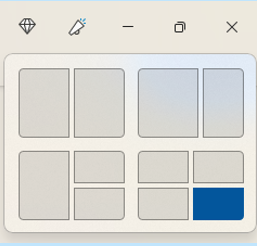
Enter snap layouts. This nifty feature in Windows 11 solves the multi-app problem. Simply hover over the maximize icon at the top of any window to get access to a snap layout.
Choose the area you want for the active app and it will snap into place and allow you to choose apps for the other slots.
Master Search
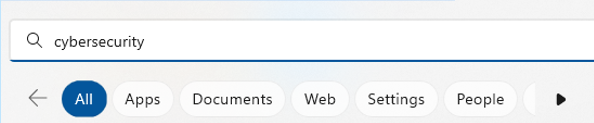
Need to find a document, website, image or app quickly? Use the Windows 11 master search. Just click the search icon on your desktop. You will get a search bar that will populate results from the entered keyword.
As an added touch, Microsoft populates fun topics into the search bar daily. Learn more about James Webb Space Telescope, Coffee Day or other fun subjects.

Once you enter your keyword, you can further refine your search. Refine it according to the type of search result you want (apps, documents, web, etc).
Clipchamp Video Editor
In the latest Windows 11 update, Microsoft gifted users with a free video editor. The new Clipchamp app makes it easy to edit videos. You don't need to download any extra software.
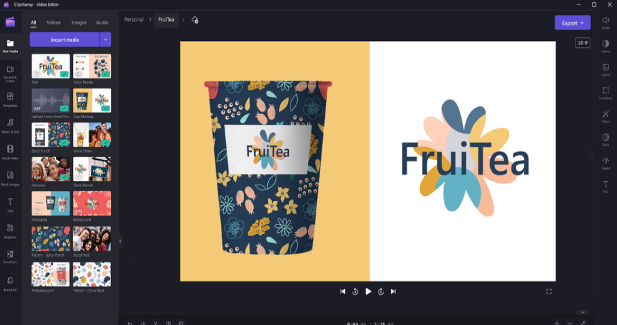
Clipchamp has a lot of the features you would expect to have to pay for. These include templates, effects, video resizing, green screen and more.
MS Teams Video, Audio & Text Messaging
Video calls have become the norm since the pandemic but not all video software is easy to use. Most of us need to wait on someone late to a call because they were struggling with the app.
Windows 11 comes with Microsoft Teams preinstalled. This gives you a simple click-to-call experience. You can easily invite someone to a video or audio call. The person does not need to have a Microsoft account to connect with you. This makes things easy on both sides.
Another great feature of the Teams app in this OS is the fact that you can use it for SMS messaging. Instead of needing to drag out your phone, just text someone from your desktop.
Accessibility Features
Windows 11 has some great accessibility features. They are designed to help ensure everyone can use their computer as they want. Those with disabilities can enjoy these features as well as those that like the extra flexibility they offer.
Four of the newest accessibility features in the OS include:
- System-wide live captions
- Focus sessions
- Voice access
- More natural voices for Narrator (Windows’ built-in screen reader)
Collections in Microsoft Edge
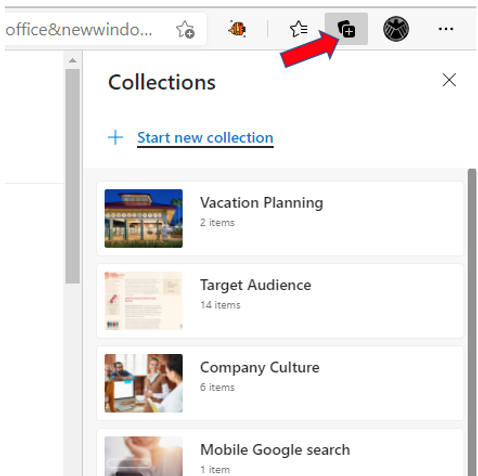
Microsoft Edge is the default browser for Windows. It is worth checking out if you haven’t yet and especially because of a feature called “collections.”
If your bookmarked favorites are becoming a mess, you will love this Edge capability. If you click the “plus” icon at the top of an Edge browser window, you will get the collections panel. Add a collection subject and click to add webpages.
You can see a preview of what you have added and everything is nicely organized. Collections are easy to access and easy to delete when you are finished with them.
Microsoft Defender SmartScreen
Phishing remains the biggest online security threat. It is used to enable many forms of cyberattacks from ransomware to credential theft. A significant number of phishing messages send users to malicious websites. You often don’t know until it is too late that you have landed on a malware-laden site.
Windows 11 includes Microsoft Defender SmartScreen. This app helps protect you from those dangerous phishing sites. The app checks URLs in real time against a dynamic list of reported phishing sites. It will warn you if a site is potentially dangerous.
Want an Expert to Help with Your Windows 11 Upgrade?
It can be intimidating to upgrade your system’s operating system. Why not get a pro to help? Give us a call today to schedule a chat about a Windows upgrade.


Signing up for a Microsoft 365 Business account gives you more than just access to the Office applications (Word, Excel, PowerPoint, Outlook) and cloud storage. Your subscription comes with many other tools (like Visio) and extras that you may not even know about.Read more

Microsoft announced its brand new Windows 365 in early August. This is a cloud-based computer designed that capitalizes on the new hybrid workforce and the rise of remote teams.Read more